Equipple supports a range of numerical assessment data, which will be displayed on each pupil’s 'Notes' page for easy access and review. To create and add a new assessment category for your whole school or for an individual class, please follow the instructions below.
Before beginning, it is a good idea to read the Understanding Assessment Data article.Video Guide
Text Guide
Step 1
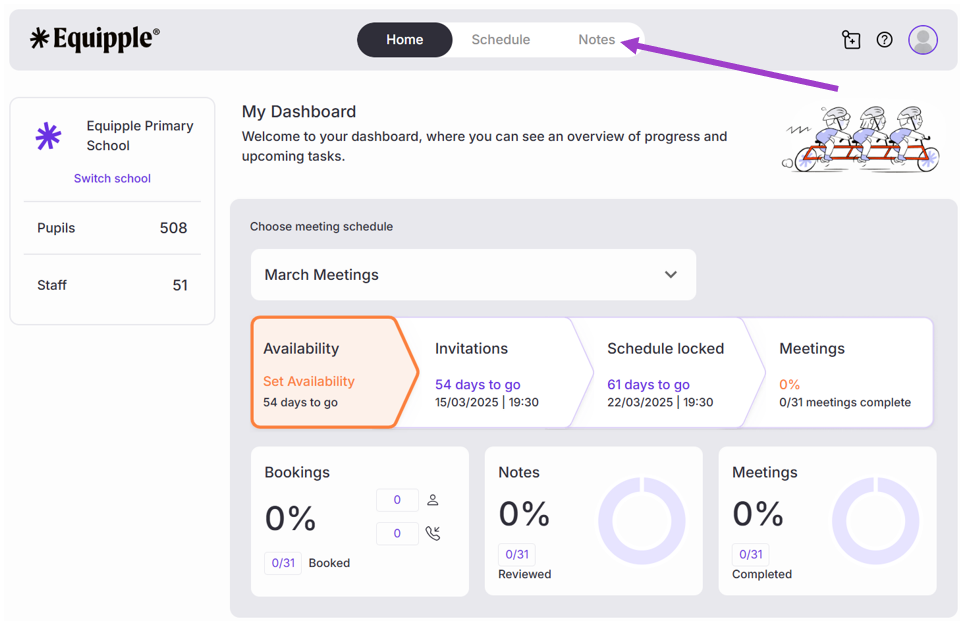
- From the Equipple ‘Home Screen’, you want to click the tab at the top bar which says ‘Notes’.
Step 2
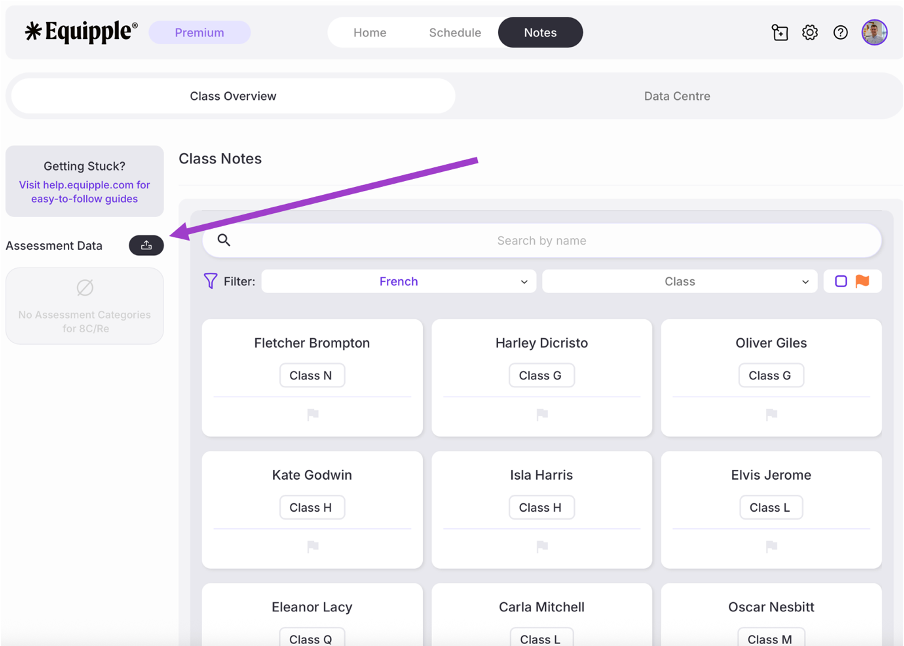
In the top left-hand corner, click the ‘+ Upload assessment data’ icon.
Step 3
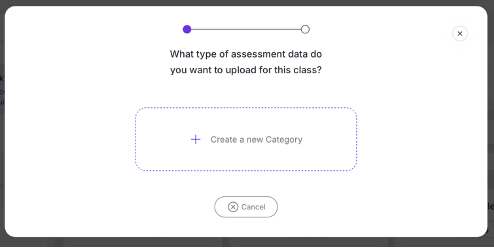
- A pop-up tab will appear and you can simply click ‘create new category’ to set up a new assessment data widget.
Tip: Avoid creating new assessment categories which are the same for different school years (for example, PTE Year 4, PTE Year 5, PTE Year 6 etc). In this example, you would be better to use a single 'PTE' category for the whole school. The reason is that PTE will then appear as one single line graph on the pupil notes page for each student on their profile, covering their pupil journey throughout the school, with multiple datapoints on the chart for each year showing a clear line of progressionStep 4
- Give the new assessment category a name. For example, ‘French Year 8 Unit Test’ or ‘Weekly Spelling Test.’
- You can also provide a description such as the specific class or year to make it easier for you to find your classes.
- In the ‘Result Type’ drop-down menu, you have four options: ‘Percentage, ‘Mark’ ‘Grade’ or ‘Attainment + Effort’ depending on how the assessment is graded.
- Read this article for detailed guidance on what these fields mean.
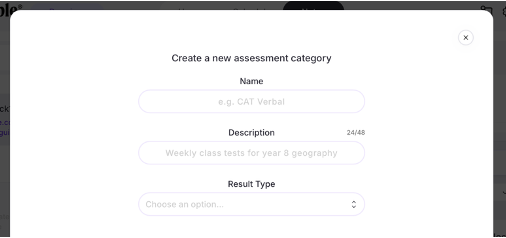
- You can then select the classes associated with the data that you would like to upload and click ‘create’
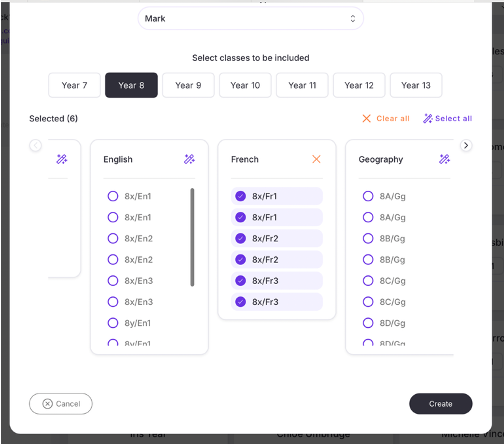
Step 5
- A new pop-up tab will open which allows you to design how you would like the data to appear.
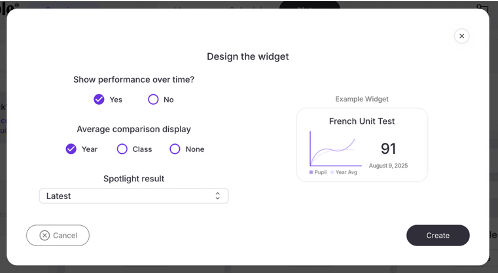
- You can select whether you would like 1 stand alone piece of assessment data or whether you would like to track the performance over time. You can also choose to measure this against the class or year group average.
- In the ‘Spotlight Result’ drop-down menu, you can select from one of three options: ‘Average’, ‘Most Recent’ or ‘Prediction’. This will be the highlighted and most visible piece of data for that assessment on a pupil’s profile.
- When you click ‘create’ a pop up will appear and you will be ready to upload your data.
Step 6
- Click ‘Add assessment data’ if you are ready to upload the data.
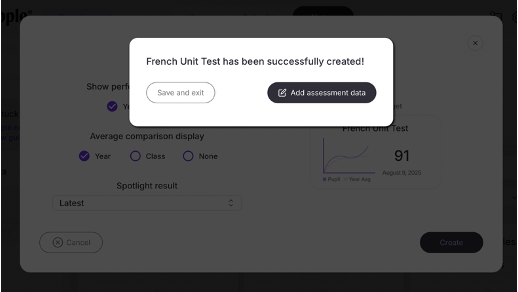
- The next time you add assessment data, you will now see this category in the drop down menu.
You have now successfully created and added a new assessment category. If you require support to manually upload the assessment data for that subject, please refer to this support article.
Was this article helpful?
That’s Great!
Thank you for your feedback
Sorry! We couldn't be helpful
Thank you for your feedback
Feedback sent
We appreciate your effort and will try to fix the article