Staff at a school can upload assessment data in 2 main ways (inputting the scores directly or uploading data through the Excel Uploader) by following the steps outlined below:
Before beginning, it is a good idea to read the Understanding Assessment Data article.Step 1 – Open your assessments
• From the Equipple home screen, click ‘Assessment data’. You can also get there from ‘My students’ in the left-hand sidebar.

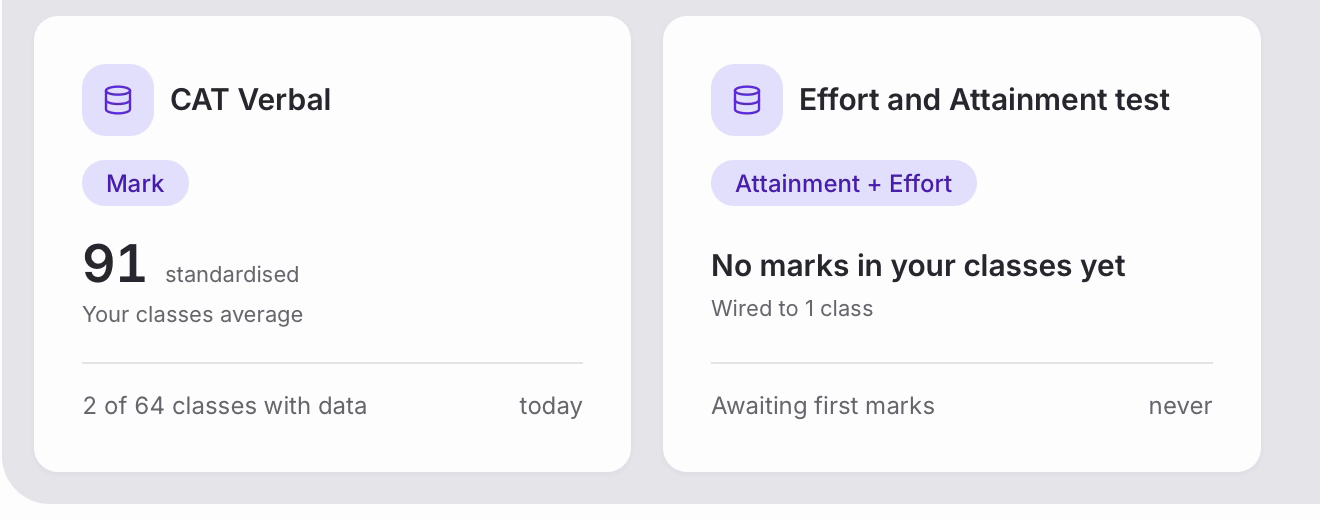
• ‘Your assessments’ lists the categories for the classes you teach. The card on the left counts your categories, records and classes, and the cards on the right are the categories themselves — each showing how many marks have been entered and when it was last updated.
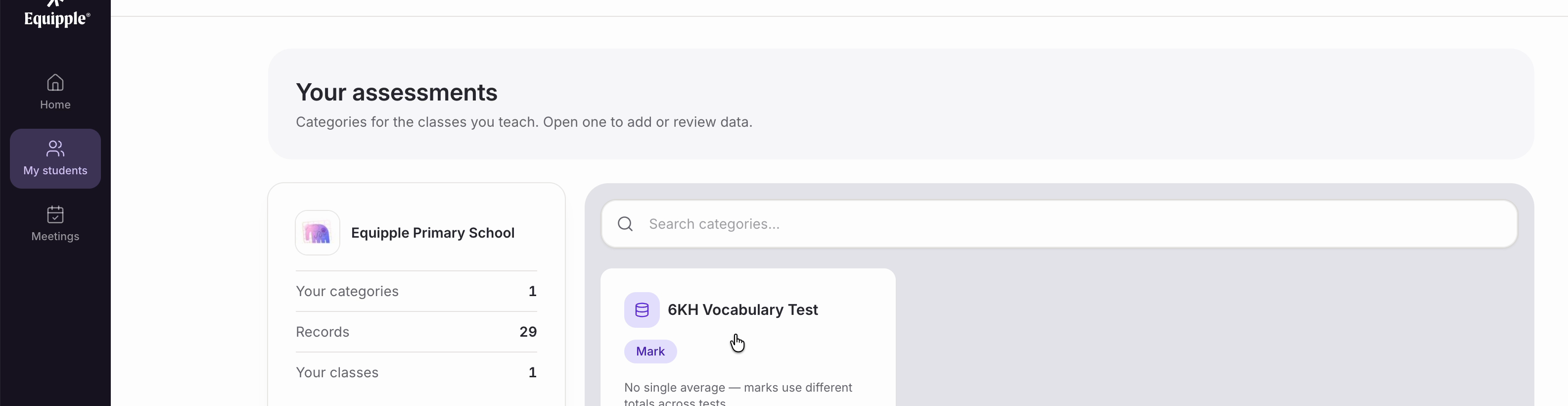
Nb. If the category you need doesn’t exist yet, ‘New Category’ creates one. There is a separate article on Adding A New Assessment Category.
Step 2 – Open the category
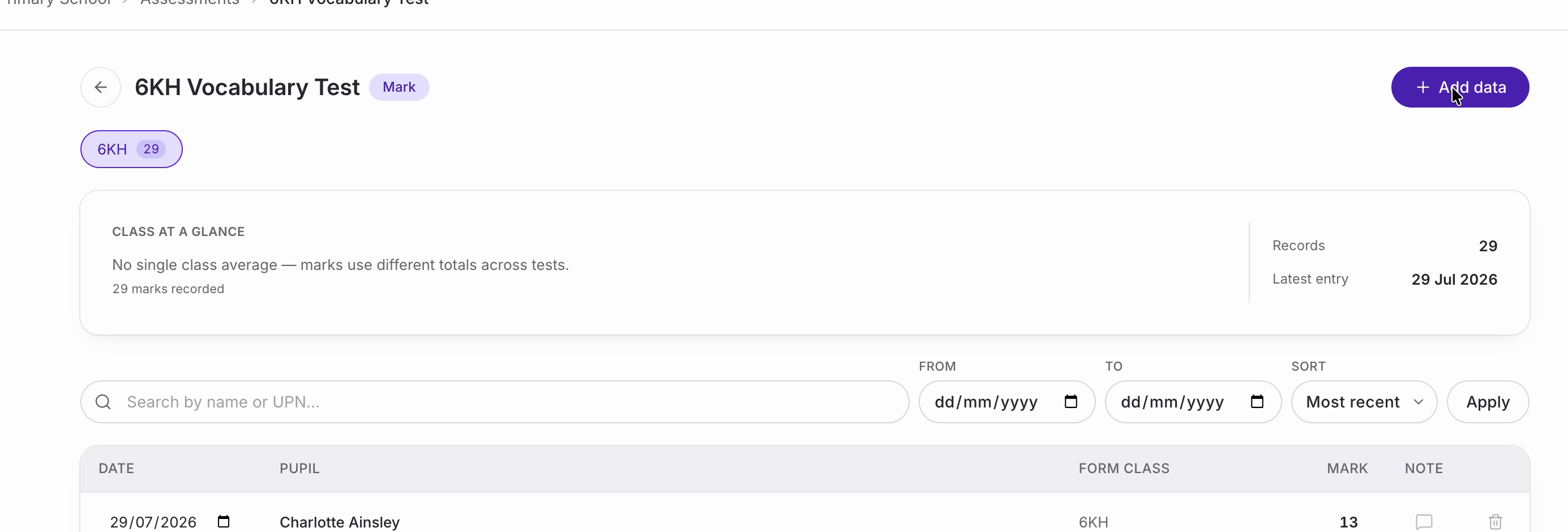
• Click the category you want to add marks to.
• ‘Class at a glance’ summarises what is already recorded, and the table underneath lists every mark by date and pupil. You can search by name or UPN, filter by date, and sort the list.
• Click ‘Add data’ in the top right.
Step 3 – Choose how to add the marks
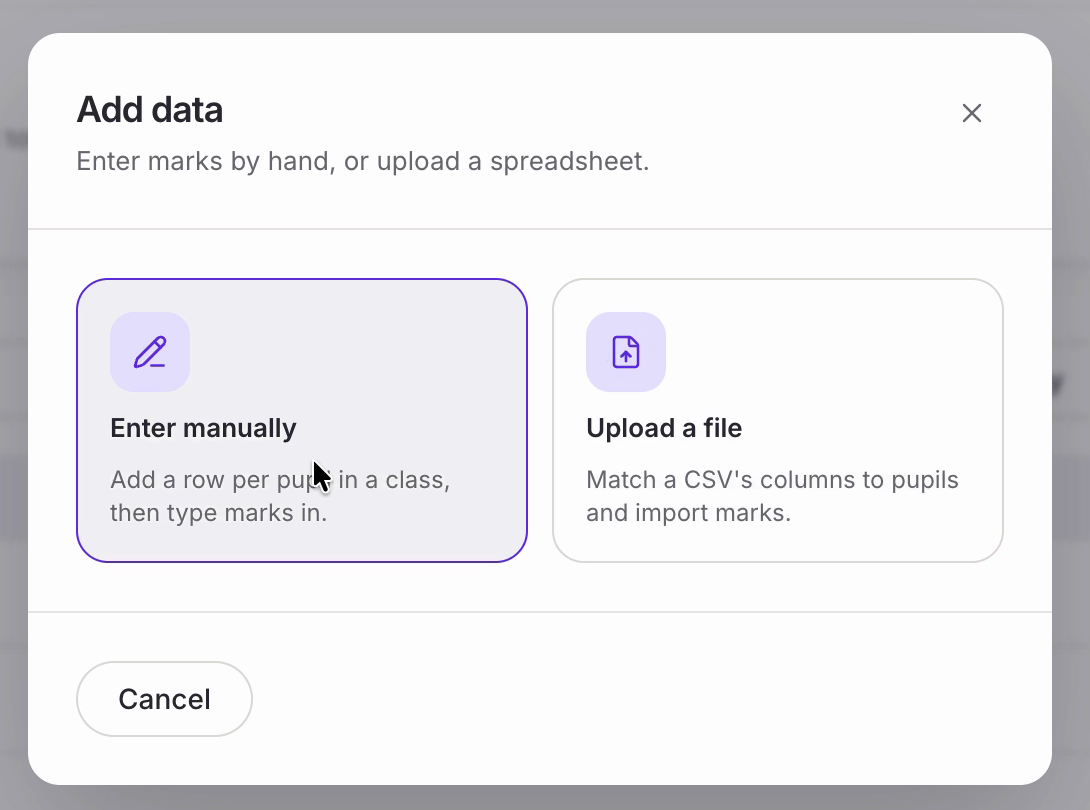
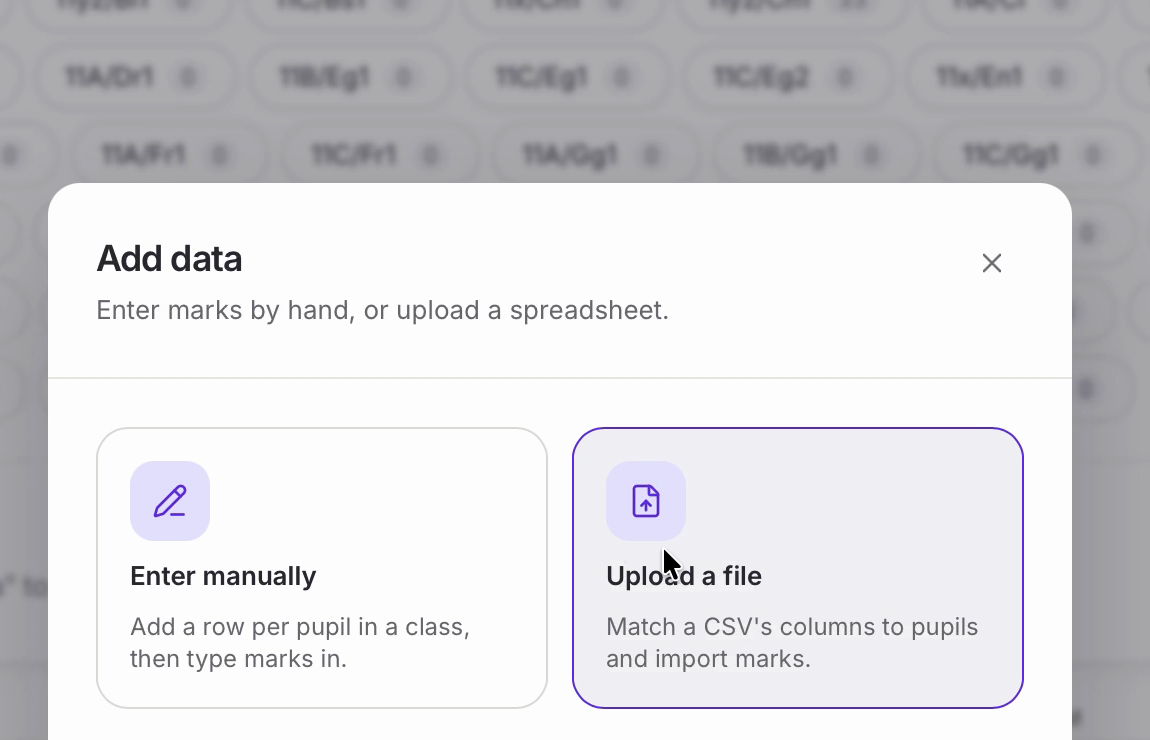
• ‘Add data’ asks how you would like to work. Choose ‘Enter manually’ to add a row per pupil and type the marks in.
Step 4 – Pick the class and the date
• Select the class you are adding data for, then set ‘Assessment date’ to the day the assessment was completed.
• Click ‘Add pupils’.
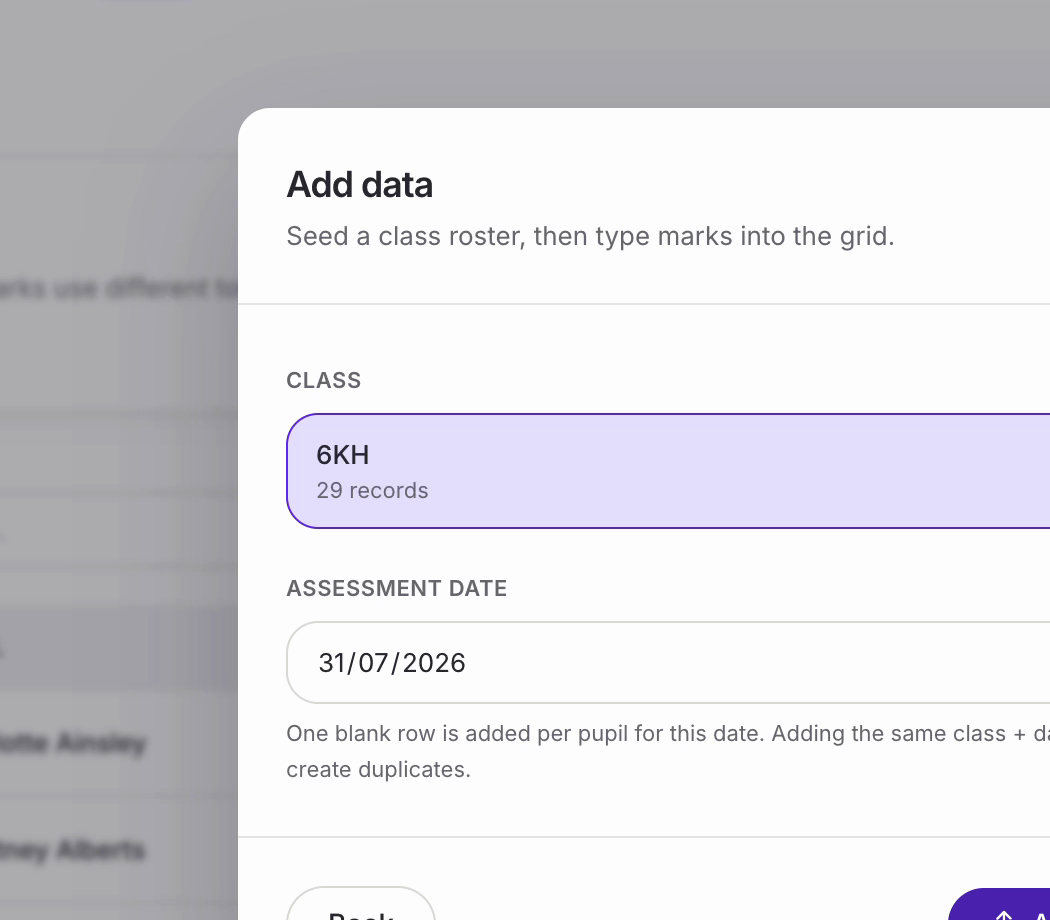
Nb. One blank row is added per pupil for that date, so you don’t need to add pupils individually. If you pick the same class and date again by mistake, Equipple won’t create duplicate rows.Step 5 – Type the marks in
• Your class now appears as a list of blank rows, one per pupil, all dated for the assessment.
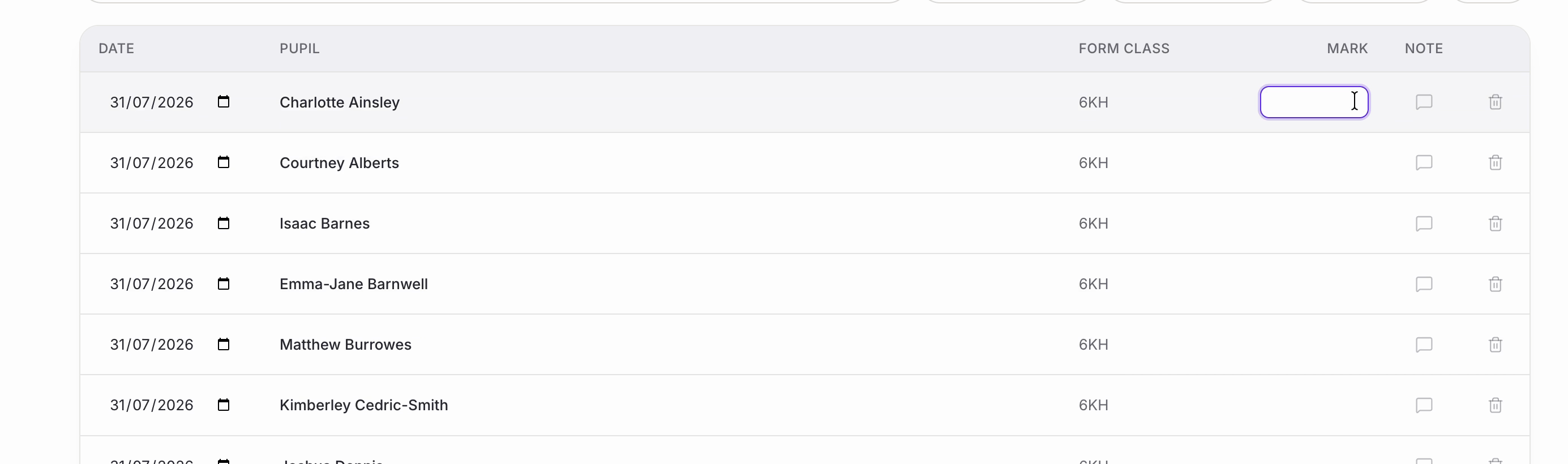
• Click into the ‘Mark’ column and type. Each mark saves on its own as you go — you will see a short confirmation for each pupil in the corner of the screen, so there is nothing to submit at the end.
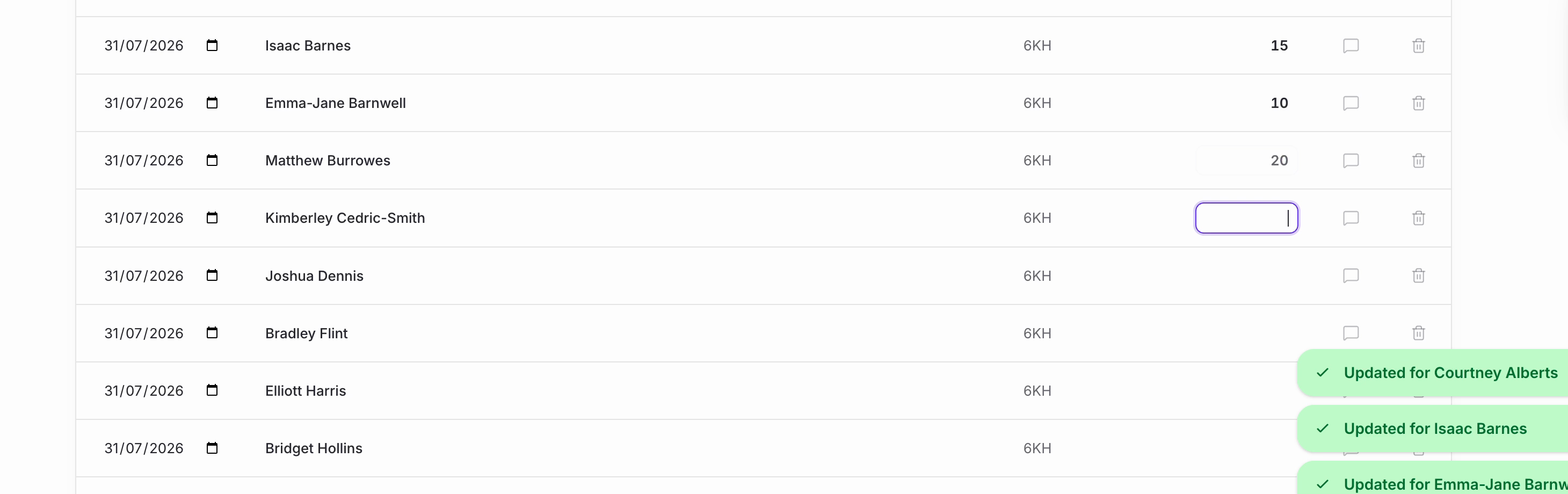
• If a pupil needs some context — they were absent, or sat a different paper — use the icon in the ‘Note’ column to add a note against that mark. The icon fills in once a note has been added.
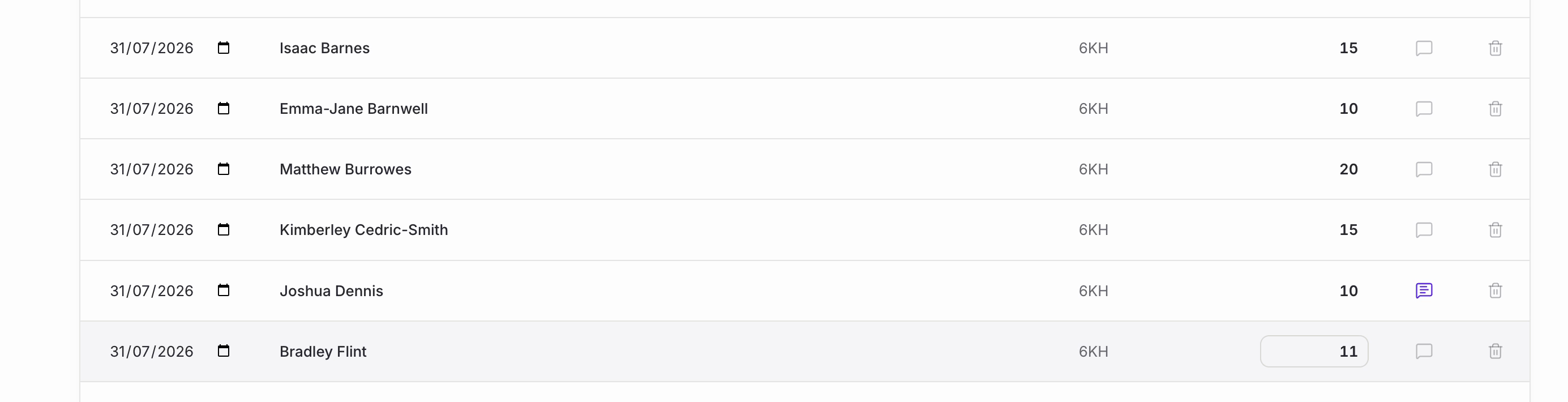
Nb. If you need to correct something later, you can change a mark, its date or its note straight from this table, and the bin icon at the end of the row removes a record entirely. There is a separate article on Manually Editing Assessment Data.
Checking it landed
• Go to ‘My students’, open your class and select a pupil, then choose the ‘Assessments’ tab.
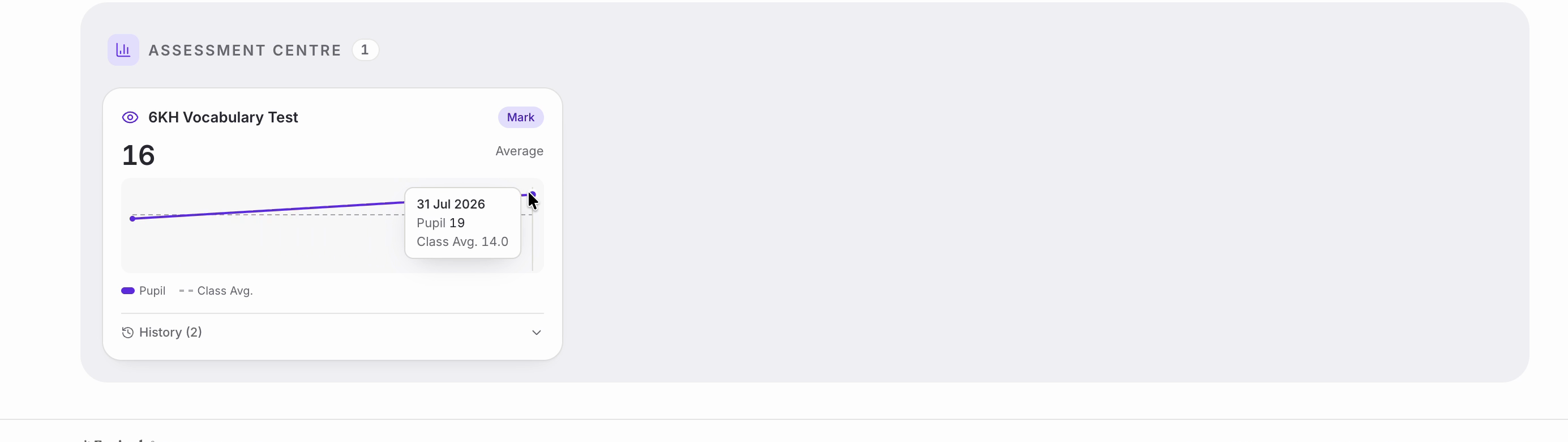
• ‘Assessment centre’ shows the mark you have just entered, plotted against the class average over time. Hover a point to see the detail, and ‘History’ lists every record you hold for that pupil in that category.
That is all there is to entering marks by hand. You can add as many assessment categories and data points as you like — the more you record, the fuller the picture you build of each pupil.
Uploading using the Excel Uploader
To upload assesment data using the Excel uploader please follow steps 1-3 above but this time we will select ‘Upload Your Own File.’
This upload function allows you to upload your own Excel spreadsheet. If you don’t have an Excel then you can generate your own by selecting ‘generate a blank CSV template.’ This template can be useful as it will provide you with all the information that you will need to upload data easily including UPNs for your pupils which make life much easier to identify pupils.Uploading a spreadsheet
If you already keep your marks in a spreadsheet, or you would rather type them in Excel than in Equipple, you can import them instead. Equipple matches each row to a pupil and files the mark for you.
• Start the same way as before — open the assessment category and click ‘Add data’ — but this time choose ‘Upload a file’.
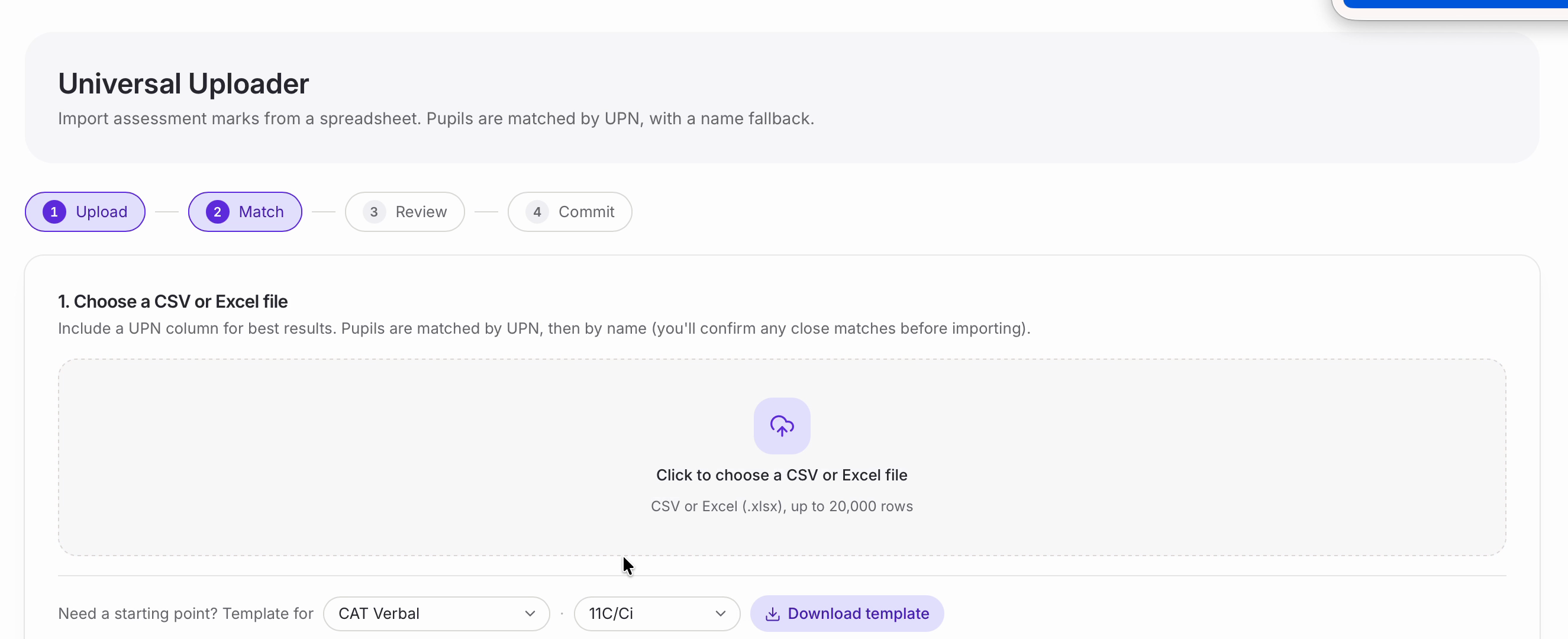
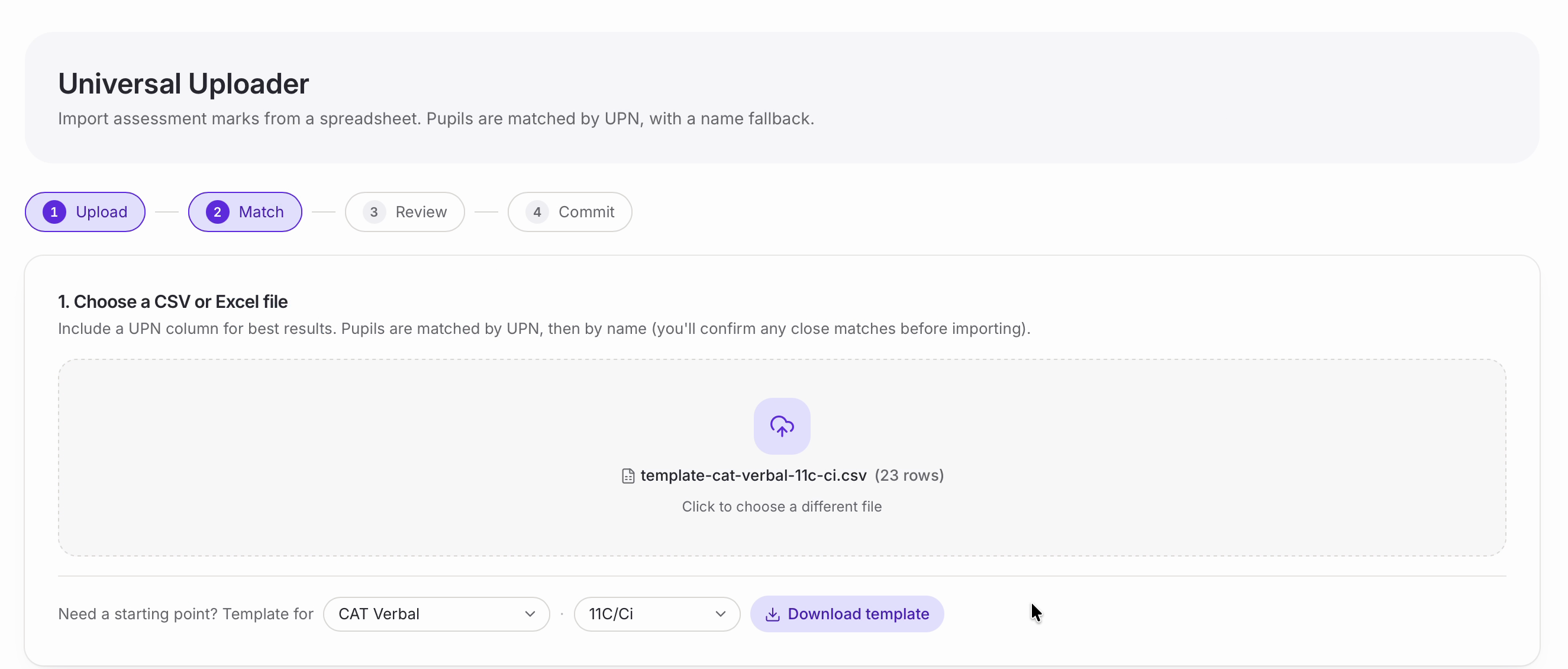
• This opens the ‘Universal Uploader’, which walks you through four steps: ‘Upload’, ‘Match’, ‘Review’ and ‘Commit’. You can see which one you are on from the row of numbers at the top.
Starting from a template
• If you don’t already have a spreadsheet, Equipple can give you one that is already filled in with your pupils. Look for ‘Need a starting point?’ underneath the drop area.
• Choose the assessment category and the class you want, then click ‘Download template’.

Nb. The template is worth using even if you keep your own spreadsheet, because it comes with each pupil’s UPN already filled in. That is what Equipple uses to match pupils, so a file with UPNs will import far more cleanly than one with names alone.
• The file downloads with a column for each thing Equipple needs: ‘UPN’, ‘Forename’, ‘Surname’, ‘Mark’, ‘Date’ and ‘Note’, with one row per pupil.
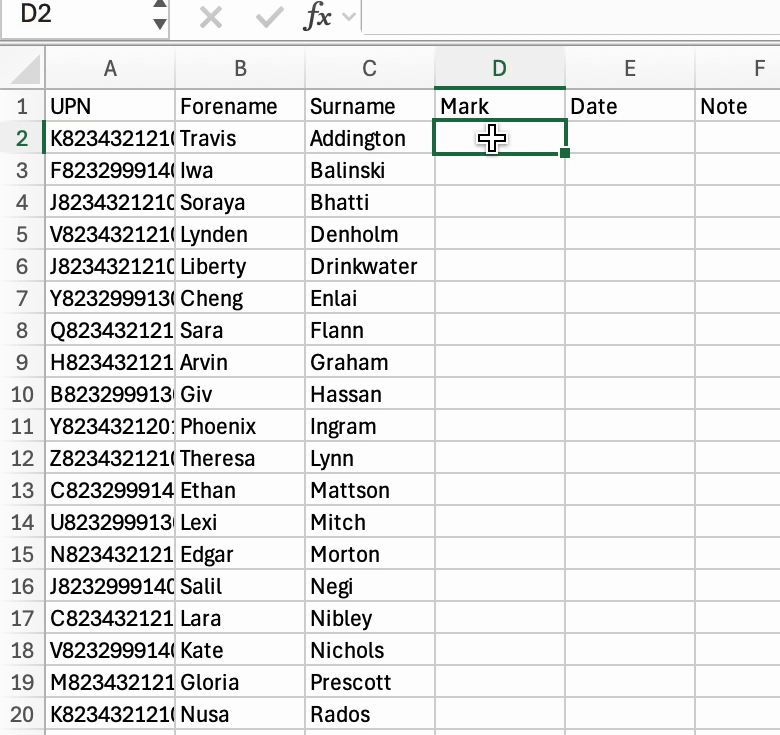
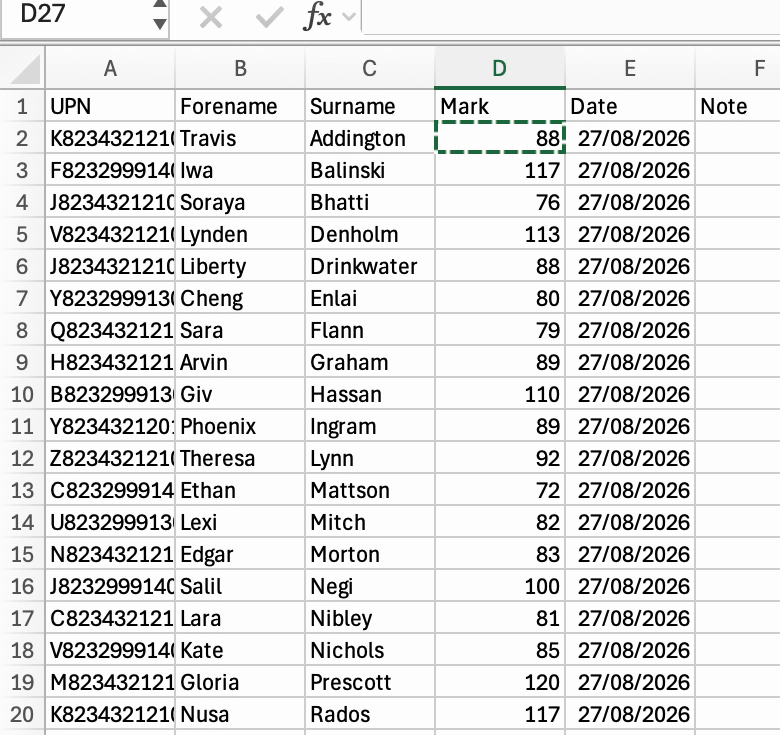
• Fill in the ‘Mark’ and ‘Date’ columns and save the file. Leave the UPN, forename and surname columns alone.
Uploading the file
• Back on the uploader, click the drop area and choose your file. Equipple confirms the file name and how many rows it found.
Matching the columns
• ‘Who’s in the file’ is how Equipple identifies each pupil. It reads your column headings and fills these in for you, with an example from the first row underneath each one so you can check it has picked the right column.
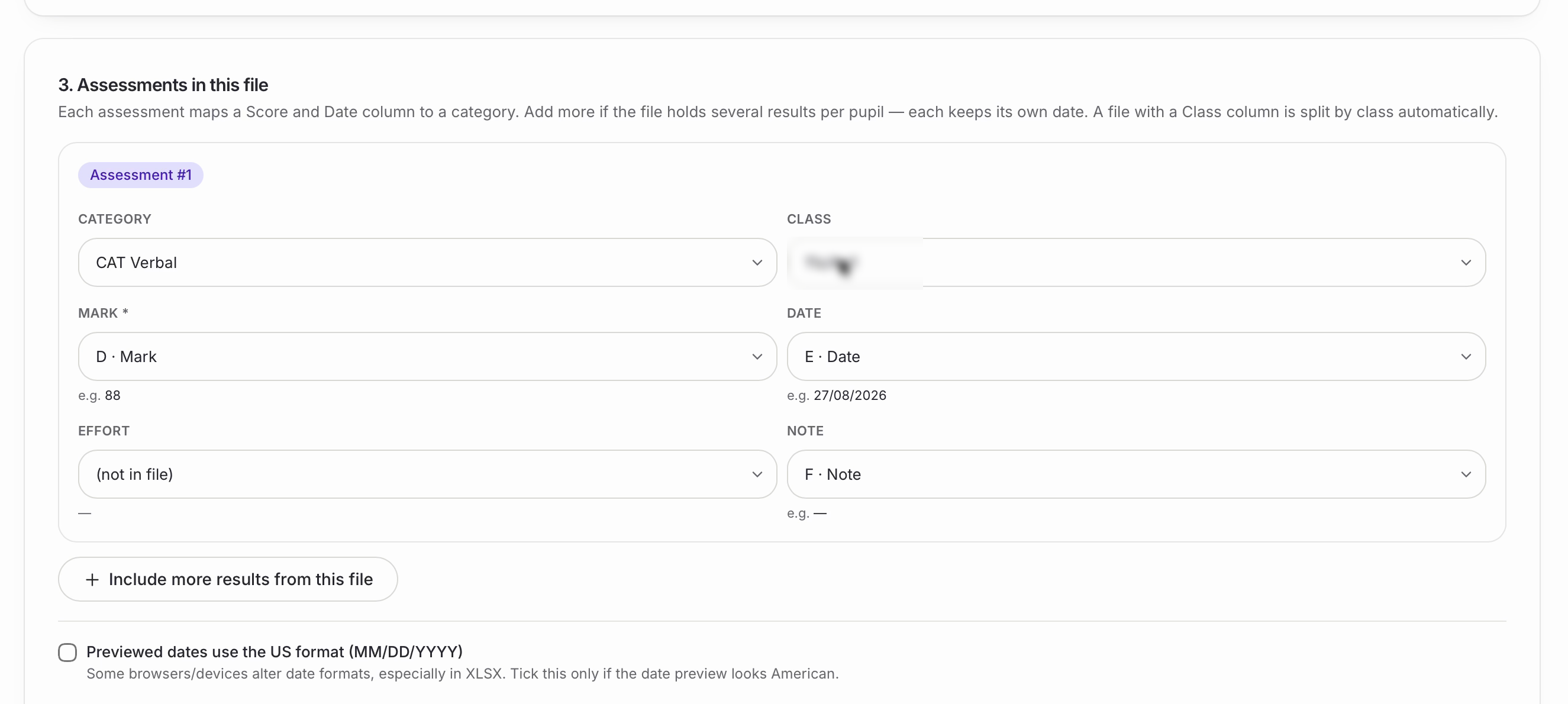
• ‘Assessments in this file’ is where you say what the marks actually are. Set the ‘Category’, check the ‘Class’ is the one your marks belong to, and point ‘Mark’ and ‘Date’ at the right columns. ‘Effort’ and ‘Note’ are optional.
• If your spreadsheet holds more than one set of results per pupil, ‘Include more results from this file’ adds another block so you can import them all in one go.
• When everything looks right, click ‘Match pupils’.
Nb. If the dates in the preview look American — the month and day the wrong way round — tick ‘Previewed dates use the US format (MM/DD/YYYY)’. Some browsers and versions of Excel reorder dates when saving, particularly from XLSX.Reviewing the matches
• Equipple now shows you exactly what it is about to import, one row per pupil, with a count of how many are ready.
• ‘Matched pupil’ is the important column: this is the pupil in Equipple that each row of your file has been matched to. If one is wrong, ‘Change’ lets you pick the right pupil, and the bin icon drops a row you don’t want.
• When you are happy, click ‘Import’.
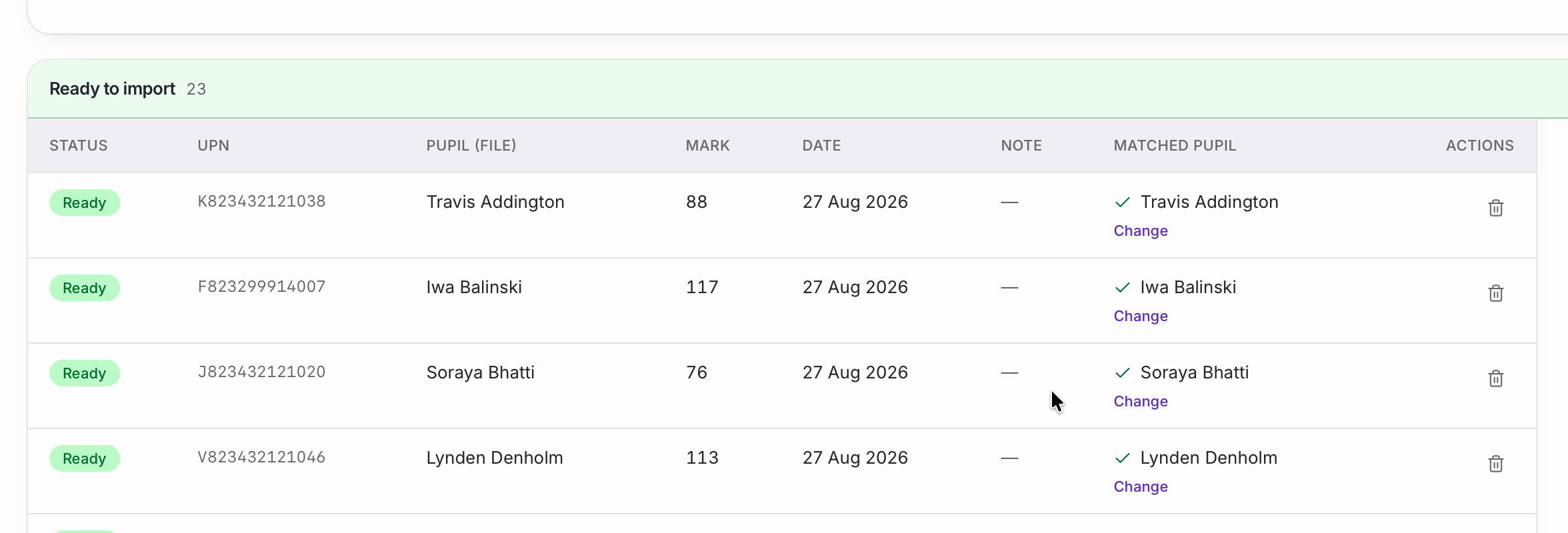
Nb. This is the step worth slowing down for. Rows matched by UPN are reliable; rows matched by name are the ones to check, particularly if you have two pupils with the same or similar names.
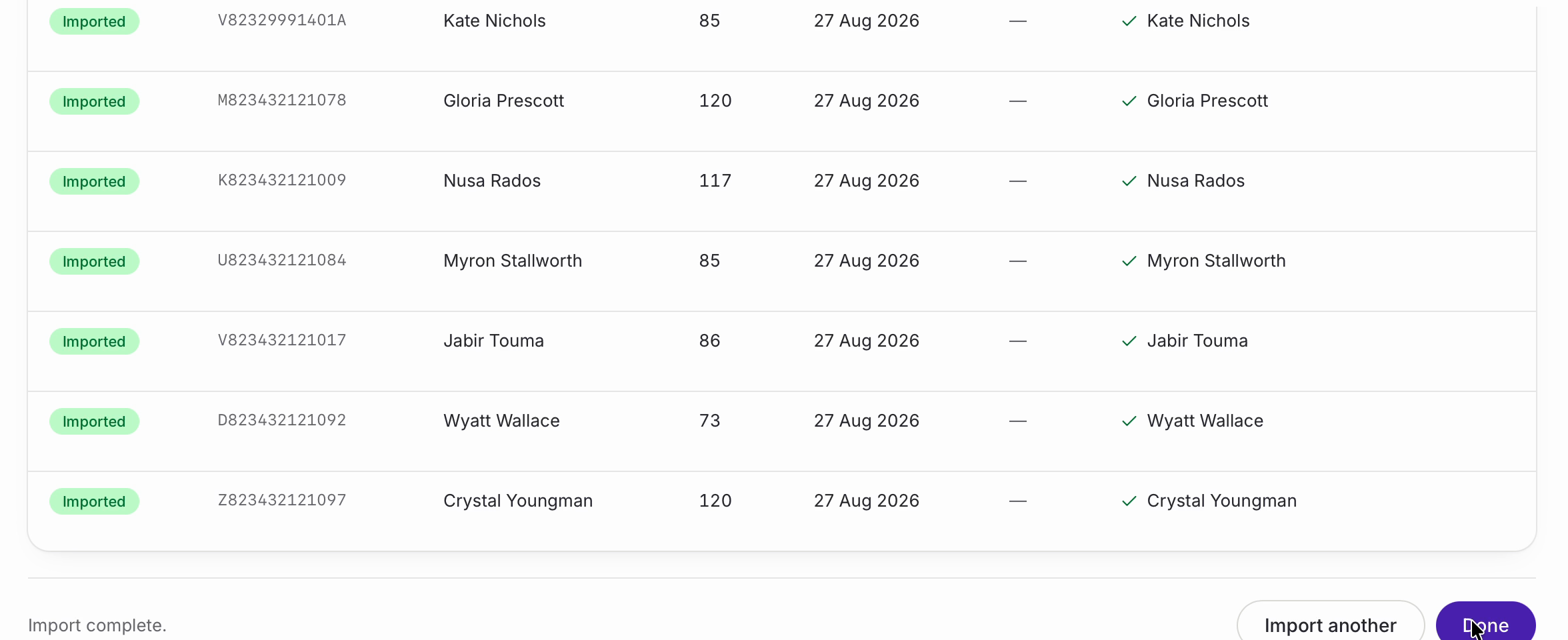
• Every row switches to ‘Imported’ and you will see ‘Import complete’ at the bottom. ‘Import another’ starts again with a new file, or ‘Done’ finishes.
• Back on ‘Your assessments’, the category card now shows your assessment data and when it was last updated.
Was this article helpful?
That’s Great!
Thank you for your feedback
Sorry! We couldn't be helpful
Thank you for your feedback
Feedback sent
We appreciate your effort and will try to fix the article