Any member of staff within a school can upload assessment data by following the steps below. Assessment data will be visible on the pupil's 'Notes' page. The majority of schools in the UK use GL Testwise for summative assessments. We will use this as an example.
Downloading Assessment Data from GL Testwise
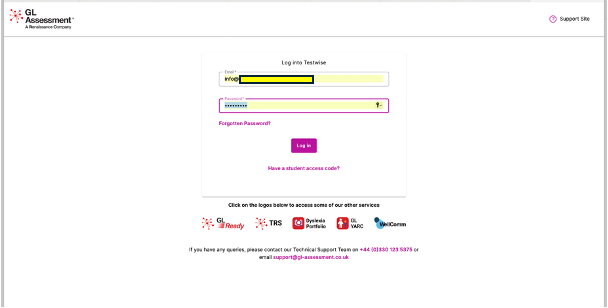
Step 1
- Sign in GL Testwise
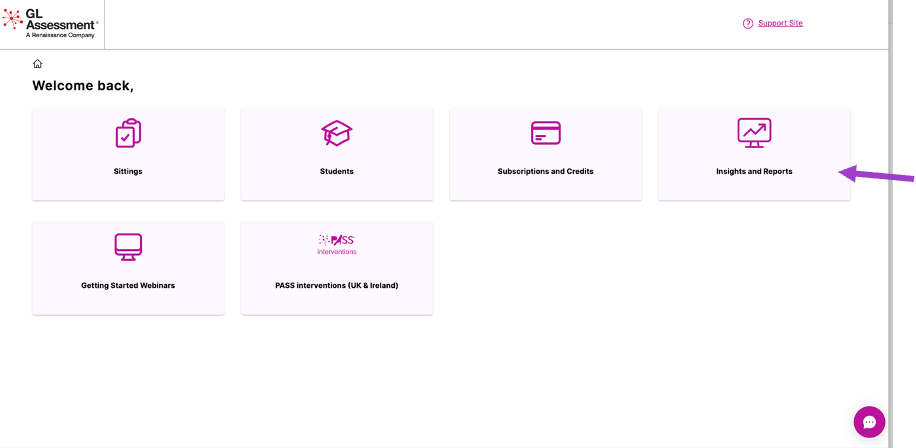
Step 2
- Select ‘Insights and Reports.’
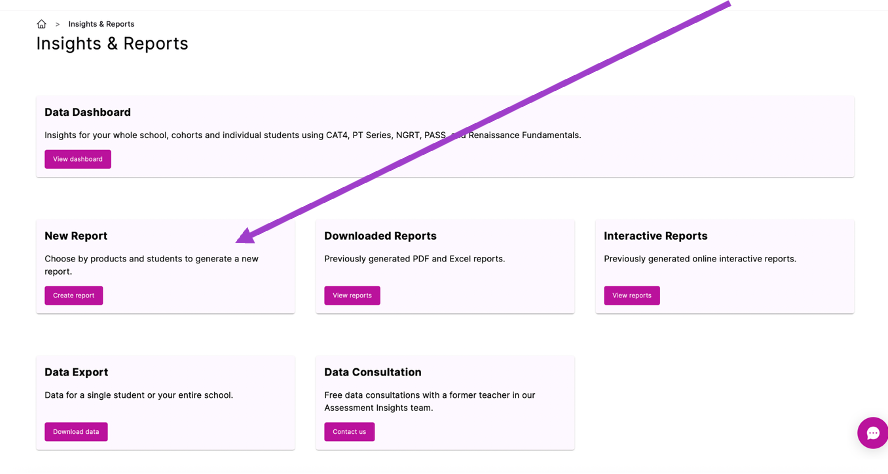
Step 3
- Select 'New Report'.
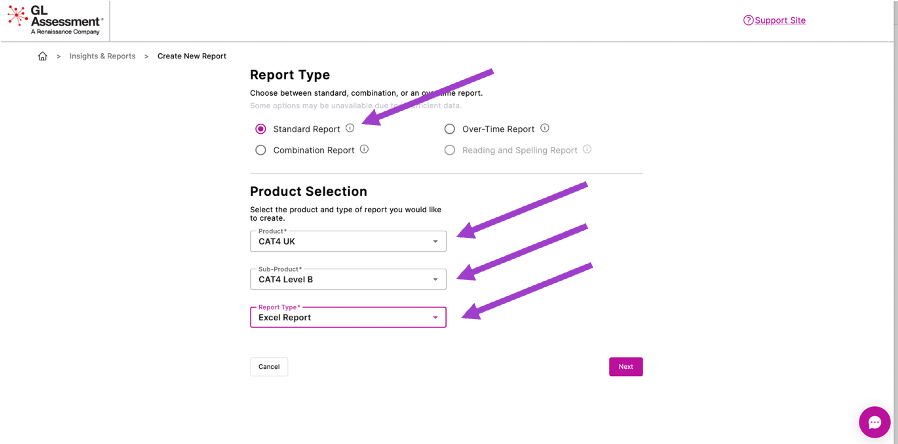
Step 4
- Select ‘standard report’ and then whichever product you wish to choose before selecting the ‘Excel report’
Step 5
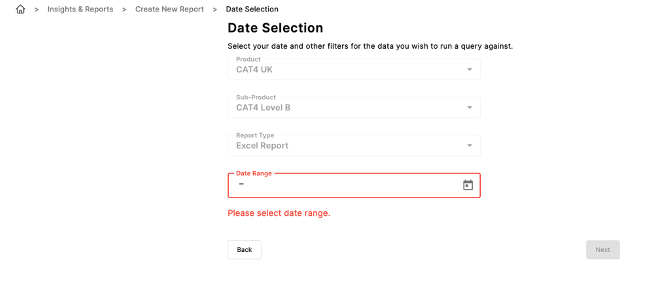
- Next, choose the ‘Date Range' for this assessment. We recommend selecting a start date from several years ago (2015 for example) so that you can pick up all of the assessment data that has been completed by children who are currently on your register. Once you have selected the date range click ‘ok’ and then ‘next.
Step 6
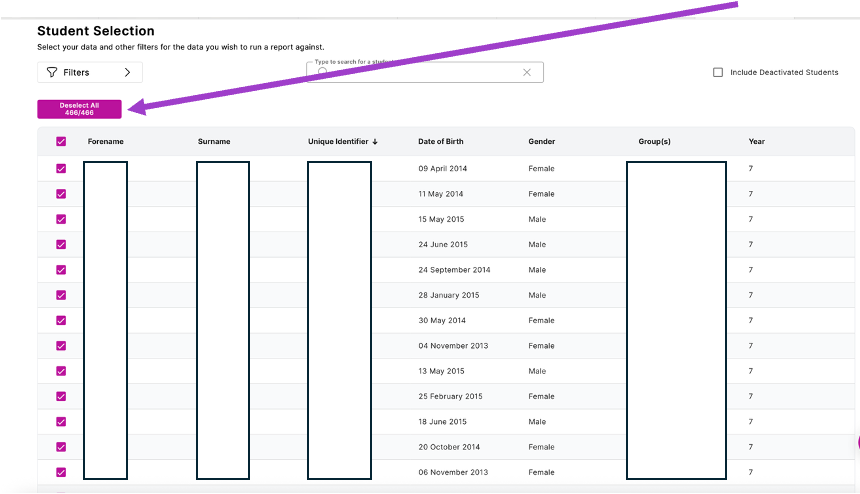
- GL will then pick up all of the children who are currently in your school who have sat this assessment. In this example you can see that this report contains 466 children.
Step 7
- Once you are satisfied that you have the correct number of children who have sat the selected assessments. Click 'Next'.
Step 8
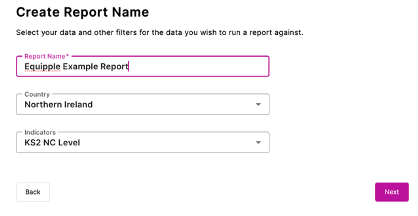
- Give your report a name and then click ‘next.’
Step 9
- A popup will now appear which gives you a report summary of the choices that you have just made. You can then select ‘Generate Report’ and the report will appear in your downloads section.
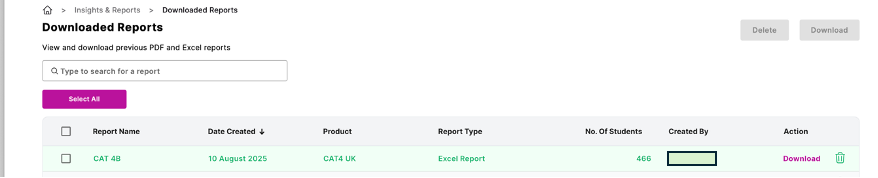
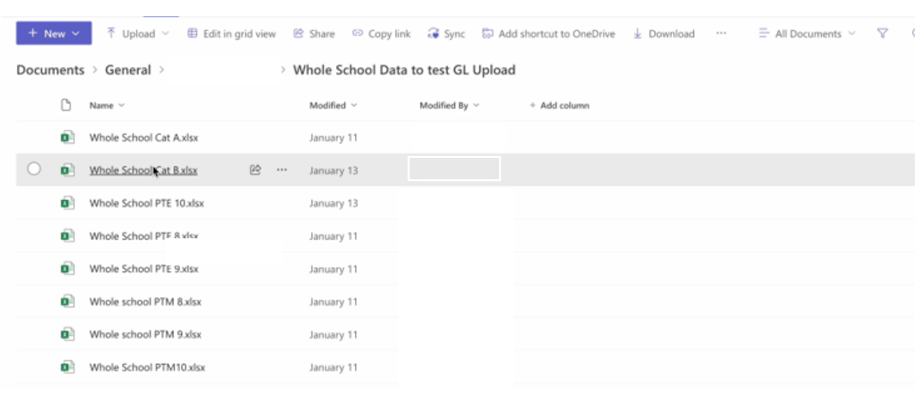
When you have run the CAT, PTE and PTE reports, we then suggest that you create a folder and save all the files in there with the date clearly marked- this will help to make it easier for future years.
Step 10
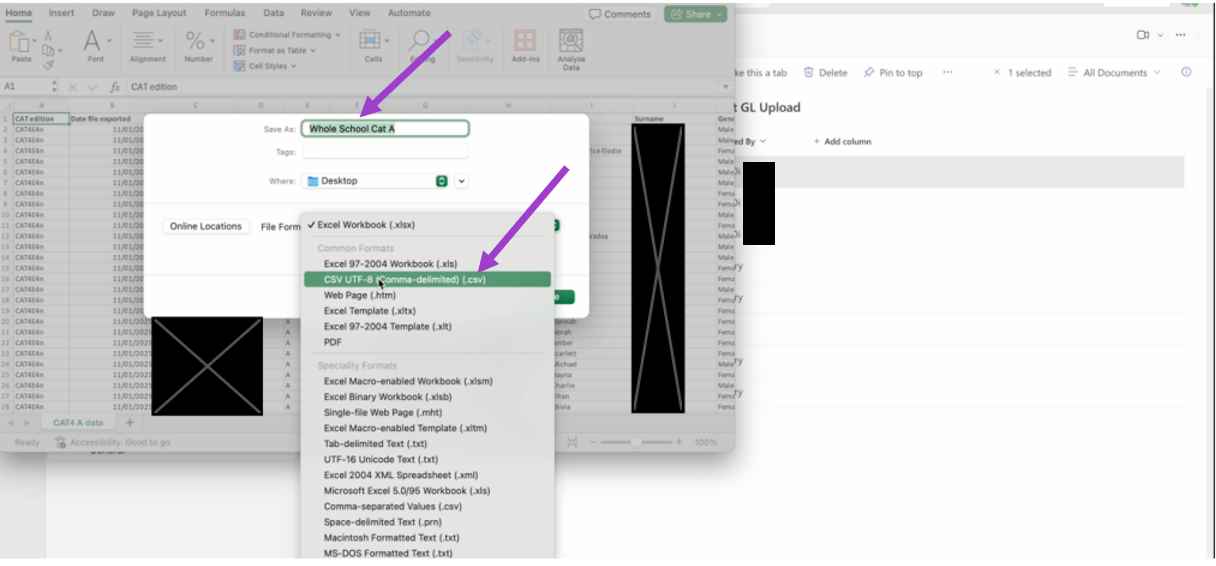
- Next, you must save each of the Excel documents in the format of a 'CSV'.
- To do this, double click and open the new Excel document you have created.
- Go to 'File', and 'Save As'.
- You can then click on the 'File Format'. A drop down menu will appear.
- Click on the option which says 'CSV'.
- That Excel document will now be saved in that particular format.
- Repeat the process with each Excel document, converting them all into CSV's.
Advanced Information
The following information outlines how the system distinguishes between the different GL reports. It is for reference only. If you have any questions, please contact support@equipple.com.
| CAT Standard Report | PTE & PTM Standard Reports | Combination Report | |
|---|---|---|---|
| Identifier in cell A1 | CAT edition | PTE or PTM | CAT4-PAPER |
| Student ID (UPN) | Column H | Column K | Column G |
| Date of Test | Column W | Column Z | Column W |
| CAT Verbal SAS Score | Column AD | - | Column Z |
| CAT Quantitative SAS Score | Column AL | - | Column AA |
| PTE Standard Age Score | - | Column AB | Column AZ |
| PTM Standard Age Score | - | Column AB | Column AR |
Was this article helpful?
That’s Great!
Thank you for your feedback
Sorry! We couldn't be helpful
Thank you for your feedback
Feedback sent
We appreciate your effort and will try to fix the article