When your school opens bookings, you'll be sent a link by email or text. Everything happens on one page — there's no password and nothing to install.
Step 1 – Open the link
• The first screen tells you which meetings these are, the dates, and how long each meeting lasts. It also lists the teachers available to book.
• ‘How it works’ sets out the three steps. Read it, then click ‘Start booking’ underneath.
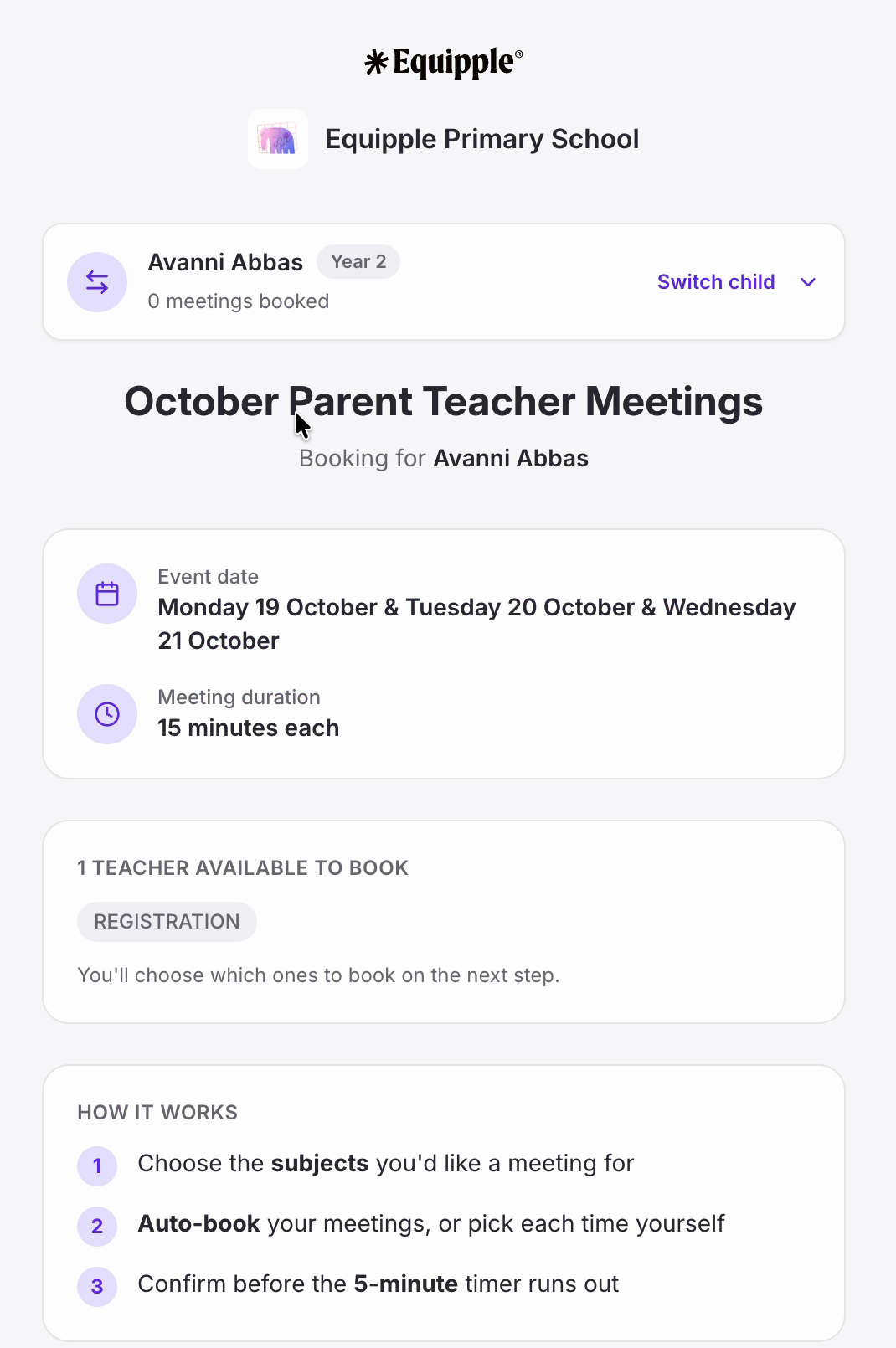
There's a five-minute timer. Once you start choosing times, a green countdown appears in the top right, and you need to confirm before it runs out. It's plenty for a normal booking — just don't wander off halfway through.
Step 2 – Choose your class
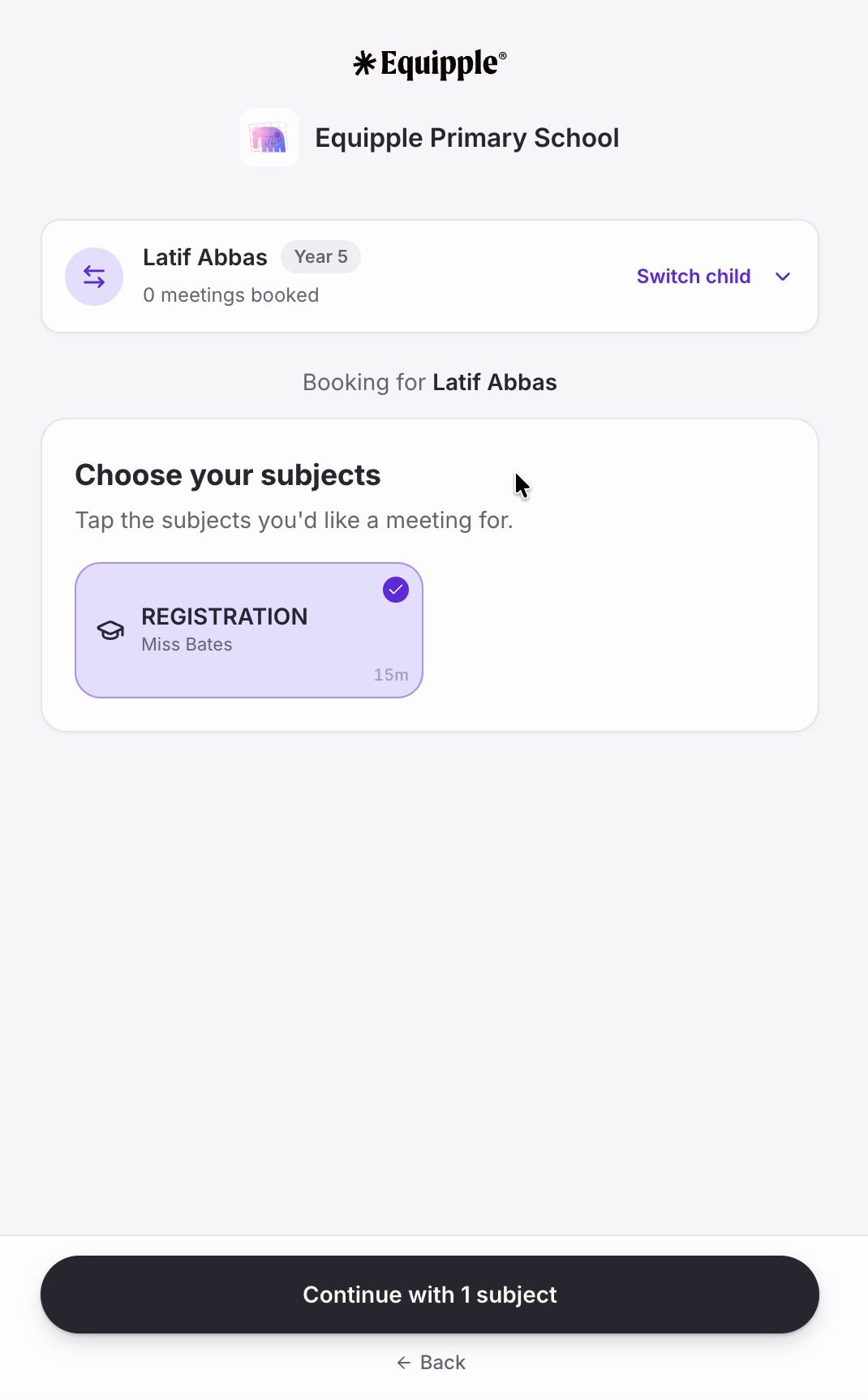
• Tap the subjects you'd like a meeting for. Each card shows the teacher and how long the meeting is.
• You don't have to book them all — pick only the ones you want.
• The button at the bottom counts your choices. Click ‘Continue with 1 subject’ (or however many you picked).
Step 3 – Say how you'd like to meet, and how to book
• Under ‘How would you prefer to meet?’, choose ‘Video call’, ‘Phone call’ or ‘In person’. This sets the default for all your meetings, and you can still change any single one before you confirm.
• Then pick how you want to book:
- ‘Auto-book my meetings’ — Equipple picks clash-free times and groups them together, so you're not sitting around between meetings. The quickest option, especially with several subjects.
- ‘Choose times myself’ — you pick each teacher's slot one at a time.
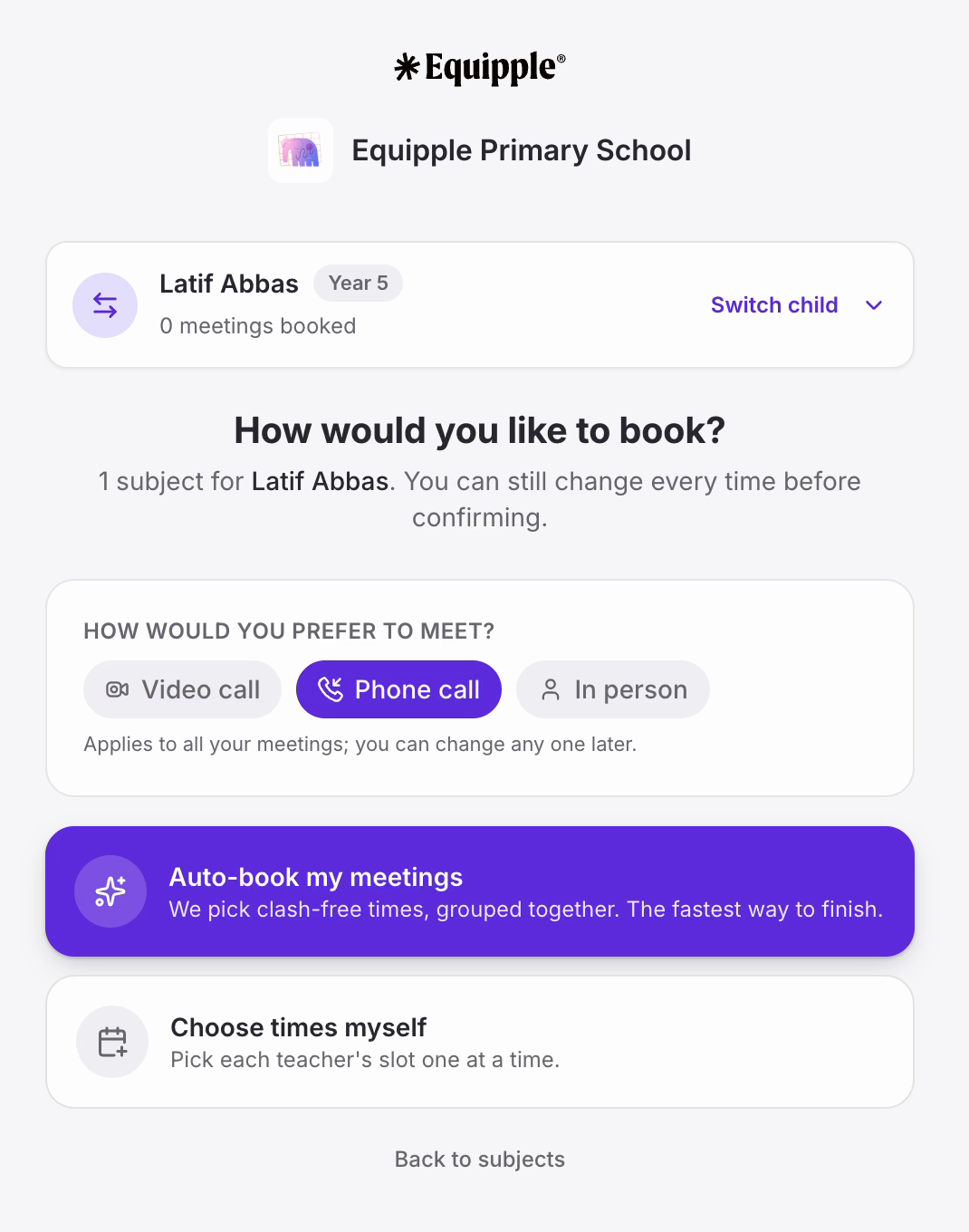
Nb. Only the formats your school has offered will appear here, so you may see fewer than three. Whichever you pick, you're choosing how you attend — the meeting itself goes ahead either way.
Step 4 – Pick your times
• If you chose to pick your own, each teacher gets a card with their available times. Use the arrows either side of the date to move between days.
• Click a time to take it. It turns purple and reads ‘Selected’, and the teacher's card shows the time you've chosen at the top.
• The icons beside each time show which formats that slot can be booked as.
• When you've chosen for everyone — the line under the button keeps count — click ‘Review 1 meeting’.
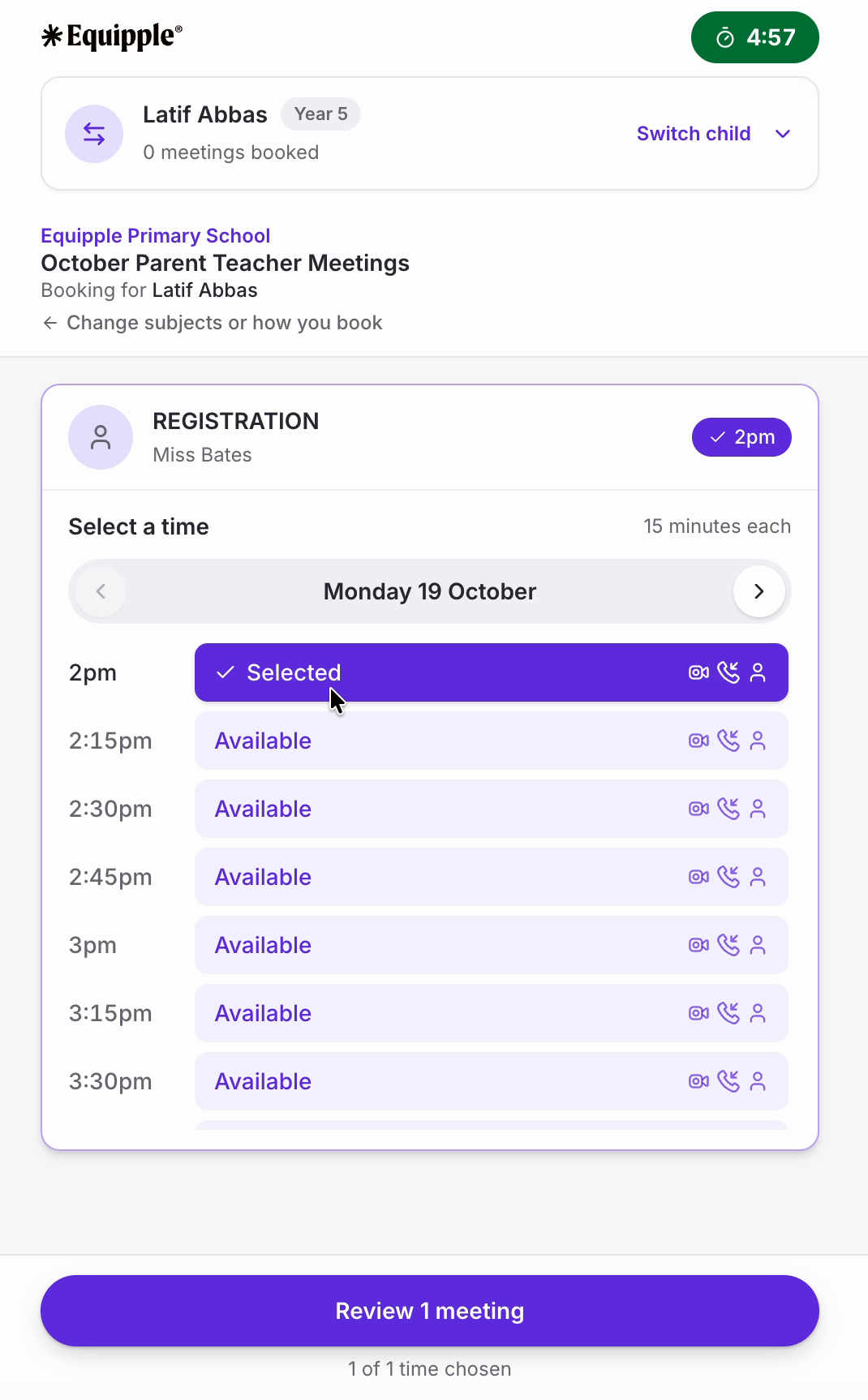
Nb. If you chose ‘Auto-book my meetings’ instead, you skip this step entirely and go straight to the review.
Step 5 – Check it over and confirm
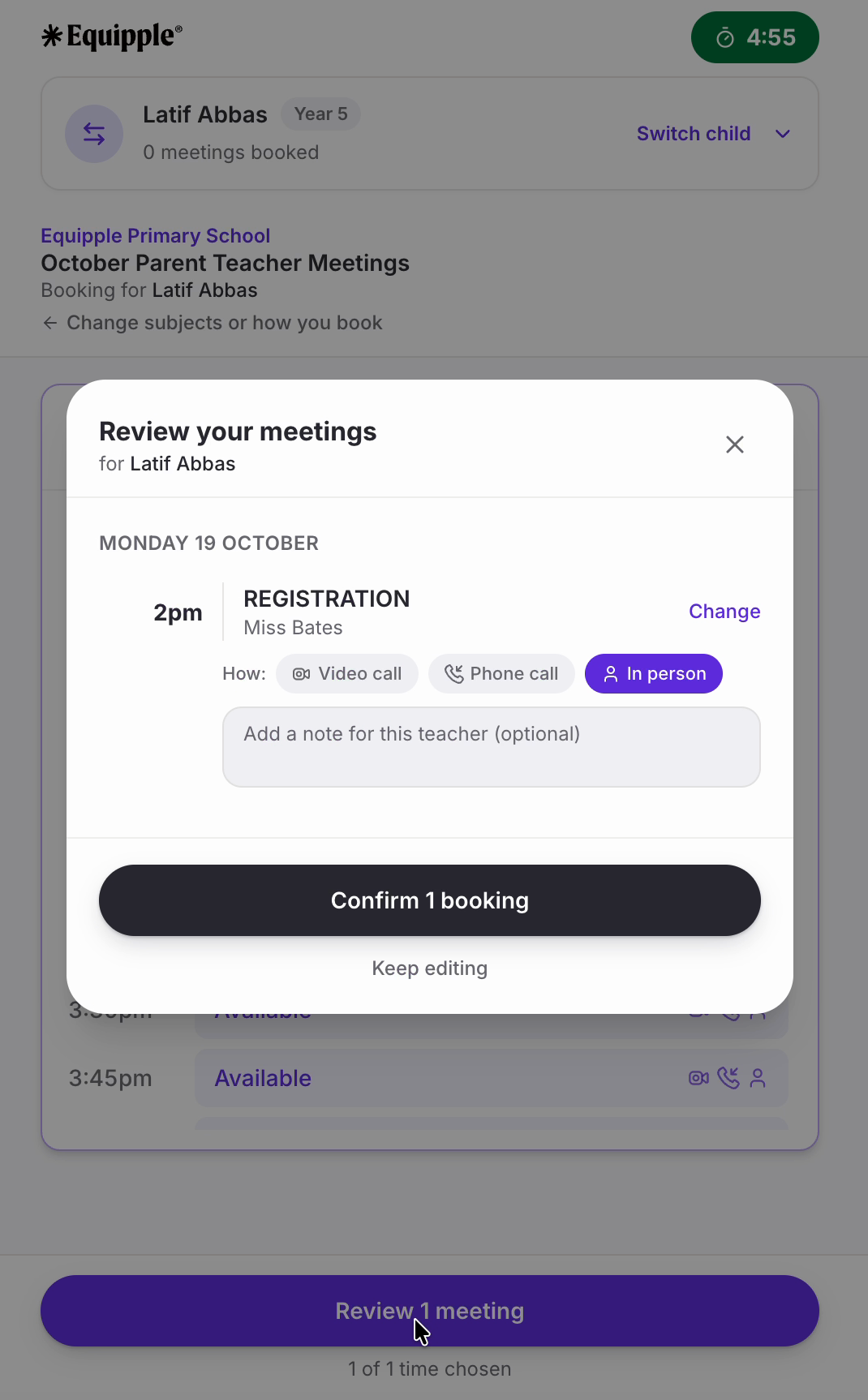
• ‘Review your meetings’ lists everything you've chosen, grouped by day.
• This is your last chance to change anything, and you can change each meeting on its own:
- ‘Change’ beside a meeting takes you back to pick a different time.
- ‘How:’ lets you set a different format for that one meeting. In the example below, ‘Phone call’ was chosen earlier as the default and has been switched to ‘In person’ just for this meeting.
- ‘Add a note for this teacher (optional)’ passes a message to that teacher — useful for flagging something you'd like to discuss.
• When you're happy, click ‘Confirm 1 booking’. ‘Keep editing’ takes you back if you're not.
Step 6 – You're booked
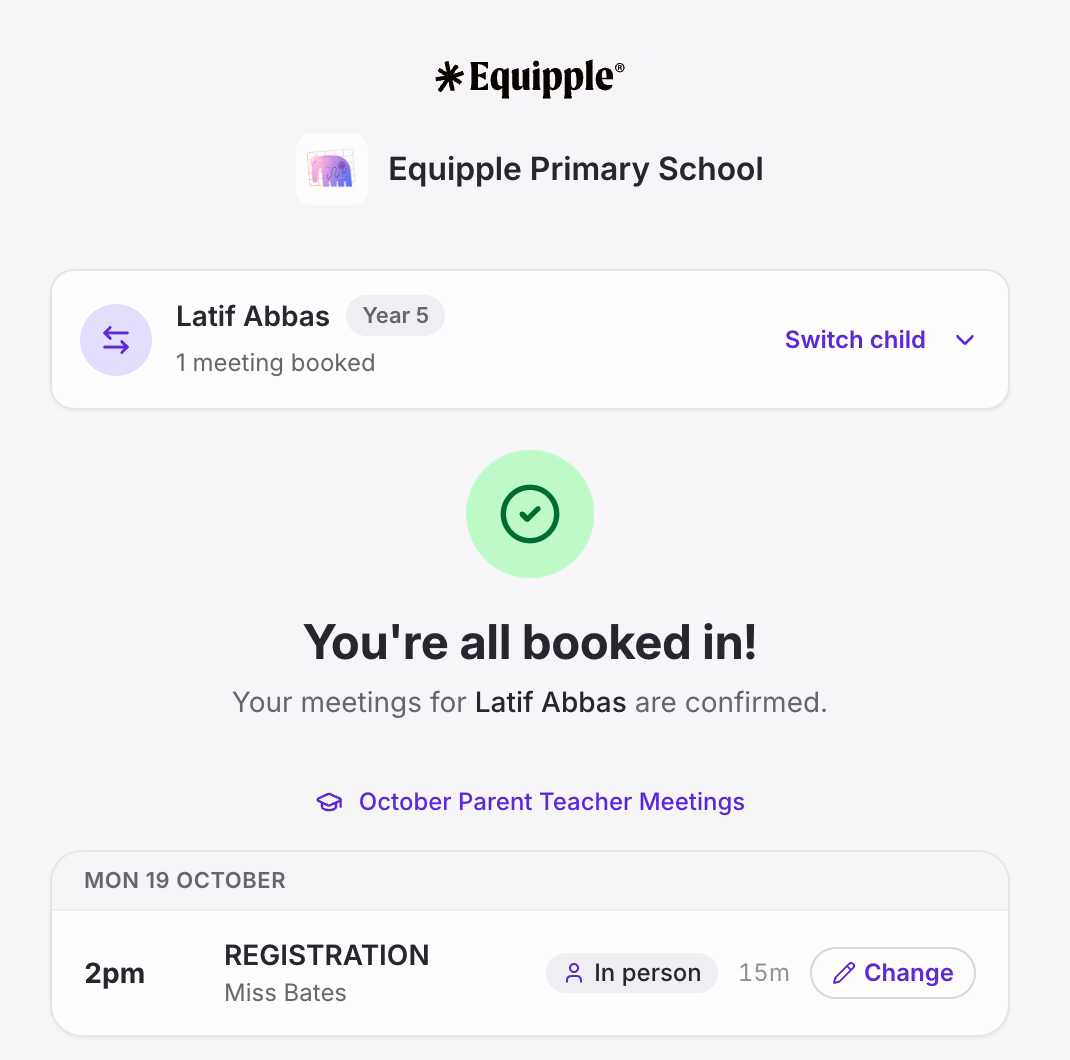
• ‘You're all booked in!’ confirms it, and your meetings are listed with the time, teacher, format and length.
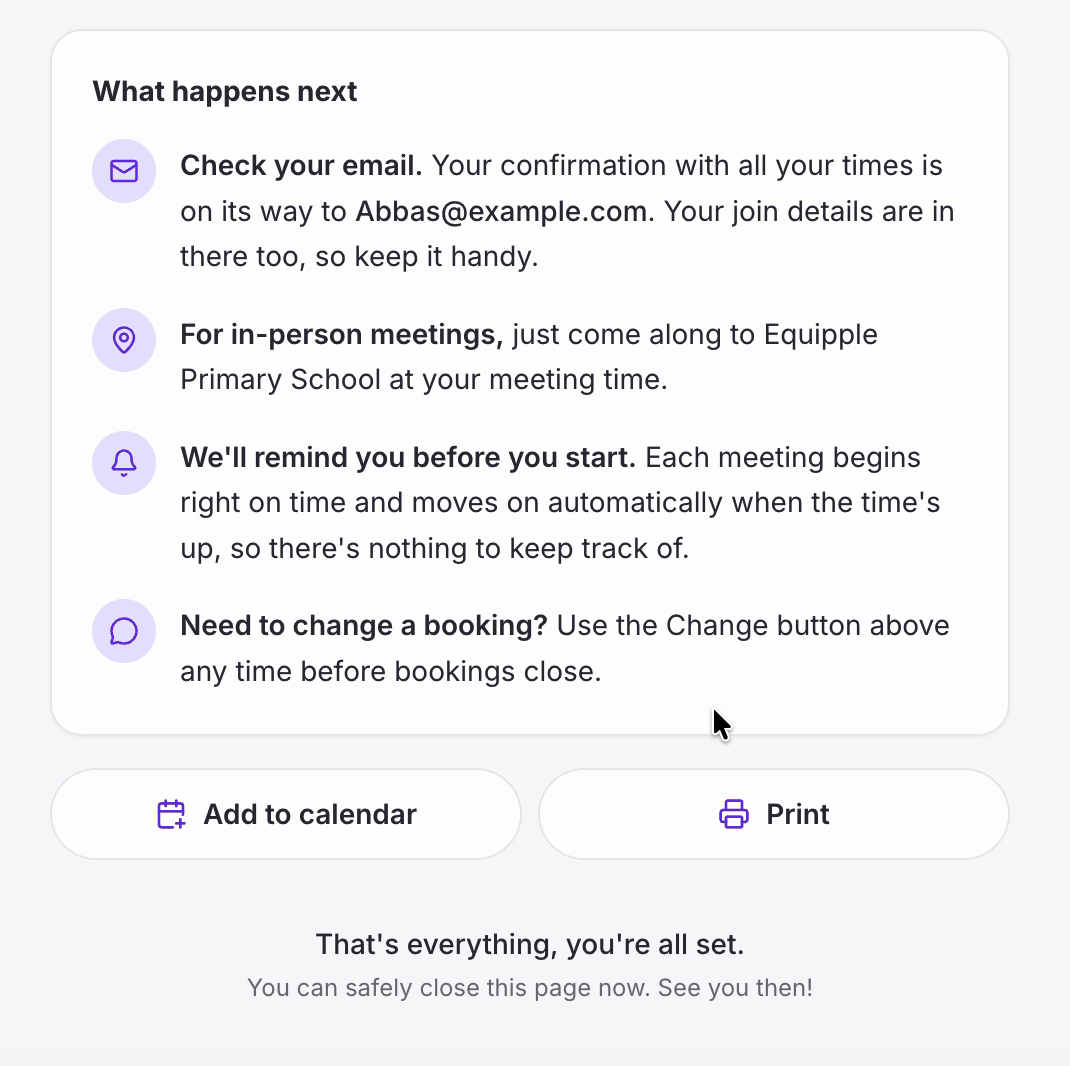
• ‘What happens next’ underneath covers your confirmation email, where to go for in-person meetings, and how to change a booking later.
• ‘Add to calendar’ and ‘Print’ are there if you'd like a copy.
Booking for another child
• The card at the top of every screen shows which child you're booking for, along with how many meetings they have so far.
• Click ‘Switch child’ to move to your next child and go through the same steps again. Each child is booked separately.

Nb. Only seeing one child when you have more at the school? Your children may be linked to different contact details in the school's records. Ask the school office to check.
Changing a booking later
• Each meeting on the confirmation screen has a ‘Change’ button beside it, and you can use it at any point before bookings close.
• After that, contact the school office if something has come up.
That's the whole thing. Most families are done in a couple of minutes.
Was this article helpful?
That’s Great!
Thank you for your feedback
Sorry! We couldn't be helpful
Thank you for your feedback
Feedback sent
We appreciate your effort and will try to fix the article