On some rare occassions, teachers may teach in different classes or in different year groups within the same school. If this is you then here are two ways to help you manage your schedule:
Note: If you do not edit your availability, Parents will be able to book any slot that the Admin (a member of SLT) has set up. This would include days that you are not working. If you are associated with more than 1 class as well then parents from different classes can book your availability on the same day,


Therefore, it is important to spend a few minutes of your time to make sure you are happy with how you have presented your availability to the parents. This guide should help!
For this guide, you will need to be familiar with how to update/edit your availability. A detailed step-by-step guide is available here. Keep this guide handy.
Option 1 for teachers of multiple classes:
If you do not mind having parents of pupils from different classes or year groups attending meetings on the same day then you can set your own availability exactly as you would like. There is no further action needed once you've set your availability but please note that by taking this option you will receive bookings from parents of pupils in different classes on the same day, there is not a faciity in this option to specify that you would like Year 1 parents to book your availability on a Monday and Year 4 parents to book your availability on Thursday as an example.
Option 2 for teachers of multiple classes:
If you would like to specify that you have pupils from the same class or year attending meetings on the same day then you should follow these steps:
Step 1
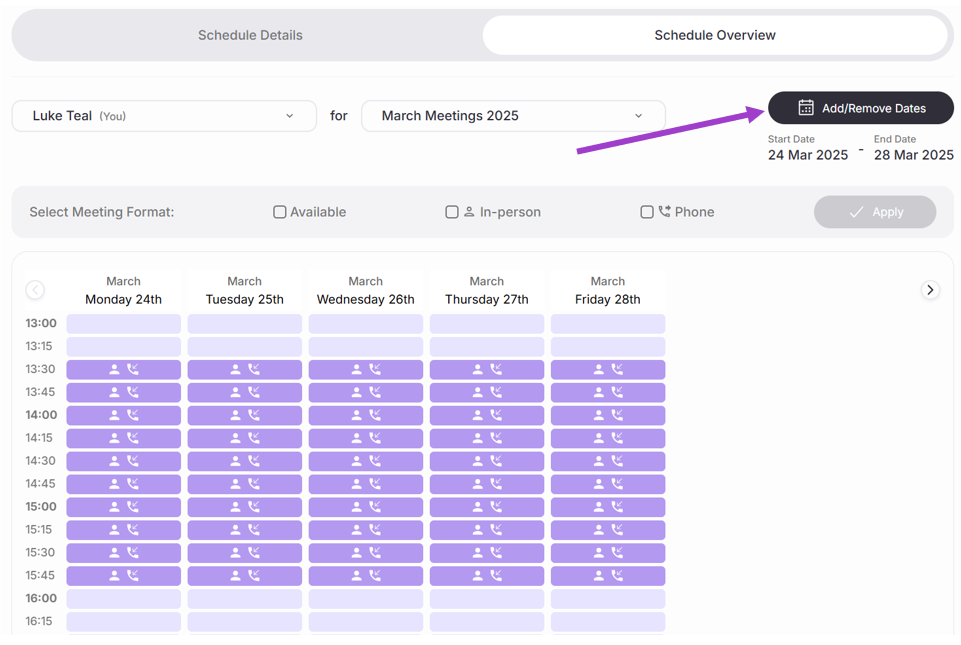
- From the Equipple ‘Home Screen’, you should click the 'My Schedule' tab and then on the 'Week View' locate the 'Add/Remove Dates' button.
- You should remove all of the days in your schedule so that parents will not be able to book a time slot for you.
- You must then ensure that your job-share partner adds in the slots for the days that you will be taking meetings on her schedule. (In reality all parents will book slots with your job-share partner and, once the meetings have all been booked, you can manually reassign the pupils to your own schedule so that they are no longer on your job-share partners' schedule.)
Step 2
- Once your meetings have all been booked on your job-share partners' schedule this is how you manually reassign them to your own schedule. Note, when you reassign the slots the parents will receive a notification that their slot has been changed but they will then receive a confirmation email giving them the confirmation that the time, date and format will remain the same and the only difference will be the updated teacher that will be conducting the meeting.
That's it! Once you've done this you should be all set to conduct your meetings across multiple classes.
Was this article helpful?
That’s Great!
Thank you for your feedback
Sorry! We couldn't be helpful
Thank you for your feedback
Feedback sent
We appreciate your effort and will try to fix the article