The Overview is where you can see, at a glance, how your parent-teacher meetings are progressing — what stage a schedule has reached, what happens next, and how many parents have booked.
There are two places to look, and this article covers both:
- Your Home page, which you land on when you log in. This gives you a summary of whichever schedule you choose.
- The Overview tab inside an individual schedule, which gives you the full detail
Nb. This article describes what an administrator sees. Teachers have their own, simpler view — see Understanding the Dashboard (Teacher).
Part 1 – Your Home page
• When you log in as an admin you land on ‘Home’. Everything below is on this one page.
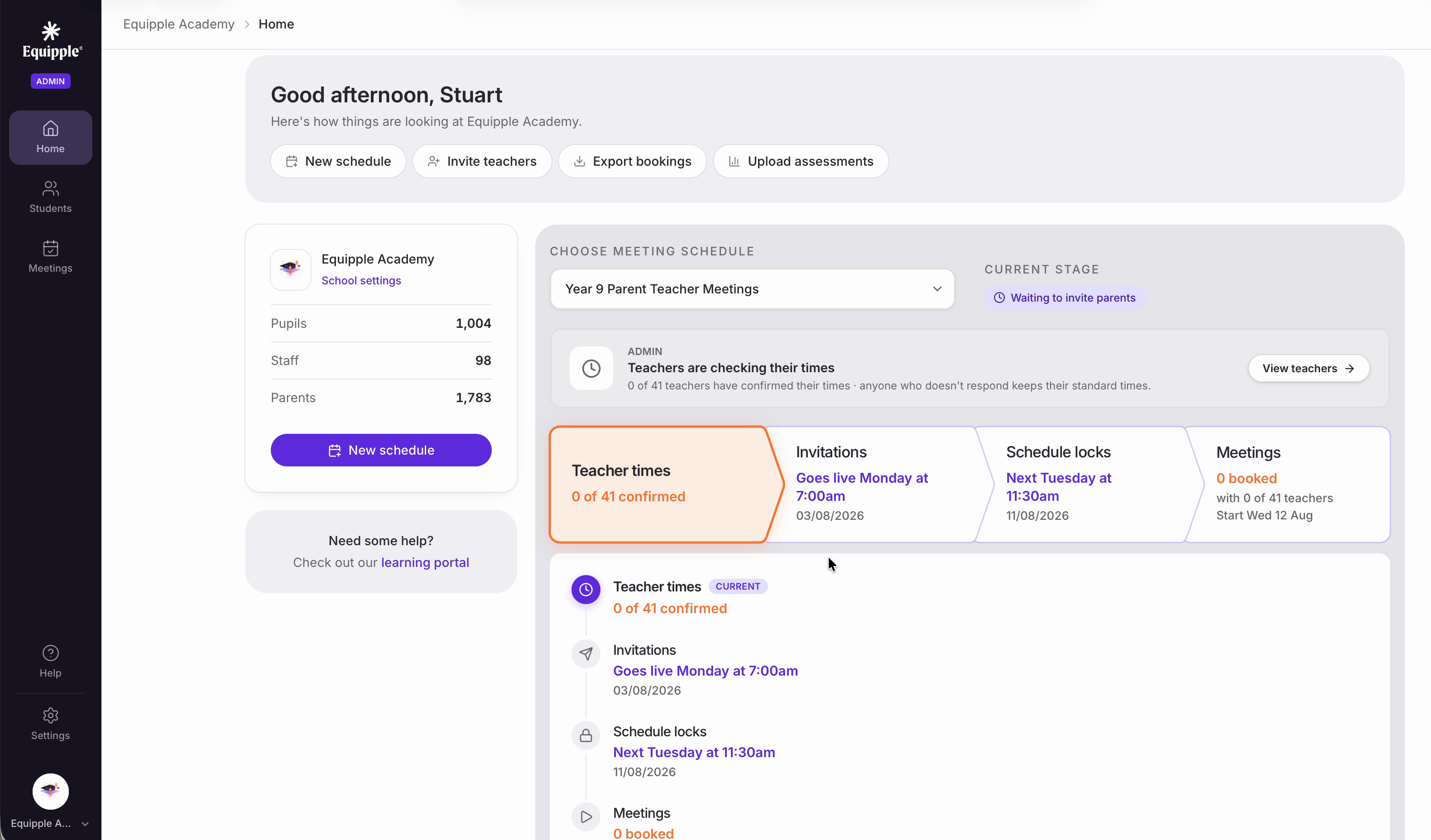
• At the top is a greeting and a set of shortcuts to the things admins do most often: ‘New schedule’, ‘Invite teachers’, ‘Export bookings’ and ‘Upload assessments’.

• On the left is your school card. ‘School settings’ takes you to your school’s configuration, and underneath you will see a running count of the ‘Pupils’, ‘Staff’ and ‘Parents’ on Equipple — a quick way to sanity-check that your data import has worked. ‘Need some help?’ links through to the learning portal.
Choosing which schedule you’re looking at
• ‘Choose Meeting Schedule’ controls everything on the right-hand side of the page. If you have more than one schedule on the go, use the dropdown to switch between them.
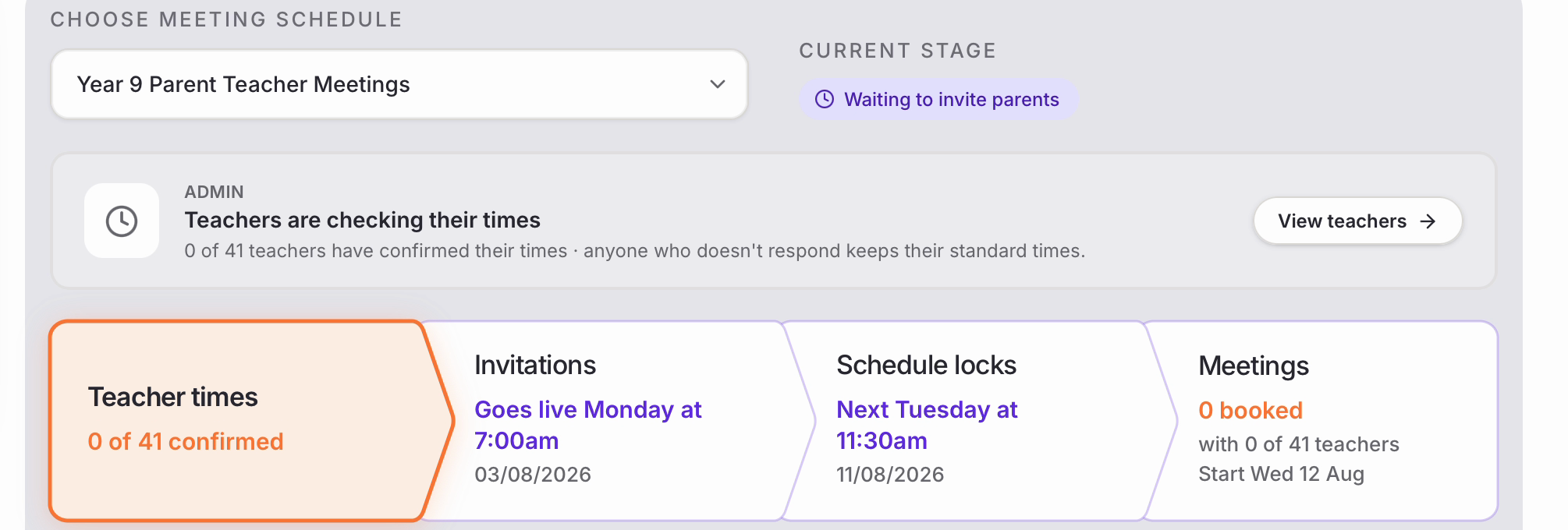
• ‘Current Stage’ beside it tells you where that schedule has got to. In the example below it is ‘Waiting to invite parents’.
• Underneath is the action panel. This explains what is happening right now and, where there is something for you to do, gives you a button to do it. Here, ‘Teachers are checking their times’ with a ‘View teachers’ button that takes you straight to the teacher list.
• Then comes a strip of four stages, with the one you are currently in highlighted in orange:
-Teacher times – how many teachers have confirmed their availability. Anyone who doesn’t respond simply keeps their standard times, so this doesn’t hold anything up.
- Invitations – when the invitation goes live for parents.
- Schedule locks – the point after which parents can no longer change their booking.
- Meetings – how many meetings have been booked, with how many teachers, and the day they start.
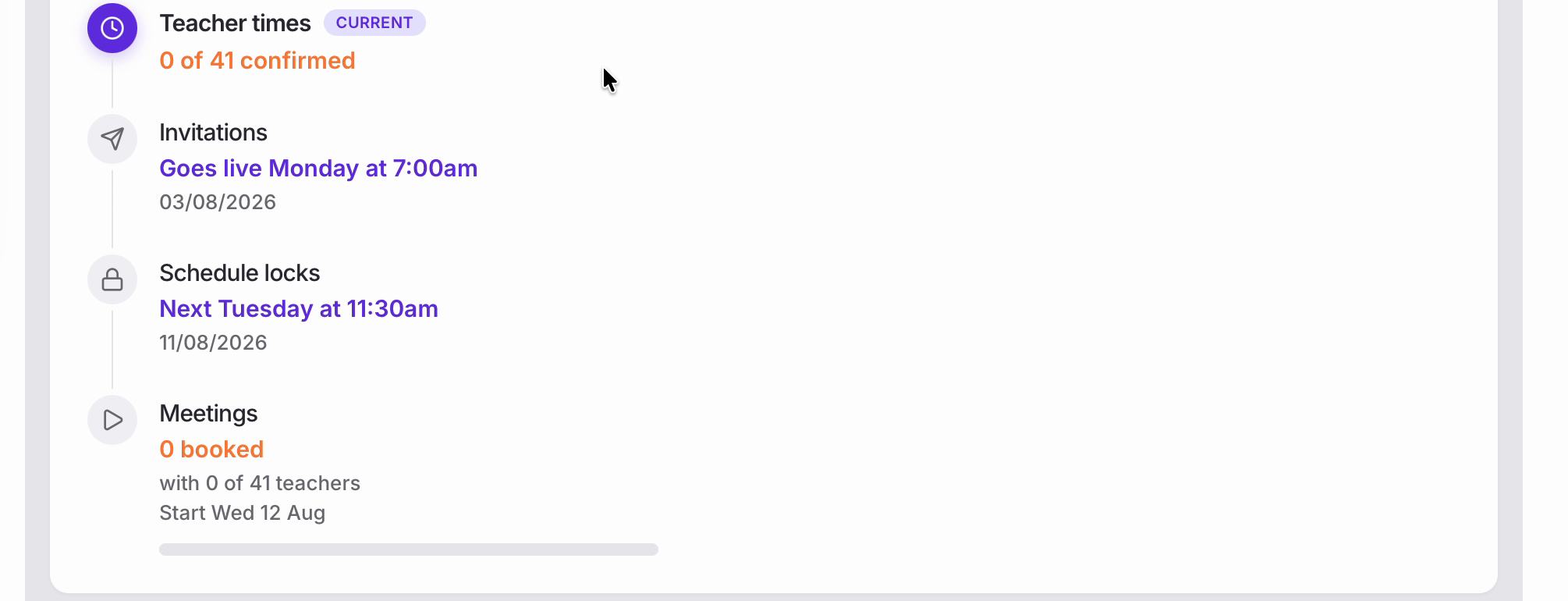
• The same four stages appear again underneath as a list, each with its date, and the stage you are in is marked ‘Current’. This is the quickest way to see what happens next and when.
Tracking bookings
• At the foot of the page are two progress cards. These stay at zero until invitations go out, then fill up as parents book.
• ‘Bookings’ has two tabs. ‘Parents’ measures progress against the parents expected to book — useful for knowing who you still need to chase.
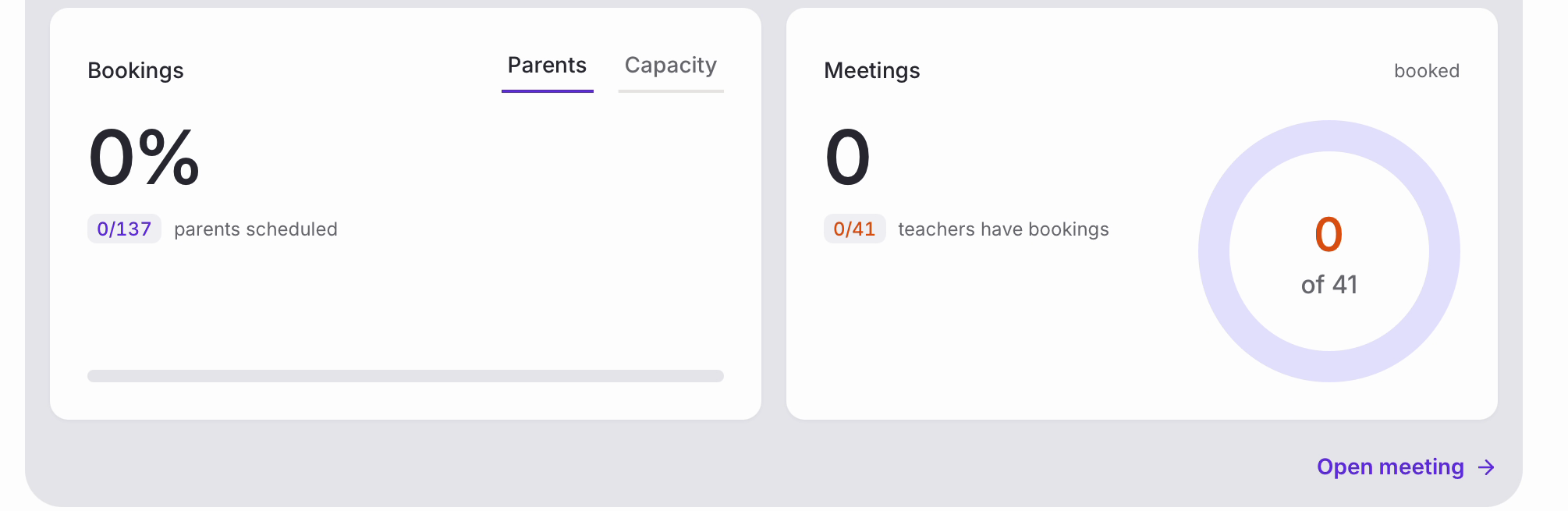
• ‘Capacity’ measures the same bookings against the total number of slots you have made available — useful for knowing how much room is left in the evening.
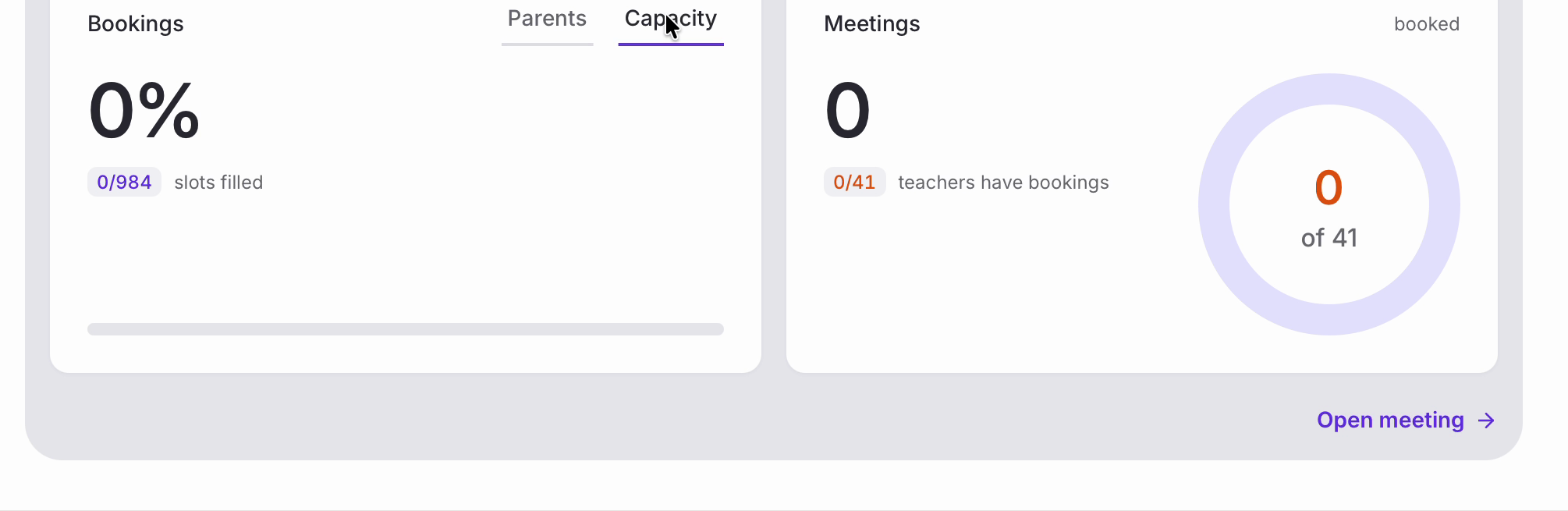
• The ‘Meetings’ card beside it shows how many of your teachers have bookings, with a ring showing the count against your total.
• ‘Open meeting’ in the bottom corner takes you into the schedule itself, which is what the rest of this article covers.
Part 2 – A Schedule Overview tab
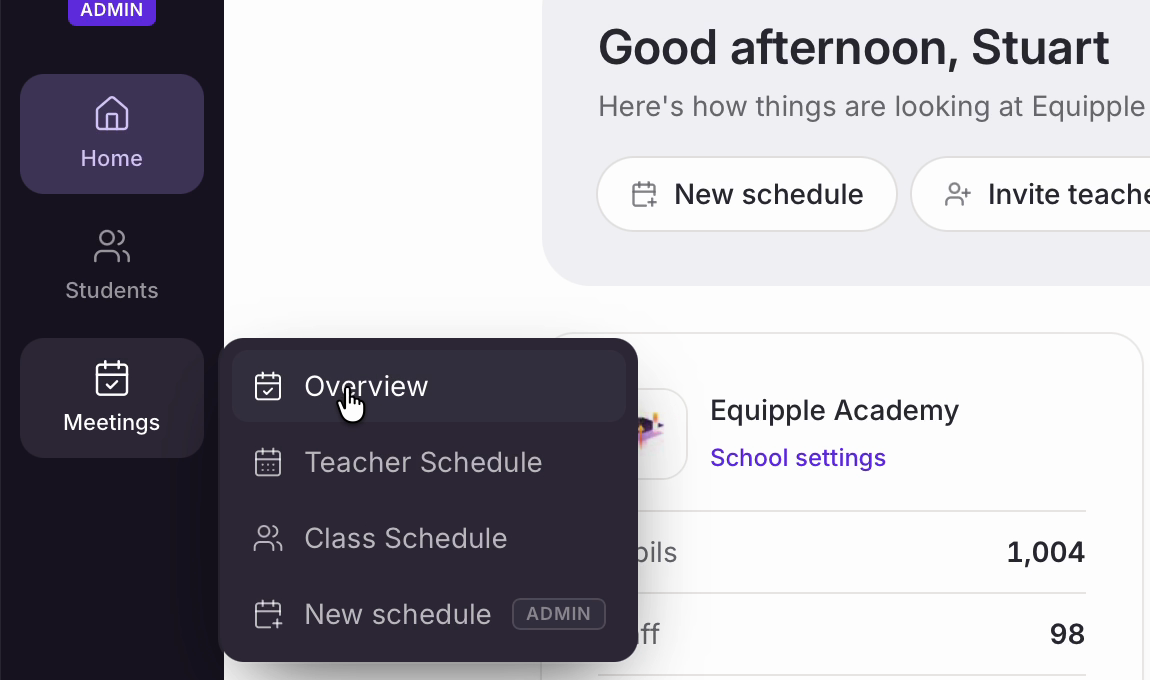
• For the full picture of a single schedule, click ‘Meetings’ in the left-hand sidebar and choose ‘Overview’.
• The other options in that menu are ‘Teacher Schedule’ and ‘Class Schedule’, which are the printable timetable views, and ‘New schedule’, which starts the schedule builder.
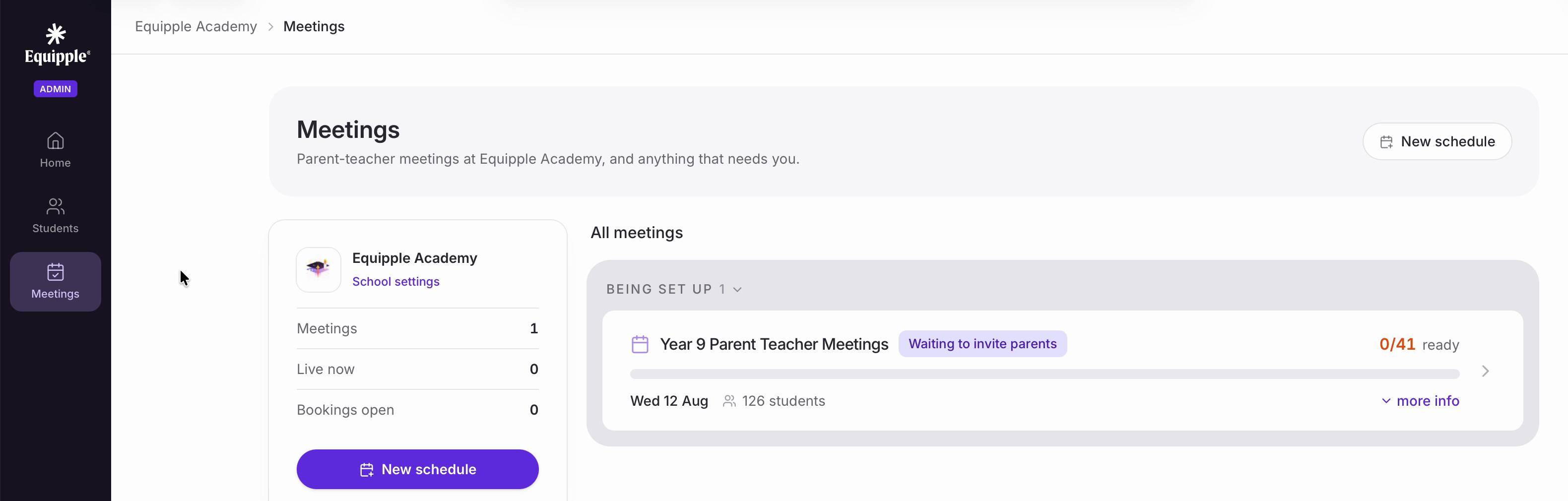
• This opens your list of meetings. The card on the left counts how many schedules you have, how many are ‘Live now’ and how many have ‘Bookings open’.
The top of the Overview
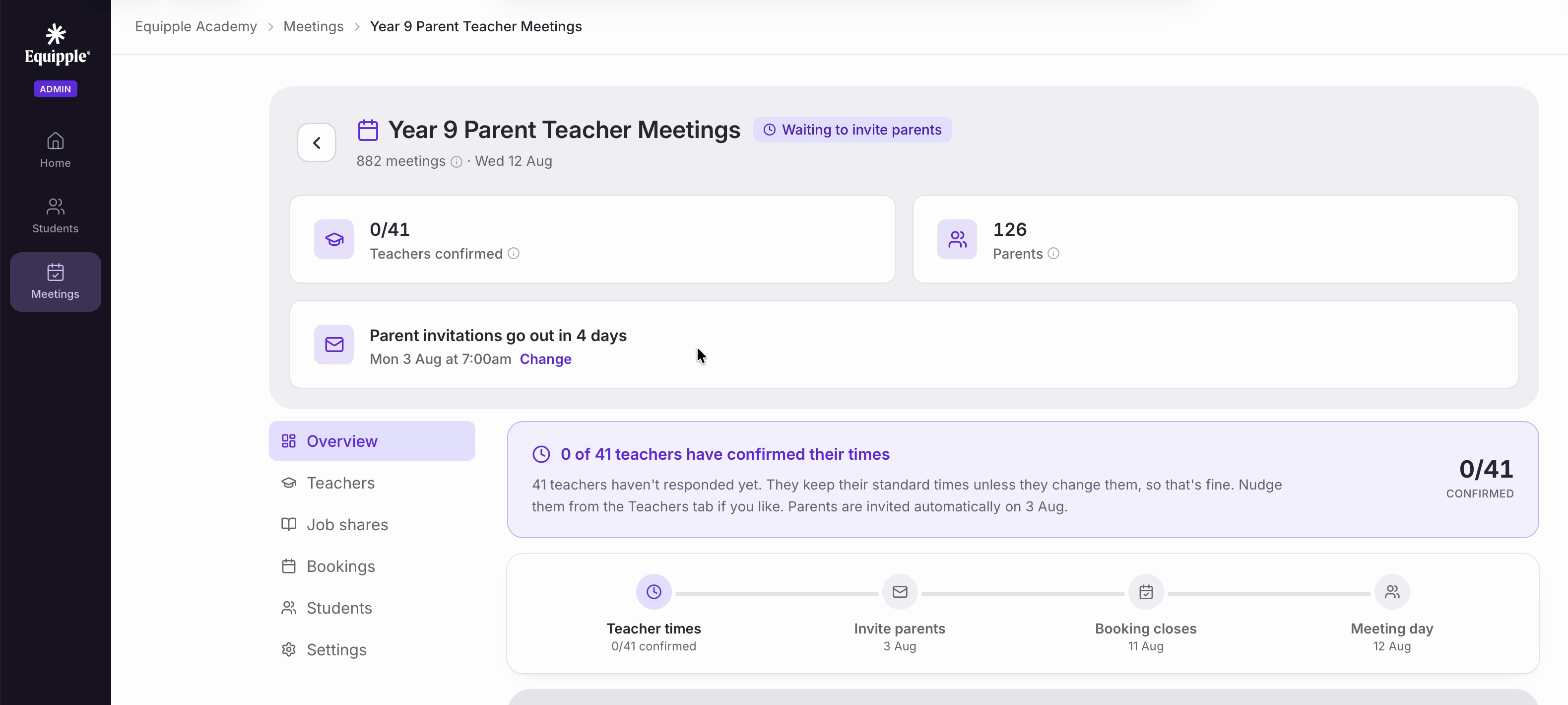
• ‘Overview’ is the tab you land on. The header gives you the schedule name and status, the total number of meetings and the meeting date.
• Beneath that, ‘Teachers confirmed’ and ‘Parents’ give you the two headline numbers, followed by a reminder of when parent invitations go out. ‘Change’ lets you move that date if you need to.
• The purple banner spells out the current position in plain English: how many teachers have confirmed, what happens if they don’t, and when parents will be invited automatically.
• Then comes the timeline for this schedule — ‘Teacher times’, ‘Invite parents’, ‘Booking closes’ and ‘Meeting day’ — each with its date underneath.
• On the left is the tab list for this schedule: ‘Overview’, ‘Teachers’, ‘Job shares’, ‘Bookings’, ‘Students’ and ‘Settings’.
Meeting details and times
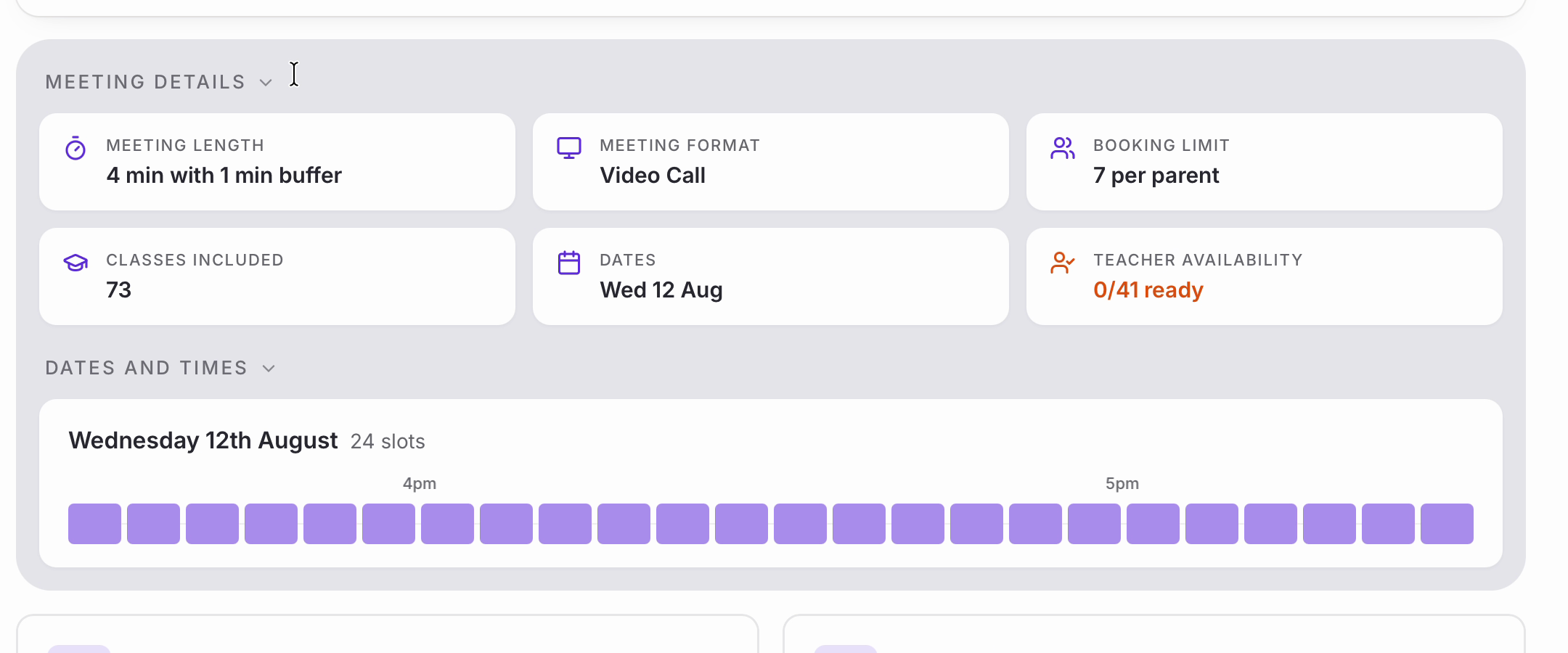
• ‘Meeting Details’ is a summary of how the schedule was set up.
• ‘Dates and Times’ shows each meeting day with its slots laid out as blocks, so you can see the shape of the evening without opening anything.
• Both section headings can be collapsed using the small arrow beside them if you would rather a shorter page.
Digging into the detail
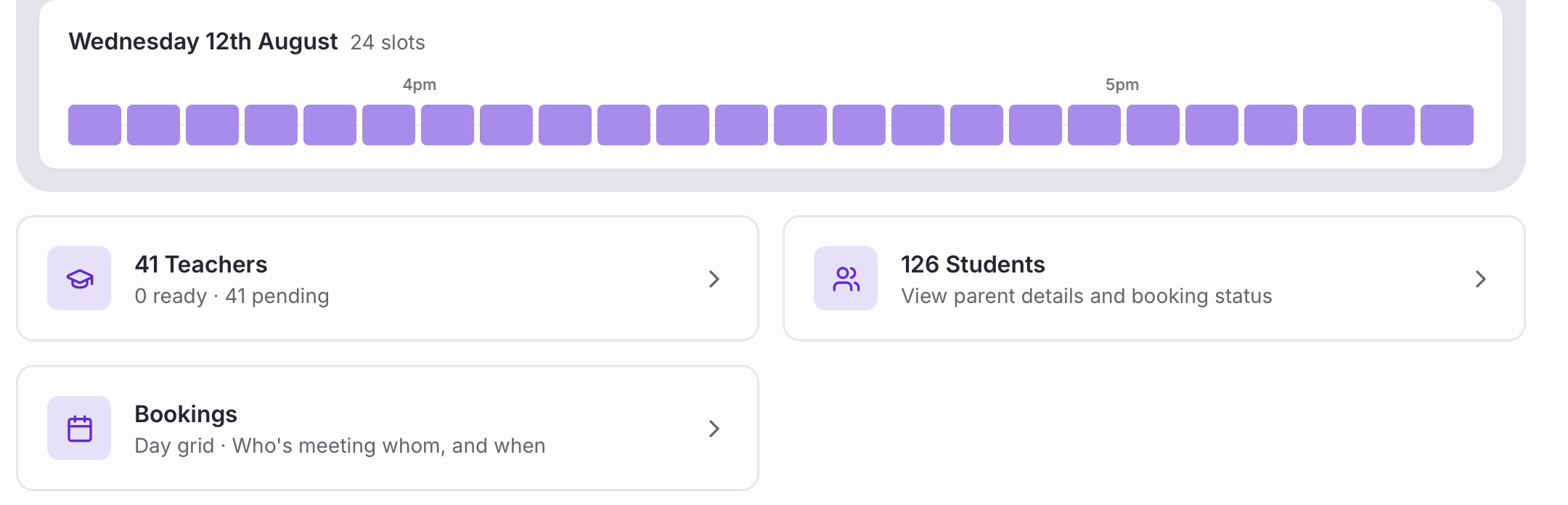
• The cards at the bottom are shortcuts into the rest of the schedule:
-Teachers – how many are ready and how many are still pending.
- Students – parent details and booking status for every child.
- Bookings – the day grid, showing who is meeting whom, and when.
Nb. If any pupils have no contactable parent or carer on record, an amber notice appears at the foot of the Overview naming those children. Those families cannot be sent a link to book, so you will need to contact them directly to arrange their times. Adding an email address or mobile number to your school’s records — or asking your MIS provider to — means they are included automatically the next time a schedule is set up.
• If anything on this page isn’t what you expected, the ‘Settings’ tab shows every option chosen for this schedule, and most of them can still be changed up until invitations go out.
Was this article helpful?
That’s Great!
Thank you for your feedback
Sorry! We couldn't be helpful
Thank you for your feedback
Feedback sent
We appreciate your effort and will try to fix the article