If you are a ‘School Admin’ and want to know how to create a ‘New Meeting Schedule’ for your Primary School, please follow these instructions:
Step 1 – Name
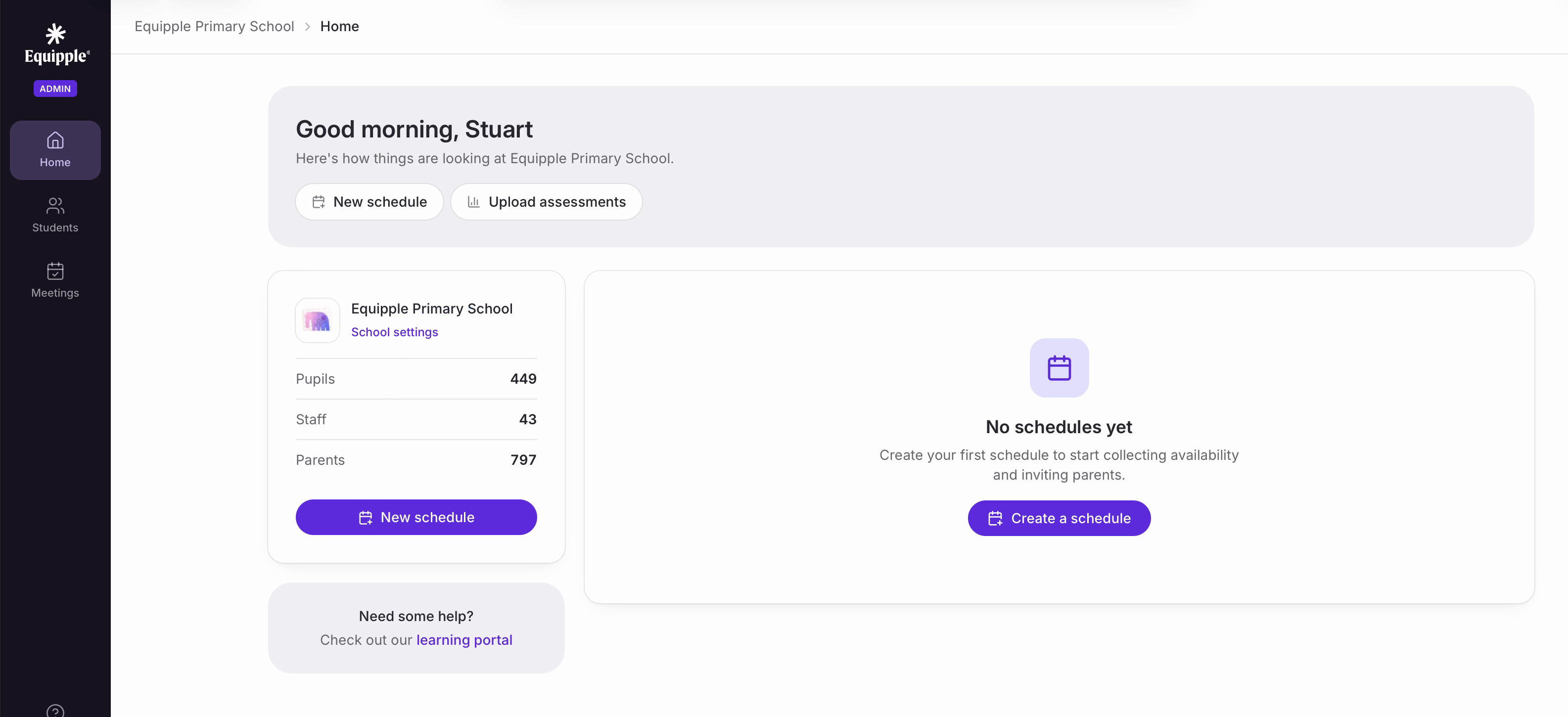
• From the Equipple ‘home screen’, simply click ‘New schedule’. If this is your school’s first schedule, you can also click ‘Create a schedule’ on the ‘No schedules yet’ card.
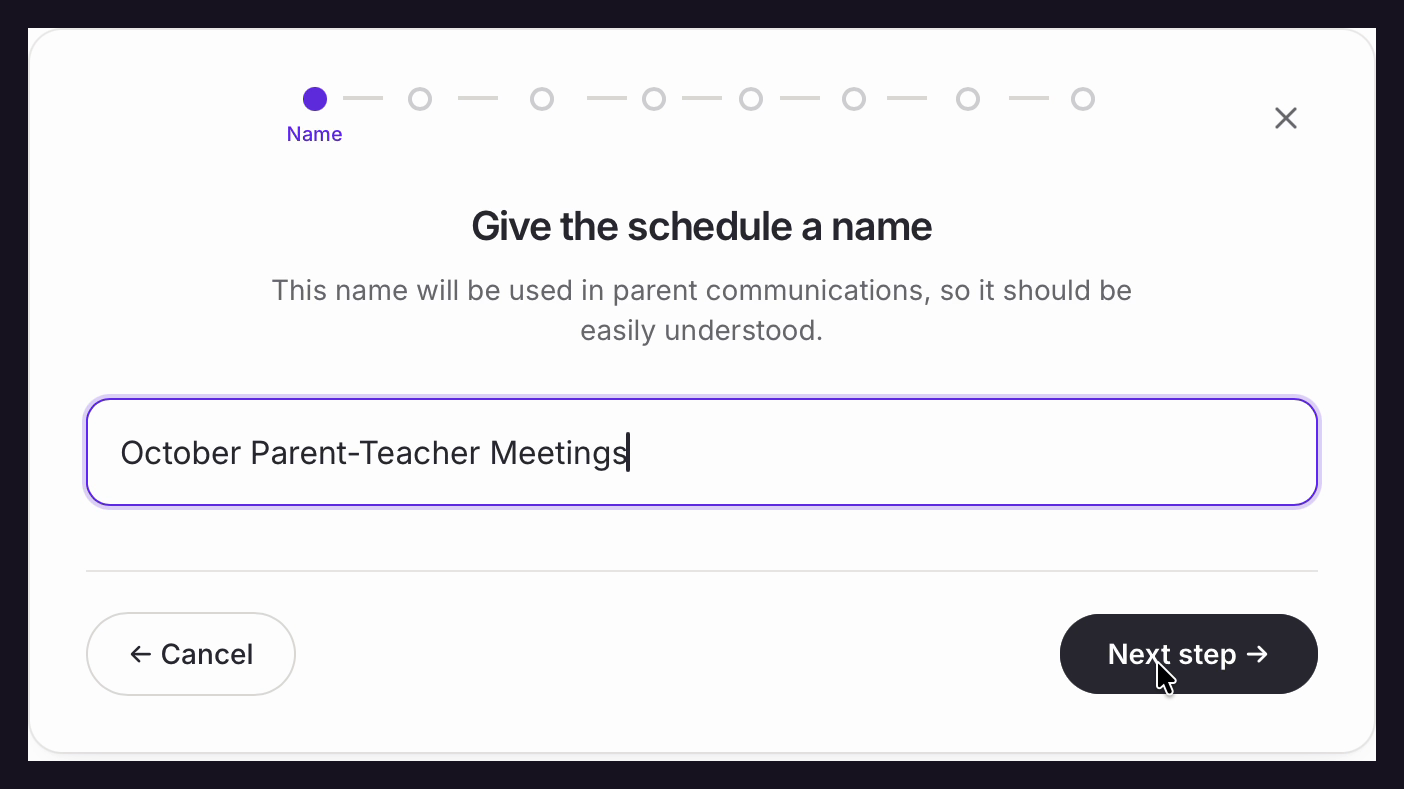
• You will be asked to ‘Give the schedule a name’. This name is used in parent communications, so choose something unique, specific and easily understood — for example, ‘October Parent-Teacher Meetings’. Then click ‘Next step’.
Don't see the 'New Schedule' button? This is likely because you are not set up as an administrator for your school. To get admin status, email support@equipple.com and provide the name of your school as well as the rationale for requiring admin permissions.Step 2 – Classes
• Select the year groups taking part in the parent/teacher meetings. To include your entire school, click ‘Select all’.
• As you make your selection, Equipple tells you how many students and teachers are involved. Every family can book one meeting with each teacher who teaches their child, and families choose their own times once invitations go out.
If this is the first schedule your school has created, the ‘Add New Schedule’ button will be on the left-hand side.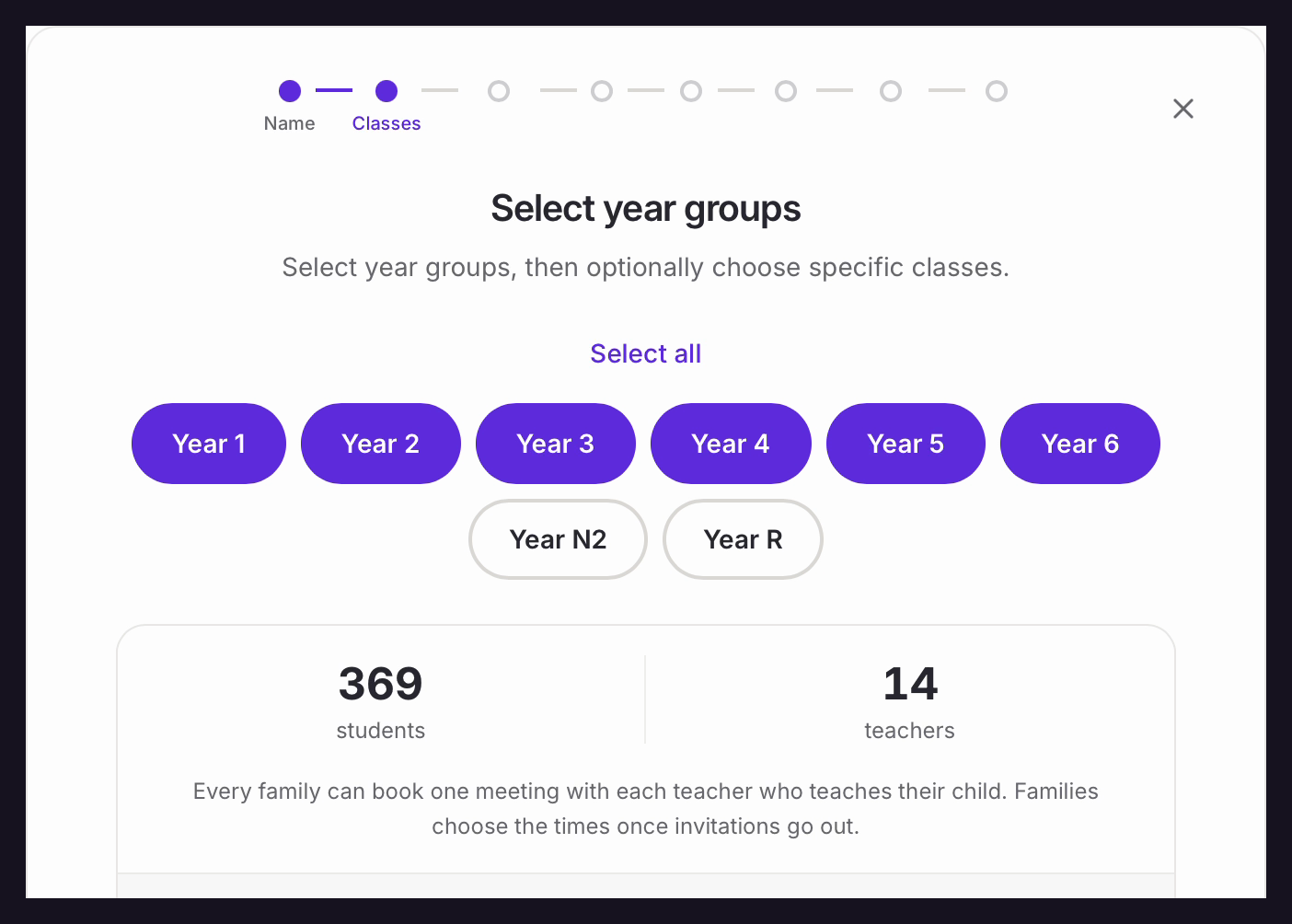
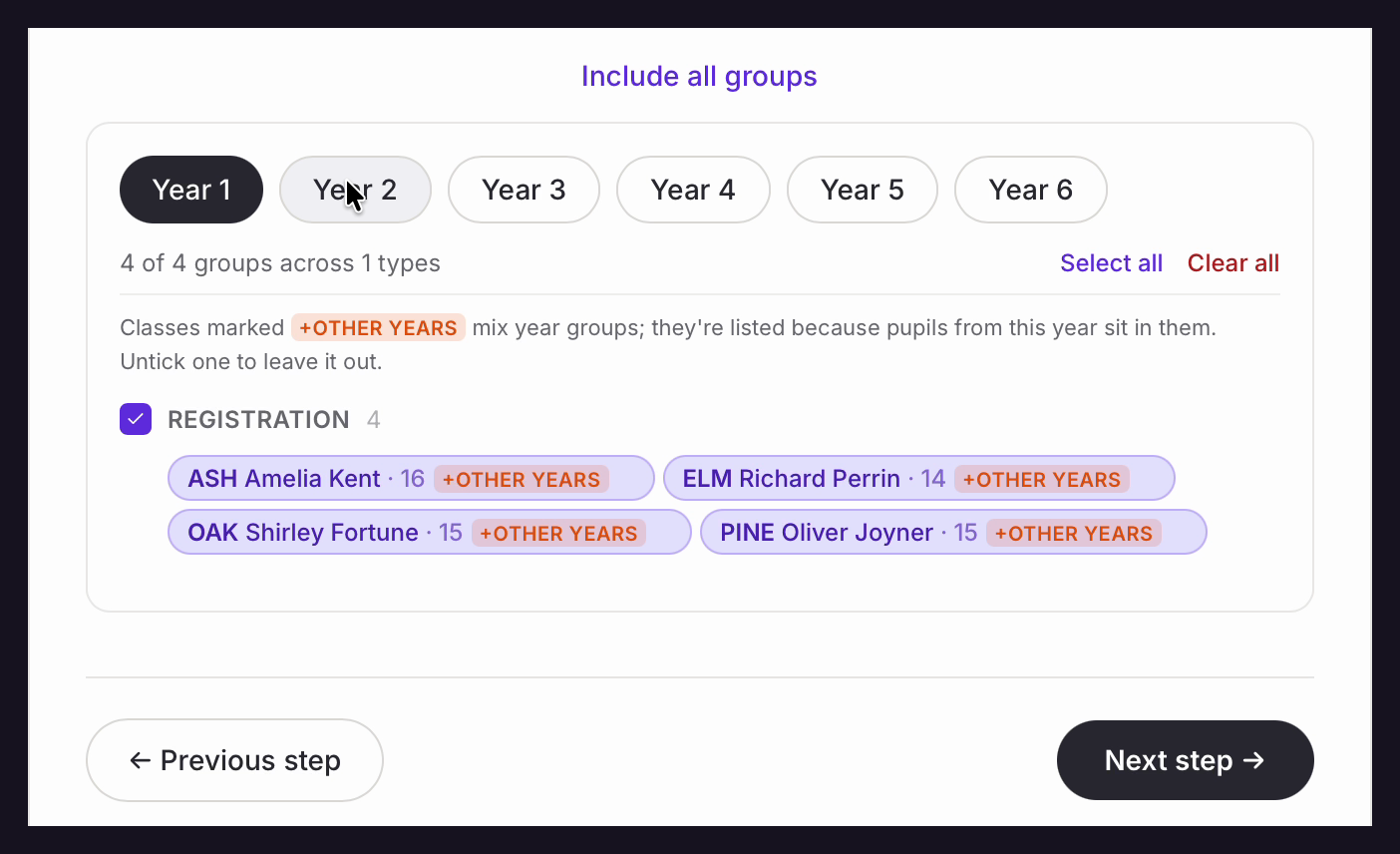
Every registration group in the year groups you chose is included by default, which is what most primary schools want. If you would like to fine-tune this, click ‘Choose specific groups’ underneath the summary.
• Use the year group tabs to move between years, and untick any group you don’t need. ‘Select all’ and ‘Clear all’ are there to save you time, and ‘Include all groups’ at the top puts everything bac
• When you are happy, click ‘Next step’.
Step 3 – Teachers
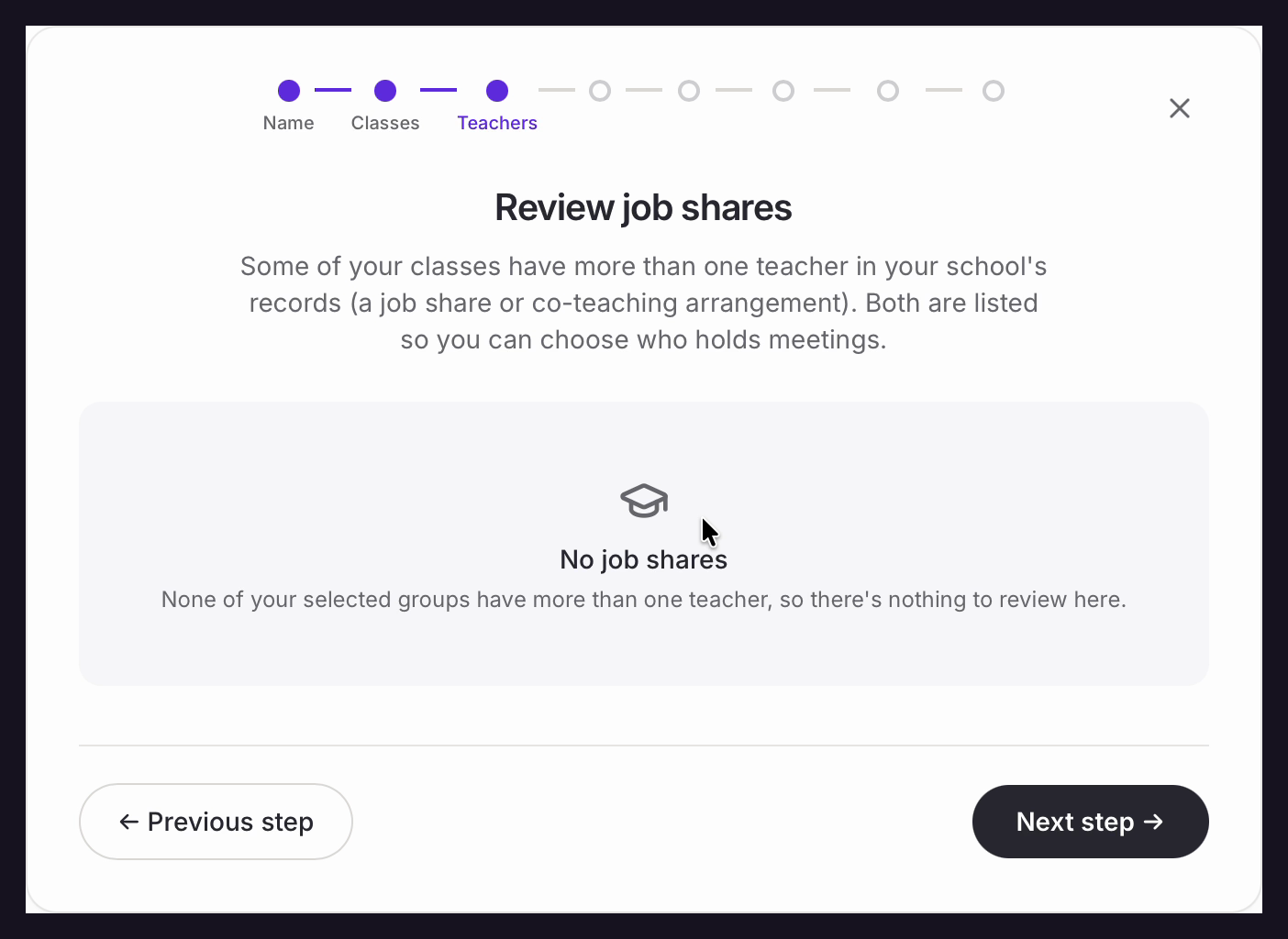
• This step is where you choose who holds the meetings when a group is taught by more than one teacher — a job share or co-teaching arrangement.
• Most primary schools will see ‘No job shares’, which simply means every group you selected has a single teacher and there is nothing to review. Click ‘Next step’ to carry on.
• If any of your groups are shared, each teacher is listed with a toggle. Turn off anyone who won’t be holding parent meetings for that particular group — they will still hold meetings for any other group they teach.
Nb. You can change job share settings at any time up until invitations are sent, from the ‘Job shares’ tab on the schedule.
Step 4 – Dates
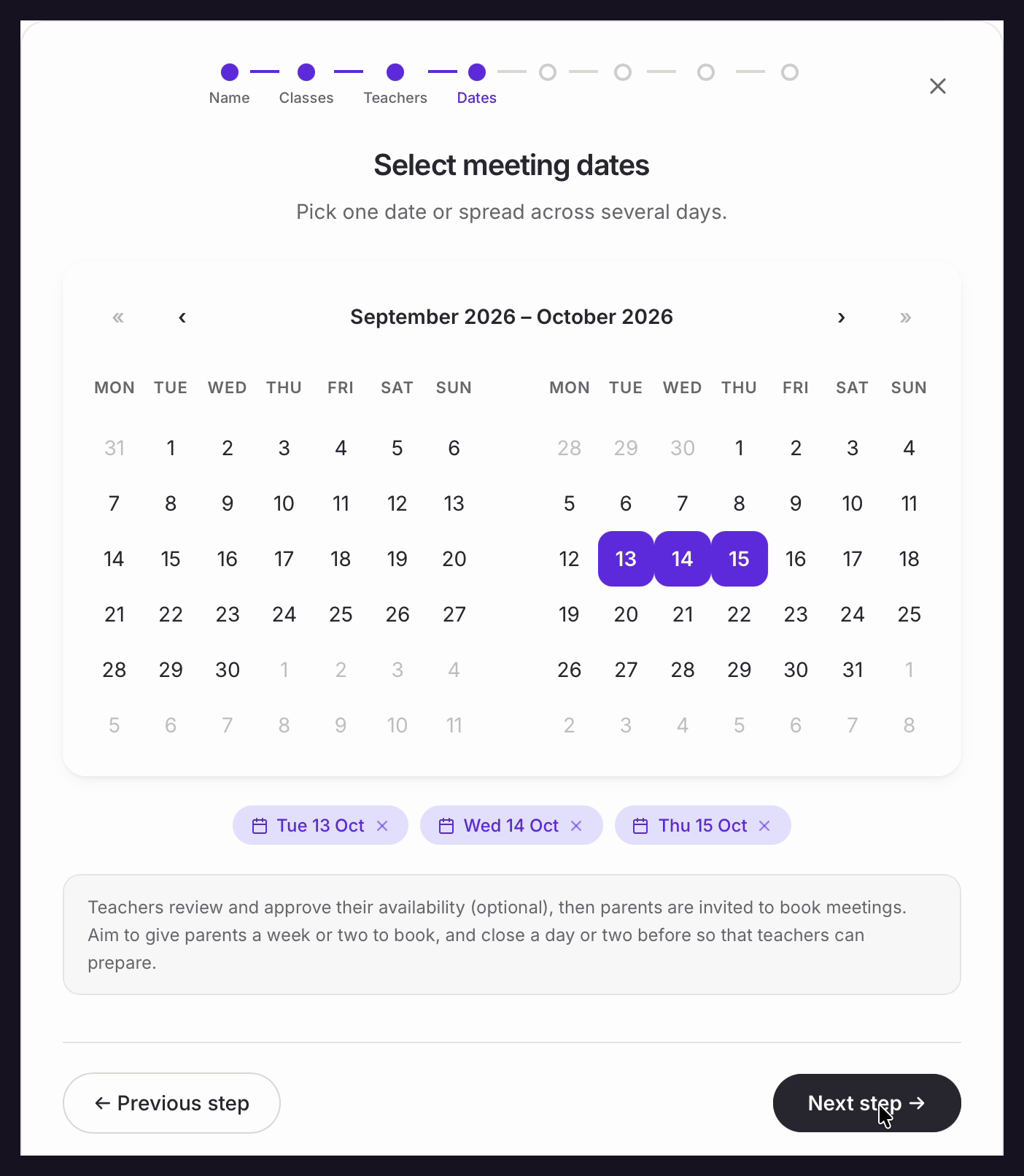
• A calendar will now come up, showing two months at a time. Use the arrows at the top to move backwards and forwards.
• Select the date, or dates, when your meetings are taking place. Selected dates are highlighted and also appear as tags underneath the calendar, so you can double-check them at a glance and remove one with the small ‘x’ if you make a mistake.
• Click ‘Next step’.
Nb. Meeting days must be at least a week ahead, and today is always blocked. This protects the run-up you need for teachers to confirm their availability, for invitations to go out, and for parents to book.
Step 5 – Times
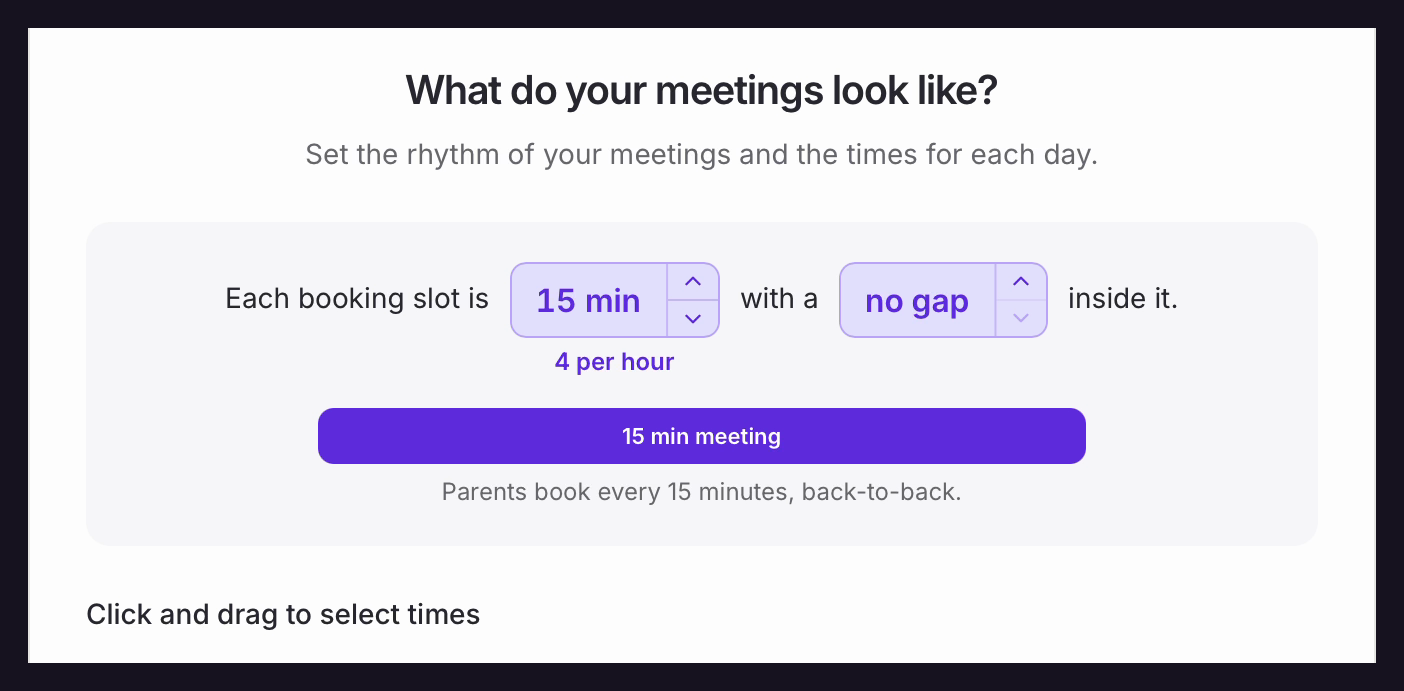
• First, set the rhythm of your meetings. Use the up and down arrows to choose how long each booking slot is, and how long a gap sits inside it.
• If you would like the meetings to run back-to-back, one after the other, set the gap to ‘no gap’. If you would prefer a short changeover to allow teachers time to quickly make any additional notes, reset themselves and prepare for the next family, choose the number of minutes you would like. The gap sits inside the slot, so a 15 minute slot with a 2 minute gap gives 13 minutes of talking time.
• Equipple spells out what your choice means in practice underneath. In the example below, a 15 minute slot with no gap means parents book every 15 minutes, back-to-back — 4 slots per hour.
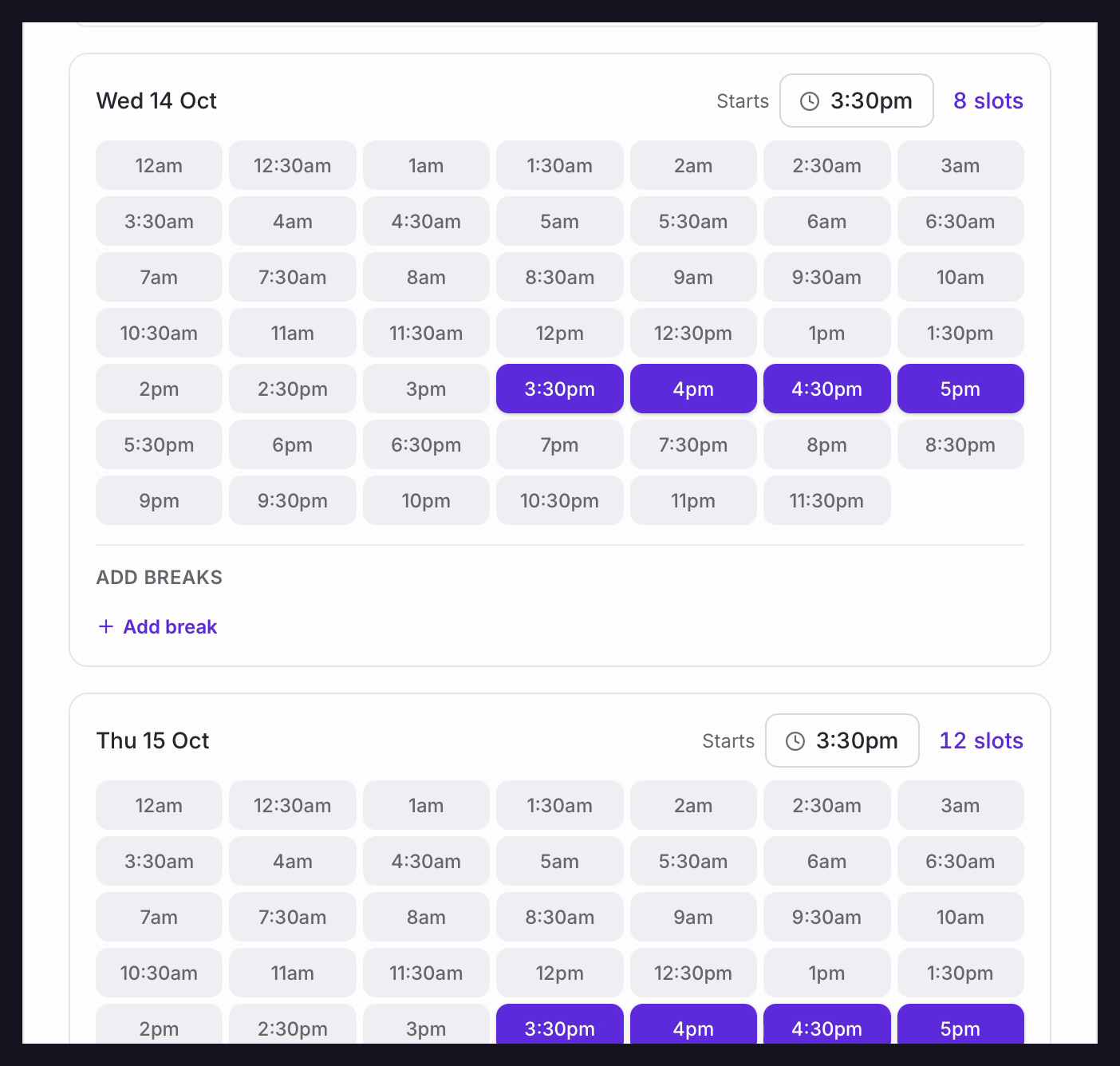
• Next, choose the exact times your meetings will run. Each day you selected gets its own grid, so you can run different hours on different days.
• Click and hold on the earliest slot for that day and drag down to the final slot. You can click an individual slot to add it or take it away, so it is easy to leave gaps where you need them. Repeat this for each day, then double check your timings.
• If you need a longer break in the middle of an evening, click ‘Add break’ under ‘ADD BREAKS’ for that day, set the start and end times, and click ‘Accept’.
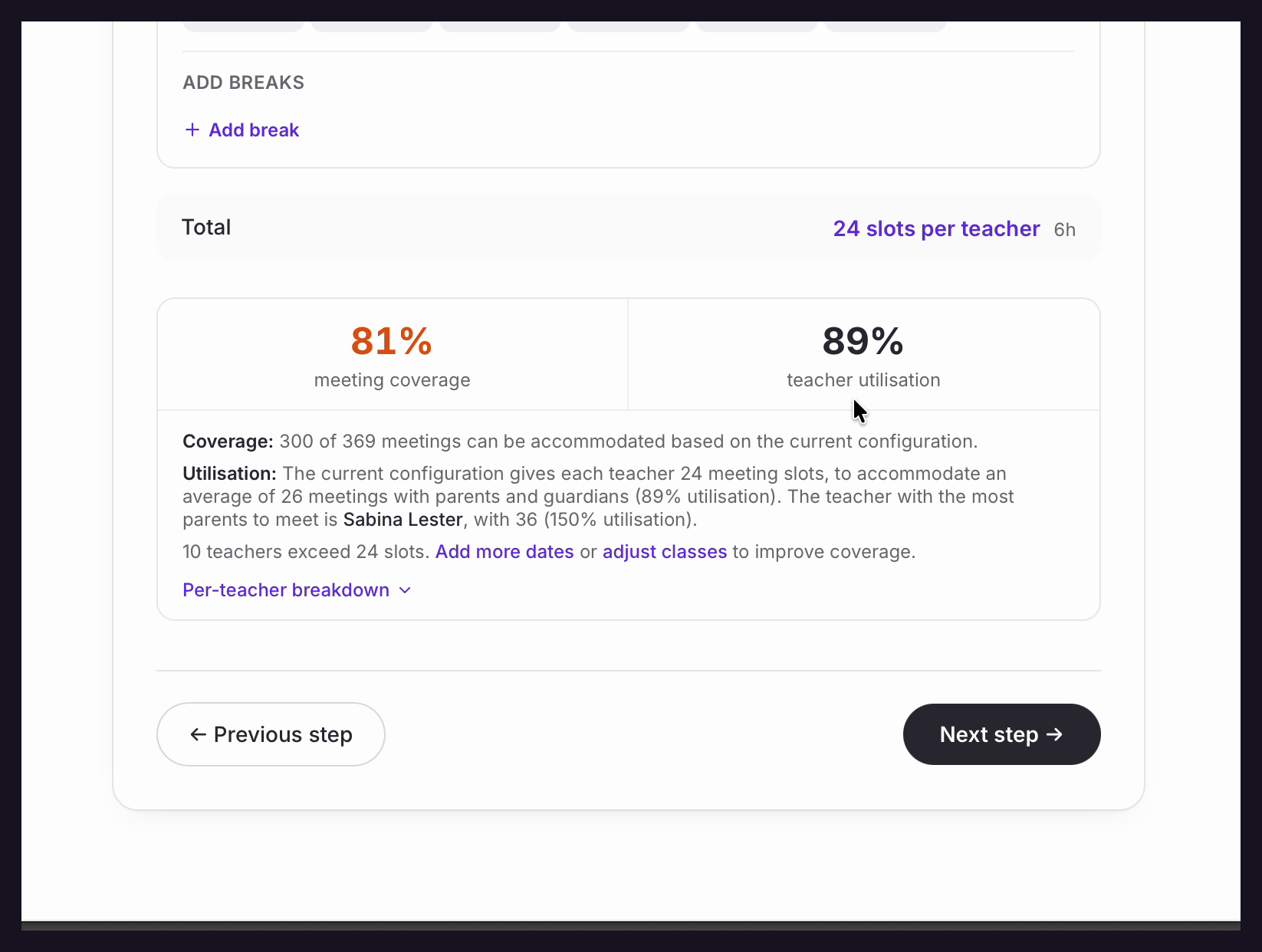
• At the bottom, ‘Total’ shows how many slots each teacher ends up with across all of your days.
• Underneath that, ‘meeting coverage’ tells you what proportion of the meetings parents want can actually be accommodated, and ‘teacher utilisation’ tells you how full your teachers’ evenings will be. Expand ‘Per-teacher breakdown’ to see exactly who is stretched.
• If coverage is lower than you would like, use the ‘Add more dates’ or ‘adjust classes’ links to improve it. When you are happy, click ‘Next step’.
Step 6 – Format
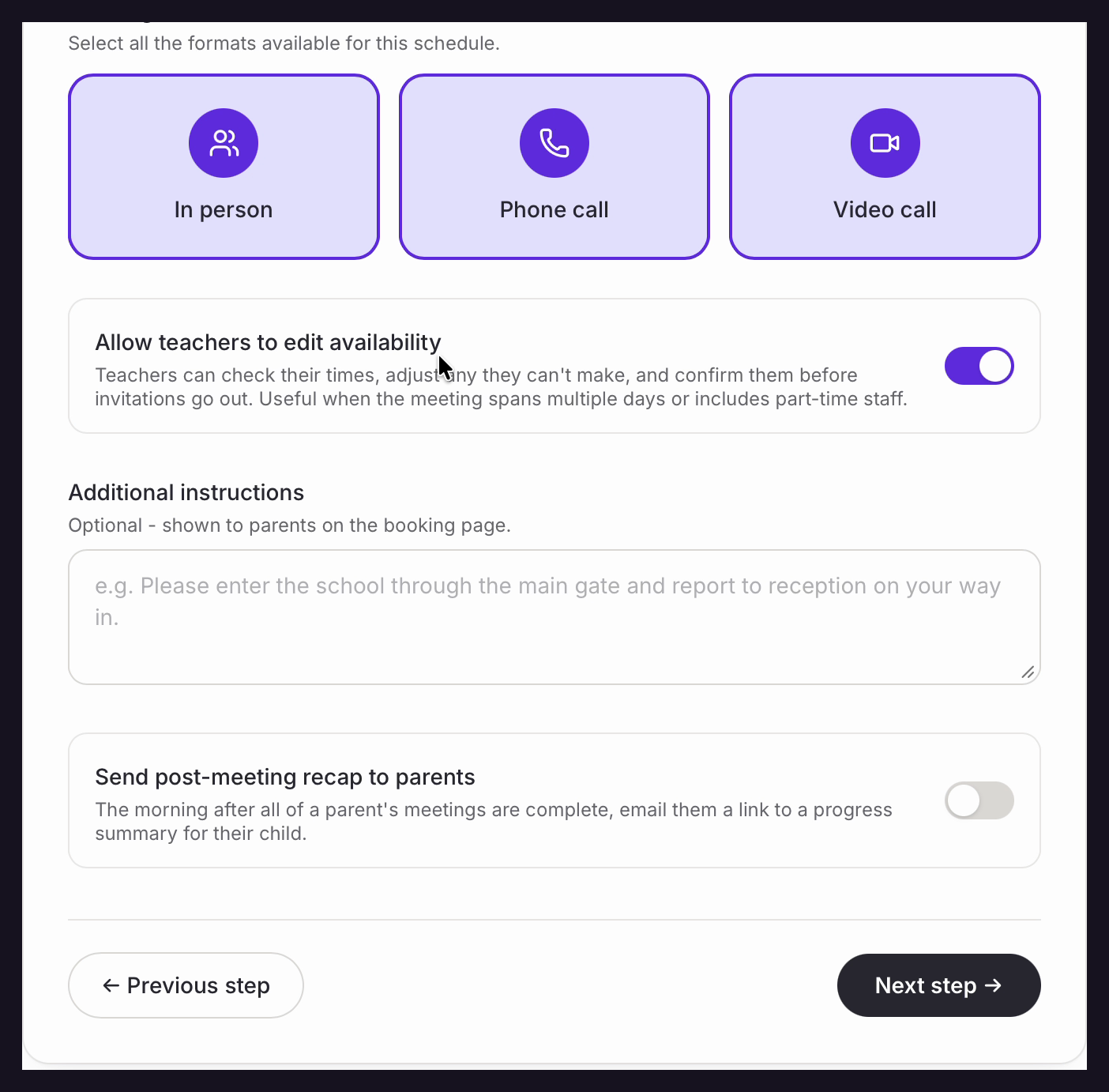
• Now you need to choose your meeting format with parents. If your parent/teacher meetings are in person, click ‘In person’. If your school conducts phone call or video call meetings as well, you can select these options here too.
In this step you are simply setting the permissible formats. Teachers can choose to have fewer formats available for parents to book, but they cannot add additional formats.
For example, if an admin selects ‘In person’ an individual teacher can choose to open their availability to ‘In person’ meetings only. But they cannot choose to add ‘Phone call’ as an option. Only the admin can add extra formats for meetings.
• ‘Allow teachers to edit availability’ lets teachers check their times, adjust anything they can’t make and confirm them before invitations go out. This is particularly useful when the meetings span multiple days or you have part-time staff.
• ‘Additional instructions’ is optional and is shown to parents on the booking page. This might be instructions for parking on the day, which entrance of the school to use, or where parents should wait.
Note – ideas for additional instructions may include:
- Instructions for parking on the day of the meetings.
- Which entrance of the school to use.
- Where parents should wait for their meeting.
- Reminders to ensure parents arrive on time for their meeting.
- A gentle encouragement to stick to the schedule.
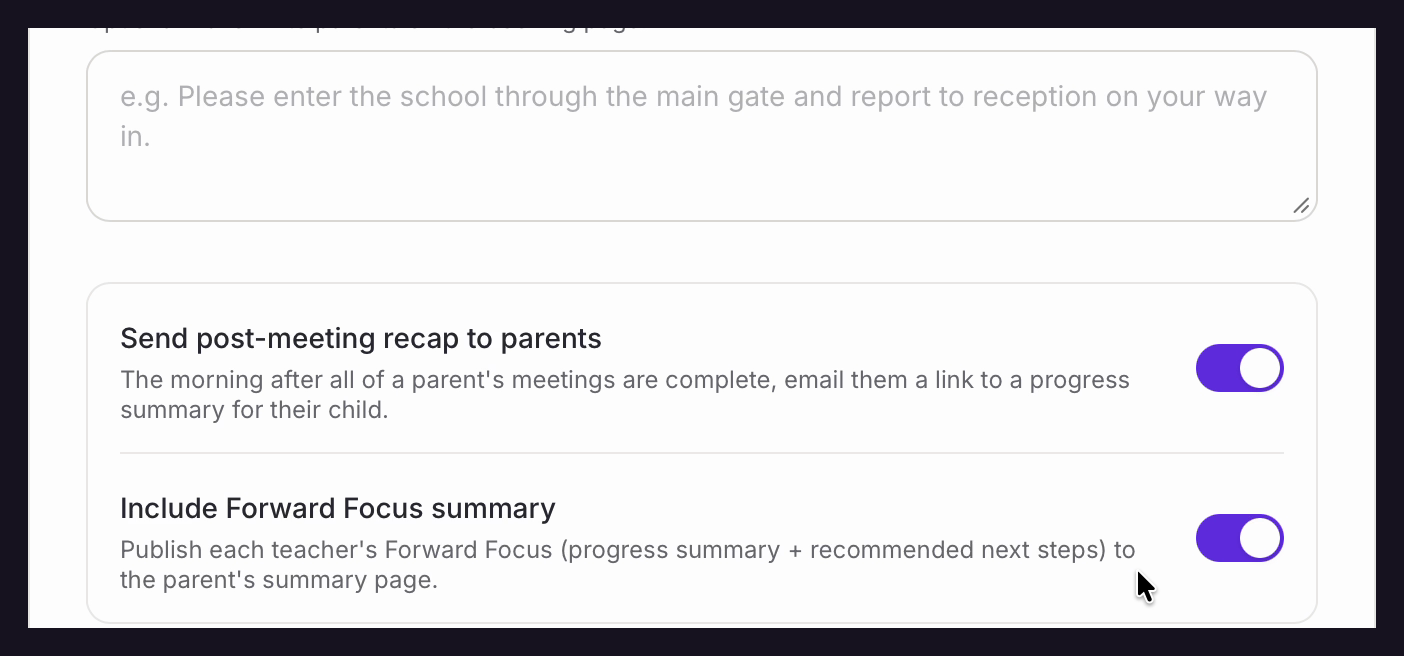
• ‘Send post-meeting recap to parents’ emails each parent a link to a progress summary for their child, the morning after all of their meetings are complete.
• Switching that on reveals ‘Include Forward Focus summary’, which publishes each teacher’s Forward Focus — a progress summary plus recommended next steps — to the parent’s summary page.
• Once you are happy with your settings, click ‘Next step’.
For more information on the Forward Focus please refer to this support article: https://help.equipple.com/support/solutions/articles/202000098878
Step 7 – Timeline
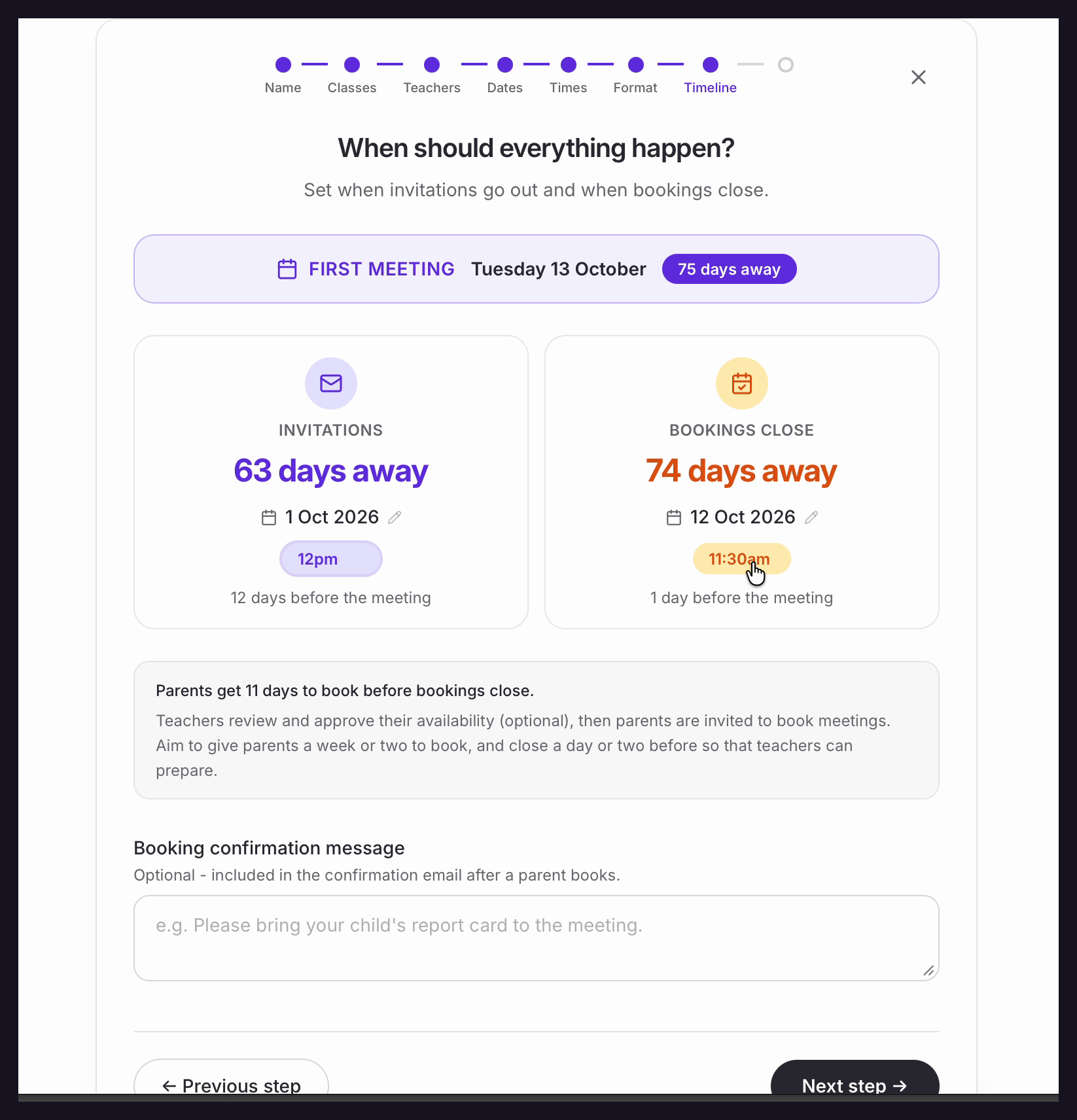
• This page sets when parents are automatically invited and when the booking window for parents closes. Your first meeting date is shown at the top, along with how many days away everything is.
• Under ‘INVITATIONS’, click the date or the time to choose exactly when parents receive their invitation to book. We recommend giving parents a week or two to book, so that teachers have time to prepare and parents have time to choose their slot.
• Then repeat the process underneath for ‘BOOKINGS CLOSE’. This is the deadline at which the booking system closes and prevents further bookings. We recommend closing a day or two before your first meeting, so that meeting times are not changing right up to the last minute.
• Equipple confirms how long parents will have to book in the grey panel underneath, so you can sanity-check your dates at a glance.
• ‘Booking confirmation message’ is optional and is included in the confirmation email a parent receives after they book.
• Click ‘Next step’.
Nb. Teachers and admins can still manually assign parents even once the booking closure date has lapsed.
Step 8 – Review and confirm
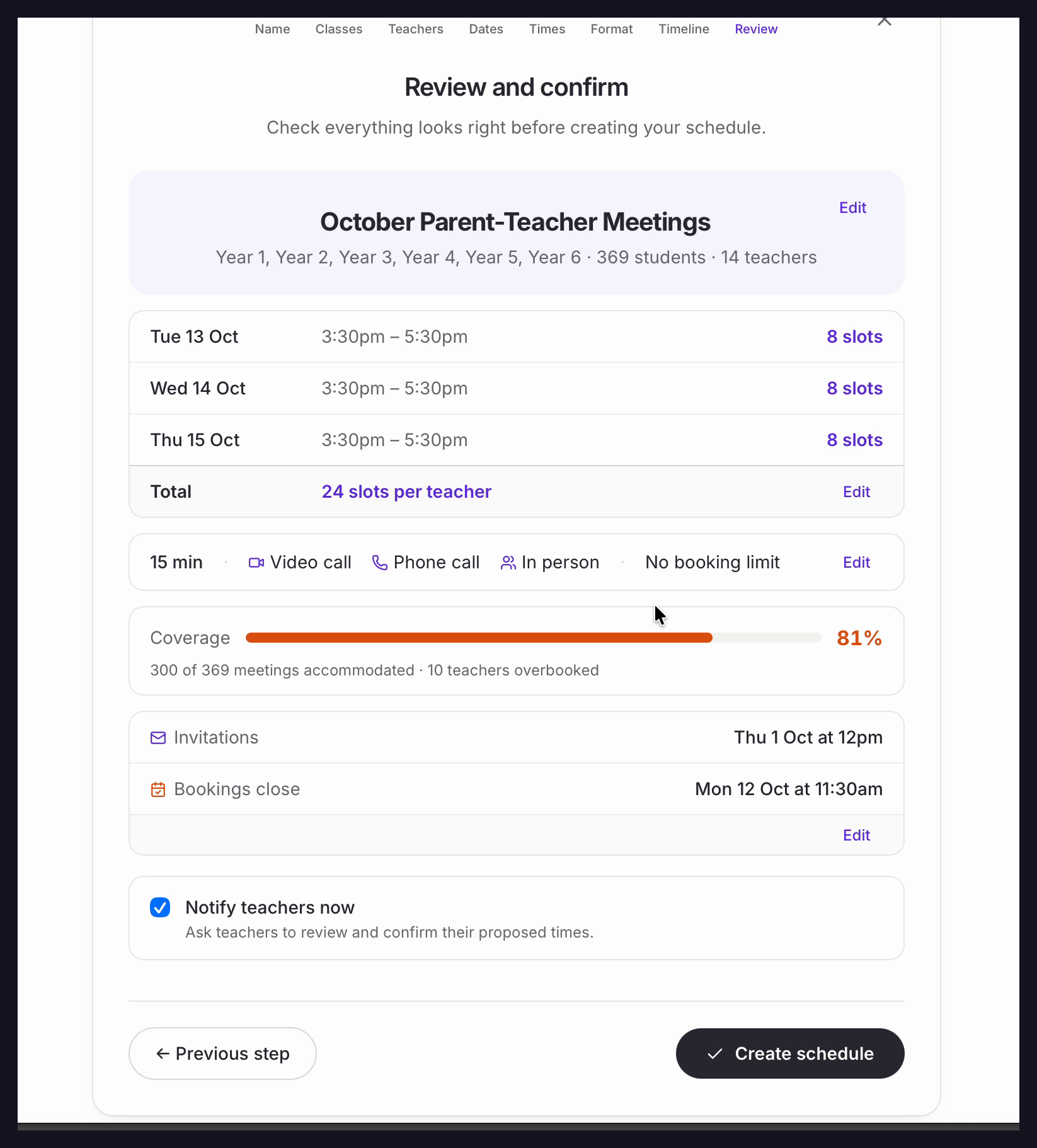
• The final step is to ‘Review and confirm’ the details of your meeting schedule. You will see each of your meeting days listed with its times and slot count. Anything you want to change has an ‘Edit’ link beside it that takes you straight back to that step.
• ‘Notify teachers now’ asks your teachers to review and confirm their proposed times. Leave this ticked unless you would rather do it later.
• Check each section and if you’re happy, click ‘Create schedule’.
• Once your schedule has been created you will land on its dashboard, where you can track teacher confirmations, parent bookings and the run-up to meeting day.
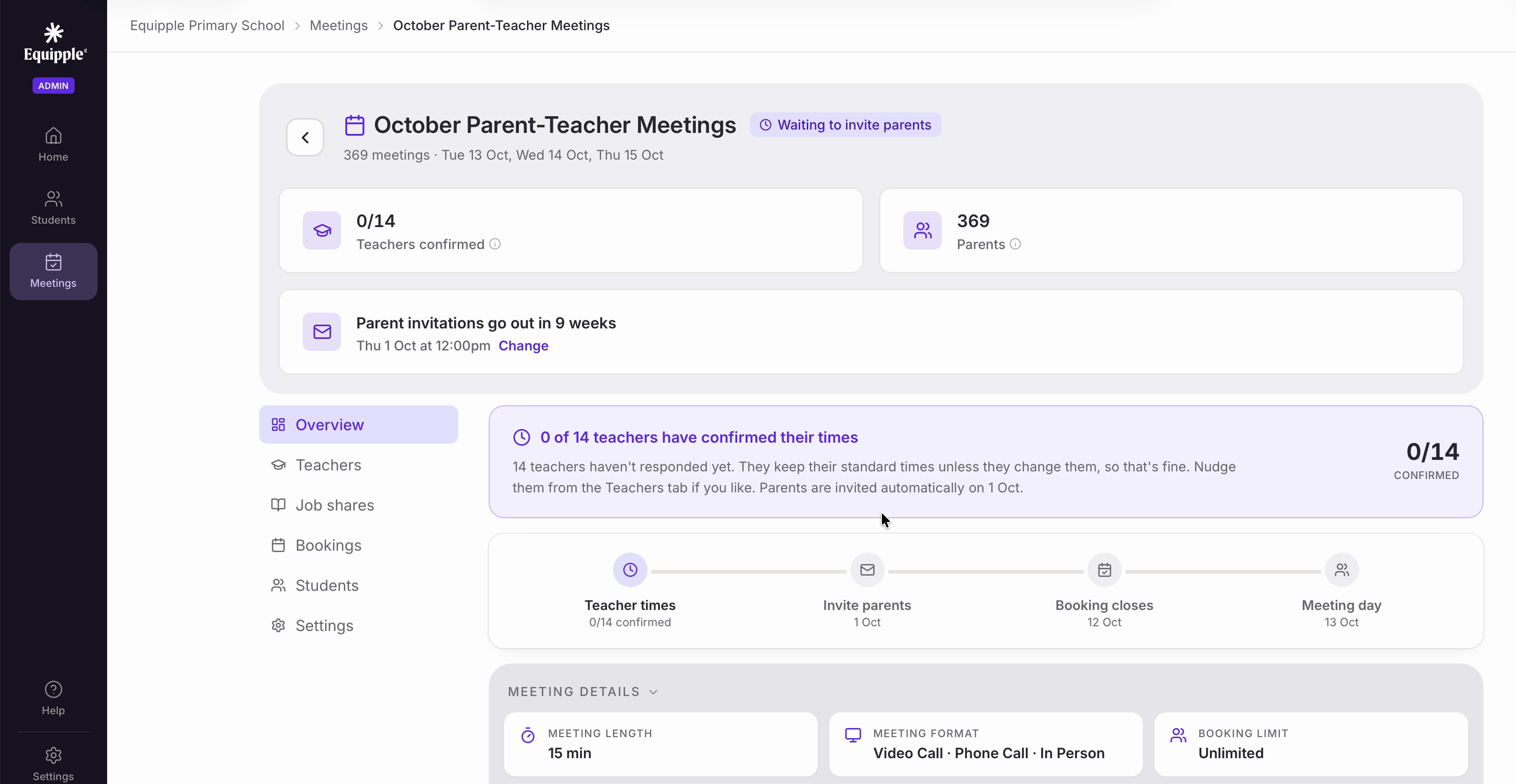
Well done! You’ve just created your first schedule
Was this article helpful?
That’s Great!
Thank you for your feedback
Sorry! We couldn't be helpful
Thank you for your feedback
Feedback sent
We appreciate your effort and will try to fix the article