If a parent contacts you because they did not receive an email invitation, these are the steps to follow:
Step 1
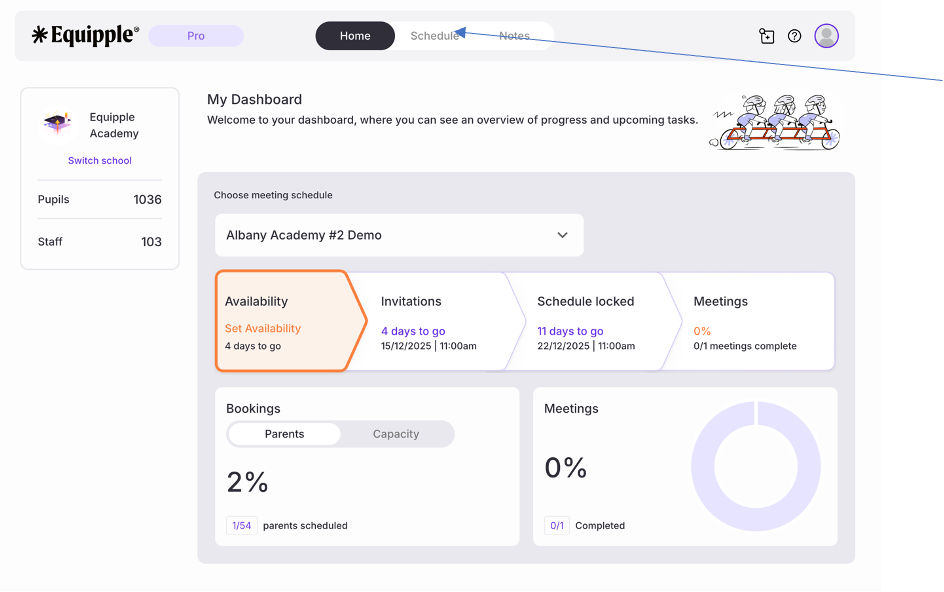
From the Equipple ‘Home Screen’, click the ‘Schedule’ tab. You’ll be taken to the ‘My Schedule’ page but please then select ‘Class Schedule.’ From here, click the drop-down menu and select the Parent-Teacher meeting schedule you are preparing for and double check your class is in the next tab.
Step 2
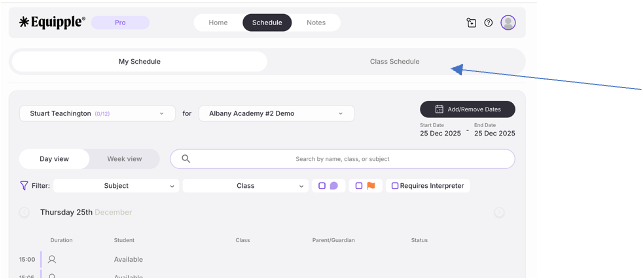
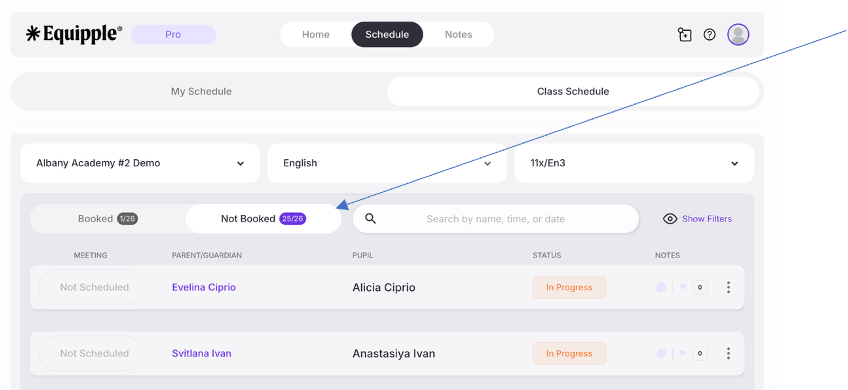
You’ll be taken to the ‘My Schedule’ page. From here, click on ‘Class Schedule’ and then select the Parent-Teacher meeting schedule you are preparing for. Finally, click on the ‘not booked’ tab to find the parent you would like to resend an invitation to.
Step 3
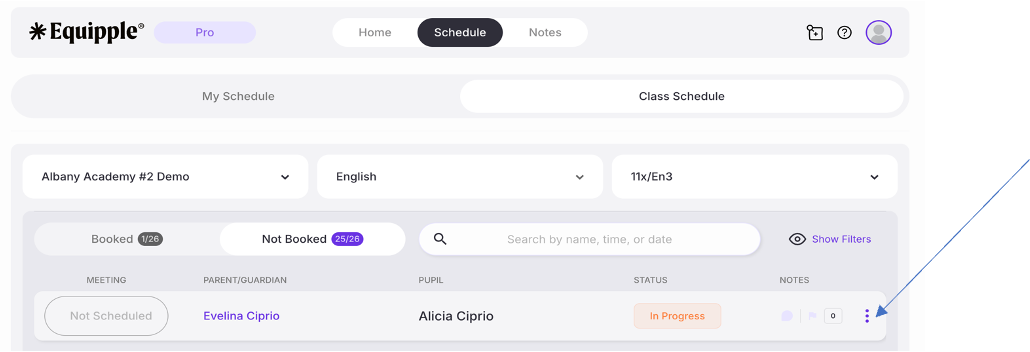
- Click on the three dots beside the parent you want to resend an invitation to.
Step 4
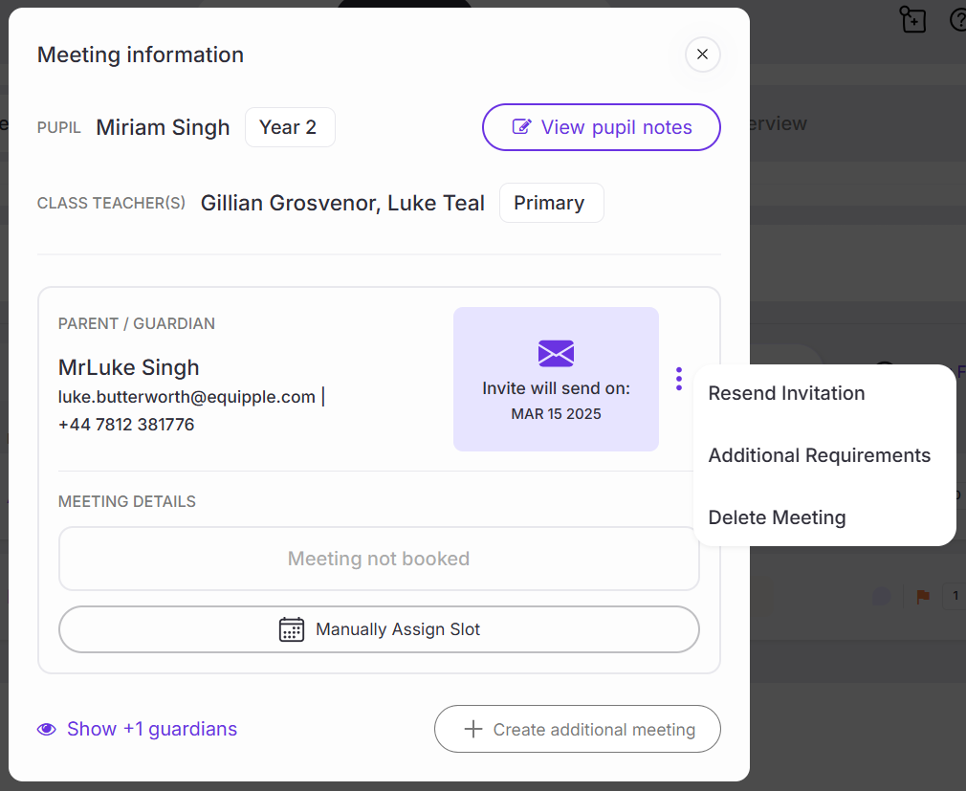
- A ‘Meeting Information’ pop-up tab will have opened. On the right-hand side, click the three dot icon.
- Click ‘Resend Invitation.’
Step 5
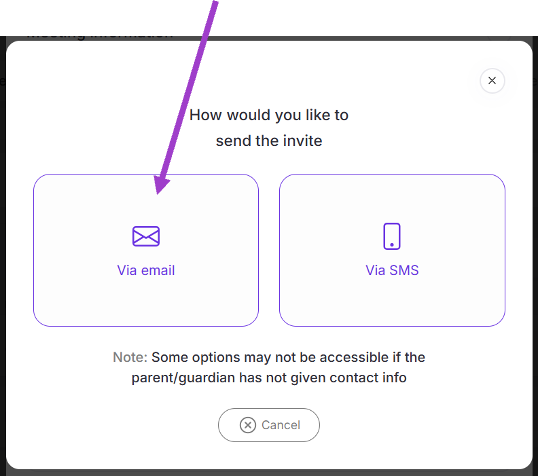
- A new pop-up tab will appear. Click the box ‘Via email.’
Step 6
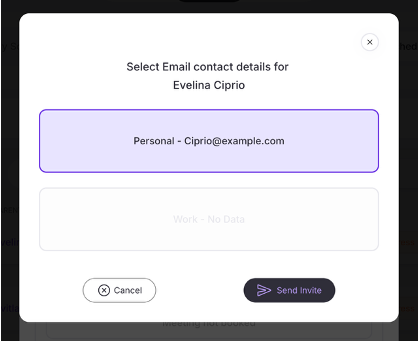
- Another pop-up tab will open. Click on the email address so the box is highlighted and click ‘Send Invite.’
- If the email address is incorrect, follow these steps to update the email address.
Once the new email address is updated in the system (this can take up to 24 hours), you will need to manually re-send the invitation. To do this, jump to step 6.
- A success message at the bottom of the screen will confirm the invitation has been successfully sent.

Still facing issues? If you have followed the above steps and parents are still not receiving invitations from Equipple, please submit a support ticket, providing as much detail as possible to help our team troubleshoot.
If the parent has already told you what times they're available, you may find it easier to manually assign their meeting slot. To do this, follow this guide.
Was this article helpful?
That’s Great!
Thank you for your feedback
Sorry! We couldn't be helpful
Thank you for your feedback
Feedback sent
We appreciate your effort and will try to fix the article