To prepare for your meeting with a Parent/Guardian, you may need to create some notes. Follow the simple instructions below which explains how to create and add notes for all your pupils.
Step 1
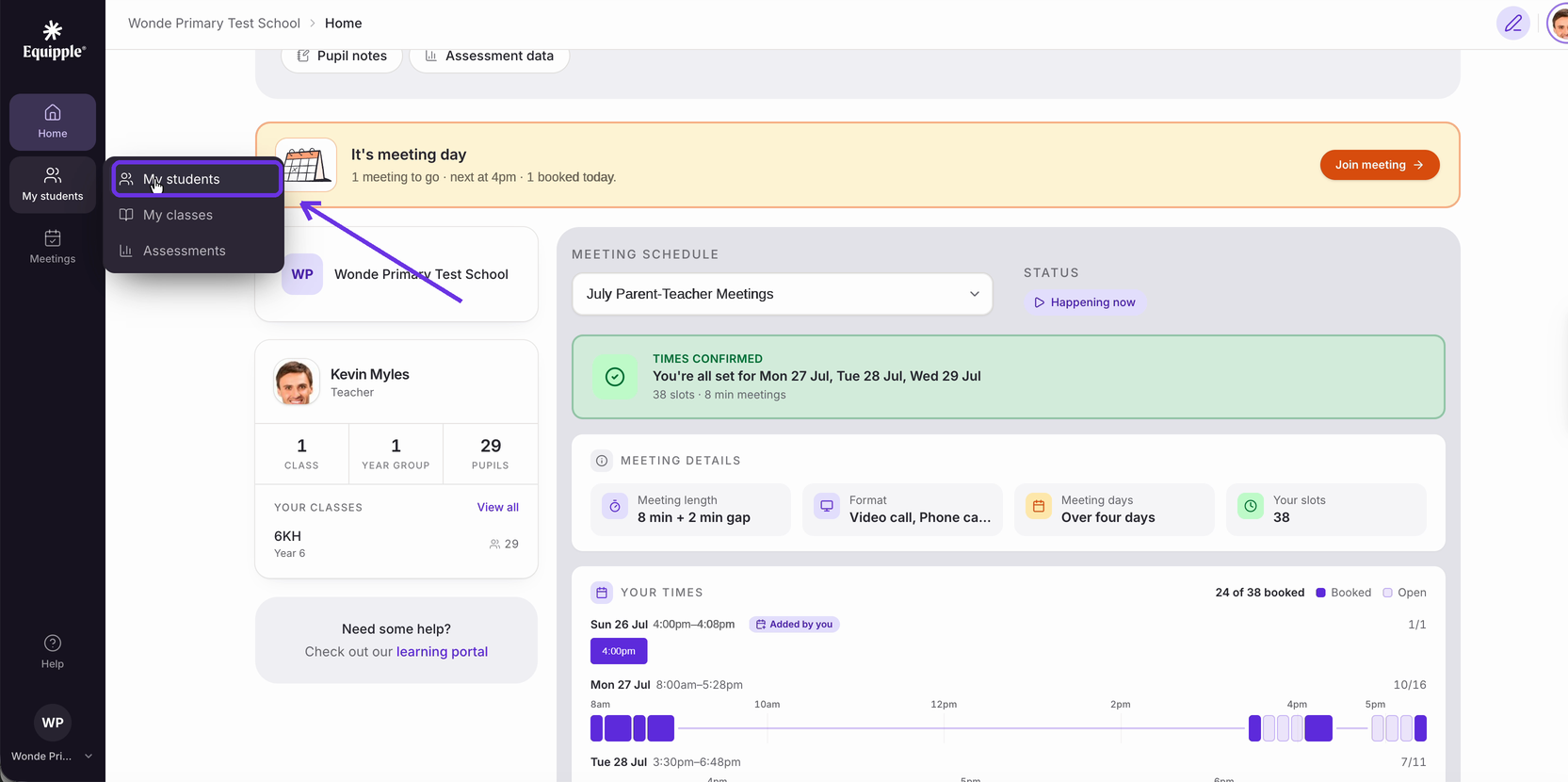
- In the left-hand sidebar, click "My students".
Step 2
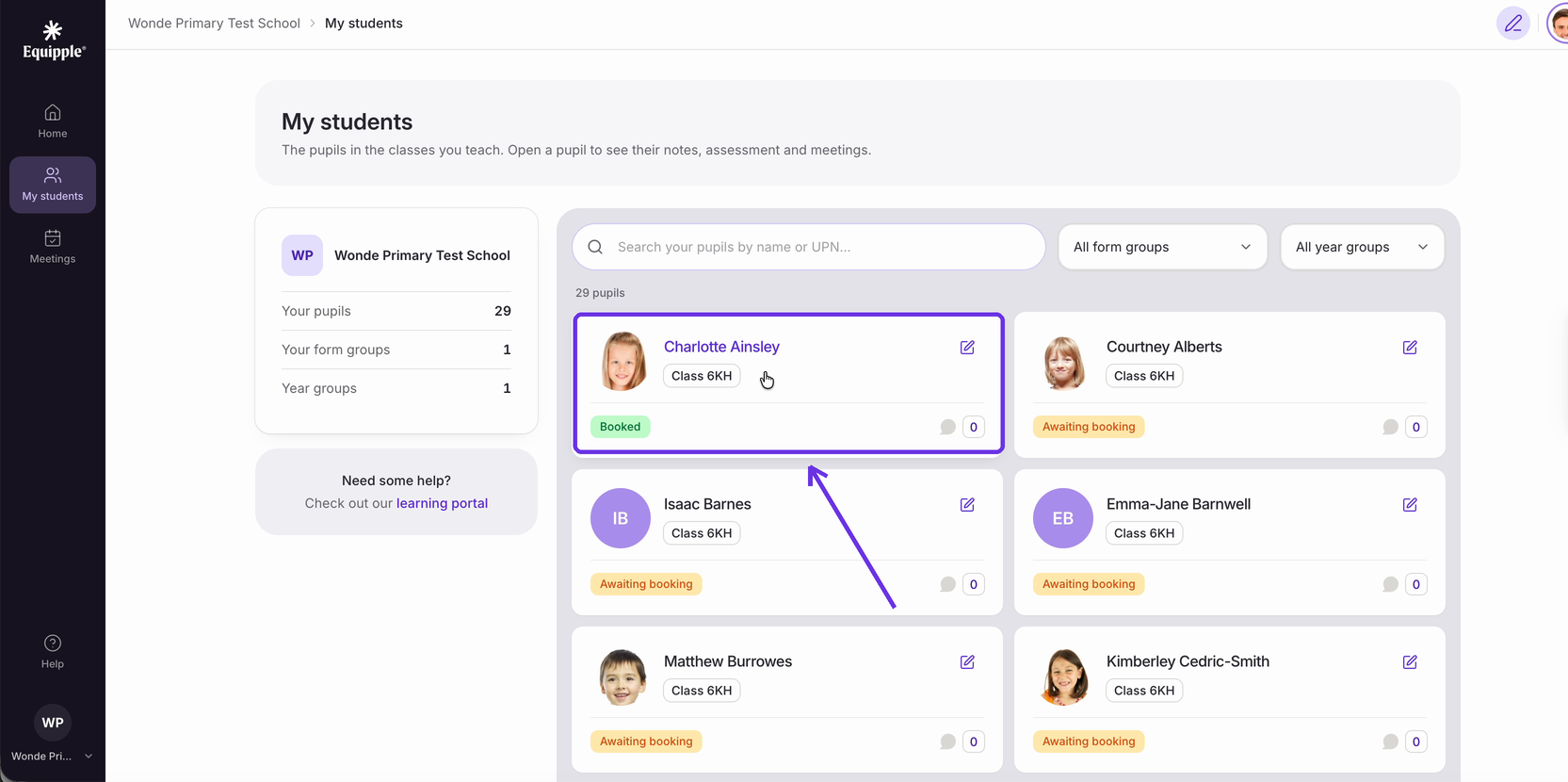
- Click the pupil you want to write a note about.
Step 3
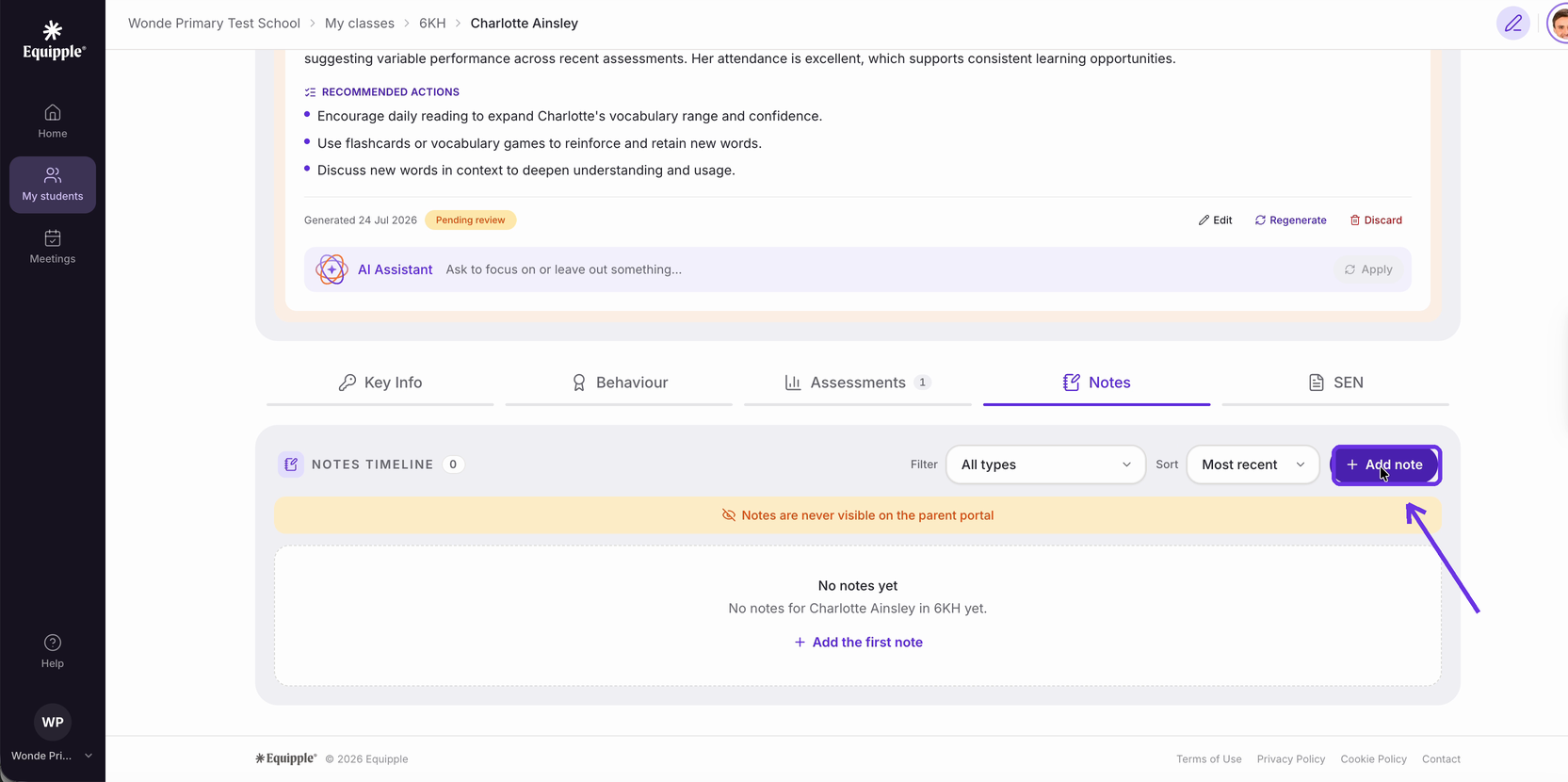
- Select the "Notes" tab.
By the way - Notes are never visible on the parent portal. They stay between you and your colleagues.
Step 4
Click "Add note". From here you can go straight to writing.
Step 5
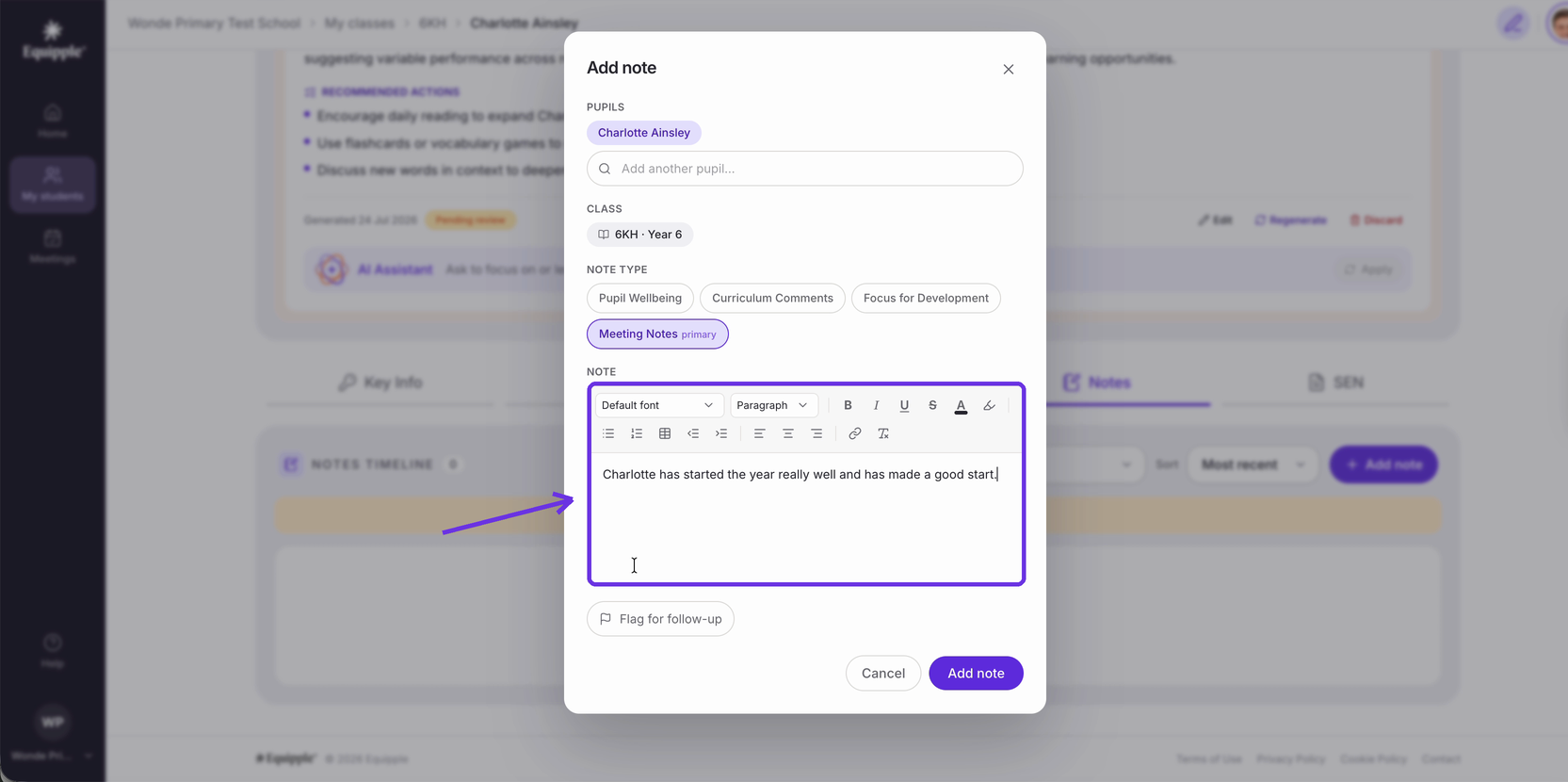
- Type your note into the "Note" box
Step 6
Under "Note type", click the type that best fits your note.
You can choose more than one type of tag for your meeting note. The one marked "primary" is the tag that shows against your note in the timeline, and the type you click most recently becomes the primary one. "Meeting Notes" is selected to start with but click it again to turn it off if it doesn't apply.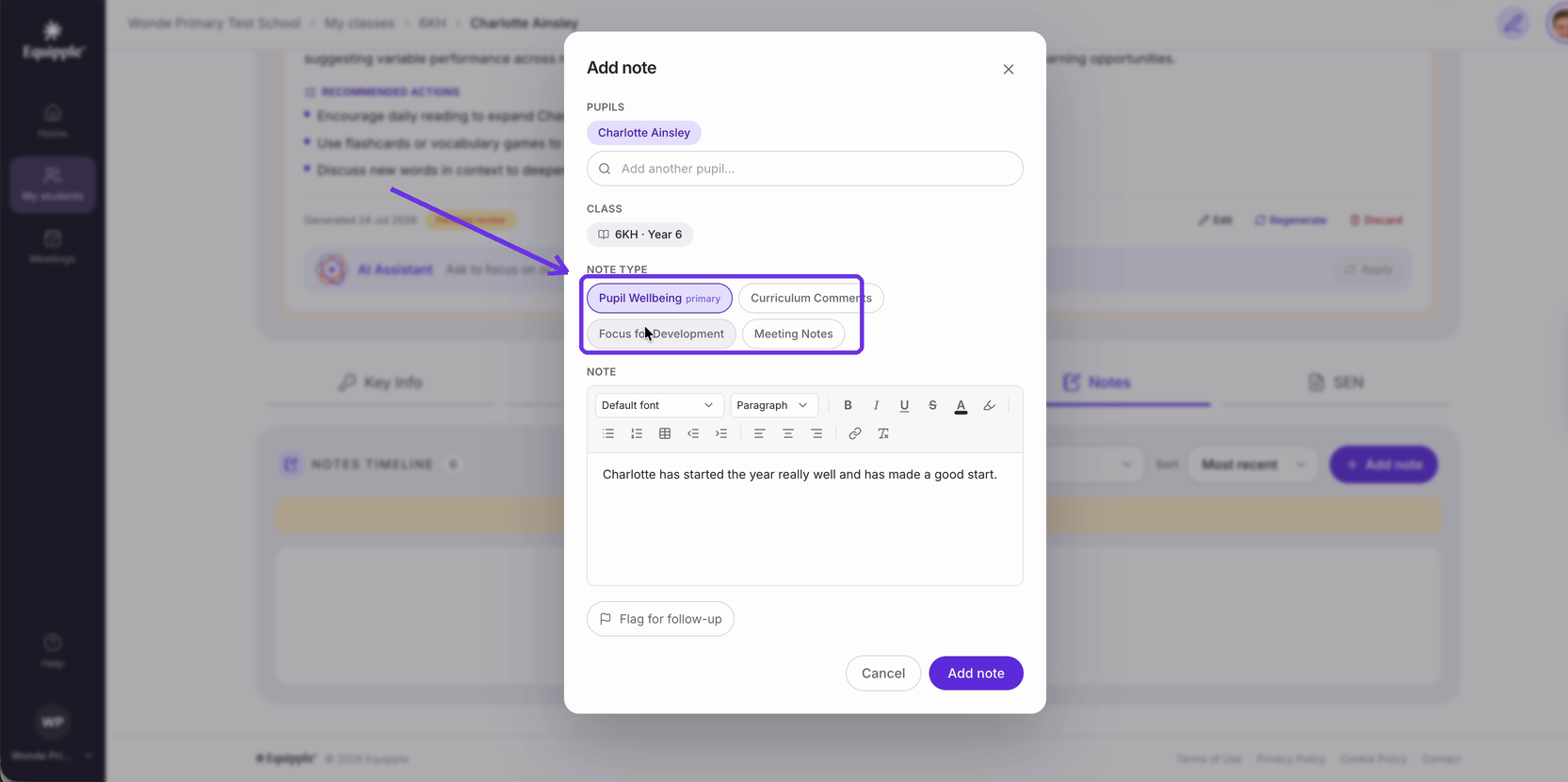
Step 7
- Click "Add note" to save.
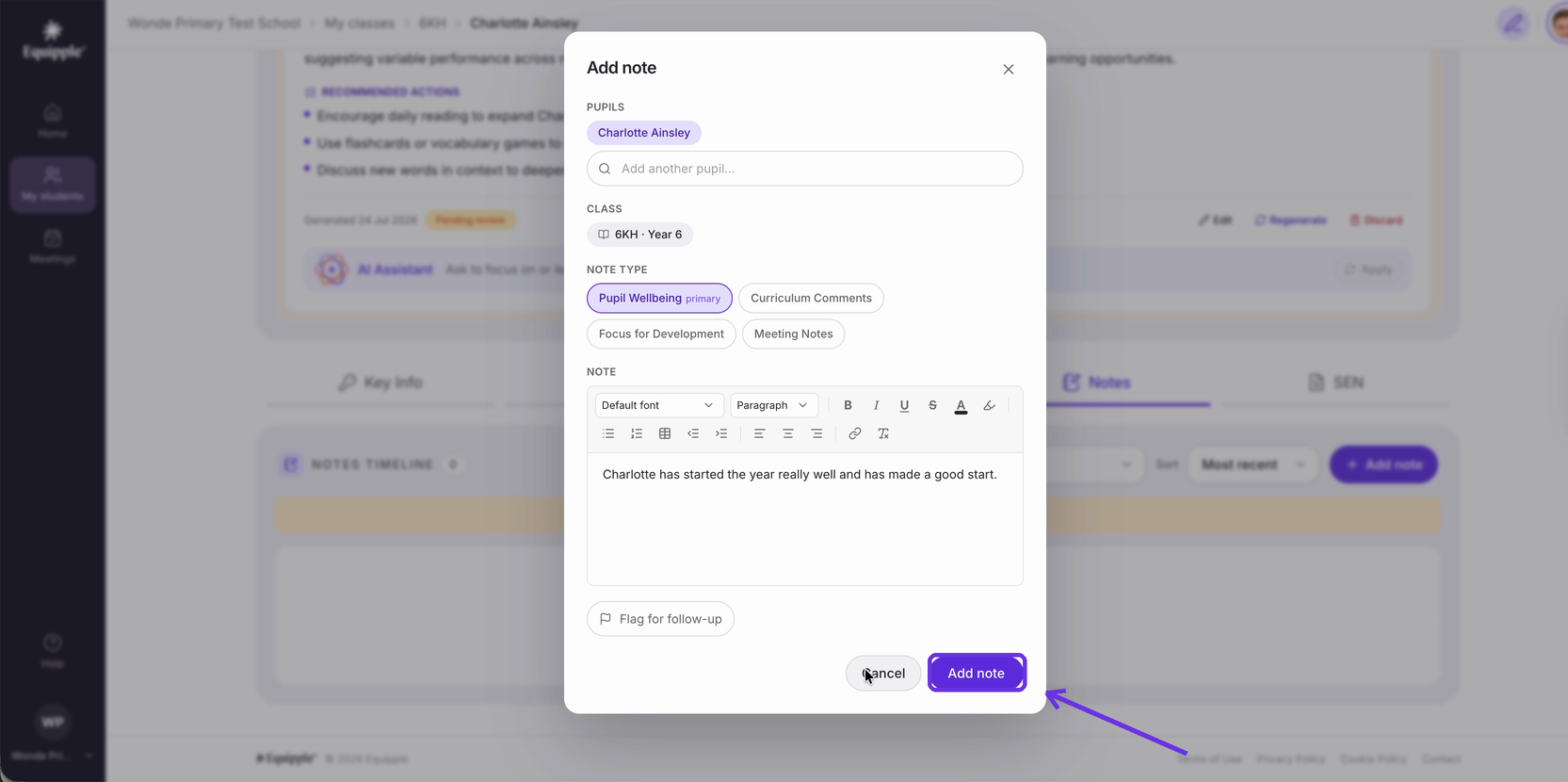
- When you click ‘Add Note’, they will be saved and you can view them instantly as you are taken back to that child’s personalised dashboard. You will now see a holistic picture building with separate categories and accompanying notes for you to use at the Parent/Teacher meeting.
- Repeat the process for ‘Focus for Development’.
Step 8 -
Check your note has appeared at the top of the "Notes timeline".
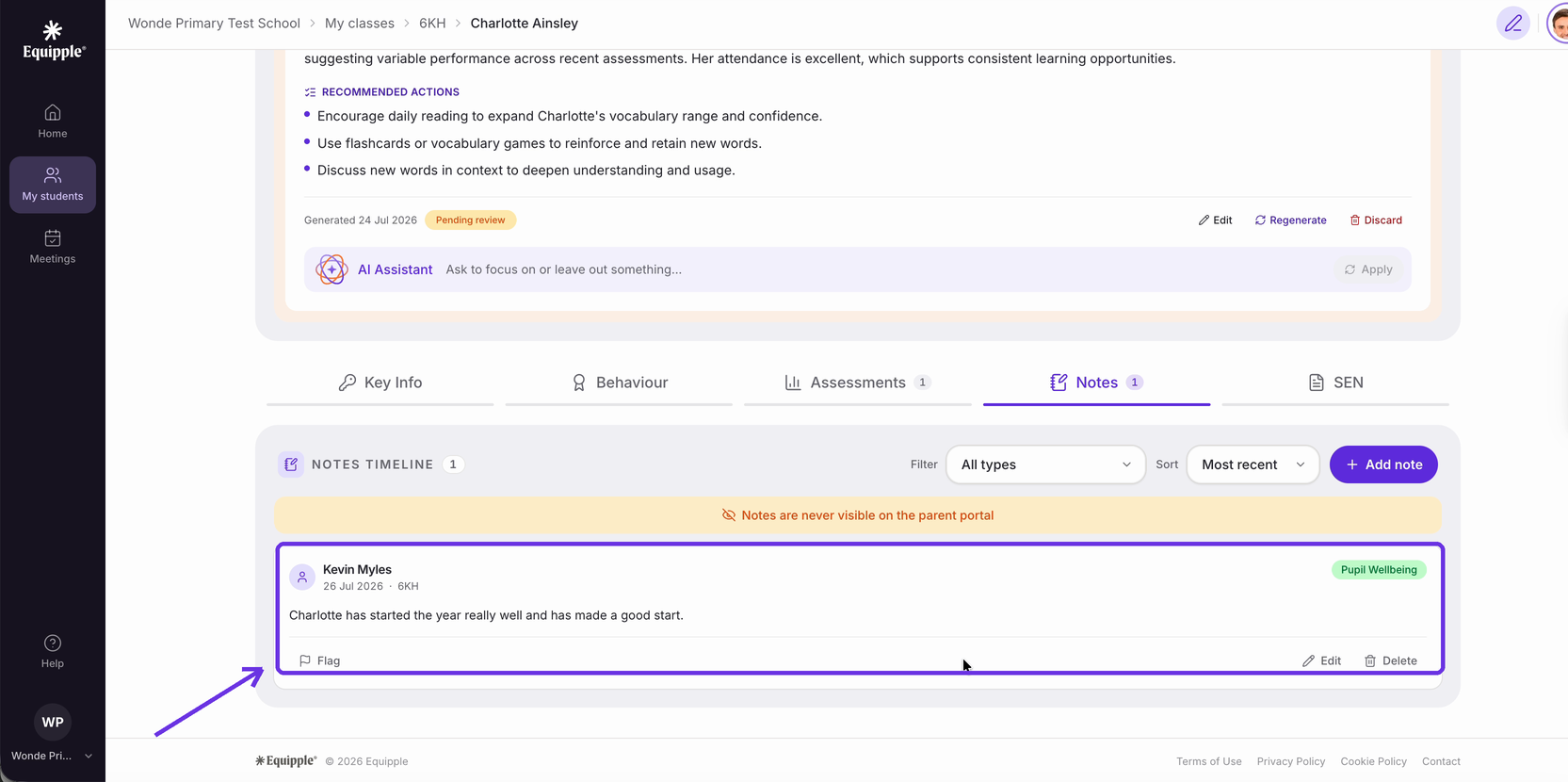
Your note is saved with your name, the date and the class. Use "Edit" or "Delete" on the note itself if you need to change it later. Only you can edit or delete your own notes so that you know they're secure.
TIME SAVER:

Once you have completed all the notes for one child, you can use that template for all the children in your class by using 'copy and paste'. You can then edit the comments to personalise for each specific pupil.

 This can help teachers keep a consistent, personalised and easy to read set of notes for each child.
That's your note saved. You can now build up a picture of any pupil you teach, one note at a time.
Was this article helpful?
That’s Great!
Thank you for your feedback
Sorry! We couldn't be helpful
Thank you for your feedback
Feedback sent
We appreciate your effort and will try to fix the article