If you are a Class Teacher and would like to understand how to use Equipple effectively during a live Parent-Teacher meeting, please refer to the following overview. This guide will help you navigate the Equipple app with ease and familiarise yourself with key features.
Contents:
1. Individual Pupil Profiles
2. Pupil Data
3. Pupil Notes
4. Flag Feature
5. Countdown Timer
1. Individual Pupil Profiles
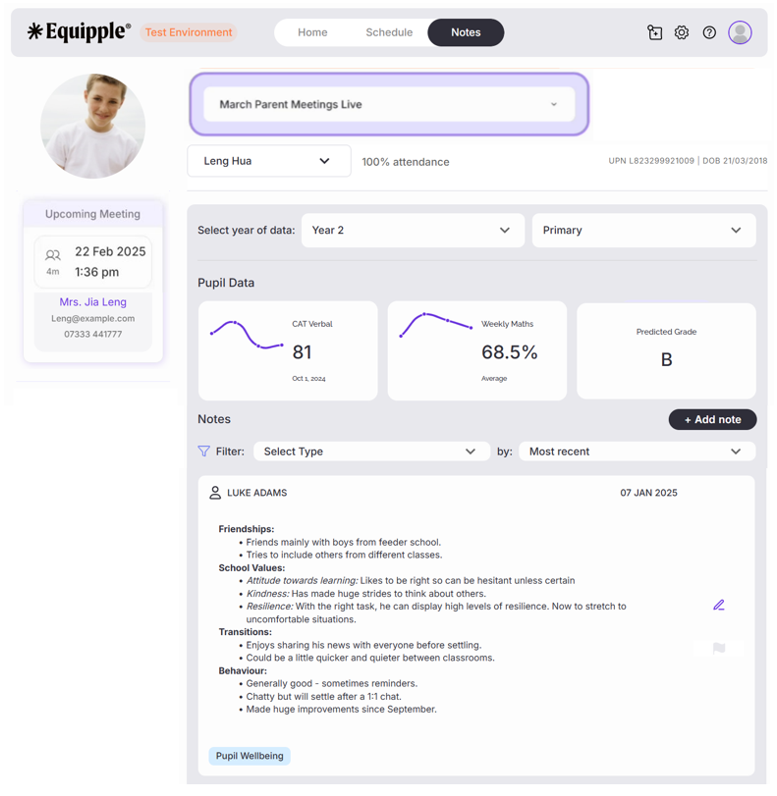
- When you go to the ‘Notes’ section of Equipple and select the pupil profile in which the meeting is about to commence, a range of useful information will be available all in one place for you, without the need for any printing. This includes the child’s: Full name, DOB, photograph, attendance, assessment data, name of Parent, Parent contact details, date/time of meeting and any notes you have prepared.
- Explore each section of the pupil profile to familiarise yourself with where all the information is.
2. Pupil Data
- Your school has the flexibility to upload assessment data from various assessment platforms or Teachers can individually upload data for their own classes.
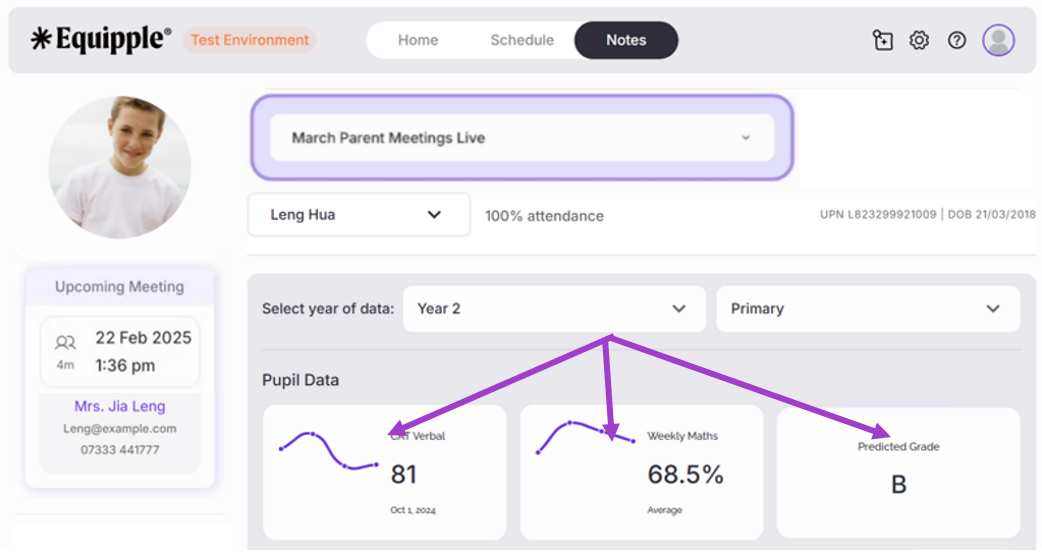
- This assessment data can be presented in a range of formats:
1. Most Recent: No calculation is made - the most recent score is simply displayed to the right of the line chart.
2. Average: A calculation is made within the database and the average score is displayed.
3. Predicted: The score / mark / grade is simply displayed along with the label, 'Predicted.'
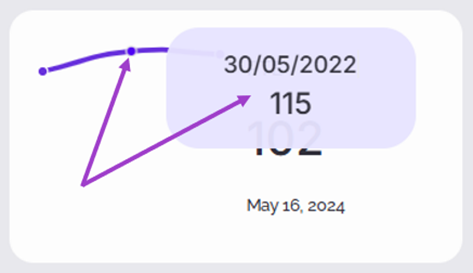
- Tip – Hover your cursor over each point on the line graph. A small pop-up tab will appear displaying the date and score of that specific assessment.
For a detailed breakdown of understanding assessment data on Equipple, please check this support article.
3. Pupil Notes
- You will have your notes saved underneath the pupil assessment data.
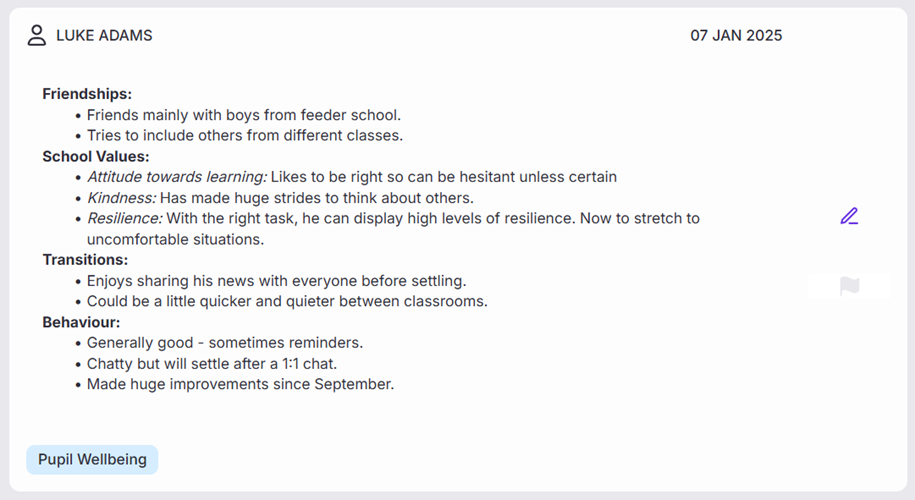
- You can create notes under a variety of categories including: Pupil Wellbeing, Curriculum Comments and Focus for Development. Please see below the ‘Pupil Wellbeing’ example below.
- Simply scroll up and down to view the pupil profile notes you have made covering each section of your meeting.
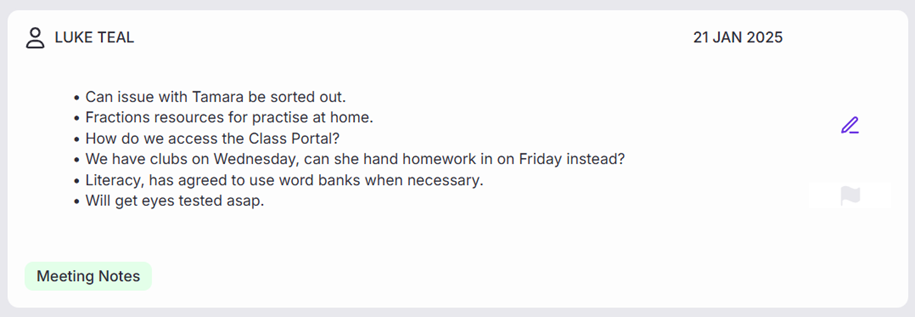
- There are two more categories. One is 'Meeting Notes'. You do not need to prepare these notes. They are notes you record during the meeting itself.
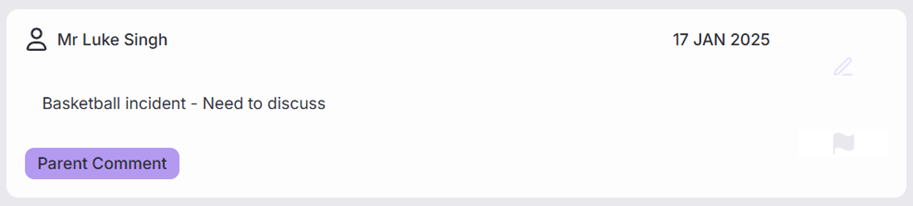
- The other is 'Parent Comment'. You do not need to prepare these notes either. When a parent books a slot, selecting the date and time they would like to have a meeting with you, they have the choice of leaving a comment which issent to Class Teachers in advance. This gives Class Teachers a 'heads up' with regards to anything a Parent/Guardian may want to discuss, which you would have had time to prepare for. The Parent Comment automatically appears on a child’s pupil profile notes when the comment is submitted by a Parent.
For a detailed breakdown of how to add pupil notes, please read this article.
4. Flag Feature
- During a meeting with a Parent, it is not uncommon for there to be a follow up action in relation to the discussion which has taken place.
- It can be difficult to track all of these follow up actions across the busy Parent/Teacher interview cycle, which is why Equipple has created the flag feature.
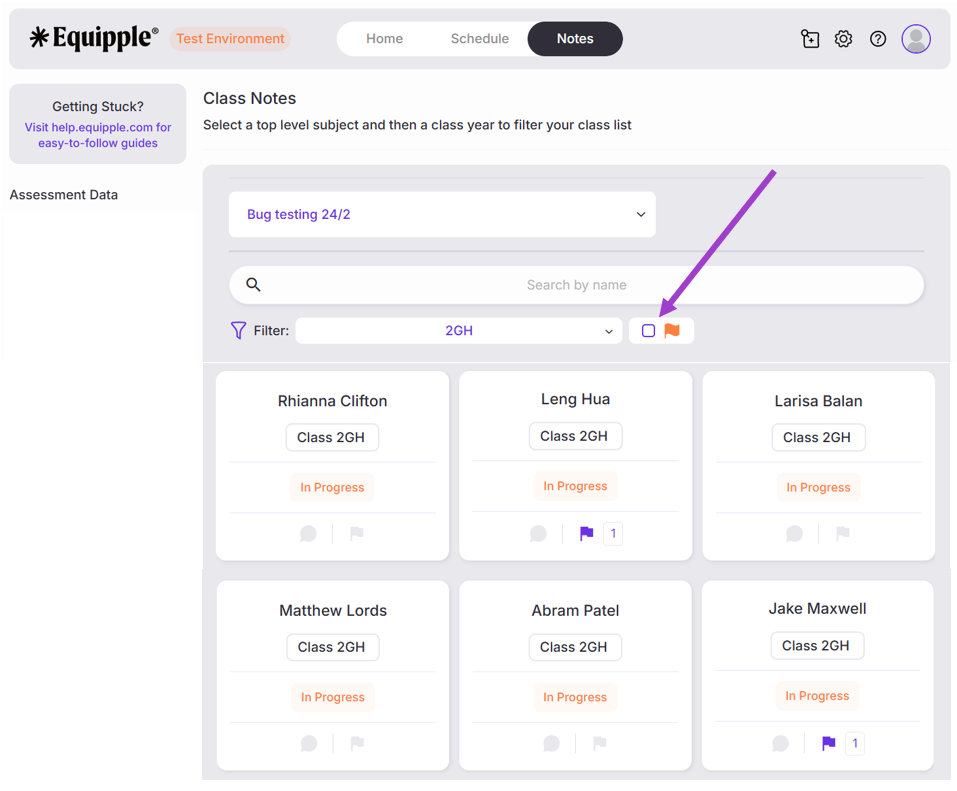
- On the right-hand side of each note section, there is a blank flag.
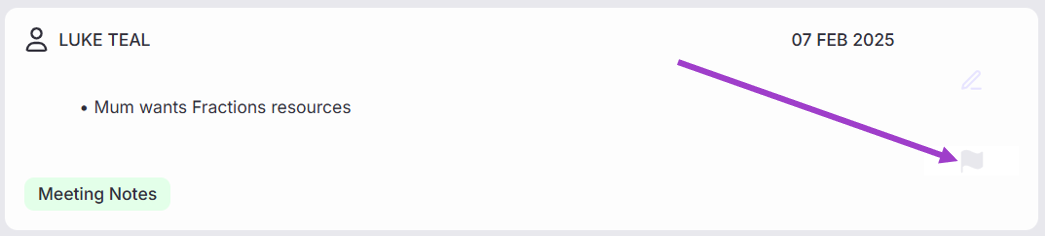
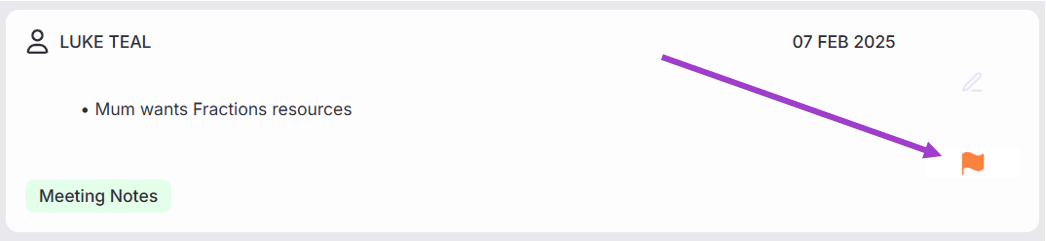
- If you click on this flag, it will be highlighted in red.
- When you go back to your ‘Notes' page with an overview of your entire class, you will see a flag highlighted for any pupils where a note has been flagged for further action.
- In the below example, both Leng Hua and Jake Maxwell have a highlighted flag, signifying they have a note from the meeting which requires follow-up/further action.
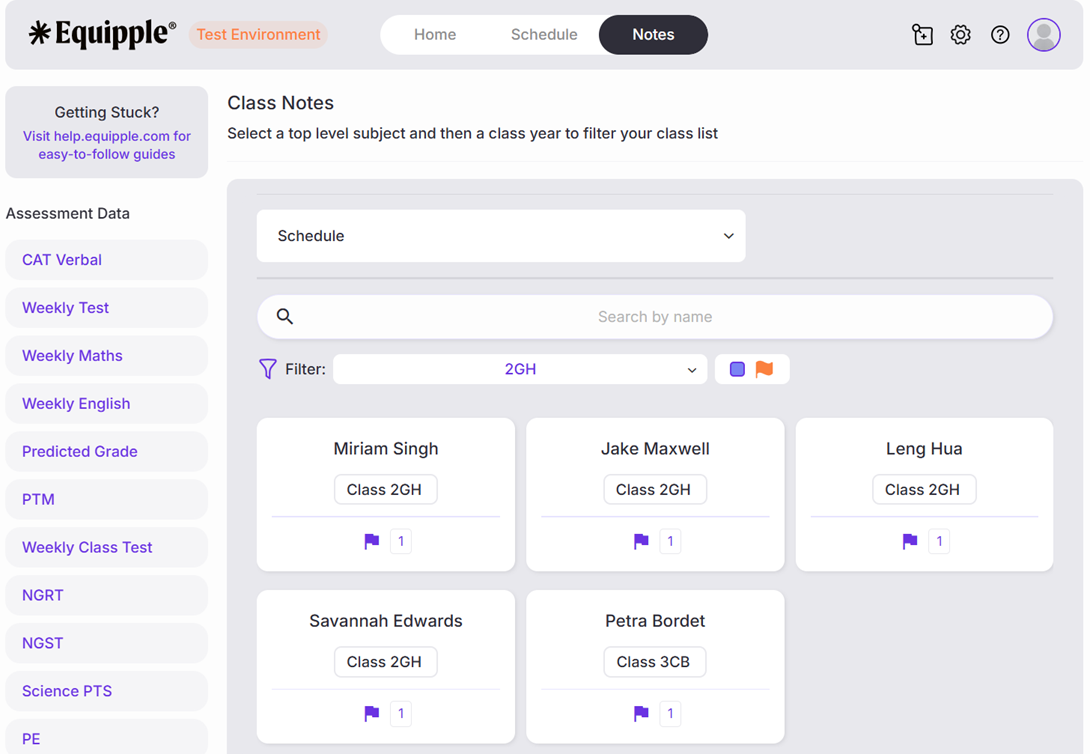
- If you click the box next to the red flag, the page will refresh and give you a filtered list showing all the children with flagged comments.
- As you can see below, this is a great way to ensure you keep track of all your Parent/Teacher meeting follow up actions. As you complete each action, you can simply unflag each note.
5. Countdown Timer
- As a class teacher, managing time during parent meetings can be challenging to ensure the schedule stays on track.
- With Equipple, we offer a solution that helps you monitor the remaining time while also providing a sound alert to remind both you and the Parents when the meeting is nearing its end.
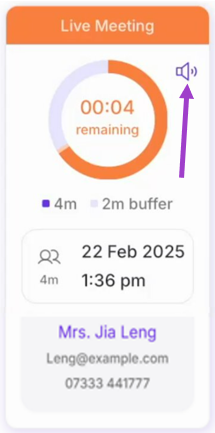
- When a meeting starts, a ‘Live Meeting’ tab will appear, displaying a ticking clock that shows the remaining time. During each meeting with parents, you can easily glance at the timer to stay on schedule and manage your time effectively.
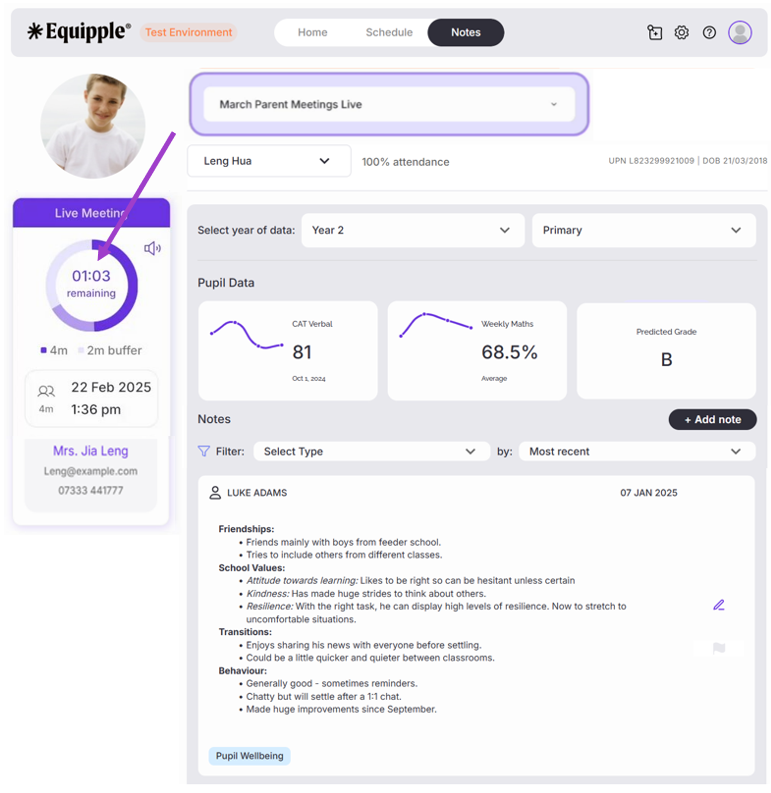
- Beneath the ticking timer, you'll find key meeting details, including:
- Meeting duration – the total length of the meeting.
- Buffer time – the extra time between meetings for note-taking and preparation.
- Meeting date – the scheduled date of the meeting.
- Start time – when the meeting begins.
- Parent’s name – the name of the attending parent.
- Parent contact details - Parent's email address and phone number.
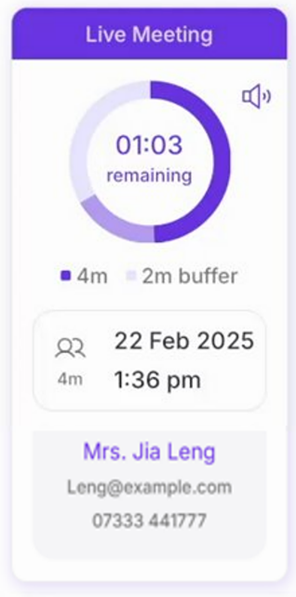
- When only 1 minute remains, the timer turns orange and an alert tone will sound, signalling to both Teachers and Parents that the meeting is nearing its end.
- When the timer reaches runs out, a bike bell will ring, indicating that the meeting has officially ended.
- To mute sound alerts, simply click the sound icon in the top right corner.
We hope this overview gives you a clear understanding of how to use Equipple effectively during your Parent-Teacher meetings. By familiarizing yourself with these features, you can streamline the process and make your meetings more efficient.
Was this article helpful?
That’s Great!
Thank you for your feedback
Sorry! We couldn't be helpful
Thank you for your feedback
Feedback sent
We appreciate your effort and will try to fix the article