Equipple knows that schools store assessment data in a range of different places- some of it is stored in your MIS system, some of it (such as GL assessment data) is stored online and a lot of it is stored in Excel, Google docs and other places.
So; as a result of this variety, Equipple enables teachers to upload assessment data in a number of different ways to make it as easy as possible.
Below, you'll find a breakdown of how Equipple organises and utilises assessment data to support your school’s needs:
Assessment data is made up of three components:
- Assessment category name (e.g. German Unit Tests or CAT Verbal)
- View (average, most recent or predicted)
- Result type (percentage, mark or grade)
Assessment Category Name:
You can name assessment data in a way that best suits your needs, but clarity is key to avoid confusion later. To ensure categories are easily identifiable, consider including specific details such as the class and subject. For example, instead of "Weekly Test," a more precise name like "Year 8 Weekly Maths Test" helps prevent mix-ups and ensures the data is used correctly by others.
Many datapoints can be added within one category. For example, a weekly test, run over 10 weeks, would have 10 datapoints for each pupil. Only the dates (and scores / marks) would differ.

Where multiple datapoints exist, Equipple displays this as a line graph in the pupil's Notes page.
View
The view determines how the data will display on the pupils' 'Notes' page.
- Average: A calculation is made within the database and the average score is displayed.
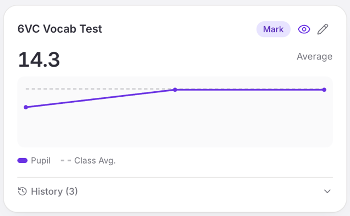
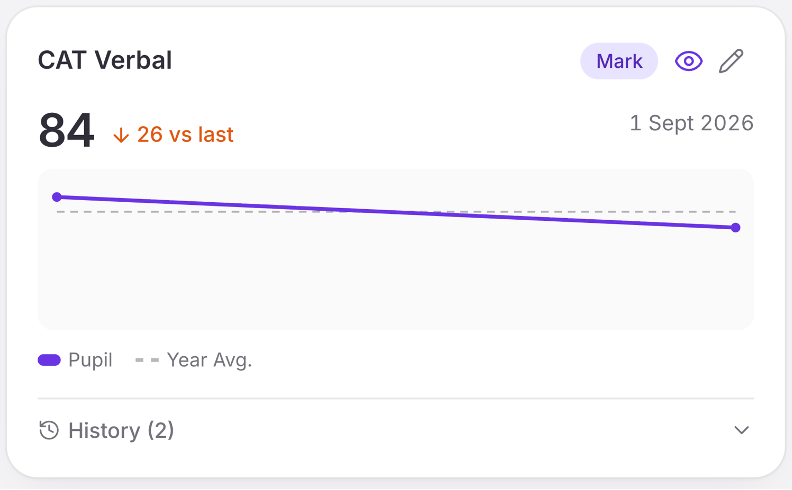
- Most Recent: No calculation is made - the most recent score is simply displayed to the right of the chart.
- Class/Year-group Average: You can also track progress over time and chart it against the class or year group. The data will look like this-
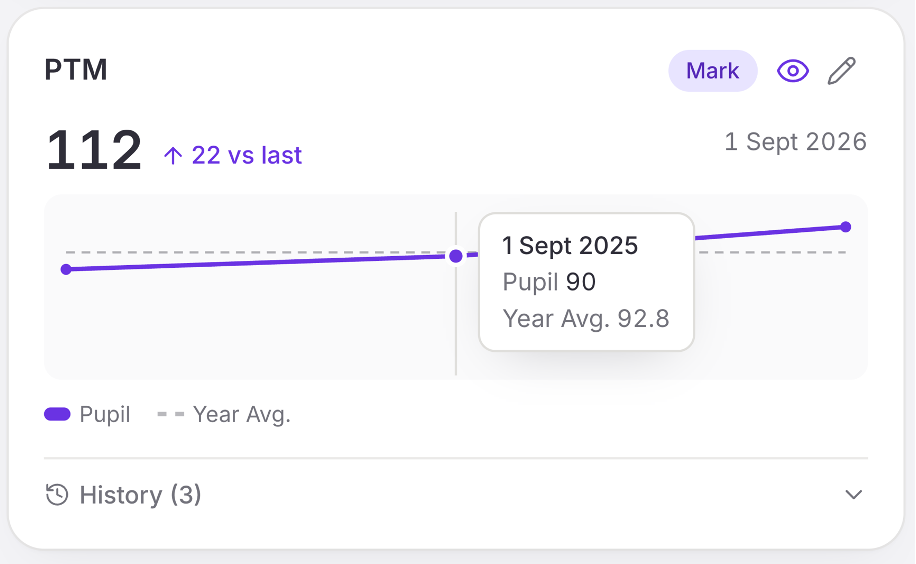
Tip – Hover over each point on the line graph. A small pop-up tab will appear displaying the date and score of that specific assessment.
Result
There are four different types of result:
- Percentage (e.g. 75%, 84% etc.)
- Score (this can be any number, for example, 115, 238 etc.)
- Grade (e.g. A*, C-, D, B+ etc.)
- Effort vs Attainment (1:A - 3:C)
Was this article helpful?
That’s Great!
Thank you for your feedback
Sorry! We couldn't be helpful
Thank you for your feedback
Feedback sent
We appreciate your effort and will try to fix the article