This guide is designed to help you understand the 'post-meeting recap' as well as the 'forward focus summary' which can be sent to parents following parent-teacher meetings.
When an admin creates a schedule they have the option to send information back to the parents, giving them additional information on top of that which was shared in meetings. There is no expectation for a school to do this but, if the admin would like to they can send additional information to parents in 2 ways:
1- Send Post-Meeting Recap to Parents
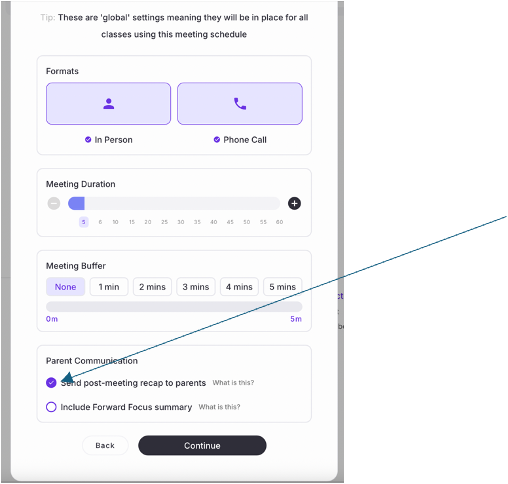
If an admin selects the top option then the school will send information such as attendance and assessment data
2- Include Forward Focus Summary
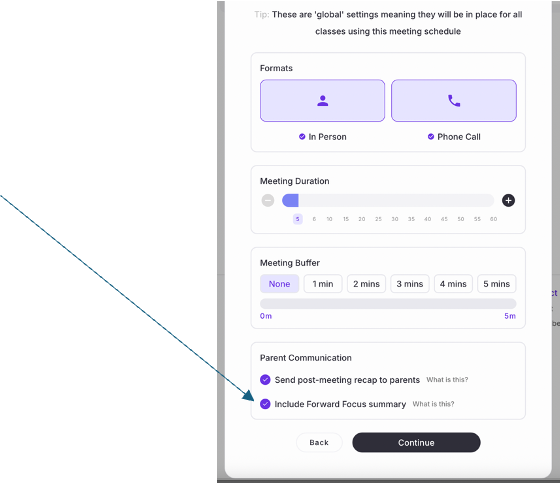
If an admin selects the Forward Focus option too then the school can send attendance, assessment data as well as the AI-Generated Forward Focus to parents.
What does it look like for the parents?
Post-meeting reports will be automatically sent to parents the morning following their meetings. They will receive a secure link where they will put in their child's date of birth to gain access and they will have access to that data for 90 days before it's archived (enough time for parents to action any bits of feedback before the data is replaced by updated information).
The link itself will look something like this depending on which information the school decides to include:
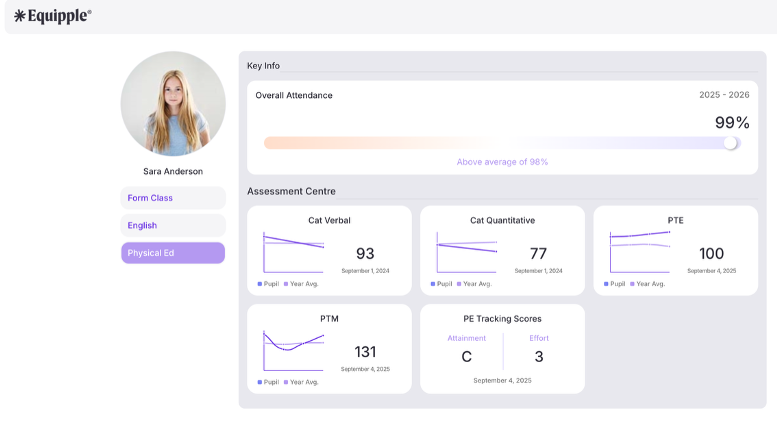
Can the school decide which information they'd like to include for parents?
Yes they can! You will notice a little eye icon above some of the elements on the note page. The icon looks like this-
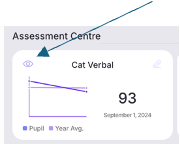
If you would like your parents to see this assessment data then leave the eye icon like this and it will be made viewable. Alternatively, if you do not wish to share a piece of data with a parent then you can make this 'unviewable' by clicking it again and this will update that piece of assessment or attendance. Your changes will save automatically as well and you will be notified that the parent visibility has changed.
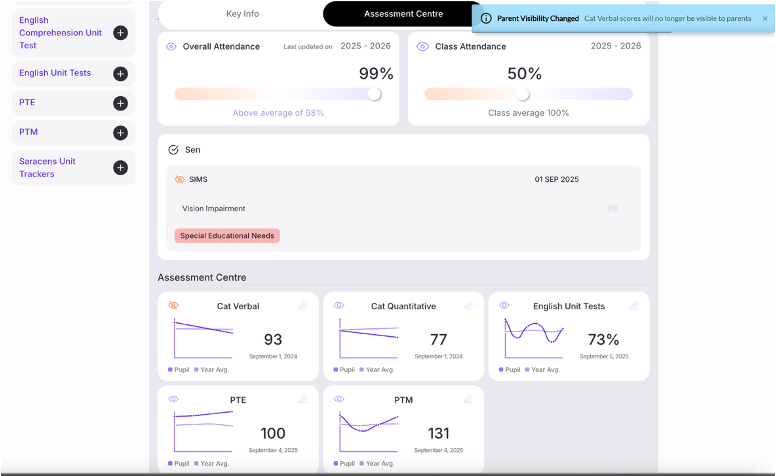
If you would like to see exactly what a parent will see when they get their automated report then you can check it in advance by clicking the 'Preview as Parent' tab below the pupil's picture.

You only need to make a decision about a piece of data once for your class because if you make attendance viewable as an example, you do this for 1 pupil and it will automatically copy these settings for every pupil in the class to save you having to do it 30 times.
Hopefully this support article is helpful when navigating the world of automated reporting.
Was this article helpful?
That’s Great!
Thank you for your feedback
Sorry! We couldn't be helpful
Thank you for your feedback
Feedback sent
We appreciate your effort and will try to fix the article