By default, a family gets one meeting with you, however many parents or guardians are on the booking link. If two guardians need to come separately, you can invite the second one to book a meeting of their own.
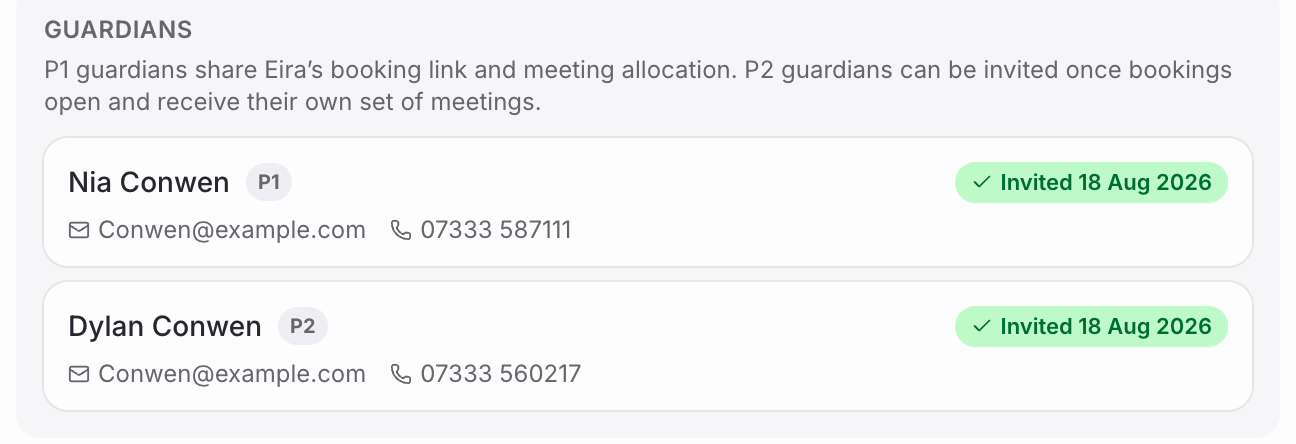
Nb. Guardians are listed with a priority. ‘P1’ (priority 1) guardians share the pupil's booking link — that can be both parents, and they share one meeting between them. ‘P2’ (priority 2) guardians don't get a link unless you invite them, and when you do, they get their own separate set of meetings.
Step 1 – Open ‘Class Schedule’
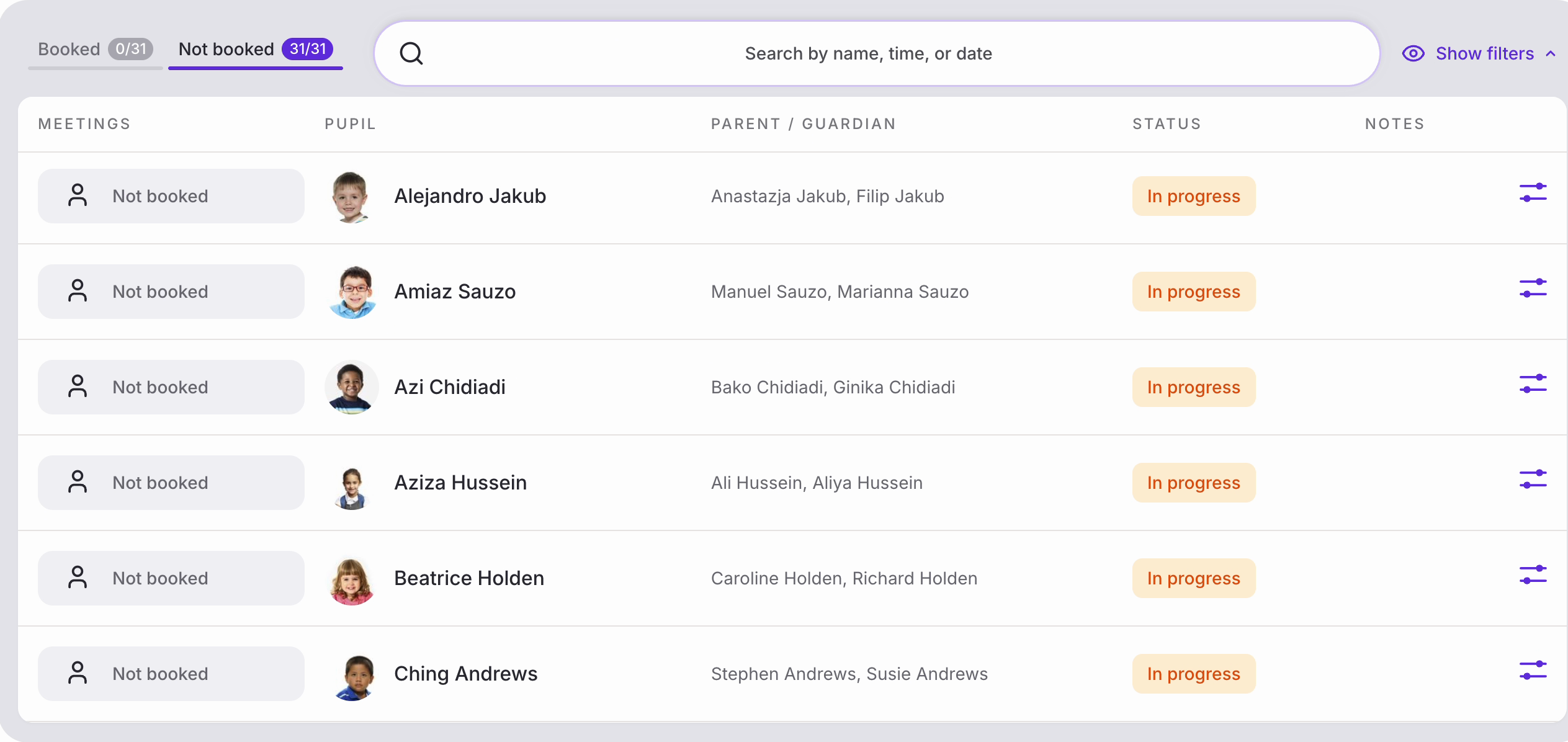
• Open ‘Class Schedule’ from ‘Meetings’, then use the dropdowns to narrow down to the right schedule and class.
• The ‘Not booked’ tab is usually the quickest place to work from. Click the icon at the end of a pupil's row to open their details.
Step 2 – Find the ‘Guardians’ section
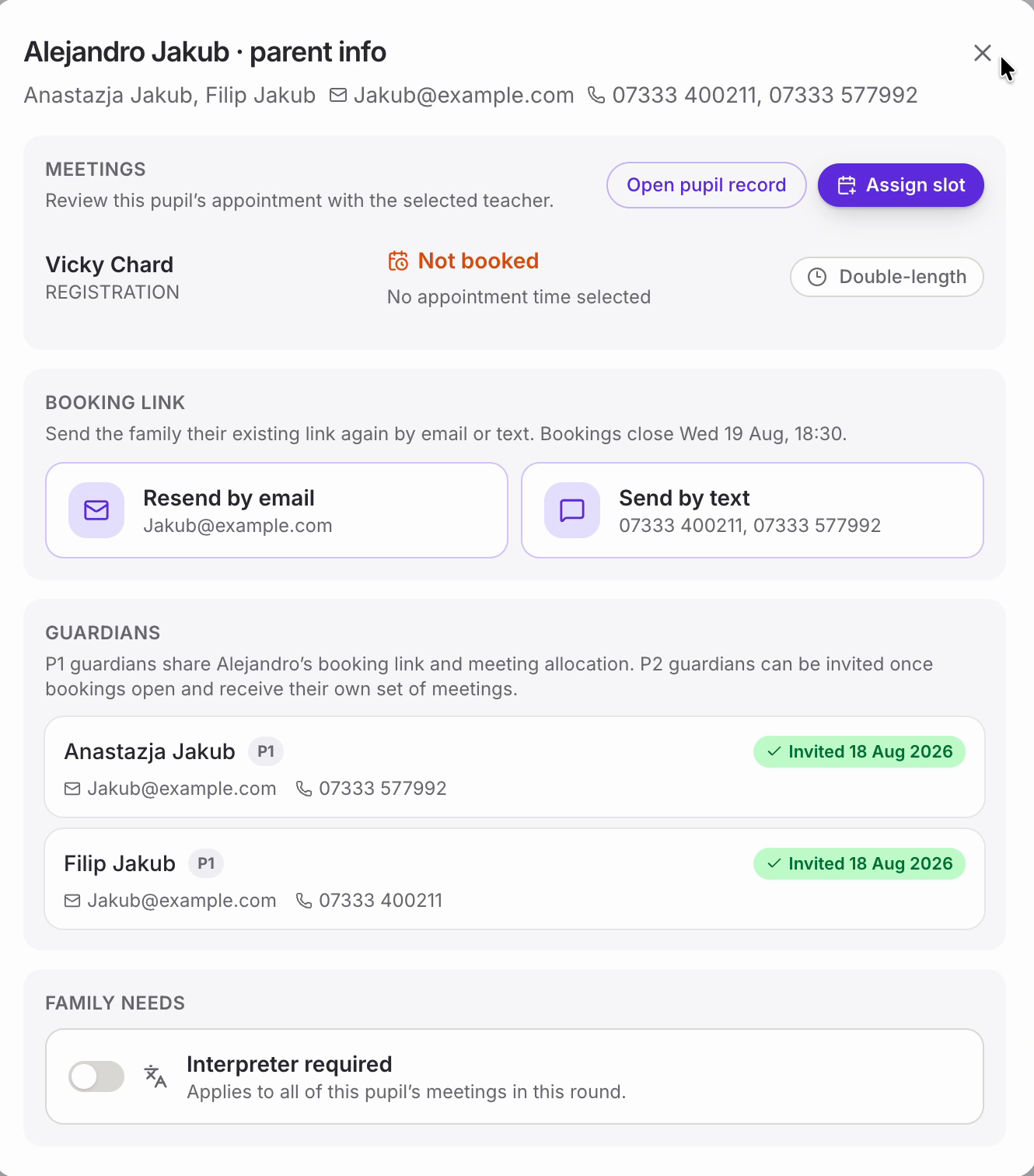
• The pupil's panel opens. Scroll to ‘Guardians’, which lists everyone linked to that child in your school's records, each with a priority badge.
• The line above the list is worth reading — it tells you exactly how this pupil's link and meetings are shared.
When both guardians are P1
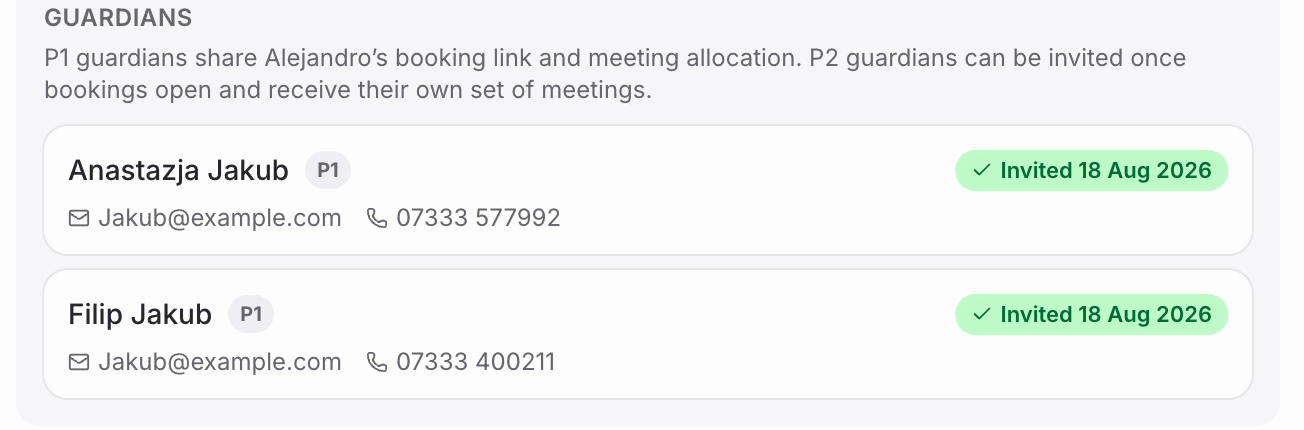
• Here both of Alejandro's guardians are P1, so both already show ‘Invited’ and there's no ‘Invite’ button to press.
• They've both had the link, but they share a single meeting — notice there's only one meeting listed at the top of the panel. Whichever of them books, that's the family's appointment.
Step 3 – Invite the P2 guardian
• Now a pupil with a P2 guardian. Eira's P1 guardian shows ‘Invited’, and her P2 guardian has an ‘Invite’ button instead.
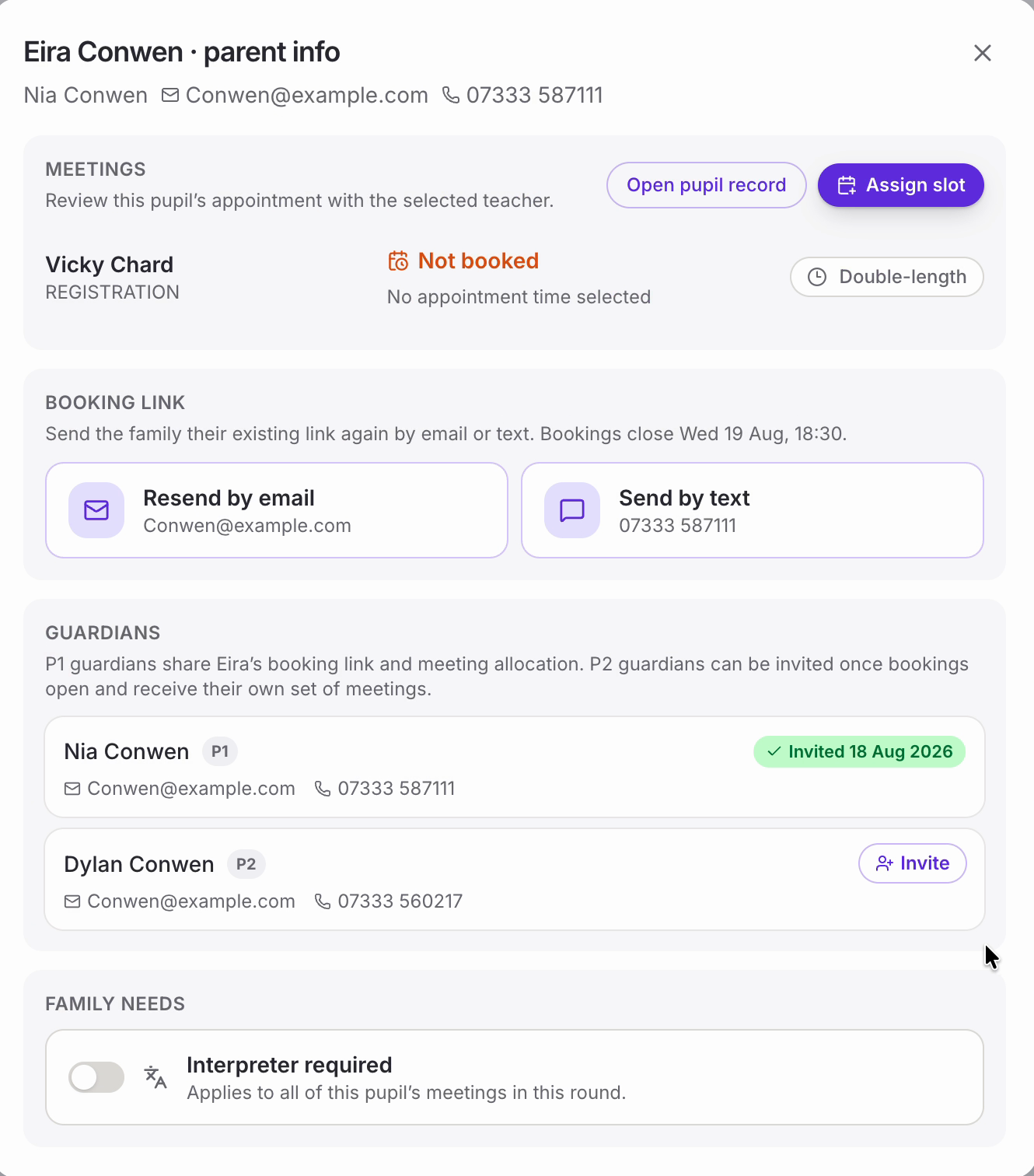
• Click ‘Invite’ beside their name.

Step 4 – Check it worked
• The P2 guardian now carries the same green ‘Invited’ badge as the P1, with today's date.
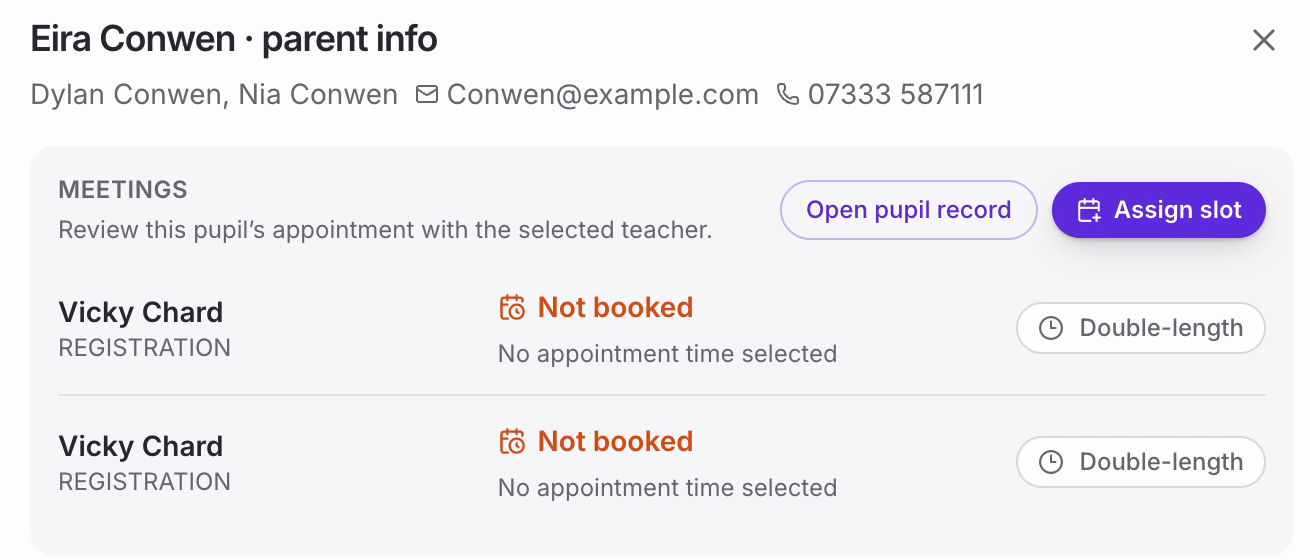
• Scroll back to the top and you'll see the real change: there are now two meetings listed instead of one, so each guardian can book a time of their own. The line under the pupil's name now lists both guardians too.
Nb. This is a per-pupil setting that sticks. Once you've invited a P2 guardian, it carries forward to your later meeting rounds — you don't need to do it again each time a new schedule is set up. It stays that way until it's turned off.
Nb. If a guardian's email address or mobile number is missing or wrong, you can't correct it here — these come from your school's records. Ask your school admin to update the details and they'll flow through to Equipple.
If there's no ‘Invite’ button
• Everyone on the list is already Priority 1. They've all had the link, and they share one meeting — there's nothing to invite.
• If a second guardian genuinely needs their own meeting, their priority needs to be changed in your school's records first. Ask your school admin.
That's it. The second guardian can now book their own meeting with you, and the arrangement stays in place for future rounds.
Was this article helpful?
That’s Great!
Thank you for your feedback
Sorry! We couldn't be helpful
Thank you for your feedback
Feedback sent
We appreciate your effort and will try to fix the article