The Schedule tab is the place where you can find all of the upcoming meetings. This will display the up-to-date calendar of meeting bookings and it is a useful place to check the contact details of parents or guardians, as well as confirming which parent / guardian will receive the email invitation. If you are a ‘Class Teacher’ and want to have an overview and understanding of your scheduling page, follow these simple steps:
Video Guide
Text Guide
Step 1
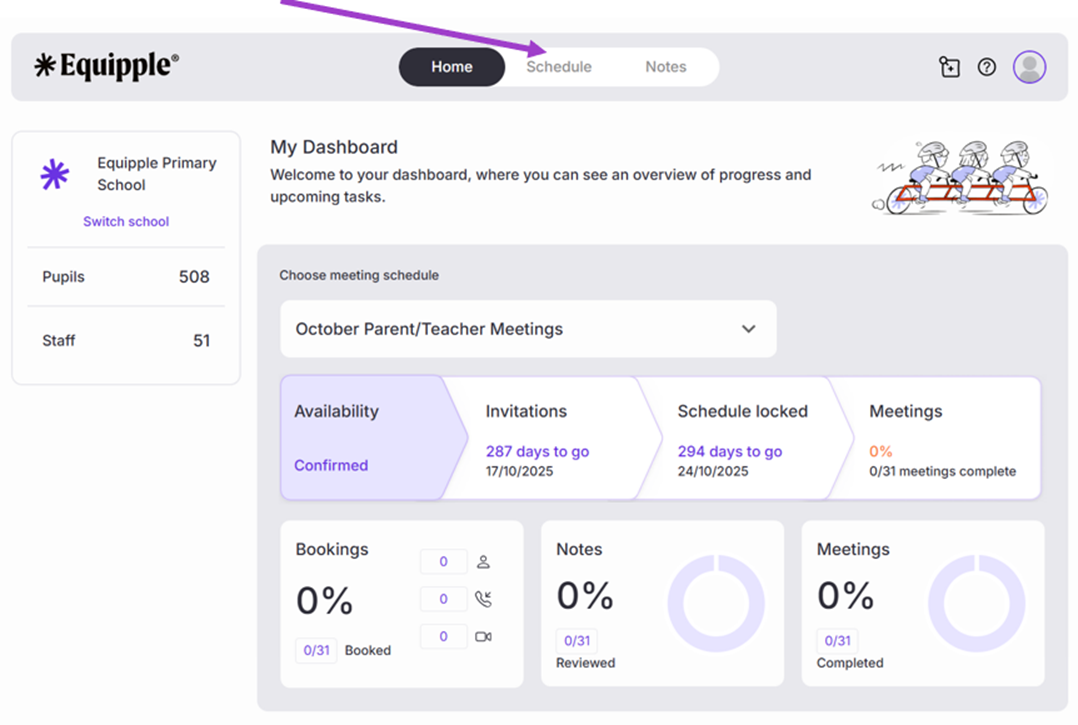
- From the Equipple ‘Home Screen’, you want to click the tab at the top bar which says ‘Schedule’.
Step 2
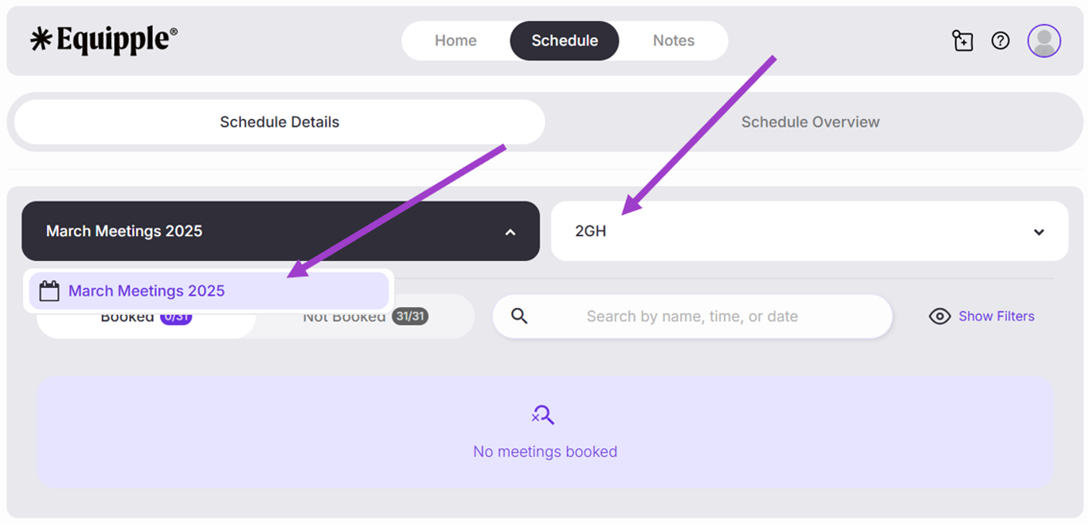
- You’ll be taken to the ‘Schedule Details’ page. From here, click the drop-down menu and select the Parent/Teacher meeting schedule you are preparing for. Double check your class is in the next tab.
Step 3
- When you first check a schedule, it is likely that this will be before the invitations have been sent to parents. For this reason, you will not see any meeting bookings. This means, you will need to click on the ‘Not Booked’ tab.
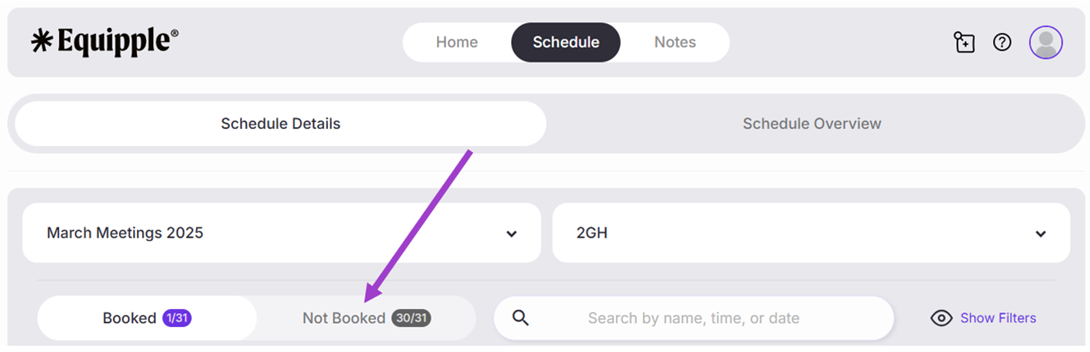
If you are at the stage where some meetings have been booked. Simply, click the 'Booked' tab instead. This will provide the same overview of information as clicking the 'Not Booked' tab, the only difference is one has booked a meeting, the other has not.
Step 4
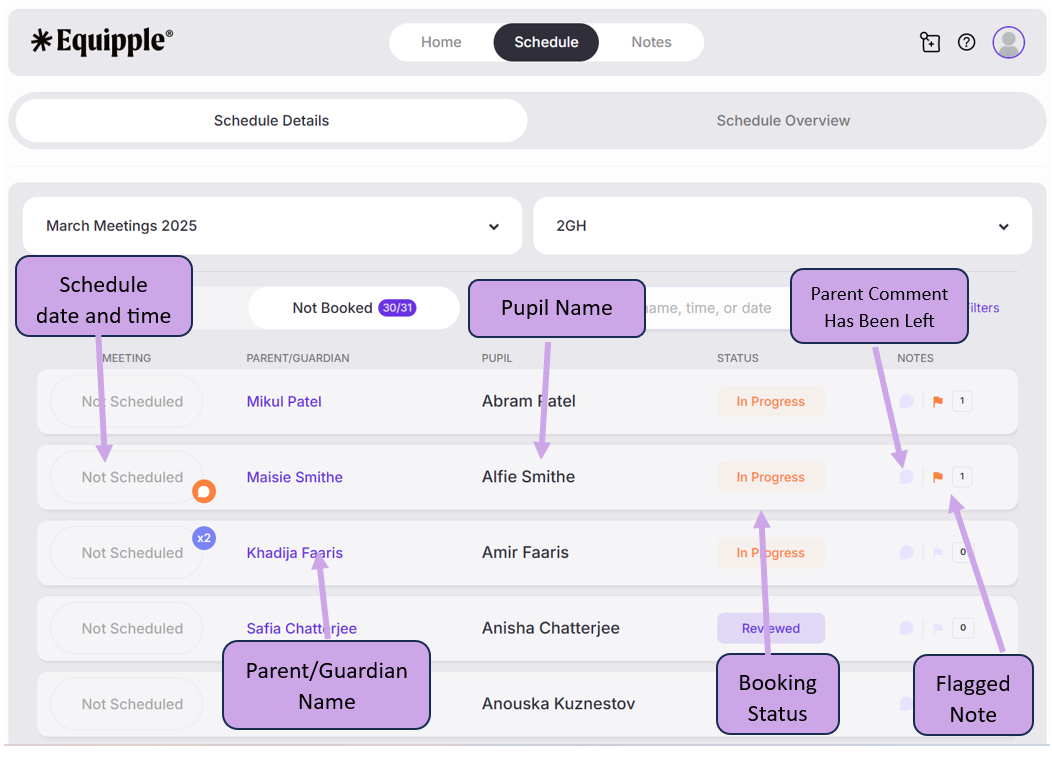
- You will now see a clear breakdown of your schedule entry overview. From here, you will be able to see:
Step 5
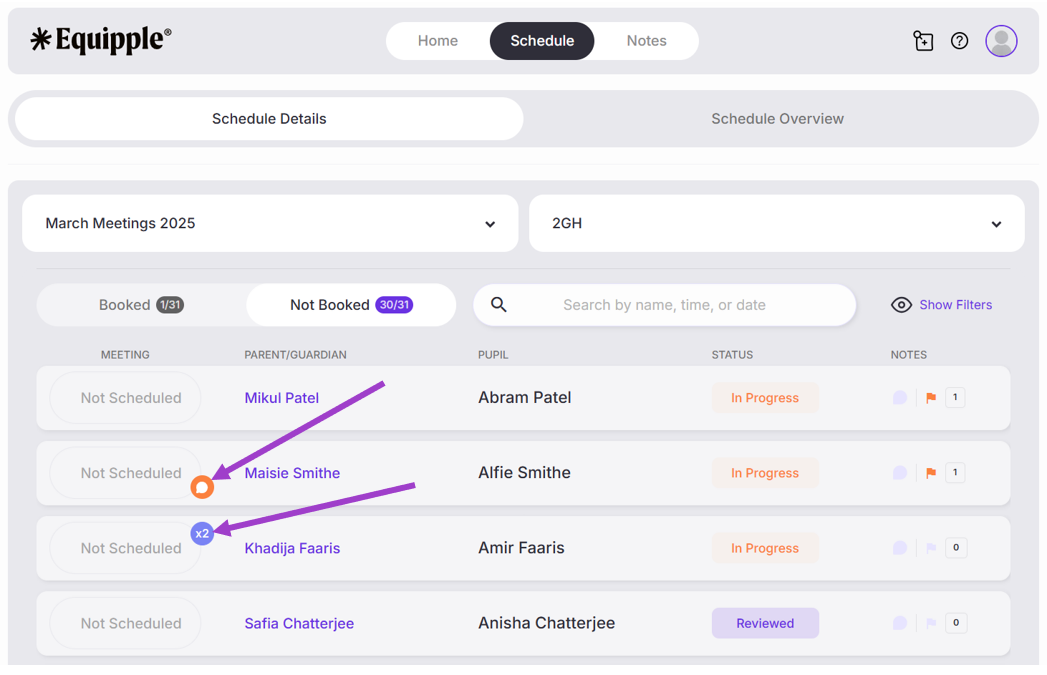
- You will also be able to see icons signaling which children have additional requirements.
- The ‘x2’ symbol indicates that this meeting requires a ‘Double Length Meeting’ slot

- The ‘Speech Bubble’ symbol indicates that an ‘Interpreter is Required’ for the meeting to be able to communicate with the parents.

- There is also an ‘alert’ icon to show if an email invitation failed to deliver to a parent.

Step 6
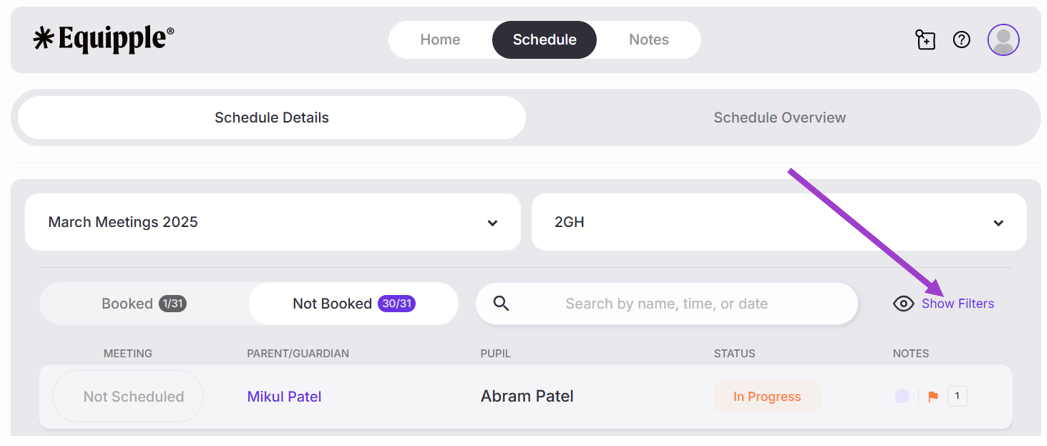
- If you want to filter the children in your class and have visibility over which specific children require an interpreter, require a double length meeting slot, have left a parent comment or you have flagged a note, then click ‘Show Filters’.
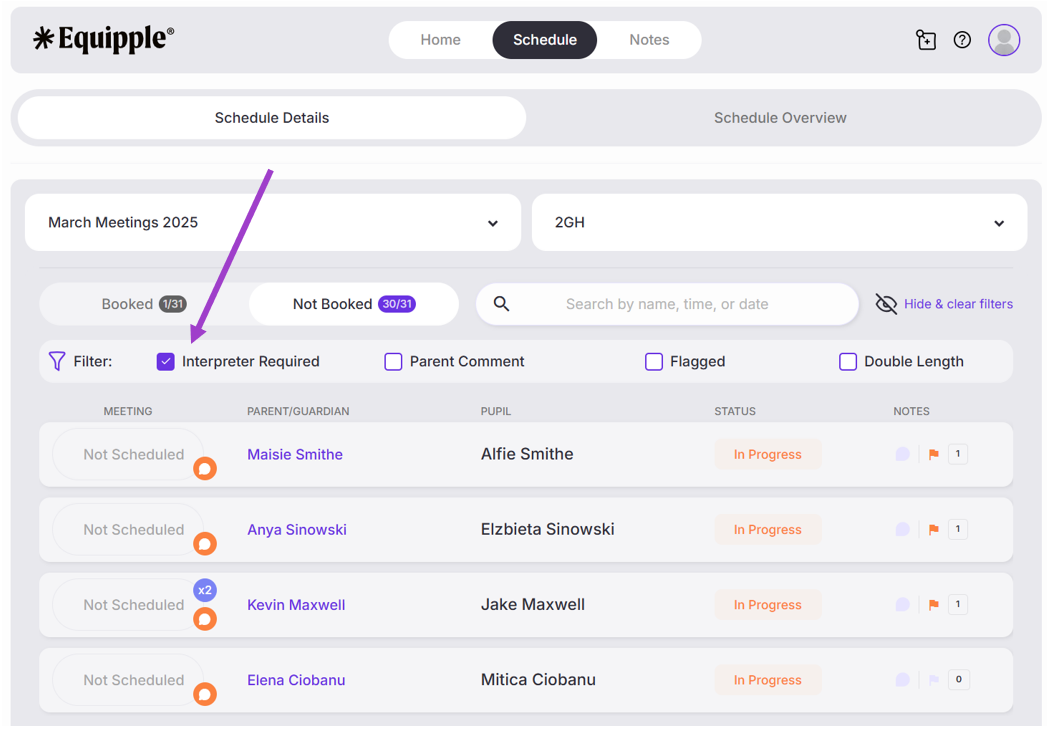
• A horizontal menu of filter choices will appear. Tick the box of the specific filter you would like to view. In this example, the ‘Interpreter Required’ filter has been selected. This now shows all the meetings in the class where an interpreter needs to be organised.
You have now learned how to navigate the overview of your scheduling page. This is a great way to keep track of your schedule as the Parent/Teacher meetings approach!
Was this article helpful?
That’s Great!
Thank you for your feedback
Sorry! We couldn't be helpful
Thank you for your feedback
Feedback sent
We appreciate your effort and will try to fix the article