It is very common that individual teachers may not teach every day of the week. If this applies to you, this guide will help you set your availability to ensure that your meetings are only scheduled for the days you work.
Note: If you do not edit your availability, Parents will be able to book any slot that the Admin (a member of SLT) has set up. This would include days that you are not working.


Therefore, it is important to spend a few minutes of your time to make sure your availability accurately represents your working pattern.
For this guide, you will need to be familiar with how to update/edit your availability. A detailed step-by-step guide is available here. Keep this guide handy.
Step 1
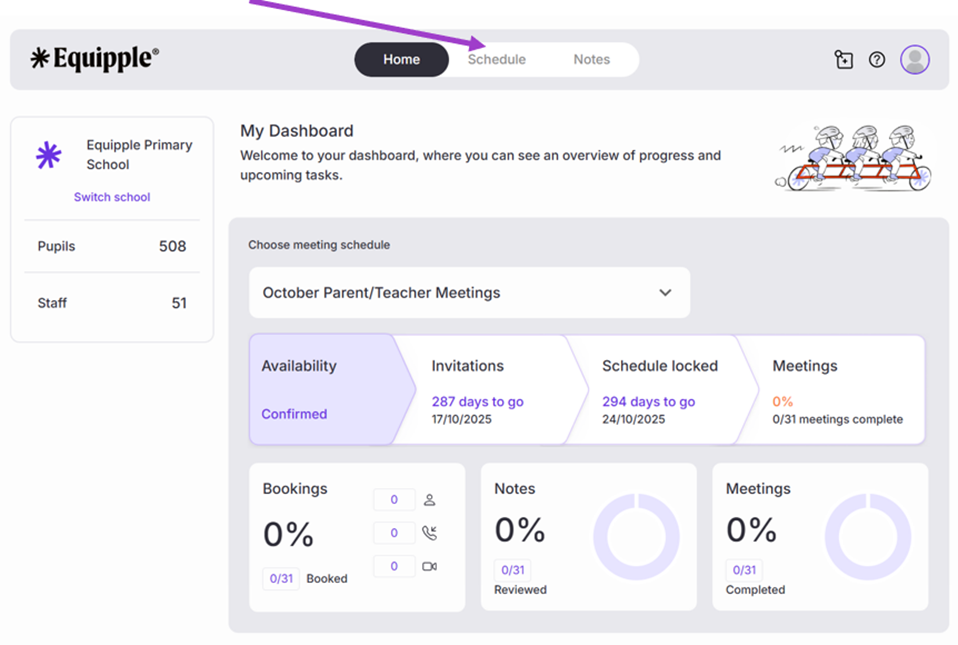
- From the Equipple ‘Home Screen’, you want to click the tab at the top bar which says ‘Schedule’.
Step 2
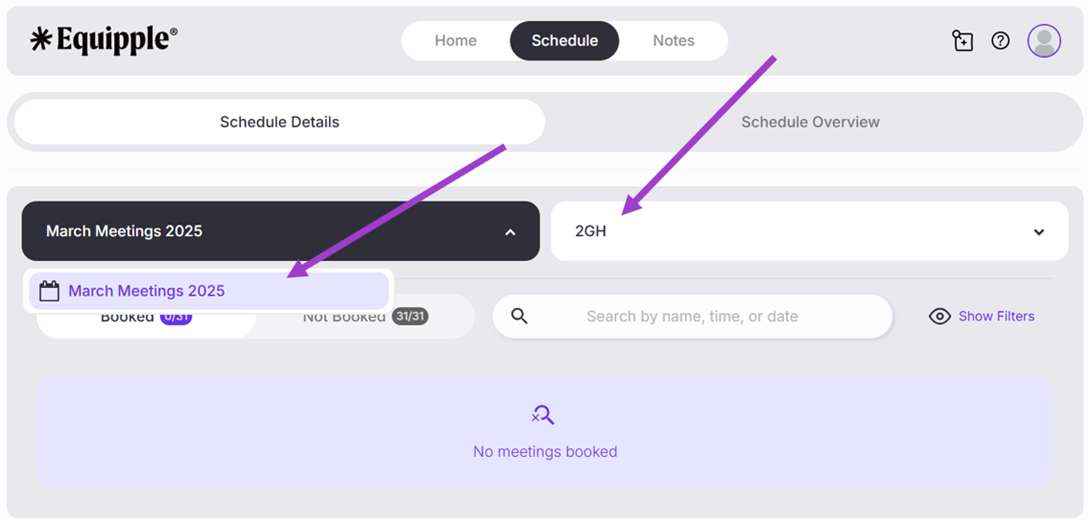
- You’ll be taken to the ‘Schedule Details’ page. From here, click the drop-down menu and select the Parent/Teacher meeting schedule you are preparing for. Double check your class is in the next tab.
Step 3
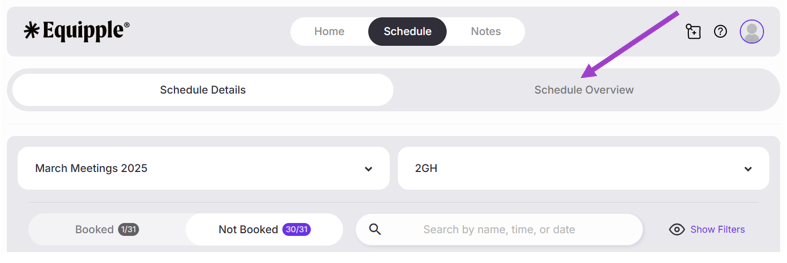
- Next, click ‘Schedule Overview’.
Step 4
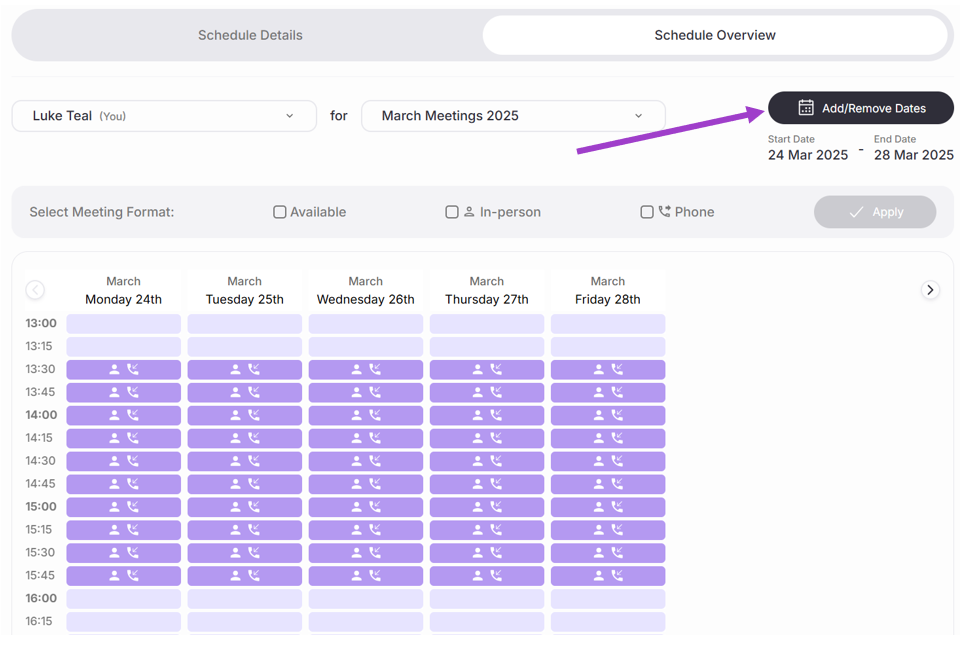
- You should now see a daily calendar with a template schedule your Admin/Senior Leadership has decided upon for the entire school. However, this calendar is just for you and your class to edit and personalise.
- You MUST remove the days you are not working. Otherwise, Parents will be able to book a time slot on a day in which you are not at school.
- To remove the days you are not in school, begin by clicking the ‘Add/Remove Dates’ button.
Step 5
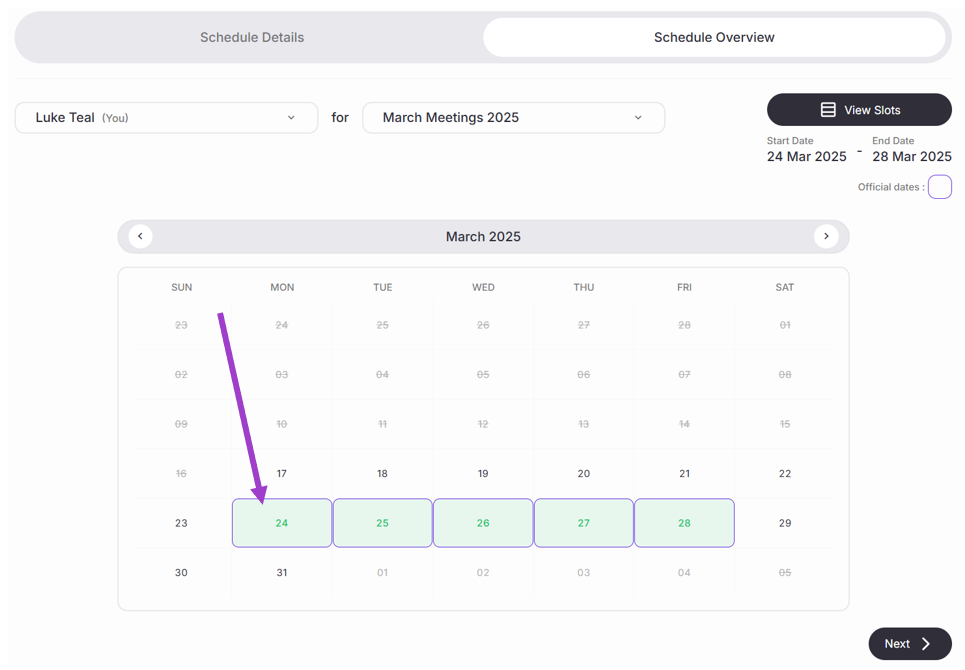
- You’ll be taken to a monthly overview calendar. The default days highlighted in green are the template days your Admin/Senior Leadership has decided upon for the entire school.
- You can remove a date you are not working by clicking on the day highlighted in green.
- For this example, we will select Monday 24th March.
Step 6
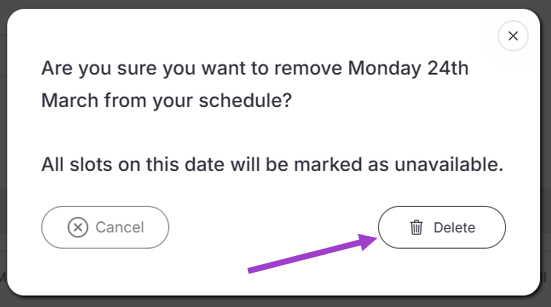
- A pop-up tab will appear asking you to confirm that you want to remove your availability for this date on your schedule.
- Once you have checked this is the date you would like to remove, click ‘Delete’.
Step 7
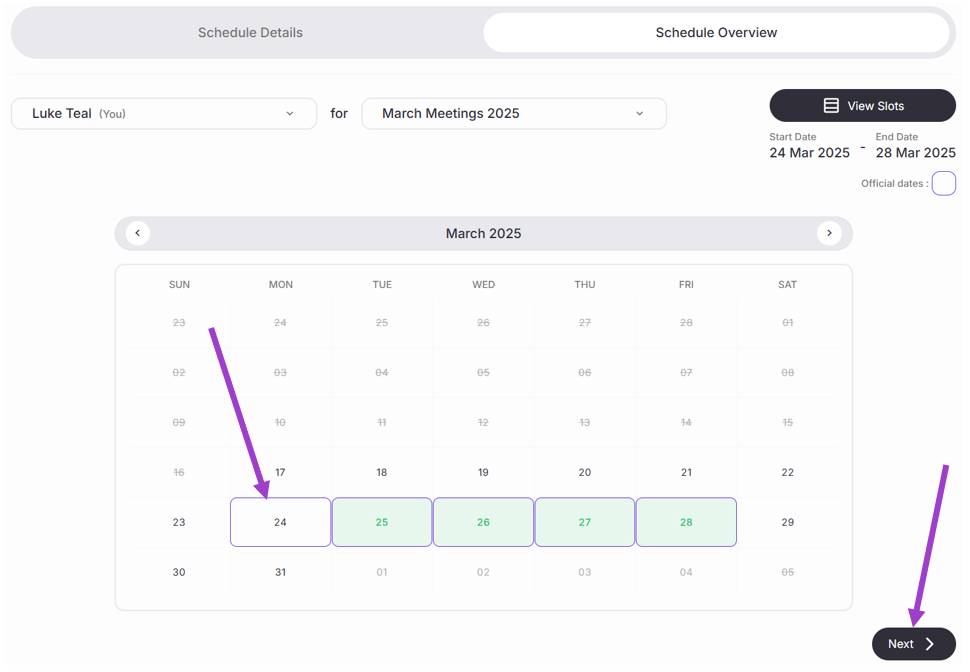
- You will be taken back to your monthly calendar overview.
- As you can see, the date you have removed will no longer be highlighted in green. It will be white.
- Repeat the process for each day you are not working.
- For this example, we will remove Tuesday 25th March as well, as the teacher setting their availability only works on a Wednesday, Thursday and Friday.
- When you have removed all the days you are not in school, click ‘Next’.
Step 8
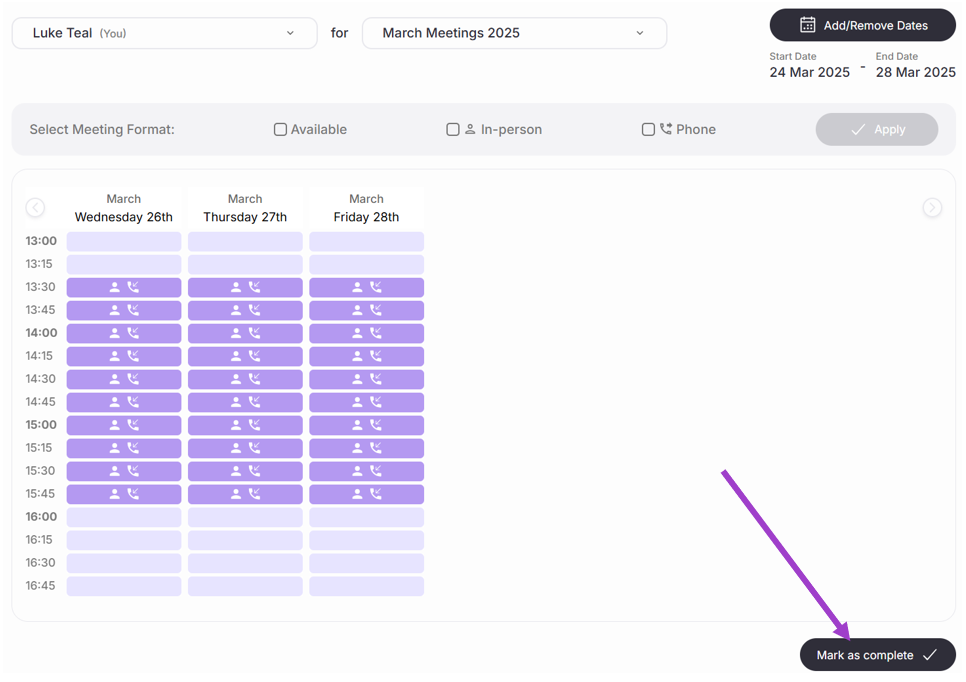
- When you are taken back to your schedule overview, you will now see that the days you are not working have been removed.
- You can now edit that schedule for 3 days as you wish. Please see our ‘Editing Your Availability’ support page if you require help with this.
- Click ‘Mark as complete’.
Step 9
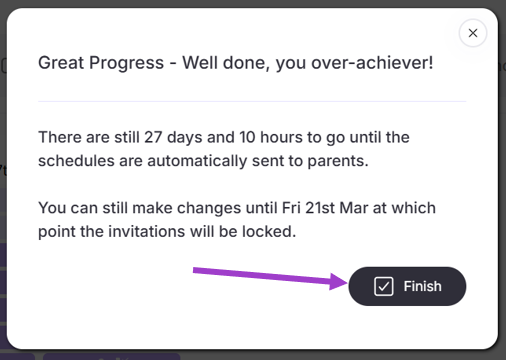
- A pop-up tab will open confirming the changes have been made and the dates you are not working have been removed.
- Click ‘Finish’.
- If you are in a job-share arrangement and your job-share partner sets the other days as available, then parents will be able to see a full week of availability and select times that suit them best. This means they will meet whichever teacher normally works on that day.
Note: When booking a slot, the parents will not see which teacher is available for any given slot.
Was this article helpful?
That’s Great!
Thank you for your feedback
Sorry! We couldn't be helpful
Thank you for your feedback
Feedback sent
We appreciate your effort and will try to fix the article