The Overview is where you can see everything you need to know about your upcoming parent-teacher meetings — when parents will be invited, how long your meetings are, what times you have been given, and who has booked with you.
There are two places to look, and this article covers both:
- Your Home page, which you land on when you log in. This is the short version, plus anything that needs you.
- The Overview tab inside a meeting schedule, which shows your bookings as they come in.
Part 1 – Your Home page
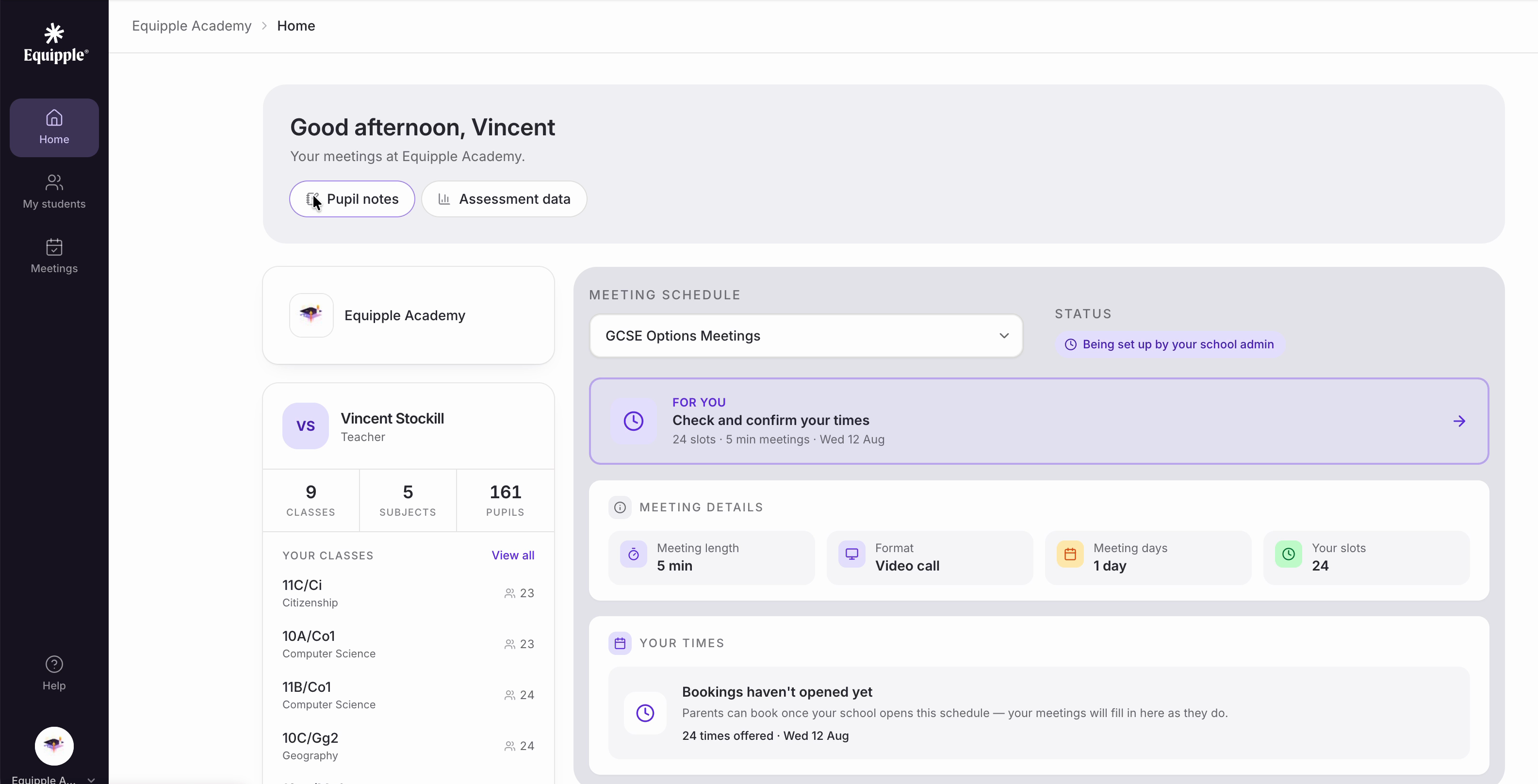
• When you log in you land on ‘Home’. Everything below is on this one page.
• On the left is your own card, showing how many ‘Classes’, ‘Subjects’ and ‘Pupils’ you have on Equipple.
• ‘Your Classes’ lists each class you teach with its subject and the number of pupils in it. If you teach more than five, use ‘4 more classes’ at the bottom or ‘View all’ at the top to see the rest.
Nb. These classes come from your school’s records rather than from Equipple. If a class is missing, or one is listed that isn’t yours, speak to whoever manages your school’s data — it can’t be corrected from this page.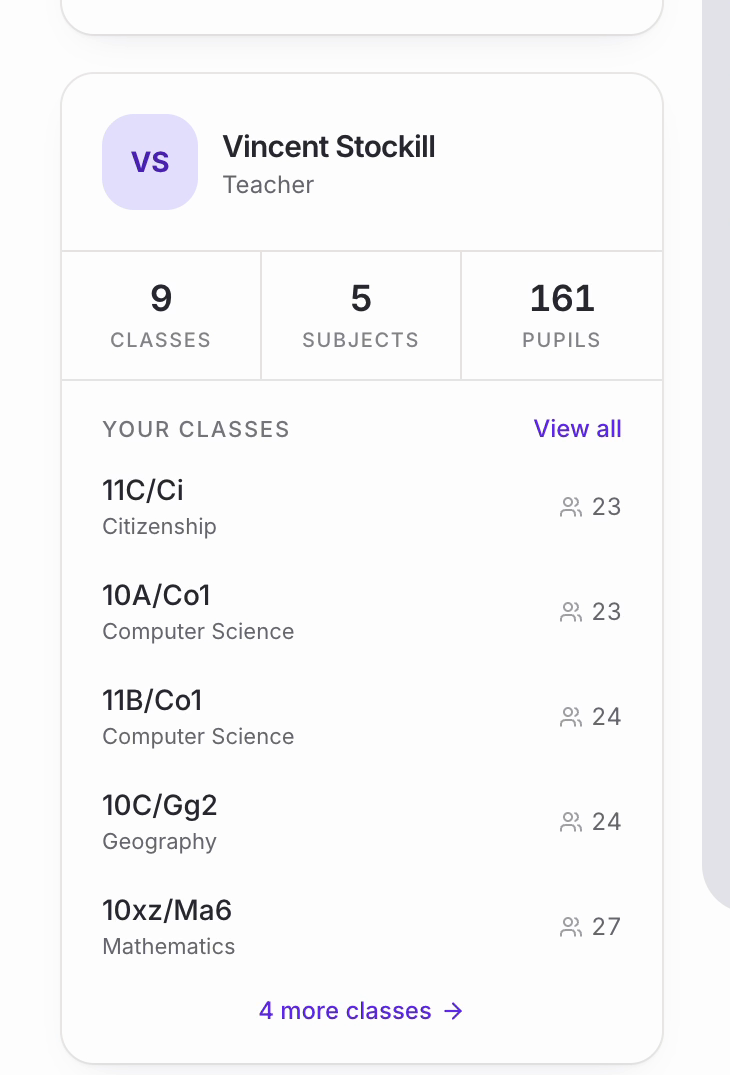
Your meeting schedule
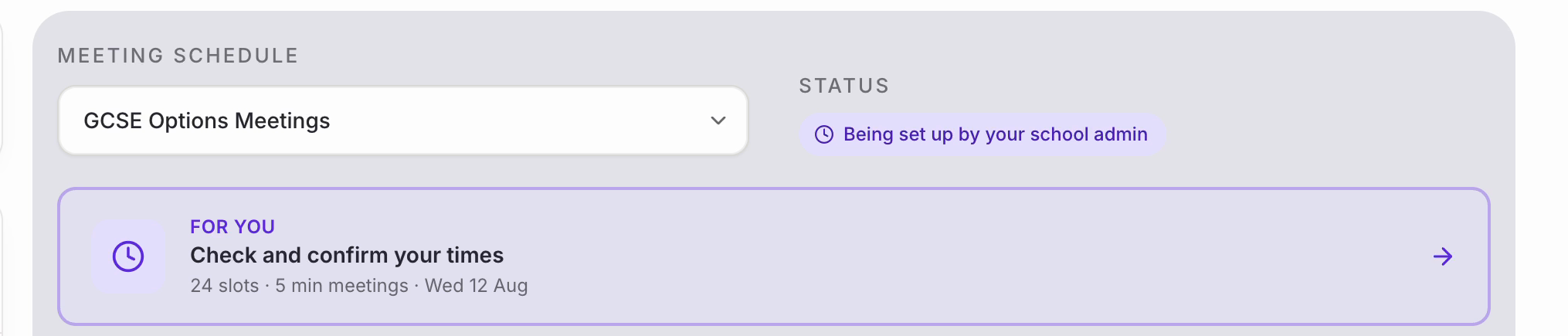
• ‘Meeting Schedule’ controls everything on the right-hand side of the page. If your school has more than one set of meetings running, use the dropdown to switch between them.
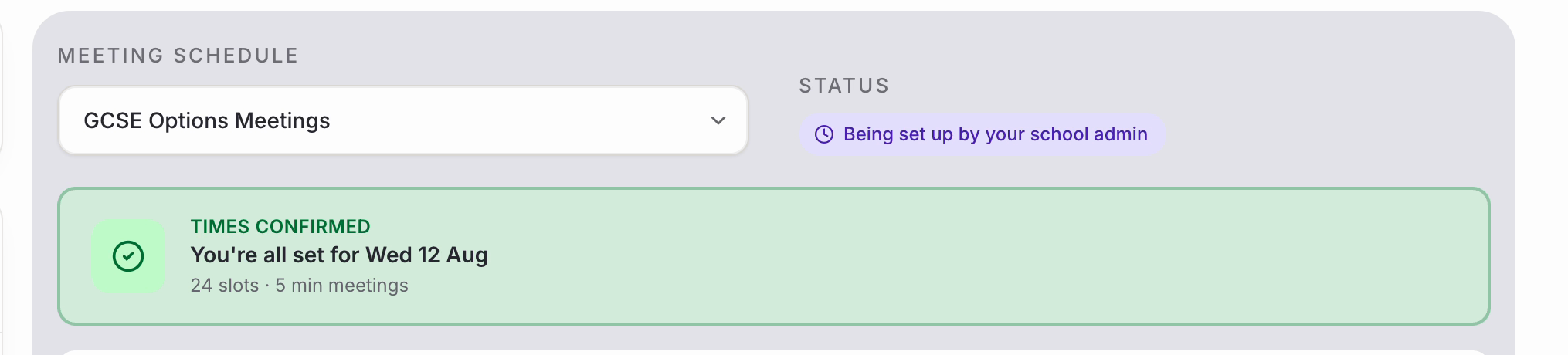
• ‘Status’ beside it tells you where things have got to. In the example below it is ‘Being set up by your school admin’.
• ‘For You’ is the important one. This panel tells you whether anything is waiting on you and, if it is, takes you straight there when you click the arrow. Here it is asking you to ‘Check and confirm your times’, with a summary of how many slots you have been given, how long each meeting is, and the date.
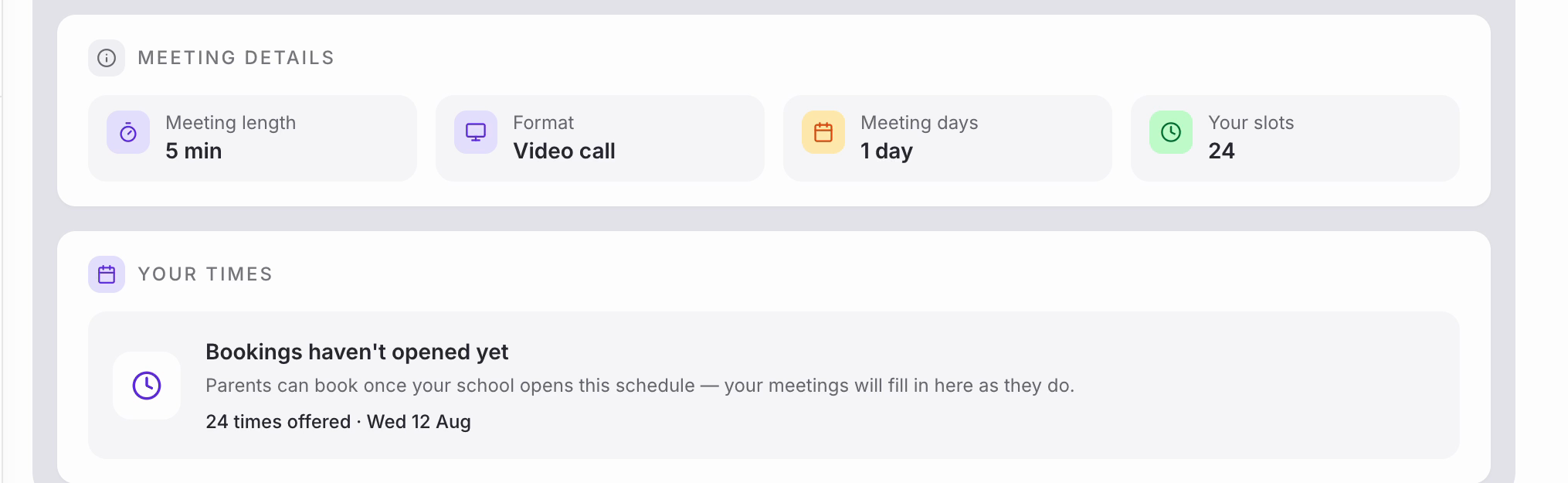
• ‘Meeting Details’ is a summary of how your school has set the meetings up: ‘Meeting length’, ‘Format’ (in person, phone call or video call), ‘Meeting days’ and ‘Your slots’.
• ‘Your Times’ is where your booked meetings will appear. Before invitations go out it simply tells you that ‘Bookings haven’t opened yet’ and how many times you are offering. Once parents start booking, your meetings fill in here in time order.
Part 2 – The Overview tab
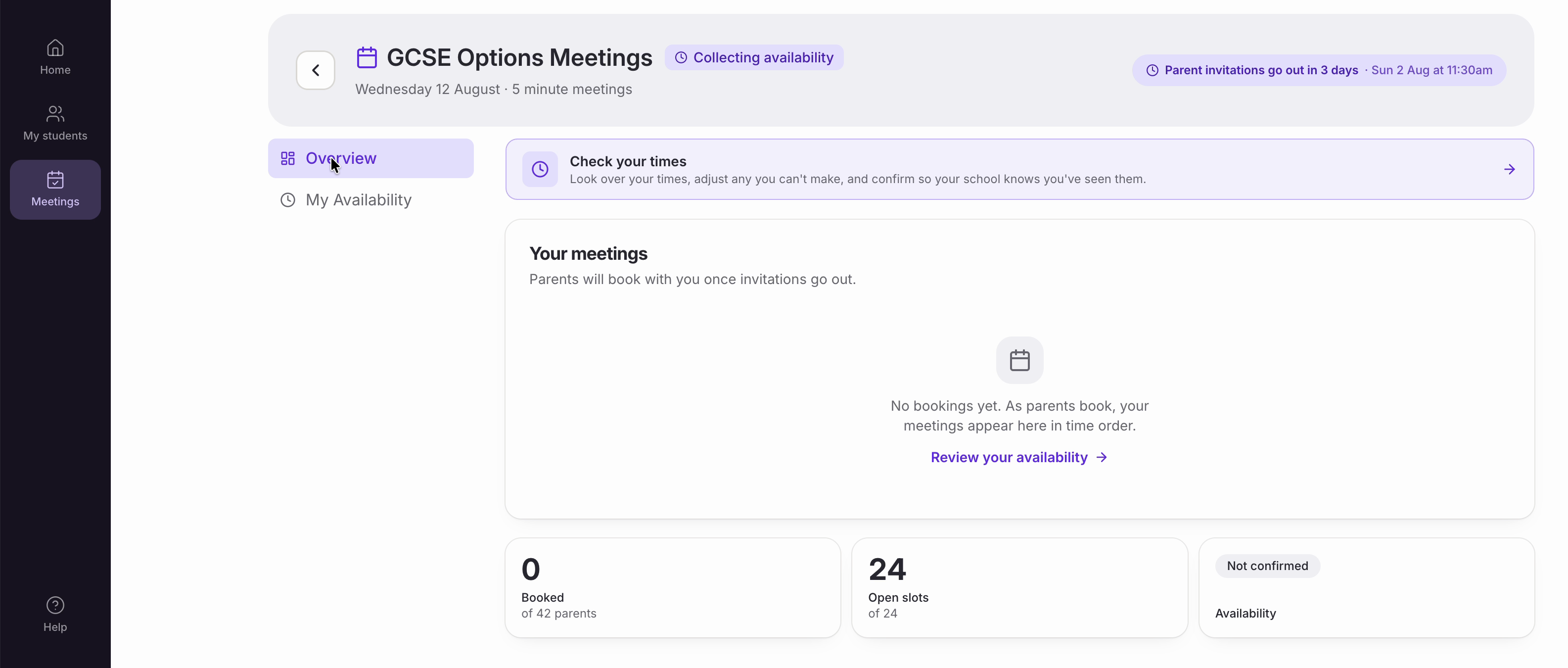
• For the full picture, click ‘Meetings’ in the left-hand sidebar, or click the arrow on the ‘FOR YOU’ panel. A meeting schedule has two tabs: ‘Overview’ and ‘My Availability’.
• The header shows the name of the meetings, their status, the date and how long each meeting is. On the right it counts down to when parent invitations go out.
• ‘Your meetings’ is the main panel. Before invitations go out it is empty, with ‘Review your availability’ as a shortcut. Afterwards, every booking appears here in time order so you can see your evening at a glance.
• The three cards underneath are your headline numbers:
-Booked – how many parents have booked with you, out of the total who could.
- Open slots – how many of your times are still free.
- Availability – whether you have confirmed your times yet. This reads ‘Not confirmed’ until you do.
Checking your times
• ‘My Availability’ is where you check what your school has proposed. The ring on the left shows what proportion of the offered times you are currently available for, and the badges on the right tell you if anything needs attention — for example ‘Editable until invitations go out’.
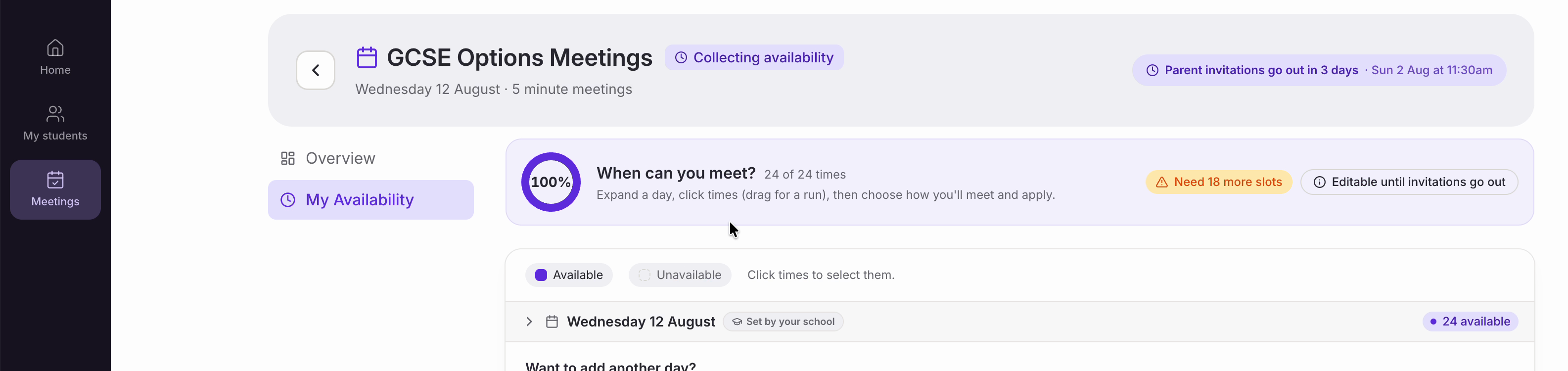
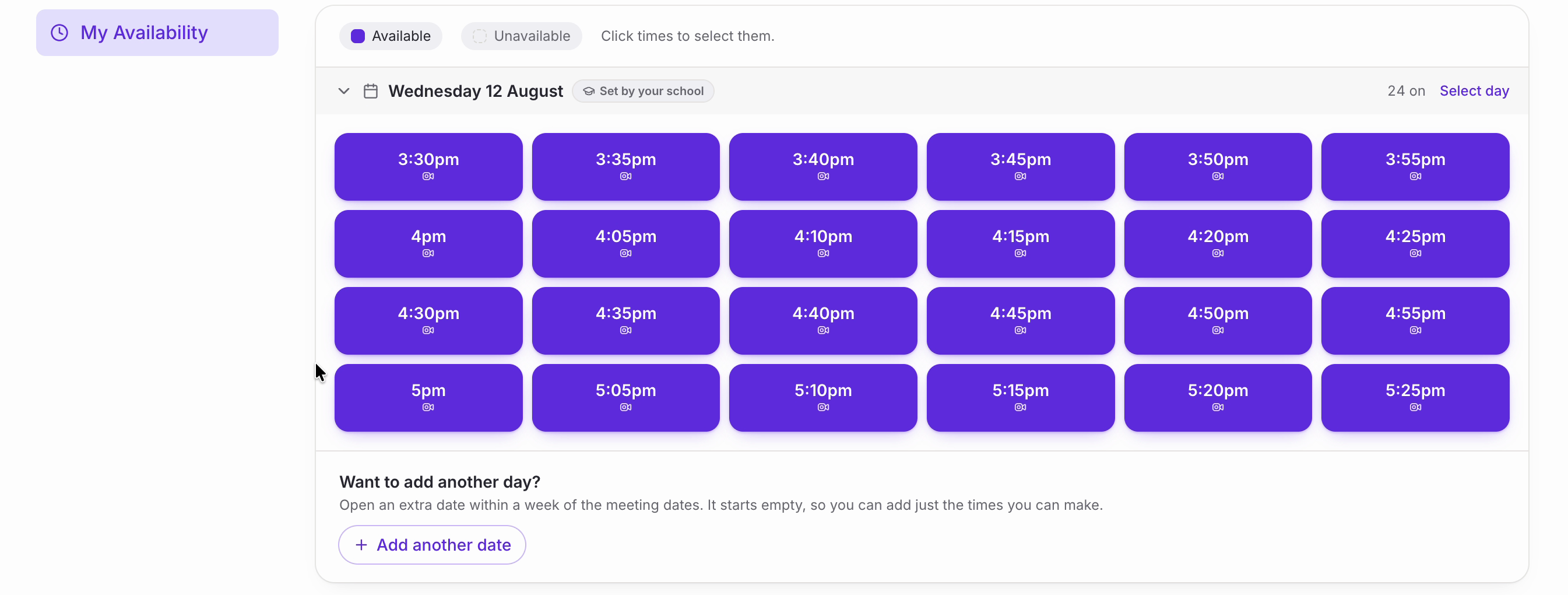
• Click the arrow beside a date to open it and your times appear as blocks. The panel above tells you how to change them: expand a day, click the times you want (dragging across several to do a run at once), then choose how you’ll meet and apply. The ‘Available’ and ‘Unavailable’ buttons control which of the two you are setting.
• ‘Set by your school’ beside the date means these times came from your admin rather than from you. If you can offer an extra evening, ‘Add another date’ opens a new day within a week of the meeting dates.
• When you are happy, click ‘Confirm my times’. This simply lets your school know you have seen them and will be there. The panel then changes to ‘Times confirmed’ with a green ‘Confirmed’ badge. You can still change your times afterwards, right up until invitations go out.


• Back on ‘Home’, the ‘For You’ panel turns green and reads ‘Times Confirmed’, so you can tell at a glance that there is nothing left for you to do.
Nb. Occasionally your school may not have a contactable email address or mobile number on record for a pupil’s parents. Those families can’t be sent a link to book, so they won’t appear in your meetings even though the pupil is in your class. Your admin will see a notice about this and will usually arrange those meetings directly with the family.
• Once everyone’s availability is in, your school sends the booking invitations and your times open up to parents. From then on, ‘YOUR TIMES’ on Home and ‘Your meetings’ on the Overview tab are the two places to check who is coming and when.
Was this article helpful?
That’s Great!
Thank you for your feedback
Sorry! We couldn't be helpful
Thank you for your feedback
Feedback sent
We appreciate your effort and will try to fix the article