When you’re becoming familiar with Equipple it’s a good idea to check your classes and pupils, and see how their information is presented.
Step 1
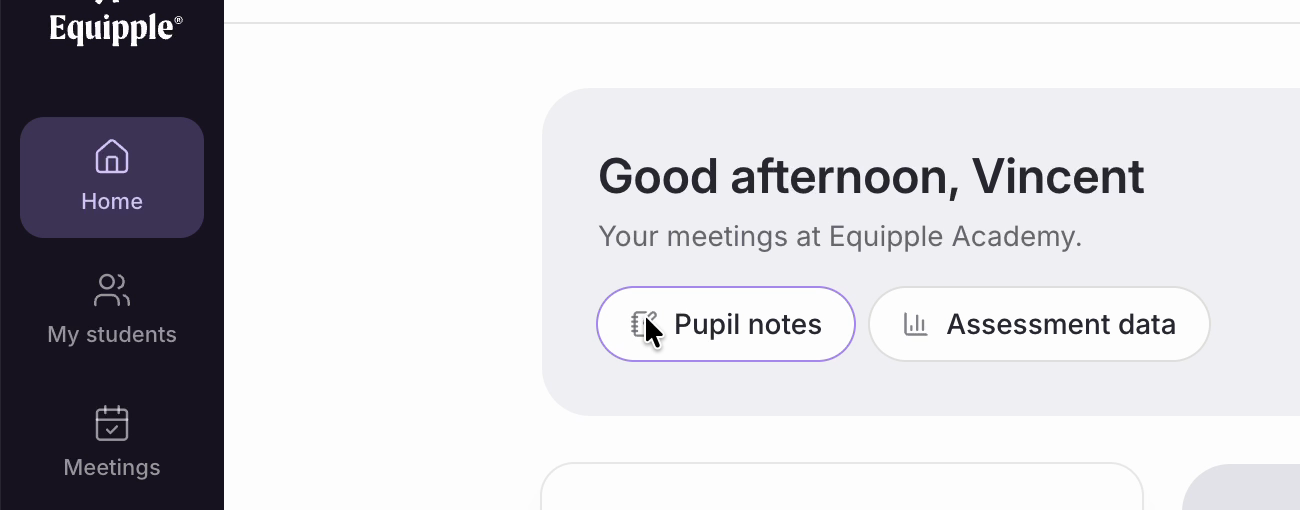
• Click ‘My students’ in the left-hand sidebar.
Step 2
• Use the filters at the top to narrow the list down to a particular subject or class, then select any pupil to review their information.
Nb. If you can’t see all of your classes, check the ‘select a schedule’ filter. If your admin has created a meeting schedule — say ‘Year 11 Parent-Teacher Meetings’ — you will only see the classes attached to that schedule, so in this example only your Year 11 classes. De-select the schedule to see every class you are associated with on your school’s MIS.
Step 3
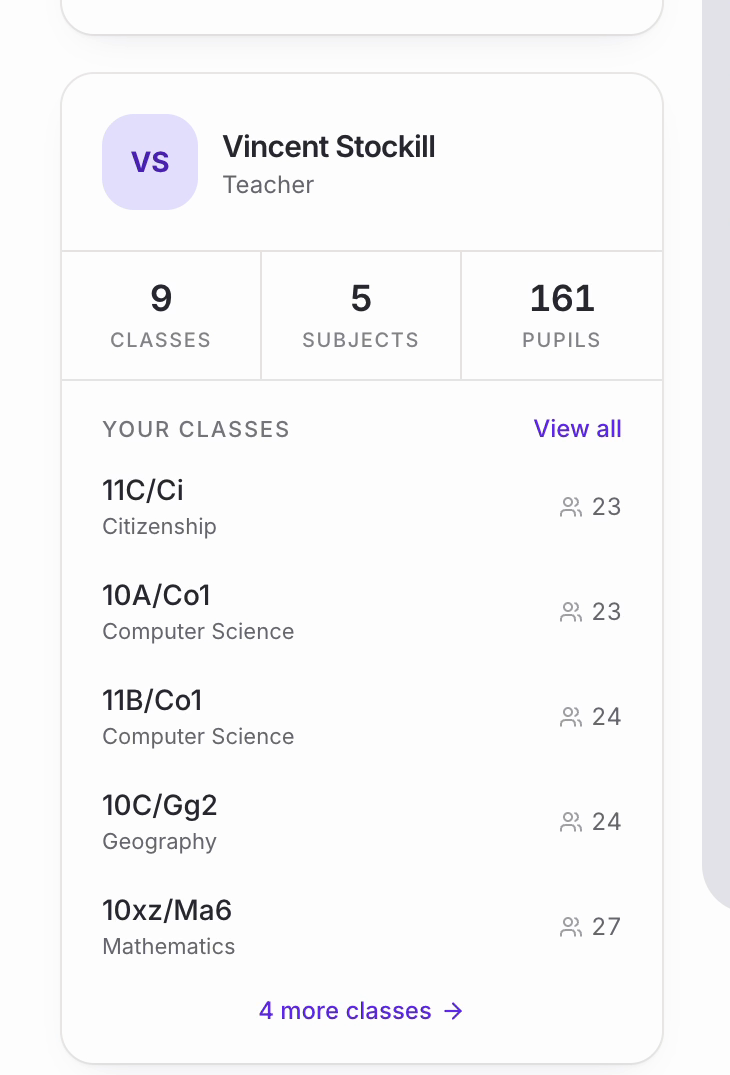
• For a quick sanity check, your Home page also lists your classes. ‘Your classes’ shows each one with its subject and the number of pupils in it, and the totals above give you your overall ‘Classes’, ‘Subjects’ and ‘Pupils’ counts.
• If you teach more than five classes, ‘View all’ or the ‘more classes’ link at the bottom will show the rest.
That’s how you review your classes and pupils.
Nb. Your classes and pupils come from your school’s MIS rather than from Equipple, so if a pupil or a class is missing it almost always needs correcting there. Contact your admin to check, or email support@equipple.comand someone will be able to help.
Was this article helpful?
That’s Great!
Thank you for your feedback
Sorry! We couldn't be helpful
Thank you for your feedback
Feedback sent
We appreciate your effort and will try to fix the article