Sometimes as a teacher, you require a longer meeting than usual with a child’s parents/guardians. If you are a ‘Class Teacher’ and want to book a double length meeting for a specific pupil, just follow these simple steps in this video:
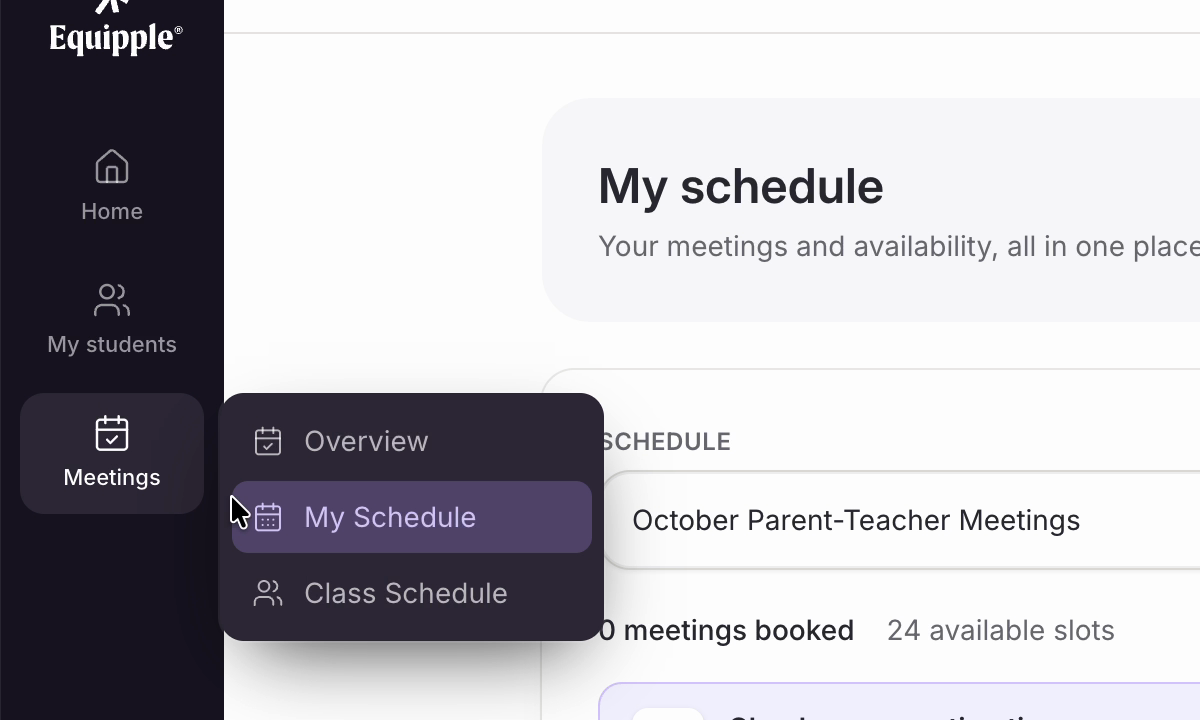
Step 1 – Open ‘Class Schedule’
• Click ‘Meetings’ in the left-hand sidebar and choose ‘Class Schedule’.
Step 2 – Choose the schedule and class
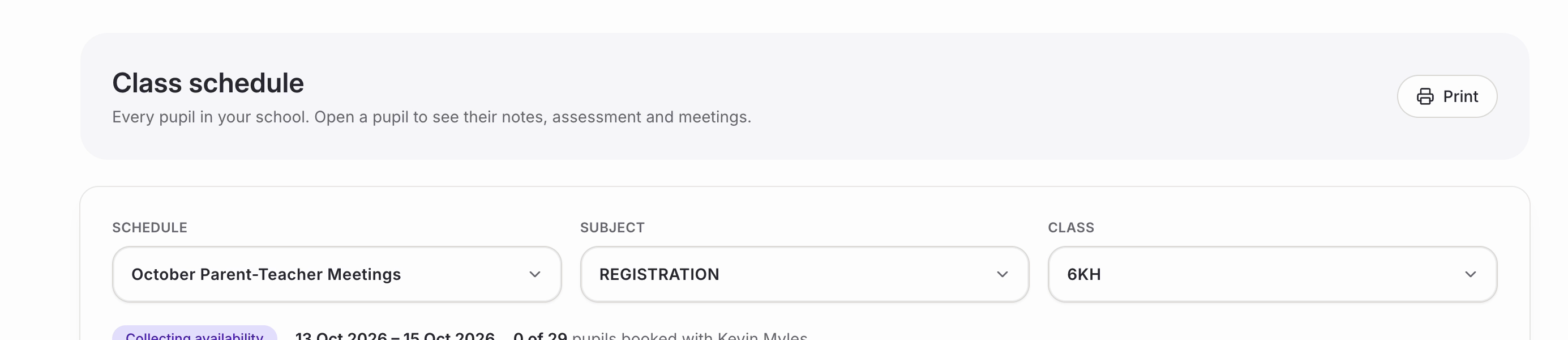
• Use the three dropdowns to narrow things down: ‘Schedule’ for the set of meetings you are preparing for, then ‘Subject’ and ‘Class’.
• Underneath, Equipple confirms the status of that schedule, the dates it covers, and how many of your pupils are booked so far.
Step 3 – Find the pupil
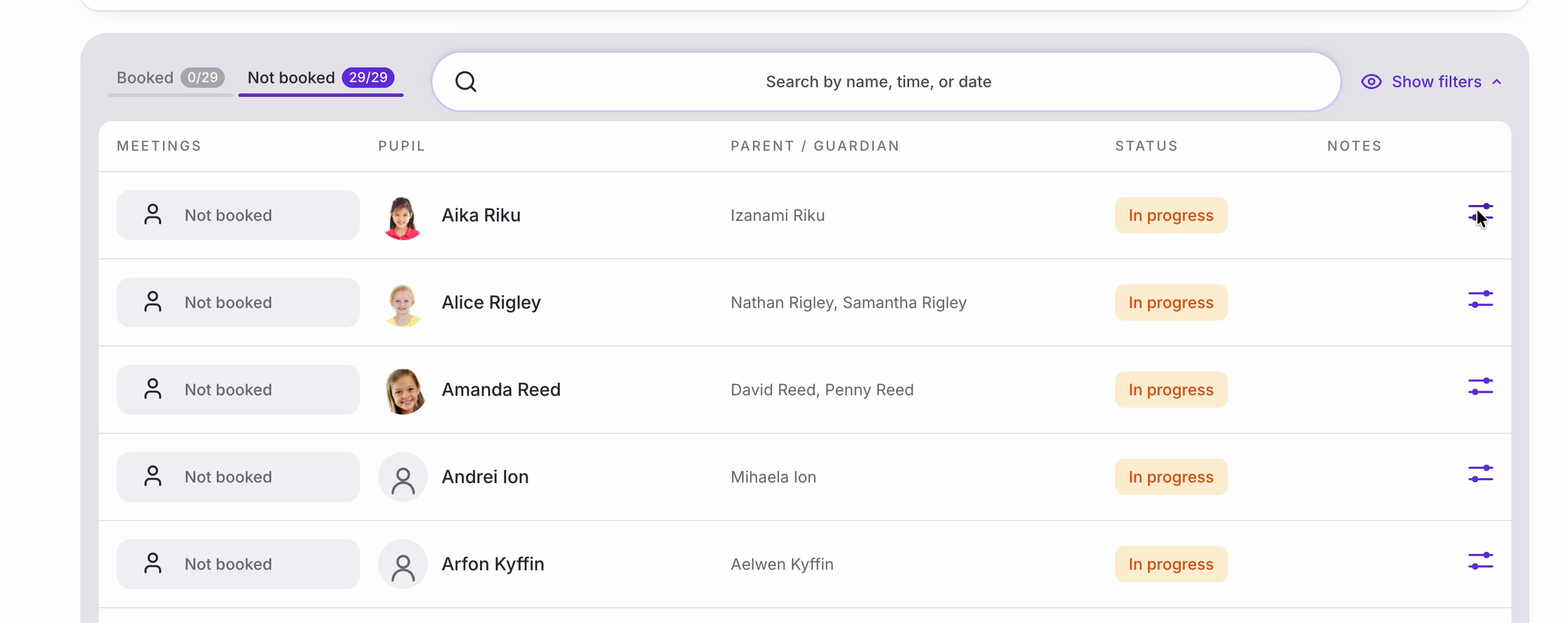
• The ‘Booked’ and ‘Not booked’ tabs split your class by whether a meeting has been arranged yet, and each shows a count. You can also search by name, time or date.
• Each row shows the pupil, their parents or guardians, and the status of the meeting.
• Click the icon at the end of the pupil’s row to open their details.
Step 4 – Turn on ‘Double-length’
• The pupil’s panel opens. Under ‘Meetings’ you will see your name, the class, and whether a meeting has been booked yet.
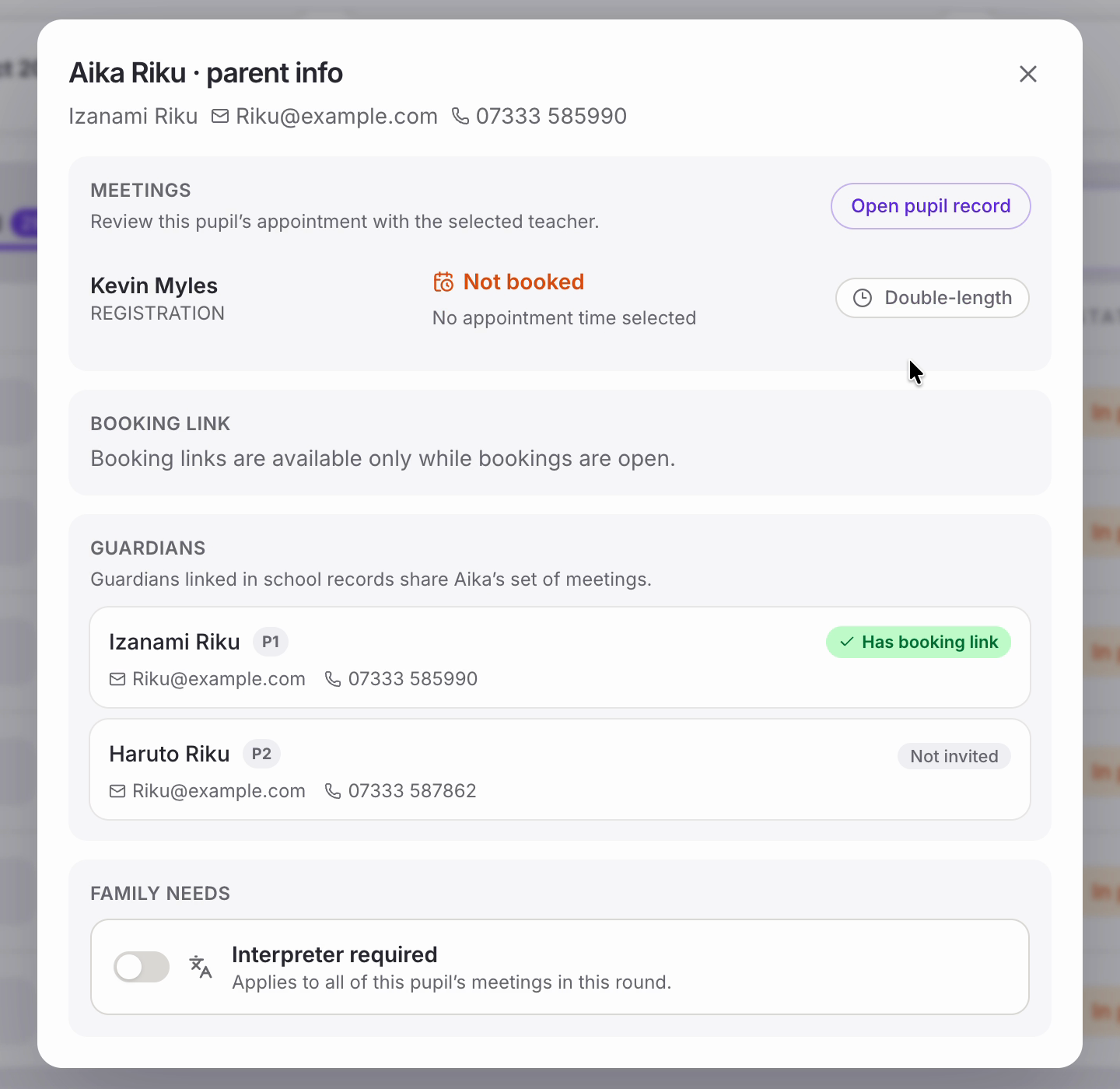
• Click ‘Double-length’ on the right of that row.
• A purple ‘Double’ badge appears beside it and the button shows a tick. That’s it saved — there is nothing else to confirm.

• Close the panel with the ‘x’ in the corner. If you need to undo it, come back to the same panel and click ‘Double-length’ again to switch it off.
Nb. A double-length meeting uses the slot after it as well, so you will have one fewer slot available overall. It’s worth doing this before invitations go out, so that the timings parents see are already correct.
While you have the pupil’s panel open, there are a few other things you can do:
- ‘Open pupil record’ takes you to everything Equipple holds for that child.
- ‘Guardians’ lists everyone linked to the pupil in your school’s records, and shows whether each one has a booking link or has not been invited.
- ‘Interpreter required’ under ‘Family needs’ flags that the family needs an interpreter. This applies to all of that pupil’s meetings in the round, not just yours.
Nb. If you are assigning the slot yourself rather than letting the family book, you can make it double length at the same time — tick ‘Make this a longer meeting (uses the next slot too)’ in the ‘Manually assign a pupil’ panel. See Manually Assigning Meeting Slots.
That family can now book, or be assigned, a meeting of twice the usual length with you.
Was this article helpful?
That’s Great!
Thank you for your feedback
Sorry! We couldn't be helpful
Thank you for your feedback
Feedback sent
We appreciate your effort and will try to fix the article