This article will show you how to auto-renew your subscription when your school's contract is coming to an end.
Step 1-
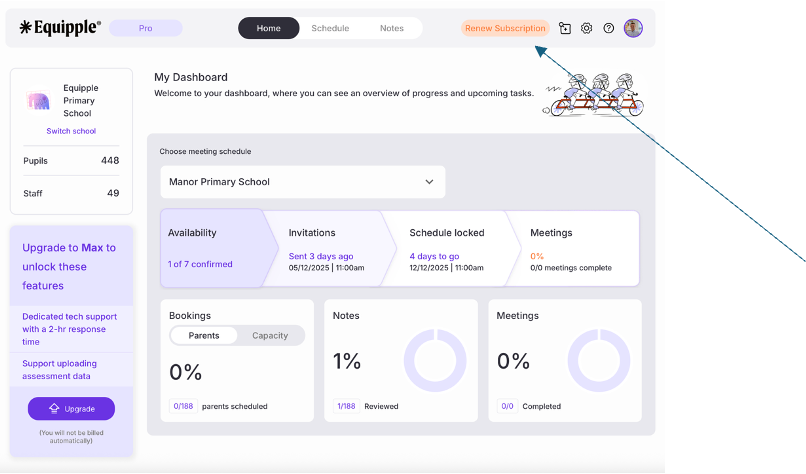
The ‘renew subscription’ button will appear when you have less than 90 days before your current subscription lapses
Step 2-
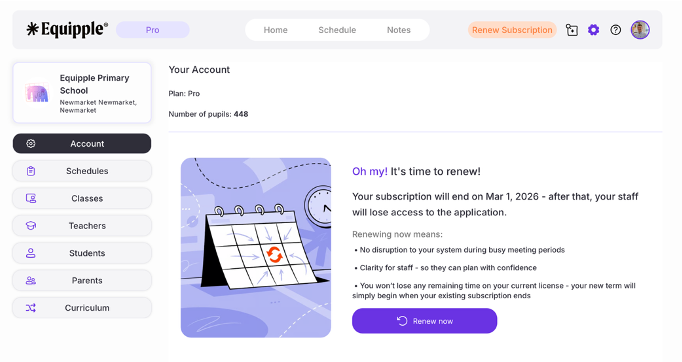
When you click the button you will be told of your current subscription tier as well as the number of pupils on your current enrolment alongside the date that your subscription ends.
Step 3-
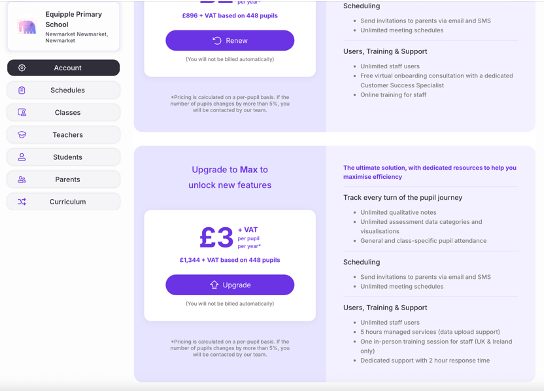
You will now see the 3 different tiers (Basic, Pro and Max) as well as the calculated cost including VAT for your current number of pupils and you will have the option to downgrade, renew or upgrade your subscription model.
Upgrading
You can upgrade to a higher plan at any time during your subscription. Any additional charges will be calculated on a pro-rata basis for the remainder of your current term.

Downgrading
You can downgrade to a lower plan, but the change will take effect only at the end of your current subscription term.

Renewal
When you decide to renew your subscription, the new term will automatically begin the day after your current term ends.
Step 4-
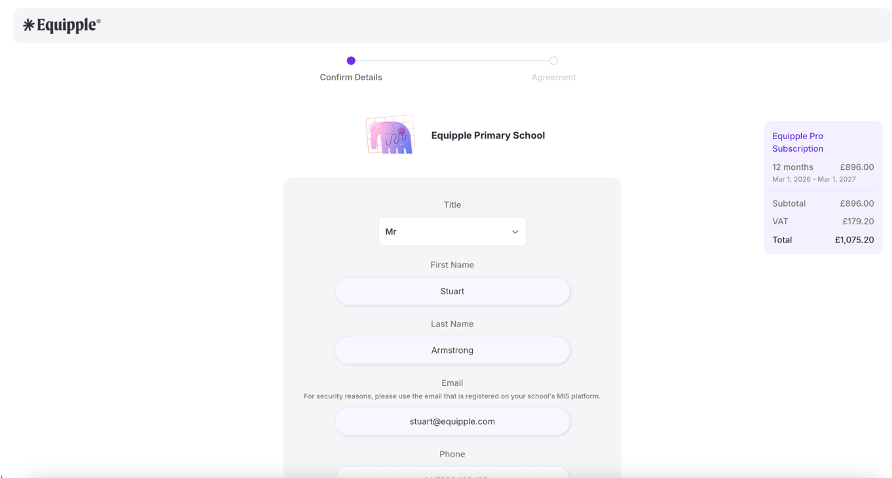
Once you have selected your tier then you can click through to the next screen which will ask you to input some of your details and then will automatically create your updated terms and conditions. Please note that you will not be automatically billed at this stage but instead you will receive a separate invoice after completing the renewal.
Step 5-
Once you have input your details and clicked ‘agreement’ you will then see a PDF version of the terms and conditions for you to read or download for future reference. Once you are happy with these then you can enter your full legal name and select ‘I agree on behalf of the school.’
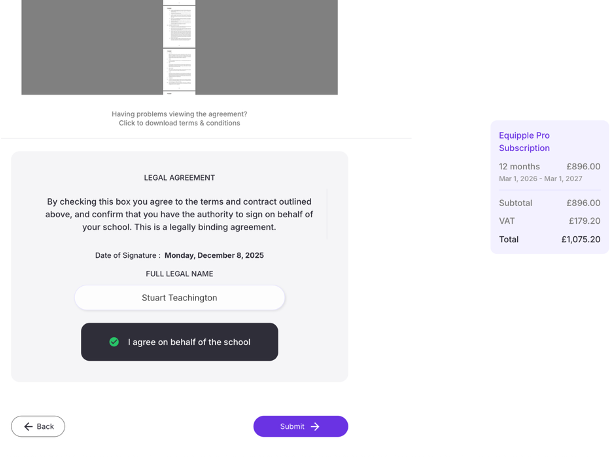
At this stage the contract is complete and you will automatically be emailed a copy of the completed contract as well as an invoice shortly after.
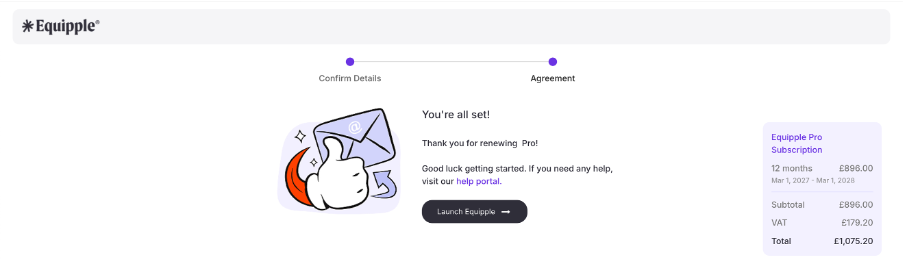
And that's it! Renewing your contract is very simple and once these steps are done, you and your staff will be set up and ready to go!
Was this article helpful?
That’s Great!
Thank you for your feedback
Sorry! We couldn't be helpful
Thank you for your feedback
Feedback sent
We appreciate your effort and will try to fix the article