If you are a parent and would like to understand how Equipple will work for you during a video call in your Parent-Teacher meeting, please refer to the following overview. This guide will show you what to expect and help you navigate the Equipple app with ease:
Contents:
1- Logging into the meeting
2- Beginning the Meeting
3- Adding an additional guardian
4- Countdown Timer + 1 Minute to go
5- Move onto next meeting
6- Call ended
1. Logging into the Meeting
- On the day of your meeting you will receive an email from Equipple which looks like this:
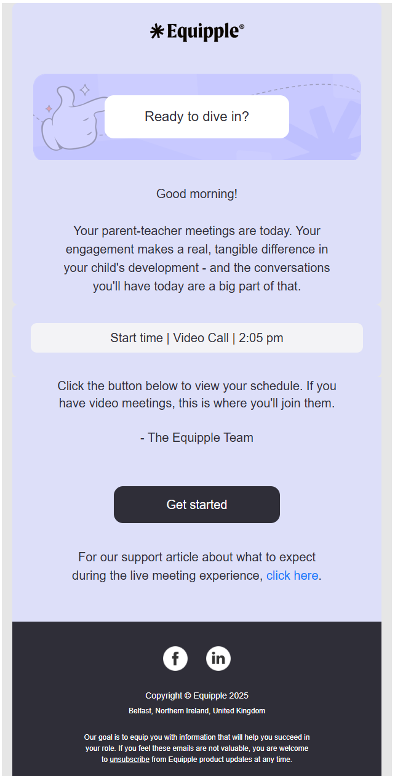
- In the email you simply follow the 'Get Started' link which will give you access to the meeting room where the video meetings will take place. (You can also obtain a link to the meeting room from your original confirmation email when you booked the meeting. Once the schedule has been locked then parents have access to the video meeting room.)
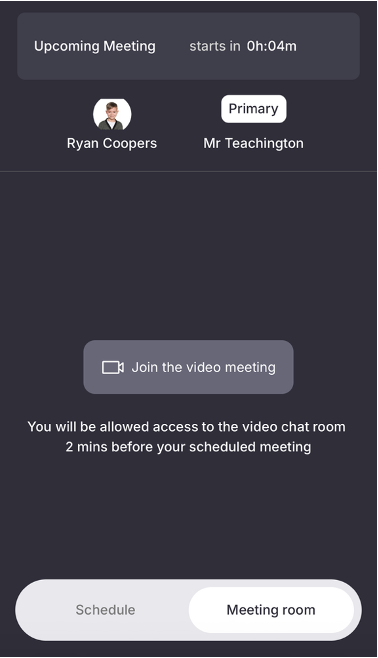
2. Beginning the Meeting
- When you click on the link you will now be taken to your first meeting. Here you simply click the purple ‘join the meeting room’ button to take you to the video call with your first teacher.
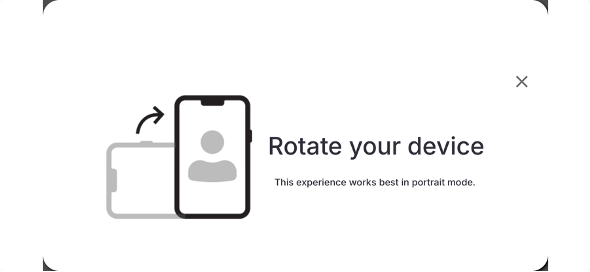
If you’re using a mobile device it’s recommended that you hold your device in portrait rather than landscape. If you switch to portrait mode then you will see this prompt to remind you
You will have access to the video room 2 minutes before each call but the video will automatically close once the meeting has finished
3. Adding an additional guardian
- If you would like to add an additional parent or guardian to the call you can do so by following these simple steps.
Nb. You can invite a maximum of 1 additional parent per meeting
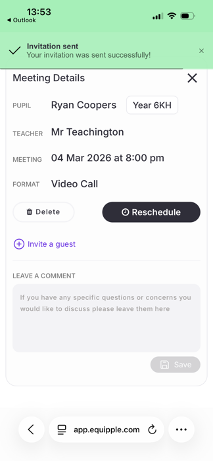
- Click on ‘invite a guest’
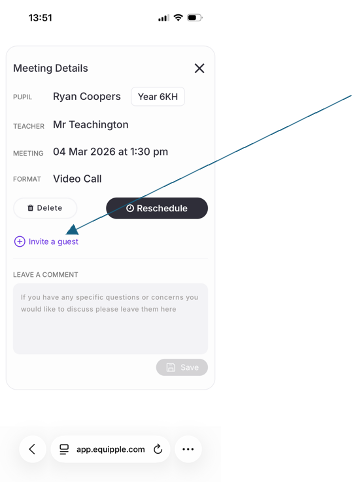
- Next add the details of the person you would like to add to the video call. You can also invite them to 1 meeting individually or all of the active meetings for that pupil.
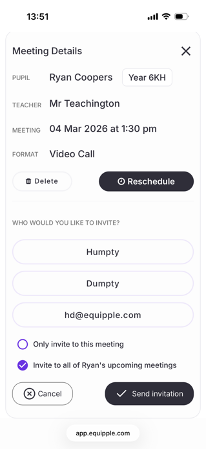
- Click ‘send invitation’ and that parent will receive a confirmation email as well that will give them access to the video room on the day of the meeting.
4. Countdown Timer
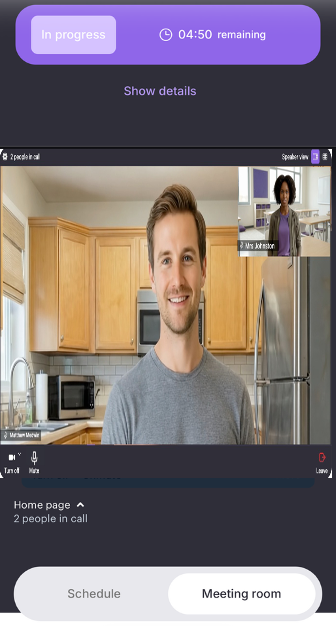
- You will be able to watch your countdown timer at the top of your video call to make sure that you get the most out of your meeting.
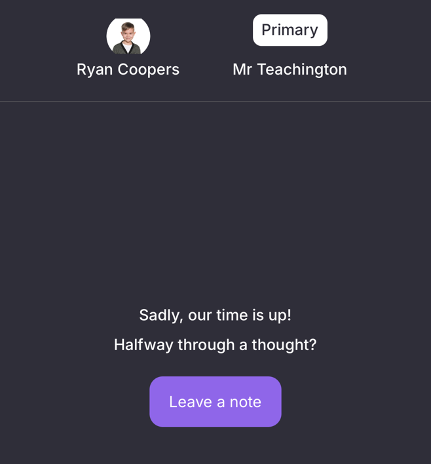
Nb. If you run out of time you always have the option to leave the teacher a message at the end of your call.
5. Moving to the next meeting
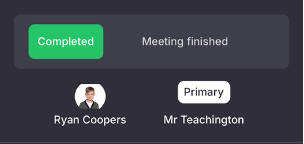
- Once the meeting has finished the video meeting will end automatically and you simply click ‘next meeting’ which will take you to your next appointment.

6. Ending your Last Meeting
.
- Once you’re finished your last meeting you can close your tab and relax!
Was this article helpful?
That’s Great!
Thank you for your feedback
Sorry! We couldn't be helpful
Thank you for your feedback
Feedback sent
We appreciate your effort and will try to fix the article