If you are a class teacher and would like to understand how Equipple will work during a video call in your Parent-Teacher meeting, please refer to the following overview. This guide will show you what to expect and help you navigate the Equipple app with ease:
Contents:
1- Logging into the meeting
2- Beginning the Meeting
3- Scrolling down to see data + unpinning the video
4- 1 minute to go
5- Extending a call by 30 seconds
6- Move onto next meeting
7- Ending the meetings
1. Logging into the Meeting
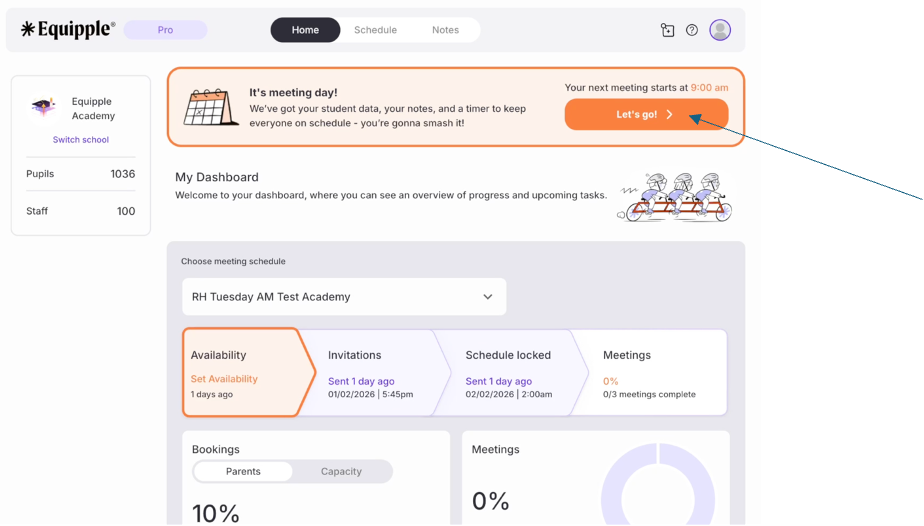
- When you sign into Equipple on the day of your meeting you will see an orange banner alerting you that it is the day of your upcoming meeting. Click ‘Let’s Go’ to take you to your first meeting.
2. Beginning the Meeting
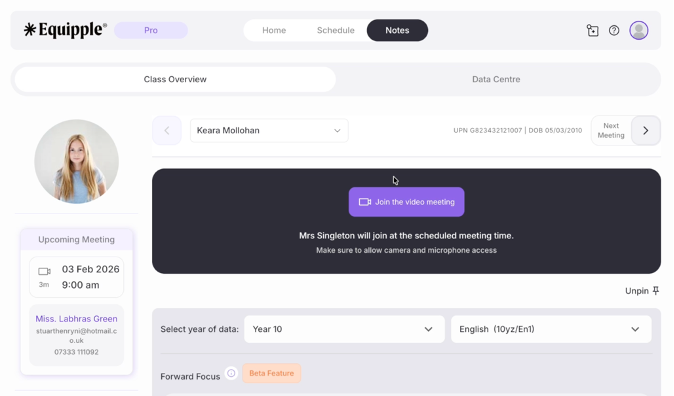
- You will now be taken to your first meeting. Here you simply click the purple ‘join the meeting room’ button to take you to the video call with the parent or guardian.
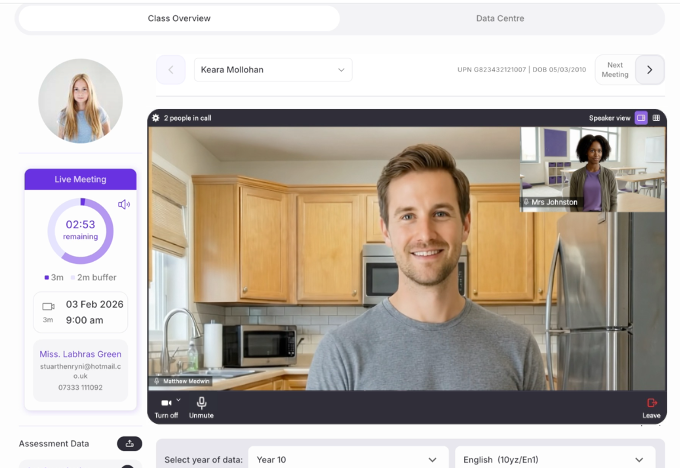
Once the parent/guardian joins and the meeting begins you will see a countdown timer beside the video call.
Nb. Both you and the parent will have access to the video room 2 minutes before each call but the video will automatically close once the meeting has finished.
3. Scrolling to See Pupil Data
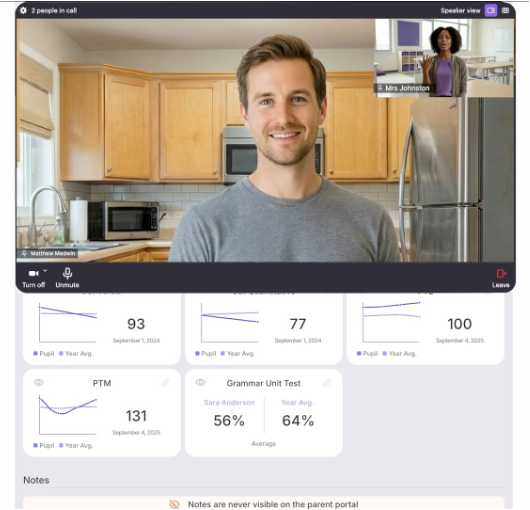
- You will be able to scroll down freely during the call so that you can see any of the pupil assessment data that you may need.
4. 1 Minute to Go
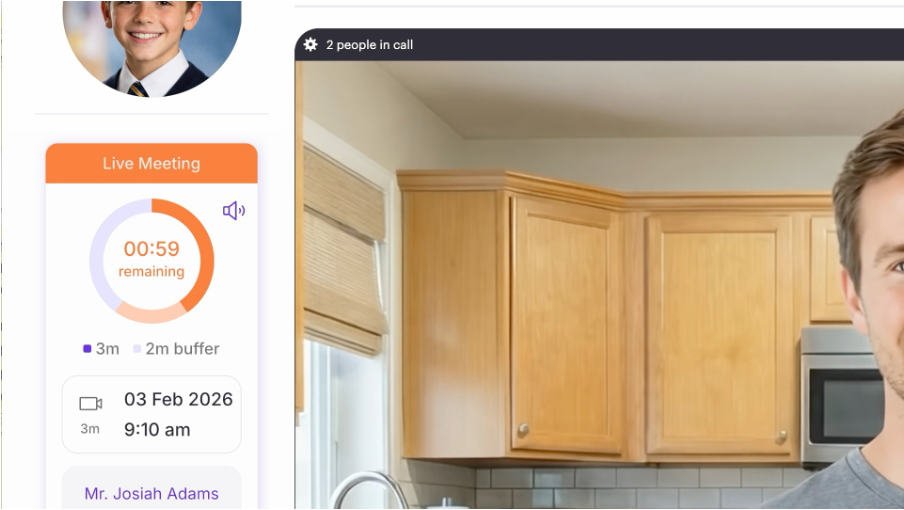
- At 1 minute to go you will see the countdown timer move from purple to orange to show you that time is coming to a close. You will also hear a short jingle to remind you.
5. Extending a Call
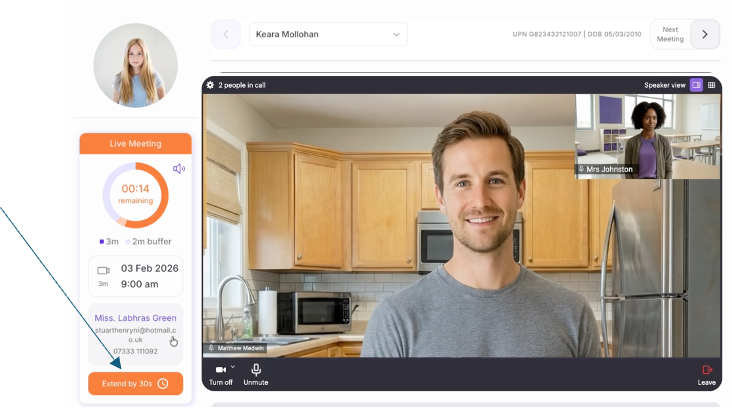
- When there is less than 1 minute remaining (and if you have a buffer between calls) then, as a teacher, you have the option to extend the call by 30 seconds if you choose. You do this by simply clicking the orange ‘extend by 30 seconds’ button below the timer. You will now see your countdown timer extend to include the extra 30 seconds.
Move onto the Next Meeting
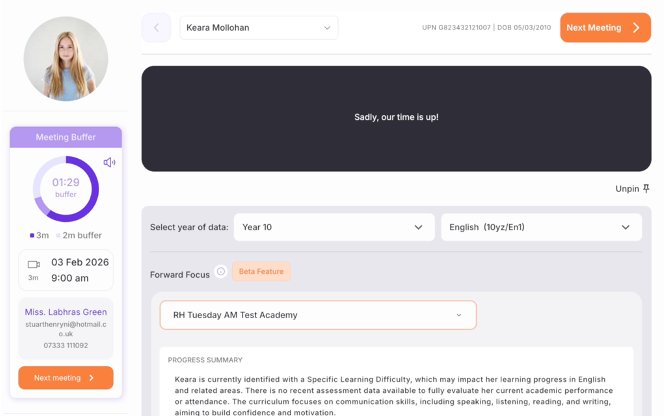
- Once the meeting has finished the video meeting will end automatically and you simply click ‘next meeting’ which will take you to your next appointment.
7. Ending your Last Meeting
.
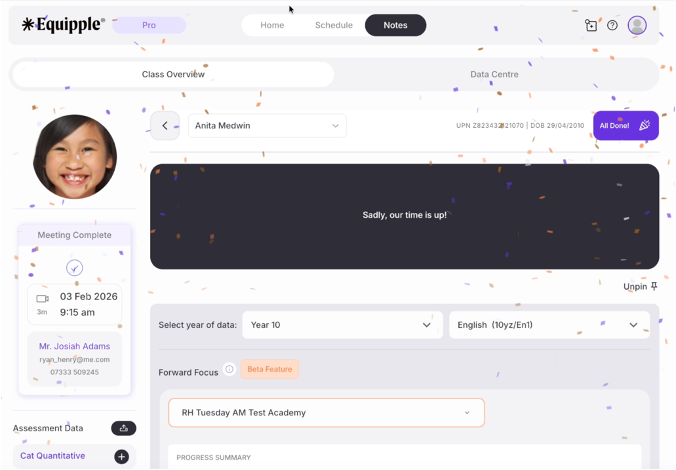
- Once you’re finished your last meeting click ‘all done’ and relax!
Was this article helpful?
That’s Great!
Thank you for your feedback
Sorry! We couldn't be helpful
Thank you for your feedback
Feedback sent
We appreciate your effort and will try to fix the article