Note: It is important to spend a few minutes of your time to ensure your availability accurately represents your working pattern.

If you do not set your availability, parents will be able to book any slot that the administrator set up in the default template. This may include days that you do not work.
Class Teachers, follow these instructions for editing your availability, for any upcoming parent-teacher meetings. As a reminder, your school sets up the days, times and formats of your meetings. However, you can now make that schedule work for you — you can turn times off, add times outside the ones offered and change how you'll meet parents. This article covers each of those.
Nb. You can change your times at any stage, but it's always best to do it before the 'go live' date as parents could then book a time with you. The 'Go Live' date is visible on your home screen when you select 'Meeting Overview.'.
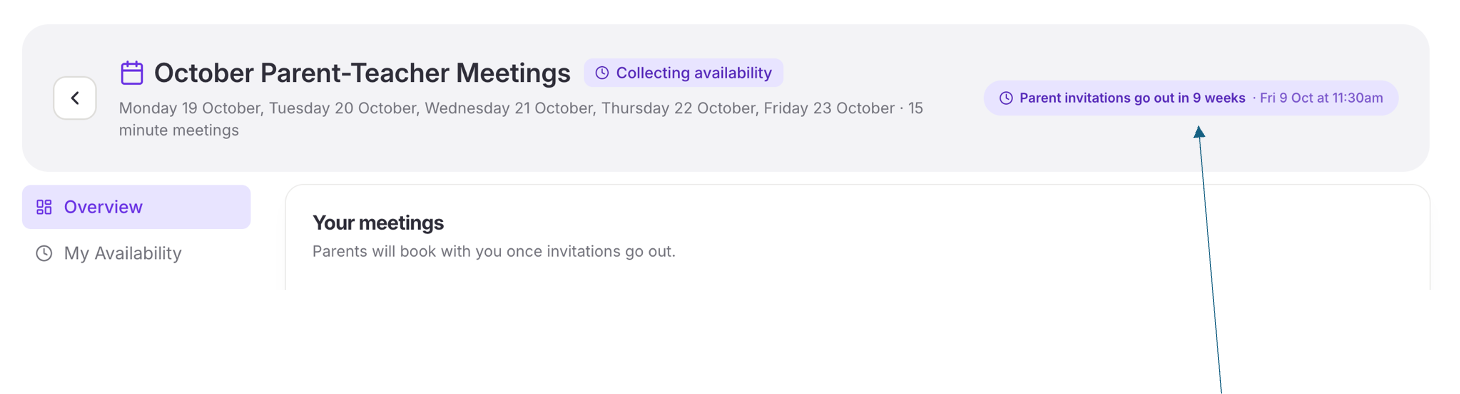
Step 1 – Open ‘My Availability’
• From your Home page, the ‘For you’ panel reads ‘Check and confirm your times’, with a summary of how many slots you have, how long each meeting is and which days they run. Click the arrow on the right to go there.

Step 2 – Get your bearings
• The ring shows what proportion of the offered times you're currently available for, and ‘When can you meet?’ gives you the count — here for example it's, 50 out of 50.
• Each meeting day is a row (you can see the times by clicking the dropdown arrow). The badge on the right counts how many meetings you're currently available for in that day.
• ‘Confirm my times’ sits at the bottom. You can come back to it at any point — it's worth reading the rest of this article first.
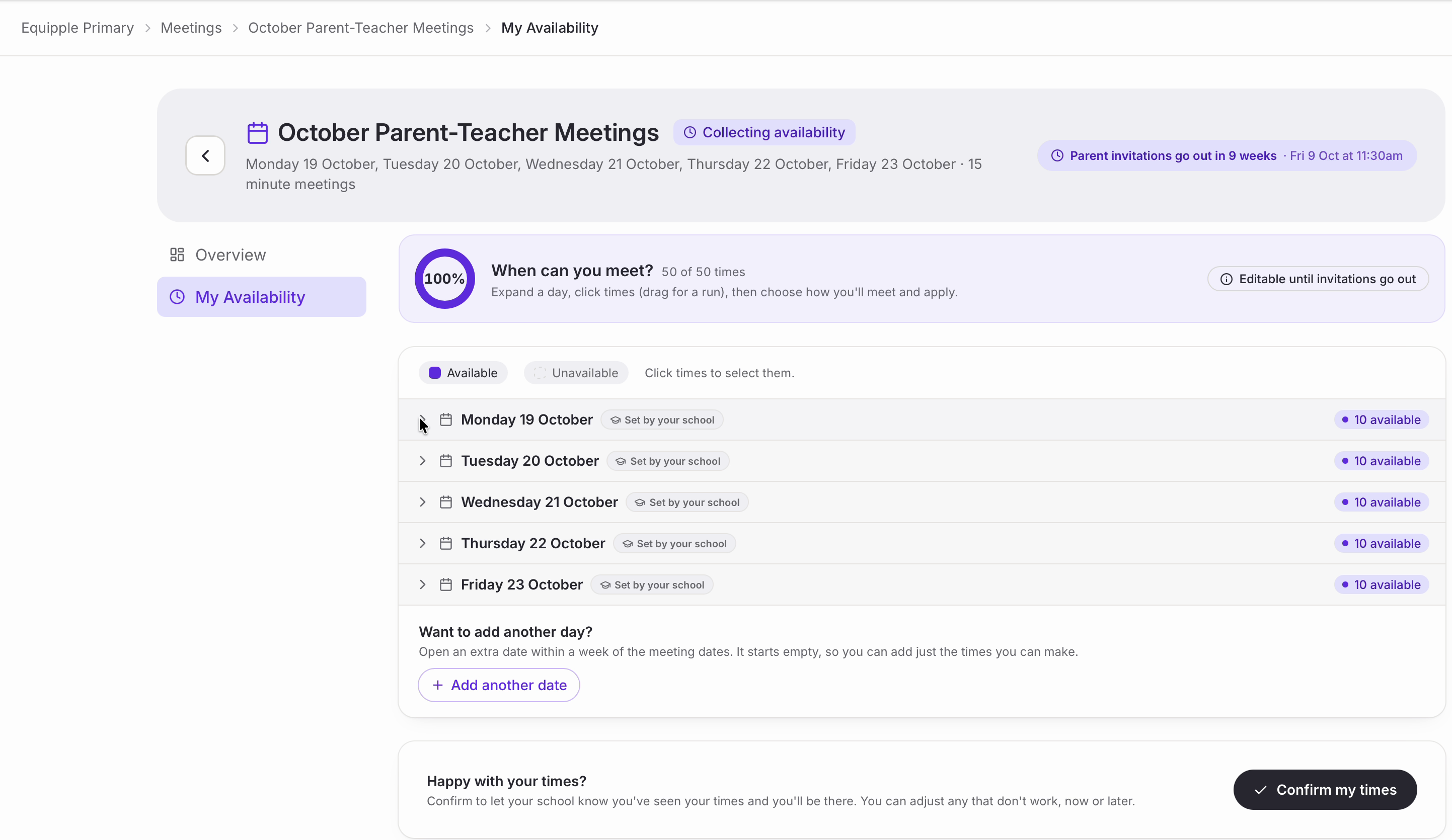
Step 3 – Edit your Times/Formats
• Click the arrow beside a date to expand it. Your times appear as blocks, and the small icons on each one show which formats it's offered as — video call, phone call, in person.
• ‘Select day’ appears in the top right while the day is open, beside a count of how many times are available.
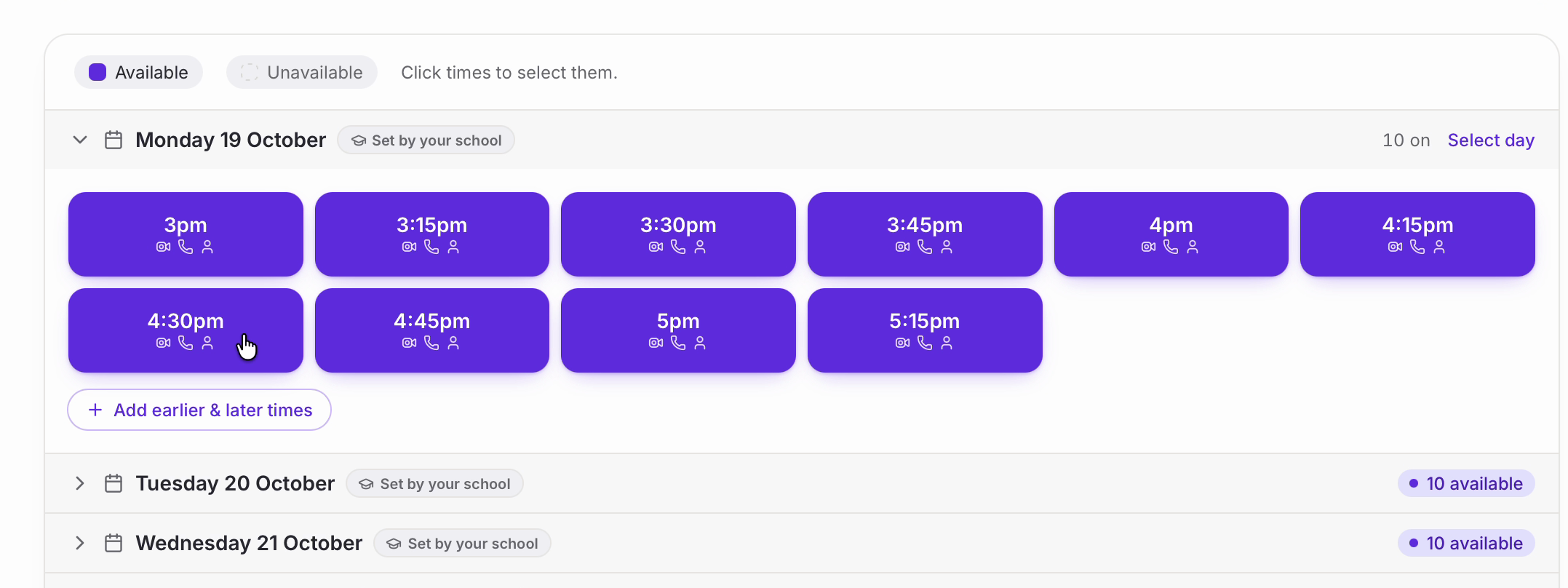
Nb. Every change saves on its own. A ‘Saved’ message appears in the corner each time, so there's nothing to submit when you've finished.
Adding times outside the ones you were given
• If you would like to offer times your school didn't include — an early morning, say — click ‘Add earlier & later times’ at the bottom of that day.
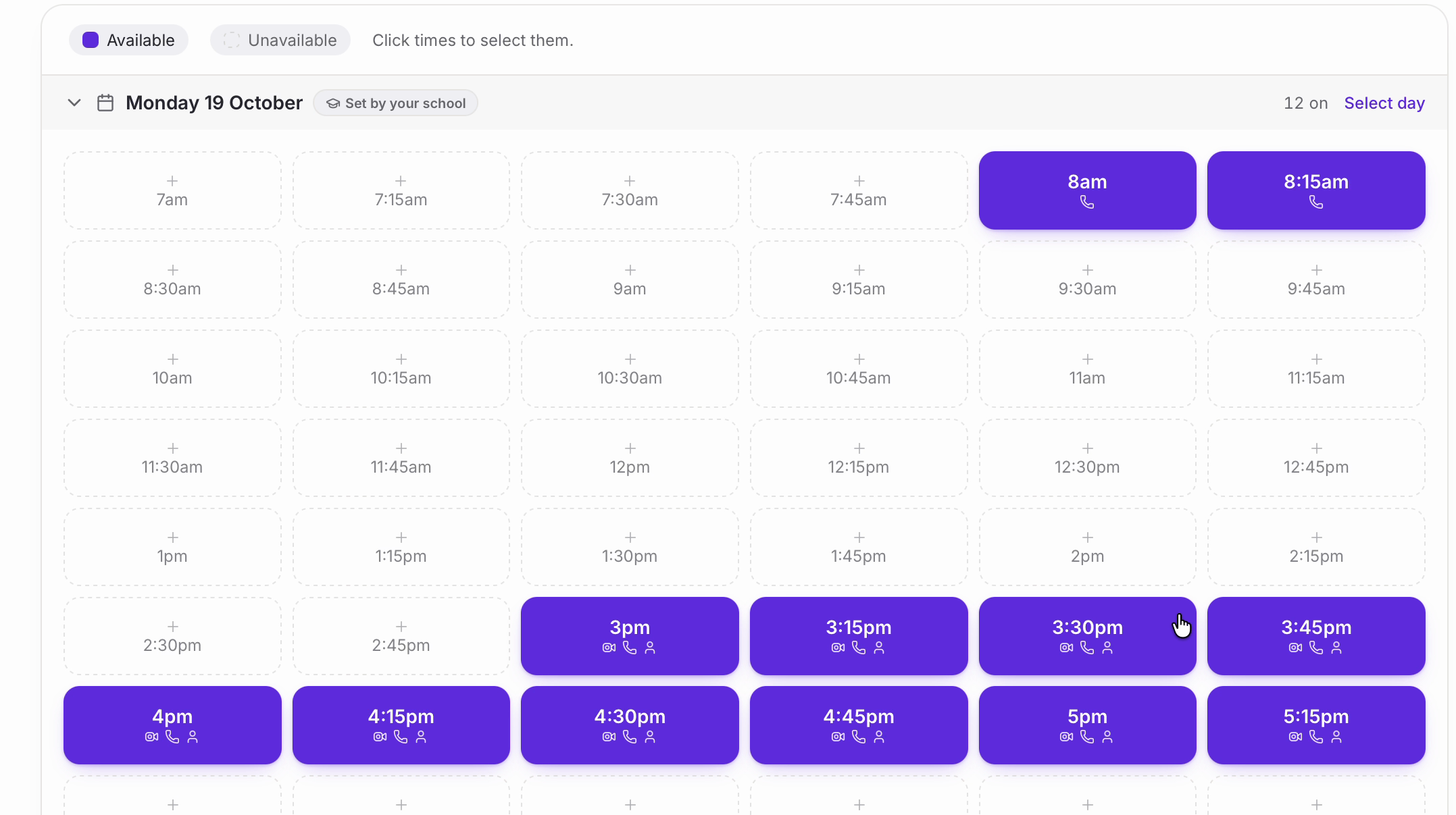
• The day opens out into a fuller grid, running well beyond the times you were given. The dotted blocks are times you're not currently offering; the solid purple ones are.
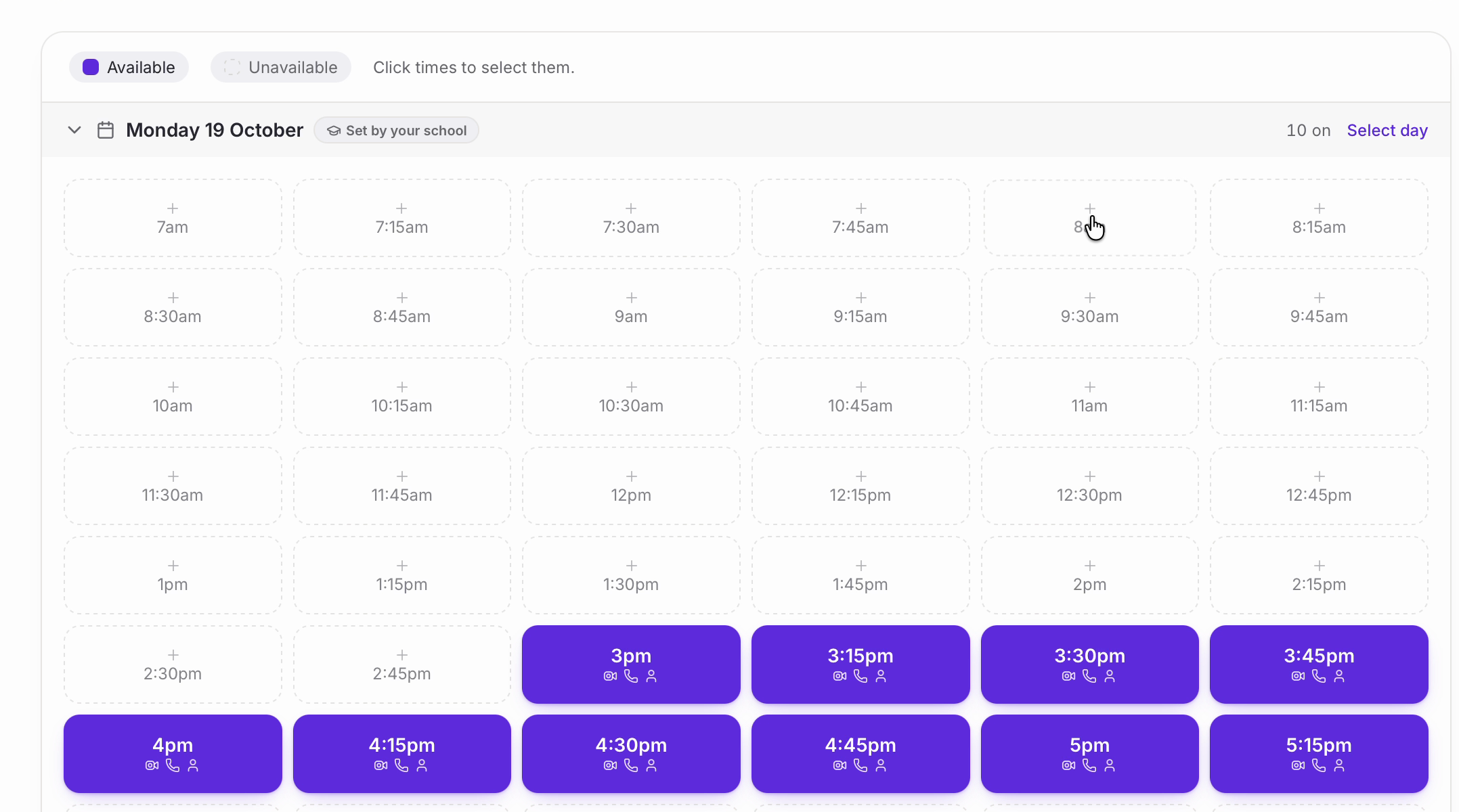
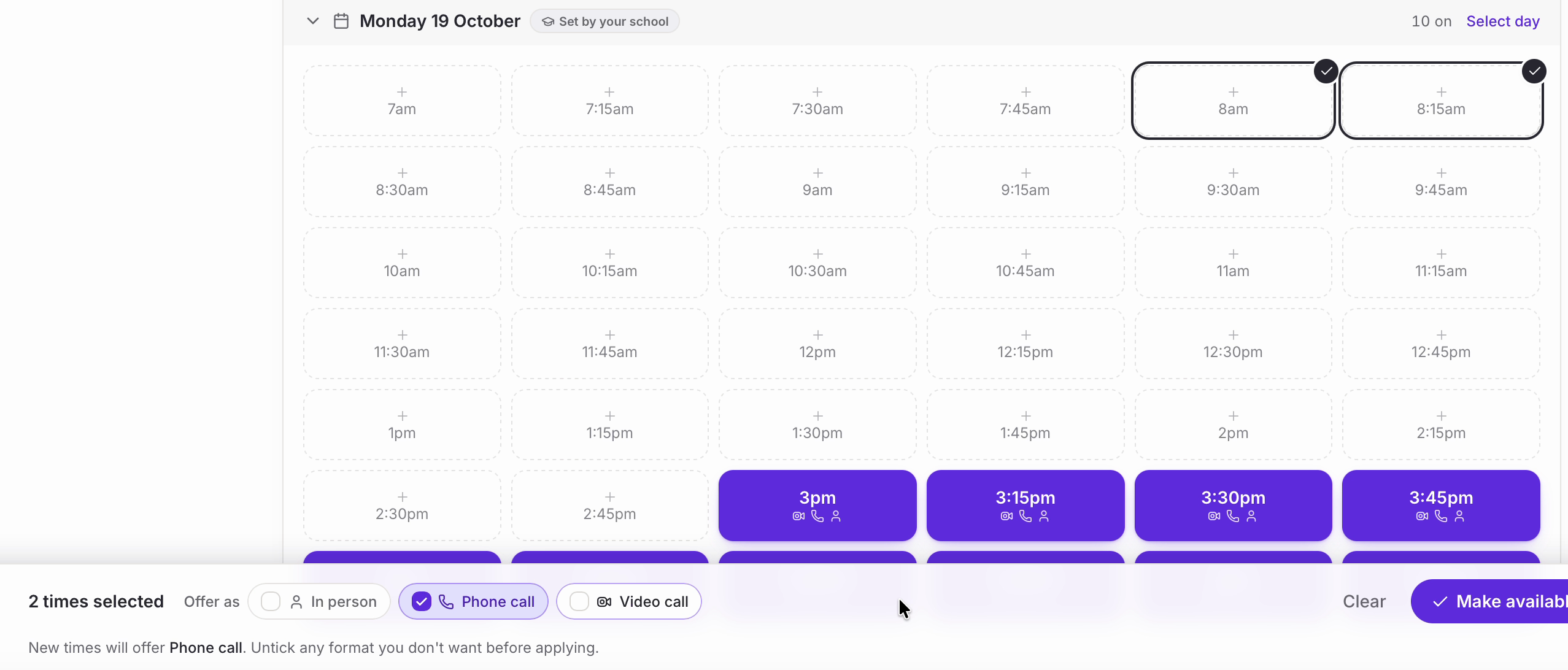
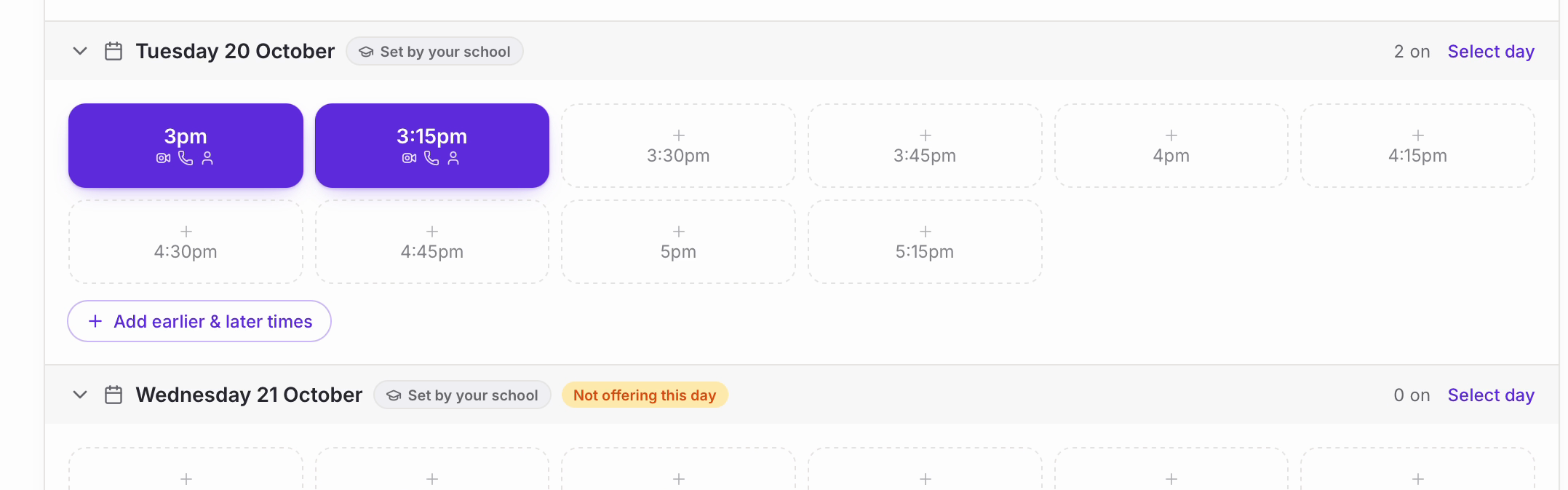
Click the times you want. A tick appears on each one. To take a run in one go, click and drag across them.
• A bar appears along the bottom with ‘Offer as’ and the formats. Untick any format you don't want before you apply — if you only want to take phone calls in the morning, leave just ‘Phone call’ ticked and then click ‘Make available’.
• The new times turn purple. Notice that the two new 8am times carry only a phone icon, while the afternoon run carries all three — that's how you tell at a glance what each time is offered as.
Changing how you'll meet
• To change the formats on times you're already offering, select them the same way — click, or drag across a run.
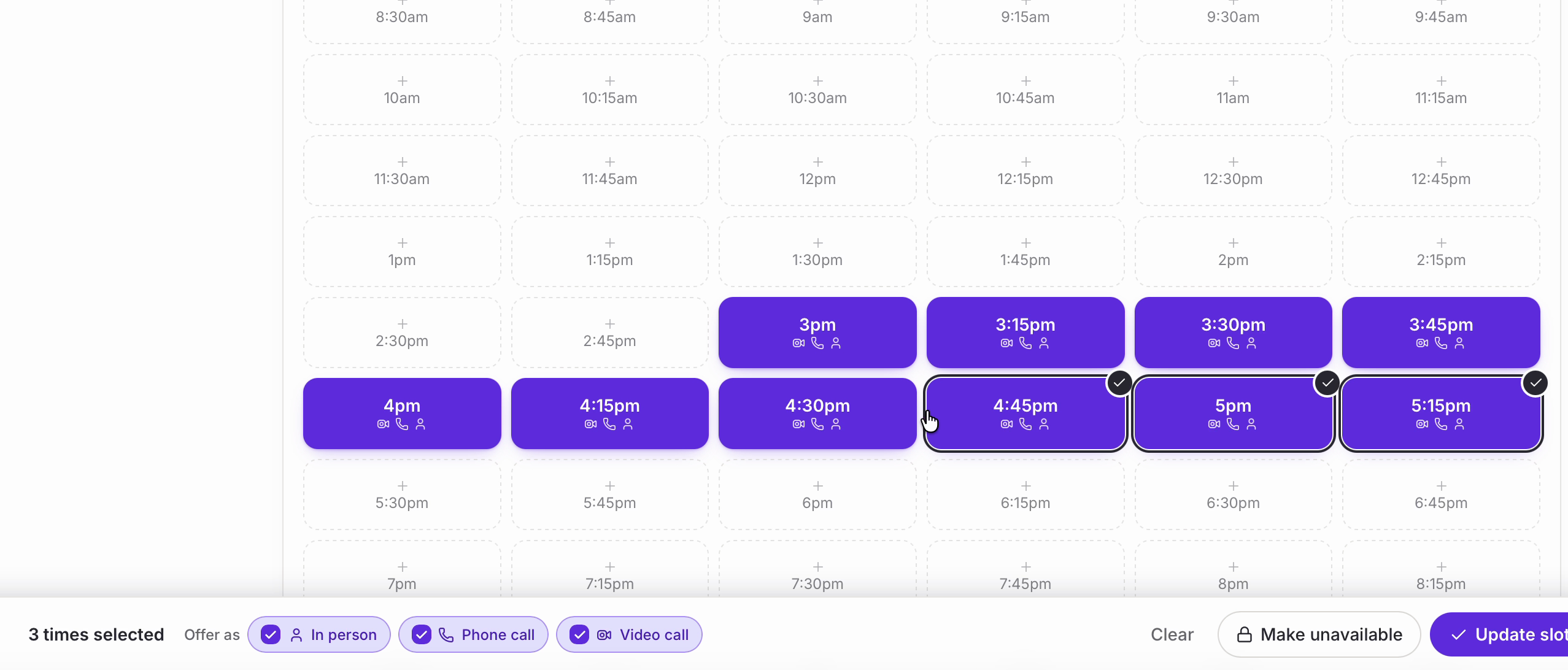
• The bar shows the formats currently set. Tick or untick as you need, then click ‘Update slots’.
Removing Slots
• Select the times that don't work for you — here for example, the teacher is removing availability from 4:30 onwards.
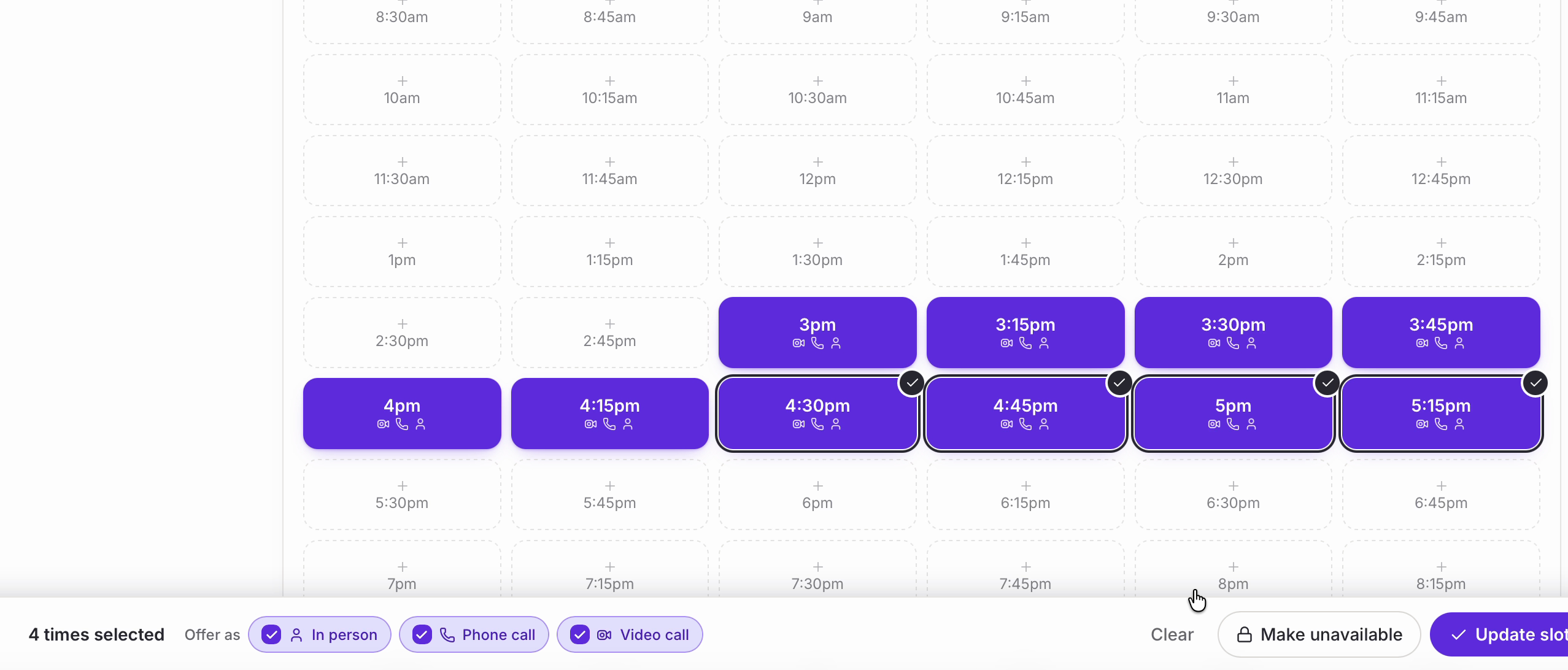
• Click ‘Make unavailable’. They drop back to dotted blocks, and the day's count comes down to match.
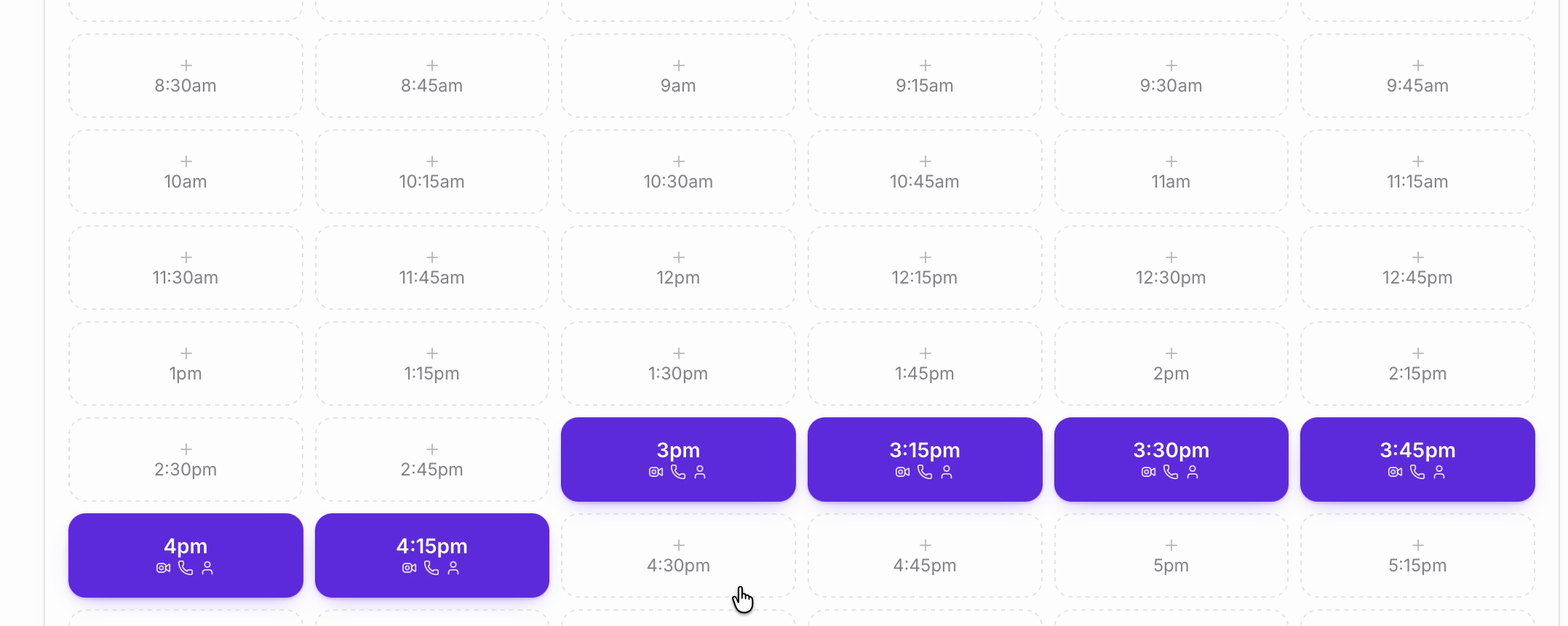
Nb. If you select a single time, ‘Manually assign’ also appears in the bar — that's for booking a particular family into that slot yourself. See Manually Assigning Meeting Slots.
Taking a whole day out
• If you can't make a day at all, open it and click ‘Select day’ in the top right. Every time on that day is selected at once, and the link changes to ‘Deselect day’.
• Click ‘Make unavailable’.
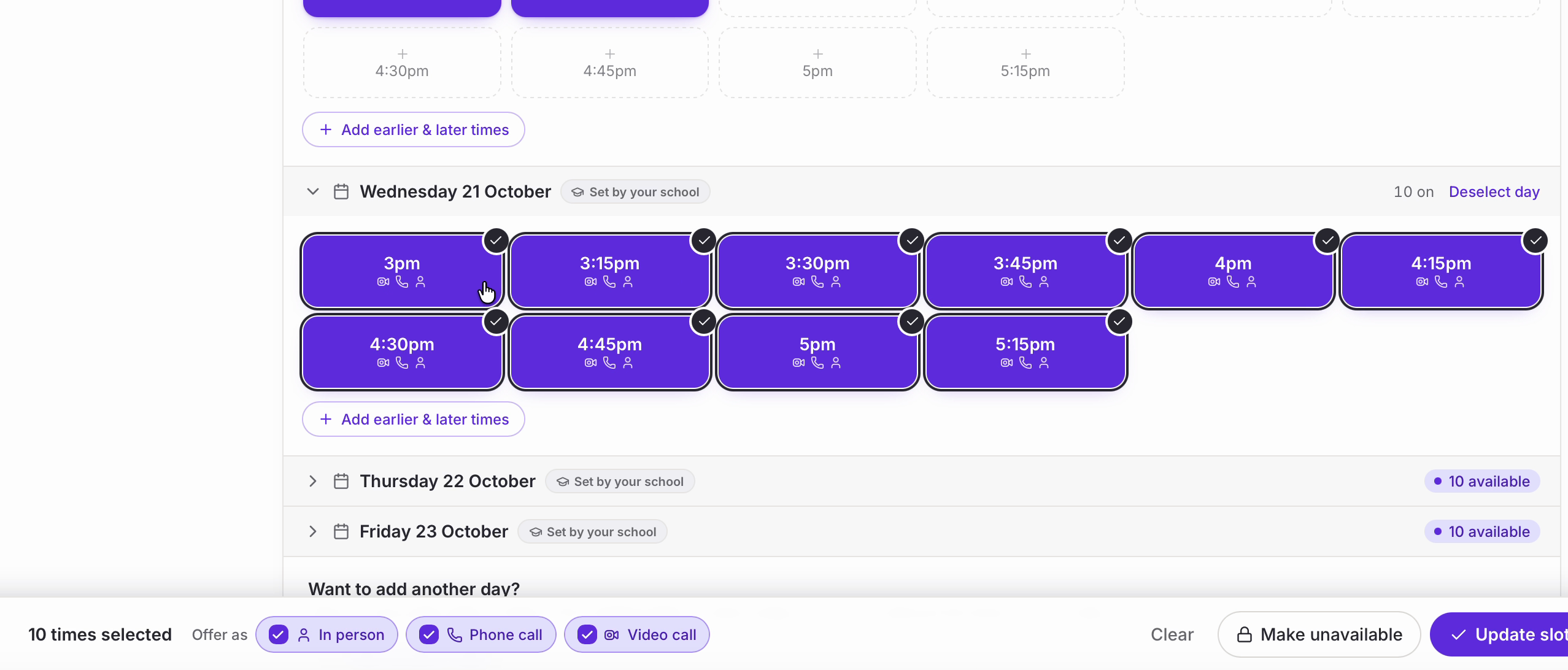
• The day is flagged ‘Not offering this day’ and its count drops to zero, so both you and your admin can see it at a glance.
Offering an extra day
• ‘Want to add another day?’ This sits underneath the list of days. ‘Add another date’ opens an extra date. You can choose a day or days up to one week before or after the times initially set up by your admin. If you need to open up times in addition to this then you will need to create a new schedule.
• Additional days starts empty rather than pre-filled, so you add just the times you can make — the same way as above.

Confirming
• Once your times look right, click ‘Confirm my times’ at the bottom of the page. This tells your school you've seen your times and you'll be there.
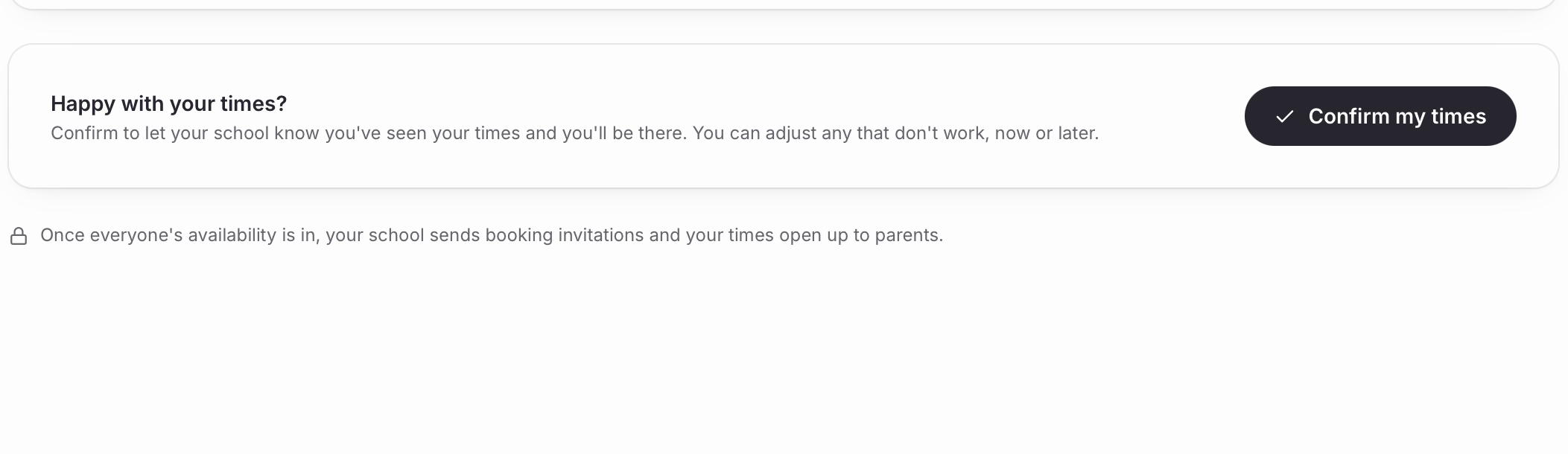
• The panel changes to ‘Times confirmed’ with a green ‘Confirmed’ badge.

Nb. Confirming doesn't lock anything. You can keep changing your times afterwards, and you don't need to confirm again after each change.
Checking it worked
• Go to ‘My Schedule’ for the clearest view of what you've ended up with: every meeting day side by side, each time marked ‘Available’ or ‘Not available’, with the format icons alongside.
• The early phone-only times you added show up here too and will now be available for parents to book you at this time.
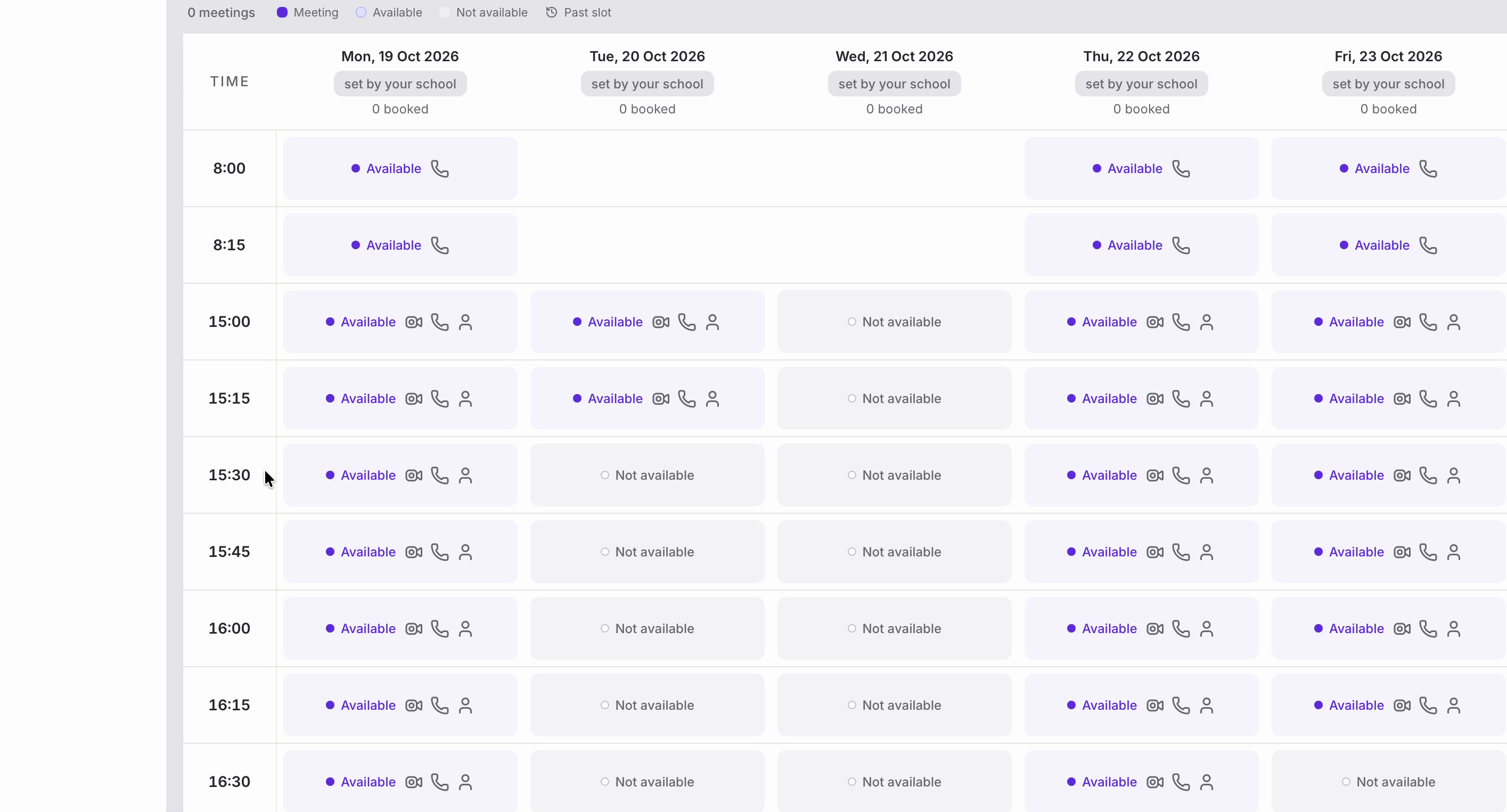
You're all set and now parents can book the times that you have made available to them. We hope this makes your life easy for any upcoming meetings.
Was this article helpful?
That’s Great!
Thank you for your feedback
Sorry! We couldn't be helpful
Thank you for your feedback
Feedback sent
We appreciate your effort and will try to fix the article