f a family hasn’t received their invitation, or has lost it, you can send their booking link again — by email, by text, or both. It takes two clicks and you can do it for any pupil in your class.
Nb. This resends the family’s existing booking link, so it works only while bookings are open. If the schedule hasn’t opened yet, or has already closed, the panel will tell you so instead of offering the buttons.
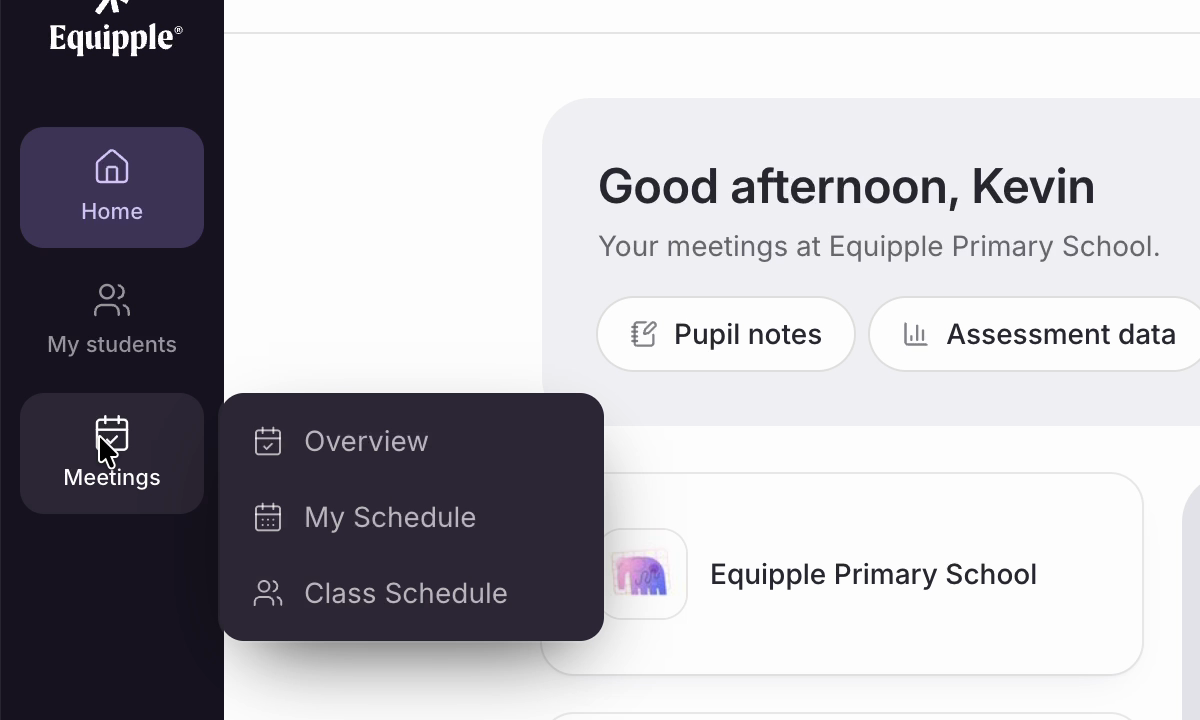
Step 1 – Open ‘Class Schedule’
• Click ‘Meetings’ in the left-hand sidebar and choose ‘Class Schedule
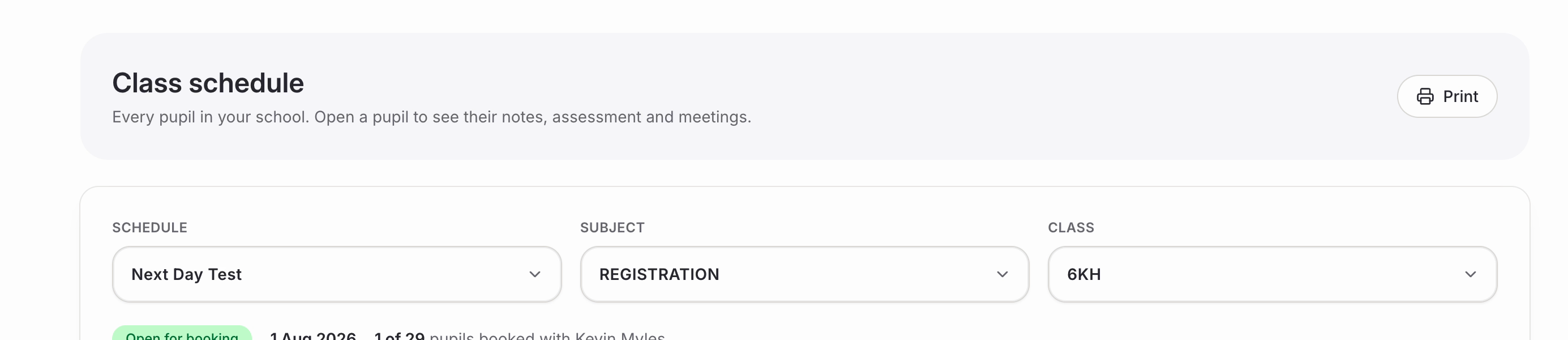
Step 2 – Choose the schedule and class
• Use the ‘Schedule’, ‘Subject’ and ‘Class’ dropdowns to narrow things down to the right set of meetings.
• Check the status underneath reads ‘Open for booking’. Alongside it you will see the dates and how many of your pupils have booked so far.
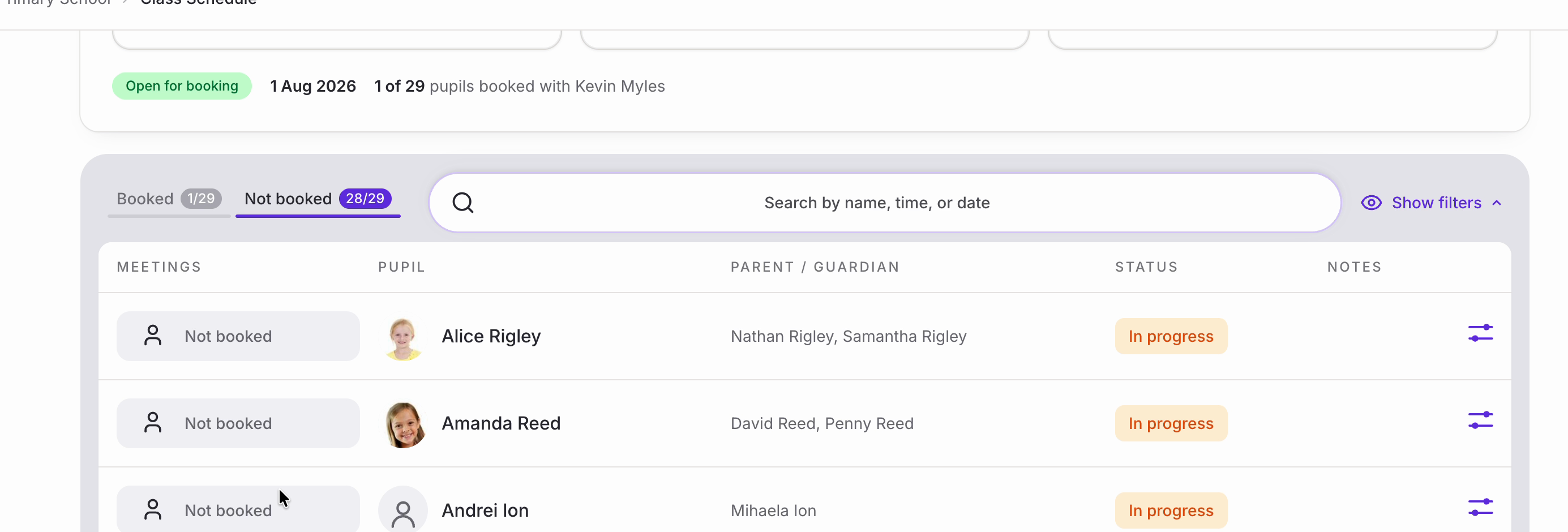
Step 3 – Find the family
• The ‘Not booked’ tab is the quickest place to look, since it lists exactly the families who haven’t booked yet. You can also search by name.
• Click the icon at the end of the pupil’s row to open their details.
Step 4 – Send the link again
• The pupil’s panel opens. Look for ‘Booking link’, which tells you when bookings close and gives you the two ways of sending.
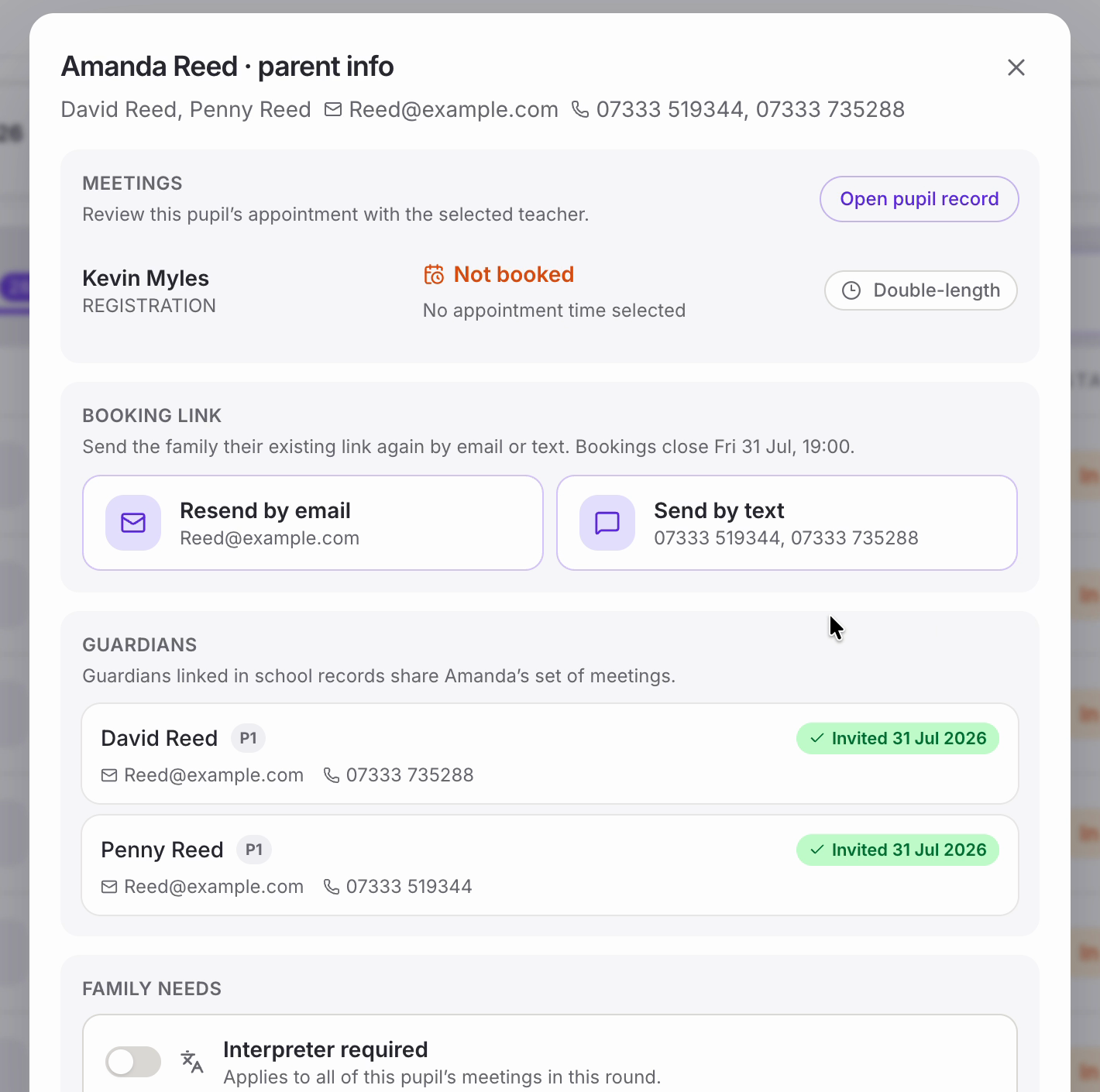
• ‘Resend by email’ and ‘Send by text’ each show the contact details they will use, so you can check them before you click.
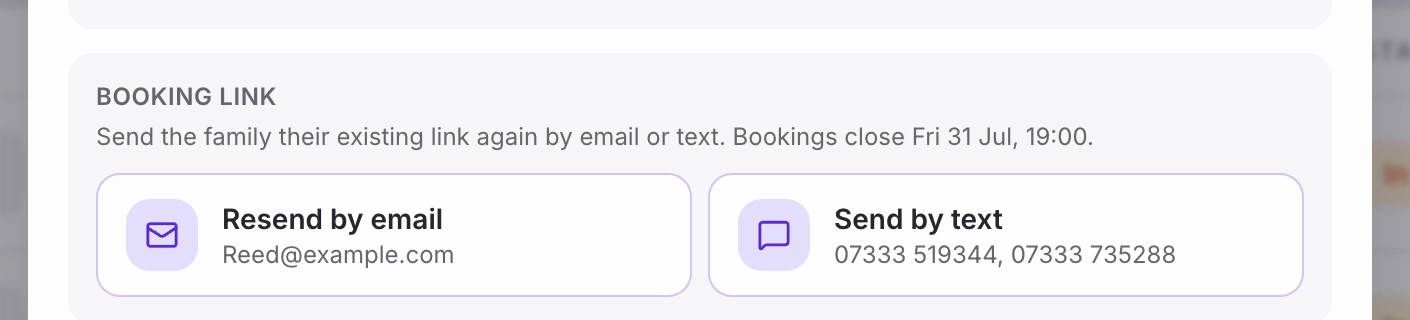
Nb. If an email address or mobile number is missing or wrong, you can’t correct it here — these come from your school’s records. Ask your school admin (usually the office or a member of SLT) to update the details, and they will flow through to Equipple.
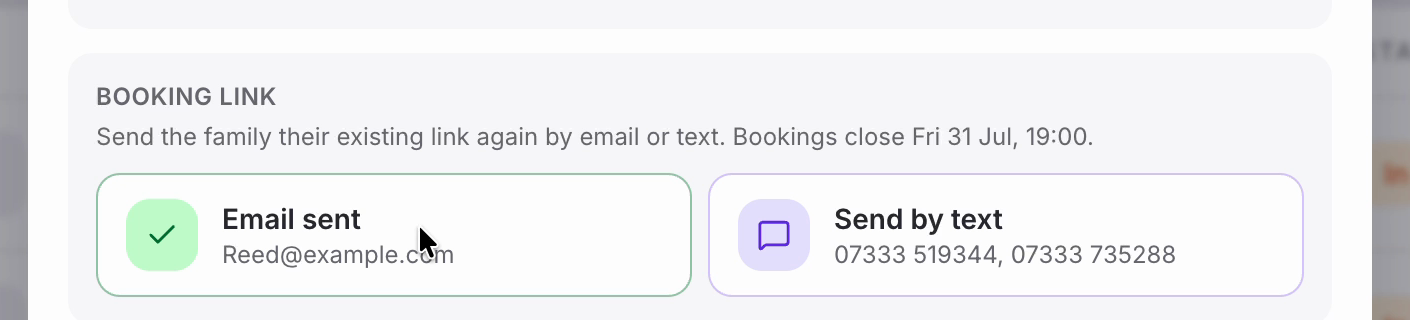
• Click whichever you need. The button turns green to confirm: ‘Email sent’ straight away, and ‘Text queued’ for a text, which sends shortly afterwards.
Checking who has been invited
• ‘Guardians’ further down the same panel lists everyone linked to that pupil in your school’s records, with their email and mobile number and the date they were invited.
• This is worth a glance before you resend — if a second parent is listed as not invited, that may be the real reason the family hasn’t booked.
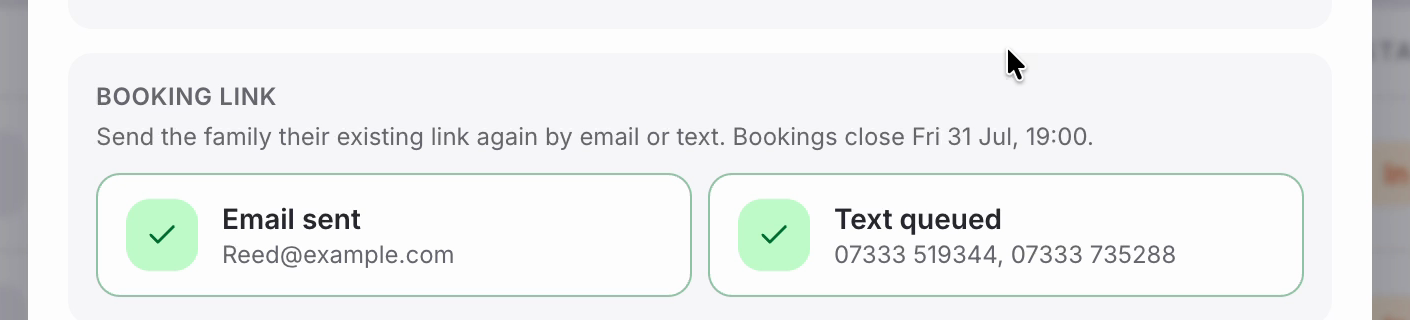
The family can now book a slot with you using the link. Close the panel with the ‘x’ in the corner, and repeat for anyone else who needs a nudge.
Was this article helpful?
That’s Great!
Thank you for your feedback
Sorry! We couldn't be helpful
Thank you for your feedback
Feedback sent
We appreciate your effort and will try to fix the article